> ## Documentation Index
> Fetch the complete documentation index at: https://hc.saas-manager.biz.nuro.jp/llms.txt
> Use this file to discover all available pages before exploring further.
# Getting Started
> A step-by-step guide to setting up AI Helpdesk and getting operational
This page walks you through the entire flow from initial setup to going live with AI Helpdesk.
 ## Prerequisites
Before starting setup, please confirm the following:
* Your AI Helpdesk subscription is active
* You have administrator access to the chat tool you want to connect (Slack / Microsoft Teams / LINE WORKS / Google Chat)
* You have email addresses ready for inviting members
## Setup Flow
Log in to AI Helpdesk, configure your organization details, and create your Organization.
For detailed instructions, see [Creating an Organization](/en/ai-helpdesk/onboarding/organization).
Invite the members who will use AI Helpdesk, such as administrators and operators.
For detailed instructions, see [Inviting Members](/en/ai-helpdesk/onboarding/invite-members).
Connect one of the following: Slack, Microsoft Teams, LINE WORKS, or Google Chat.
See the connection guides below:
* [Slack Integration](/en/ai-helpdesk/integrations/slack)
* [Microsoft Teams Integration](/en/ai-helpdesk/integrations/teams)
* [LINE WORKS Integration](/en/ai-helpdesk/integrations/line-works)
* [Google Chat Integration](/en/ai-helpdesk/integrations/google-chat)
Create Playbooks that the AI will use to answer inquiries.
For detailed instructions, see [Creating Playbooks](/en/ai-helpdesk/playbooks/creating).
Send a test inquiry from your chat tool and confirm the AI responds correctly.
For how to ask questions via chat, see [How to Ask](/en/ai-helpdesk/chat/how-to-ask).
## Next Steps
Once setup is complete, review the following pages to learn about day-to-day operations.
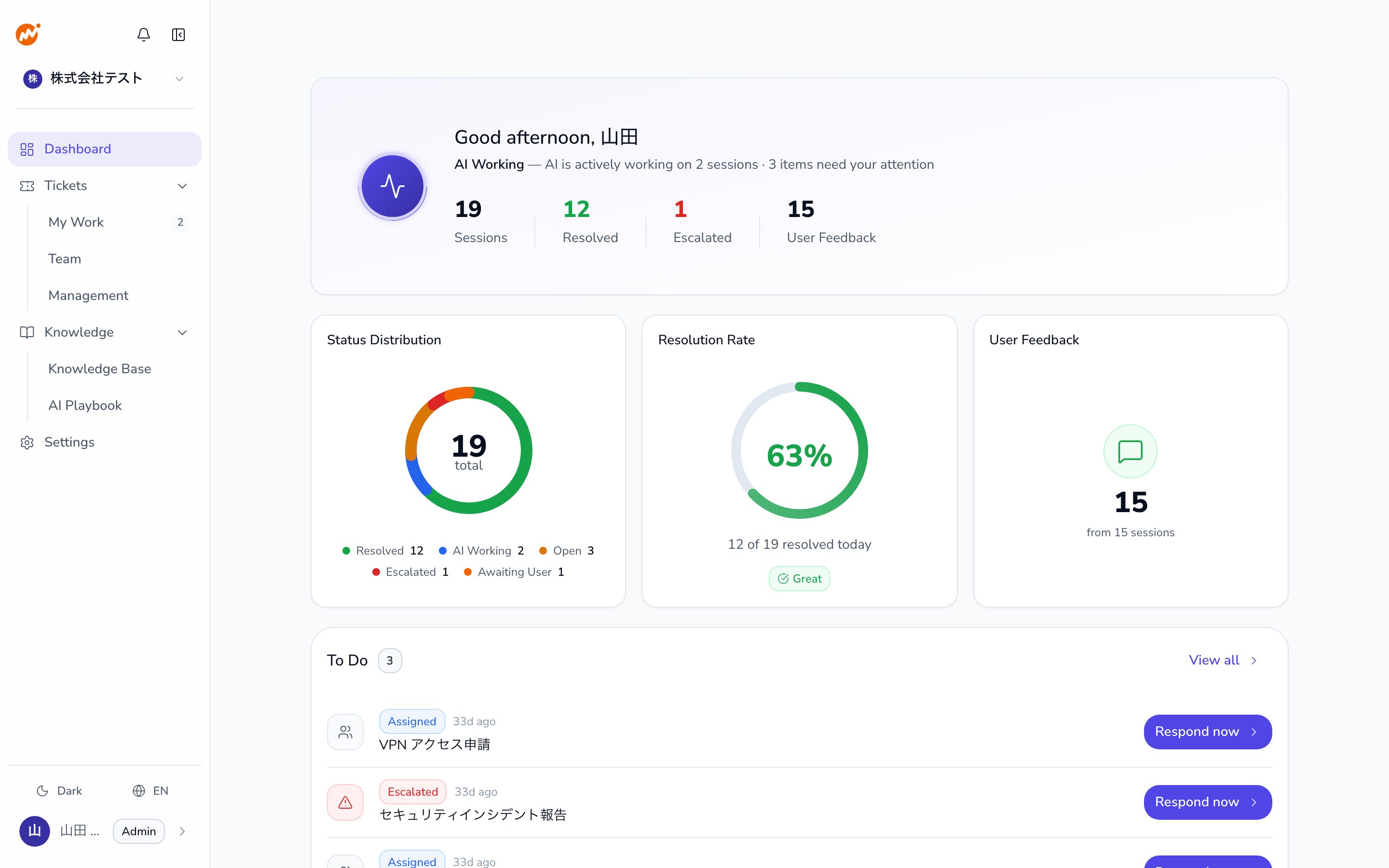
Day-to-day operational tasks including the dashboard and ticket management.
How to add knowledge and improve AI response accuracy.
## Prerequisites
Before starting setup, please confirm the following:
* Your AI Helpdesk subscription is active
* You have administrator access to the chat tool you want to connect (Slack / Microsoft Teams / LINE WORKS / Google Chat)
* You have email addresses ready for inviting members
## Setup Flow
Log in to AI Helpdesk, configure your organization details, and create your Organization.
For detailed instructions, see [Creating an Organization](/en/ai-helpdesk/onboarding/organization).
Invite the members who will use AI Helpdesk, such as administrators and operators.
For detailed instructions, see [Inviting Members](/en/ai-helpdesk/onboarding/invite-members).
Connect one of the following: Slack, Microsoft Teams, LINE WORKS, or Google Chat.
See the connection guides below:
* [Slack Integration](/en/ai-helpdesk/integrations/slack)
* [Microsoft Teams Integration](/en/ai-helpdesk/integrations/teams)
* [LINE WORKS Integration](/en/ai-helpdesk/integrations/line-works)
* [Google Chat Integration](/en/ai-helpdesk/integrations/google-chat)
Create Playbooks that the AI will use to answer inquiries.
For detailed instructions, see [Creating Playbooks](/en/ai-helpdesk/playbooks/creating).
Send a test inquiry from your chat tool and confirm the AI responds correctly.
For how to ask questions via chat, see [How to Ask](/en/ai-helpdesk/chat/how-to-ask).
## Next Steps
Once setup is complete, review the following pages to learn about day-to-day operations.
Day-to-day operational tasks including the dashboard and ticket management.
How to add knowledge and improve AI response accuracy.