> ## Documentation Index
> Fetch the complete documentation index at: https://hc.saas-manager.biz.nuro.jp/llms.txt
> Use this file to discover all available pages before exploring further.
# Handling escalations and reassignment
> How to handle escalated tickets, reassign sessions, and return sessions to the AI agent.
When the AI cannot resolve an inquiry, the session is escalated to a Operator or Admin. This page explains how to handle escalated tickets and how to change assignees.
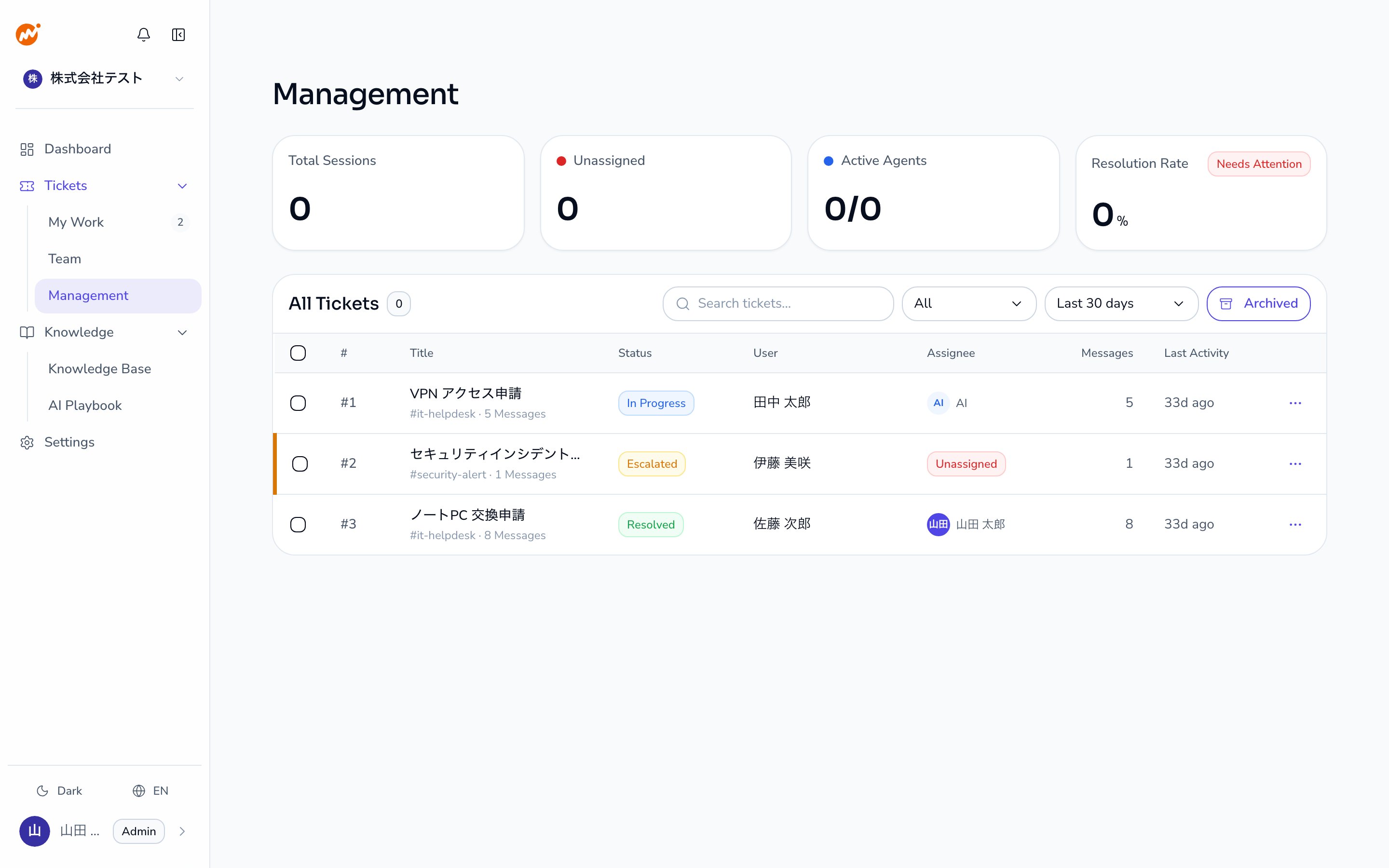 ## Receiving escalation notifications
When a session is escalated to you, you are notified in the following ways:
* The session appears in the **To Do** list on the dashboard with an "Escalated" label
* A **web notification** is sent, or a DM on your connected chat tool. This applies to Slack, Microsoft Teams, LINE WORKS, and Google Chat, based on your notification settings
Sessions in the unassigned queue can be found and claimed from the **Team view**.
## Handling an escalated ticket
Click **Respond now** in the To Do list on the dashboard, or open the ticket from **Tickets > My Work**.
In the ticket detail panel, read through the conversation history between the AI and the requester to understand the context of the escalation.
Reply directly in the original thread, or send a message from the web admin panel.
For Slack-based sessions, use the **Open in Slack** button in the detail panel to open the original thread.
When the issue is resolved, use the "Close Ticket" action to end the session. Confirm in the dialog that appears.
## Claiming an unassigned ticket
Go to **Tickets > Team** view. Sessions without an assignee are listed here.
In the "..." menu for the ticket row, select **Claim**. The session is assigned to you.
## Changing the assignee
### Returning to the unassigned queue
To make a ticket available for anyone to claim, use the "Escalate" action to move it back to the unassigned queue.
1. Select **Escalate** from the "..." menu in the ticket detail panel or row
2. Confirm in the dialog. The session moves to the unassigned queue
### Assigning directly to a specific operator
Use the **Assign to** submenu in the ticket detail panel to assign the session directly to any available operator or admin.
1. Select **Assign to** from the "..." menu in the ticket detail panel
2. Choose the operator or admin from the list of assignable agents
3. Confirm in the dialog. Click **Assign to** to complete the action
You can do the same from the channel: the requester can use `!escalate @username`, or an operator can use `!assign @username`.
### Returning to the AI agent
After handling a session, you can return it to the AI agent by using the **Assign to AI** action.
1. Select **Assign to AI** from the "..." menu in the ticket detail panel
2. Confirm in the dialog
The session returns to the AI agent, and the bot posts a confirmation message in the thread. The AI resumes handling on your next message.
You can also use the `!assign ai` channel command for the same effect.
## Sessions and assignee state
Every session has two independent attributes: state and assignee.
| Assignee | Meaning |
| ----------------- | -------------------------------------------------------------------------- |
| AI | AI is the primary responder. This is the default when a session is created |
| Specific operator | A named operator is responsible |
| Unassigned | No one is assigned yet; any operator can claim it |
Changing the assignee does not change the session state (Open / In Progress / Resolved).
If you close a session while the assignee is an operator or unassigned, it is recorded as non-billable. Closing while AI is the assignee records a paid ticket. This distinction affects billing.
## Receiving escalation notifications
When a session is escalated to you, you are notified in the following ways:
* The session appears in the **To Do** list on the dashboard with an "Escalated" label
* A **web notification** is sent, or a DM on your connected chat tool. This applies to Slack, Microsoft Teams, LINE WORKS, and Google Chat, based on your notification settings
Sessions in the unassigned queue can be found and claimed from the **Team view**.
## Handling an escalated ticket
Click **Respond now** in the To Do list on the dashboard, or open the ticket from **Tickets > My Work**.
In the ticket detail panel, read through the conversation history between the AI and the requester to understand the context of the escalation.
Reply directly in the original thread, or send a message from the web admin panel.
For Slack-based sessions, use the **Open in Slack** button in the detail panel to open the original thread.
When the issue is resolved, use the "Close Ticket" action to end the session. Confirm in the dialog that appears.
## Claiming an unassigned ticket
Go to **Tickets > Team** view. Sessions without an assignee are listed here.
In the "..." menu for the ticket row, select **Claim**. The session is assigned to you.
## Changing the assignee
### Returning to the unassigned queue
To make a ticket available for anyone to claim, use the "Escalate" action to move it back to the unassigned queue.
1. Select **Escalate** from the "..." menu in the ticket detail panel or row
2. Confirm in the dialog. The session moves to the unassigned queue
### Assigning directly to a specific operator
Use the **Assign to** submenu in the ticket detail panel to assign the session directly to any available operator or admin.
1. Select **Assign to** from the "..." menu in the ticket detail panel
2. Choose the operator or admin from the list of assignable agents
3. Confirm in the dialog. Click **Assign to** to complete the action
You can do the same from the channel: the requester can use `!escalate @username`, or an operator can use `!assign @username`.
### Returning to the AI agent
After handling a session, you can return it to the AI agent by using the **Assign to AI** action.
1. Select **Assign to AI** from the "..." menu in the ticket detail panel
2. Confirm in the dialog
The session returns to the AI agent, and the bot posts a confirmation message in the thread. The AI resumes handling on your next message.
You can also use the `!assign ai` channel command for the same effect.
## Sessions and assignee state
Every session has two independent attributes: state and assignee.
| Assignee | Meaning |
| ----------------- | -------------------------------------------------------------------------- |
| AI | AI is the primary responder. This is the default when a session is created |
| Specific operator | A named operator is responsible |
| Unassigned | No one is assigned yet; any operator can claim it |
Changing the assignee does not change the session state (Open / In Progress / Resolved).
If you close a session while the assignee is an operator or unassigned, it is recorded as non-billable. Closing while AI is the assignee records a paid ticket. This distinction affects billing.