> ## Documentation Index
> Fetch the complete documentation index at: https://hc.saas-manager.biz.nuro.jp/llms.txt
> Use this file to discover all available pages before exploring further.
# Session lifecycle
> Session lifecycle from creation to close, how to close sessions manually, and how to use internal notes.
A session manages the lifecycle of one inquiry — from creation to resolution. Sessions can be acted on by multiple parties throughout their lifetime.
## Session lifecycle
```
Created (Open)
└→ AI handling (AI assigned)
└→ Resolved (AI auto-closes)
└→ Escalated (assignee changed to operator / Unassigned)
└→ Operator handling
└→ Closed
└→ Reassigned to another operator
└→ Returned to AI (assignee changed to AI)
```
A session has three states: **Open**, **In Progress**, and **Resolved**. A resolved session cannot be reopened.
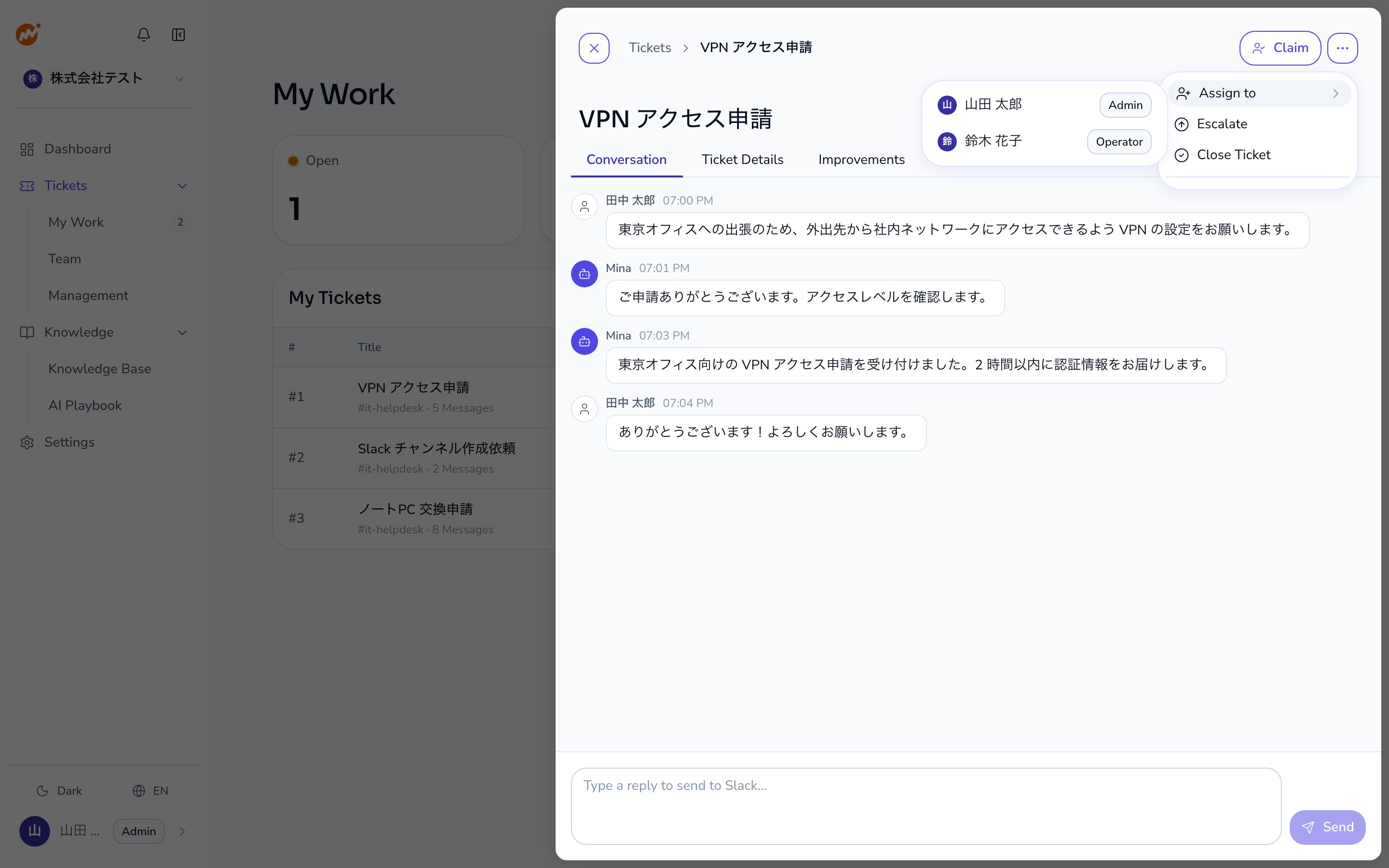
To assign an operator to a session, use the **Assign to** submenu in the "..." menu on the ticket detail panel.
 ## Close triggers
| Trigger | Description |
| ------------------------------- | ----------------------------------------------------------------------------------- |
| AI determines issue is resolved | AI posts a closing summary in the thread and closes the session |
| Requester confirms resolution | Requester says something like "that solved it"; AI interprets the intent and closes |
| `!close` command | Requester sends `!close` in the channel thread |
| Web UI close action | Operator or Admin closes via the web admin panel |
| Inactivity timeout | Session auto-closes after a configured idle period (e.g., 24 hours) |
## Closing a session manually
### From the web admin panel
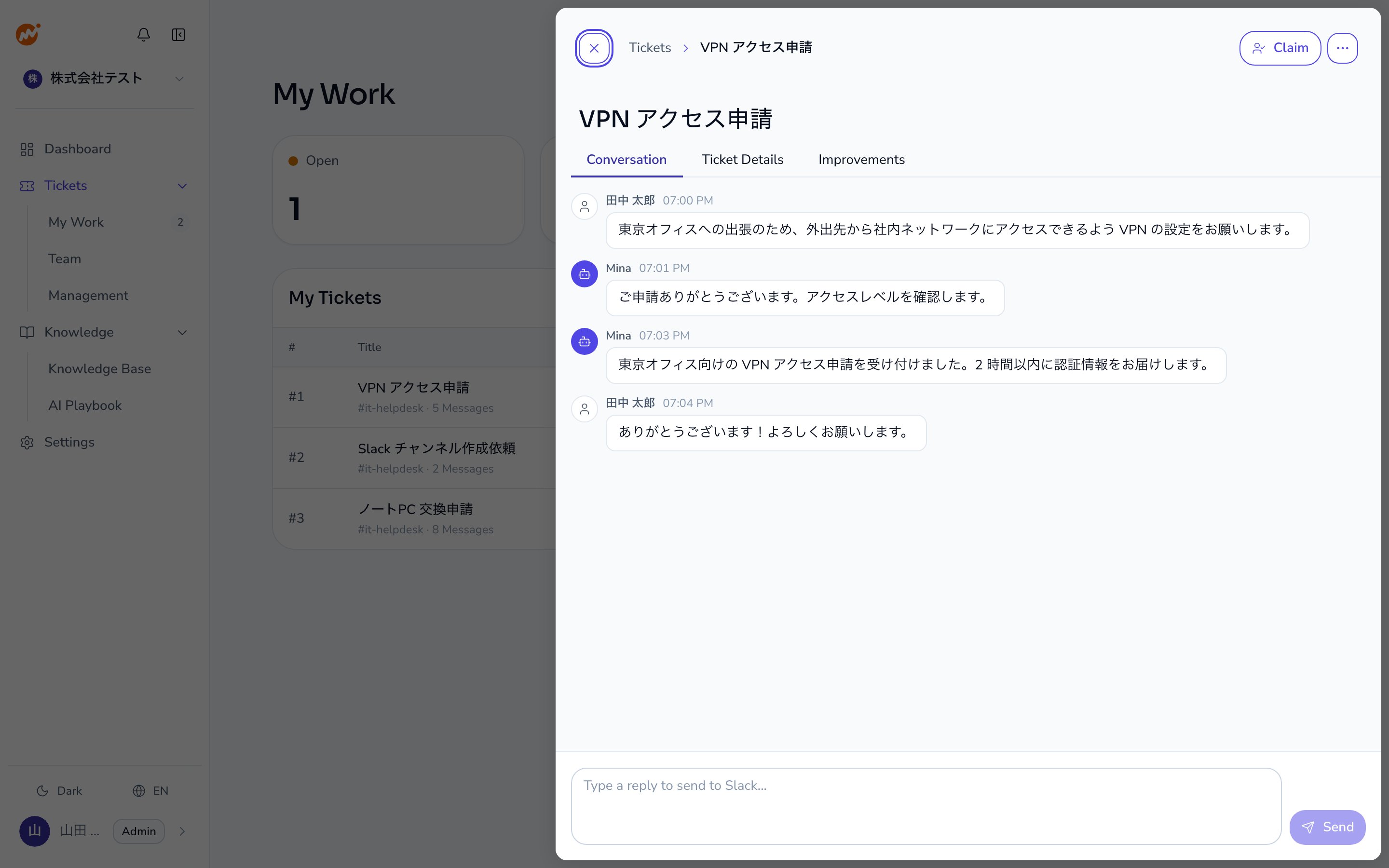
Select the session from the **Tickets** screen and open the detail panel.
Choose **Close Ticket** from the "..." menu in the detail panel or ticket row.
A confirmation dialog appears. Review the details and click **Confirm**.
## Close triggers
| Trigger | Description |
| ------------------------------- | ----------------------------------------------------------------------------------- |
| AI determines issue is resolved | AI posts a closing summary in the thread and closes the session |
| Requester confirms resolution | Requester says something like "that solved it"; AI interprets the intent and closes |
| `!close` command | Requester sends `!close` in the channel thread |
| Web UI close action | Operator or Admin closes via the web admin panel |
| Inactivity timeout | Session auto-closes after a configured idle period (e.g., 24 hours) |
## Closing a session manually
### From the web admin panel
Select the session from the **Tickets** screen and open the detail panel.
Choose **Close Ticket** from the "..." menu in the detail panel or ticket row.
A confirmation dialog appears. Review the details and click **Confirm**.
 ### From the channel (requester)
The requester can close the session by sending the `!close` command in the thread.
```
!close
```
## Inactivity timeout
Sessions with no messages for a configured period are closed automatically.
1. When the reminder duration elapses (e.g., 20 hours), a warning message is posted in the thread
2. When the auto-close duration elapses (e.g., 24 hours total), the session is closed automatically
3. If a message is received after the warning, the timer resets
The timeout durations are configured by the Admin in **Settings**.
### Requesting an extension
To extend the deadline before auto-close, send a message in the thread saying something like "I need more time." The AI interprets the request and extends the deadline.
Operators can also set an extension duration directly from the web admin panel.
## Behavior after closing
After a session is closed:
* Auto-reply in the closed thread:
"This session has been closed. Please start a new thread for additional questions."
* A new session cannot be started from the same closed thread.
## Internal notes
Operators and admins can add internal notes to any session that are not visible to requesters. Use notes for team communication and work history.
### Note characteristics
* Only Operators and Admins can add and view notes
* Notes are not visible to requesters or in any channel
* Each note records the author name and timestamp
* Notes are color-coded by author for easy scanning
* Notes cannot be edited. Only the author can delete their own note
### Note deletion behavior
When a note is deleted, the content is removed but a record remains:
> "Note deleted"
This preserves the audit trail that a note existed, without exposing the original content.
The AI agent does not read internal notes. If you want to pass instructions to the AI after returning the session, include them in the thread or when using the `!assign ai` command — not in a note.
## Billing classification
The assignee at the time the session is closed determines billing.
| Assignee at close | Classification |
| --------------------- | --------------------------------------------- |
| AI | Paid ticket (AI resolved the inquiry) |
| Operator / Unassigned | Non-billable (human involvement was required) |
If a session was closed with the wrong assignee, contact Admina support.
### From the channel (requester)
The requester can close the session by sending the `!close` command in the thread.
```
!close
```
## Inactivity timeout
Sessions with no messages for a configured period are closed automatically.
1. When the reminder duration elapses (e.g., 20 hours), a warning message is posted in the thread
2. When the auto-close duration elapses (e.g., 24 hours total), the session is closed automatically
3. If a message is received after the warning, the timer resets
The timeout durations are configured by the Admin in **Settings**.
### Requesting an extension
To extend the deadline before auto-close, send a message in the thread saying something like "I need more time." The AI interprets the request and extends the deadline.
Operators can also set an extension duration directly from the web admin panel.
## Behavior after closing
After a session is closed:
* Auto-reply in the closed thread:
"This session has been closed. Please start a new thread for additional questions."
* A new session cannot be started from the same closed thread.
## Internal notes
Operators and admins can add internal notes to any session that are not visible to requesters. Use notes for team communication and work history.
### Note characteristics
* Only Operators and Admins can add and view notes
* Notes are not visible to requesters or in any channel
* Each note records the author name and timestamp
* Notes are color-coded by author for easy scanning
* Notes cannot be edited. Only the author can delete their own note
### Note deletion behavior
When a note is deleted, the content is removed but a record remains:
> "Note deleted"
This preserves the audit trail that a note existed, without exposing the original content.
The AI agent does not read internal notes. If you want to pass instructions to the AI after returning the session, include them in the thread or when using the `!assign ai` command — not in a note.
## Billing classification
The assignee at the time the session is closed determines billing.
| Assignee at close | Classification |
| --------------------- | --------------------------------------------- |
| AI | Paid ticket (AI resolved the inquiry) |
| Operator / Unassigned | Non-billable (human involvement was required) |
If a session was closed with the wrong assignee, contact Admina support.