> ## Documentation Index
> Fetch the complete documentation index at: https://hc.saas-manager.biz.nuro.jp/llms.txt
> Use this file to discover all available pages before exploring further.
# Keeper Enterprise
> Instructions for integrating with Keeper Enterprise.
## Supported Features
Account Deletion Account Deactivation Account Creation
## Prerequisites
### Issuing an API Key
**Step 1. Create a Node**
1. API keys cannot be created at the top node.
2. You need to move the accounts you want to integrate to a child node in advance. Click **Admin > \[Add Node]**.
 2. Enter a name for the node and click \[Add Node].
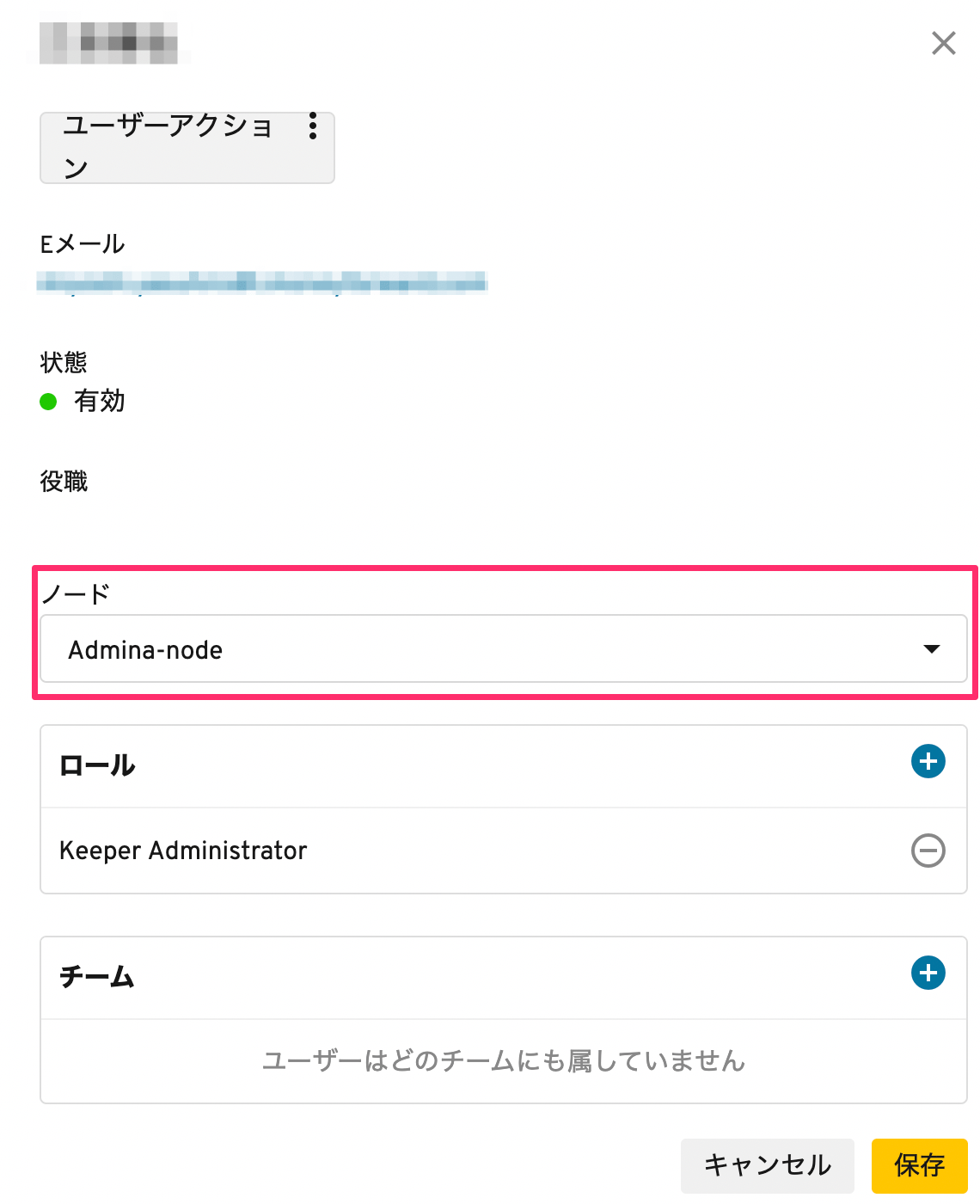
3. Edit the users and move them to the node you added.
2. Enter a name for the node and click \[Add Node].
3. Edit the users and move them to the node you added.
 **Step 2. Issue an API Key**
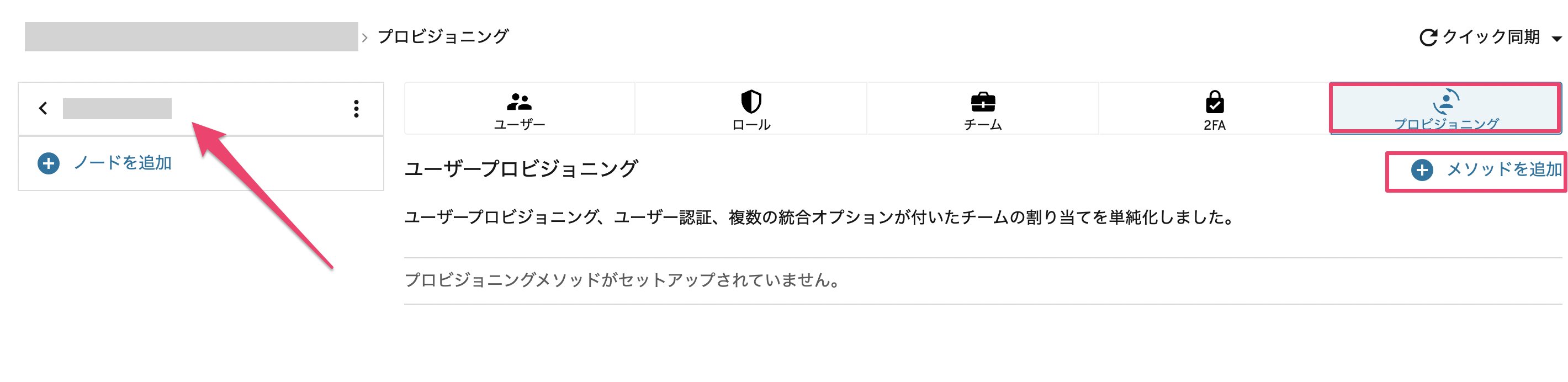
4. Select the node you added, then click **Provisioning > \[+ Add Method]**.
**Step 2. Issue an API Key**
4. Select the node you added, then click **Provisioning > \[+ Add Method]**.
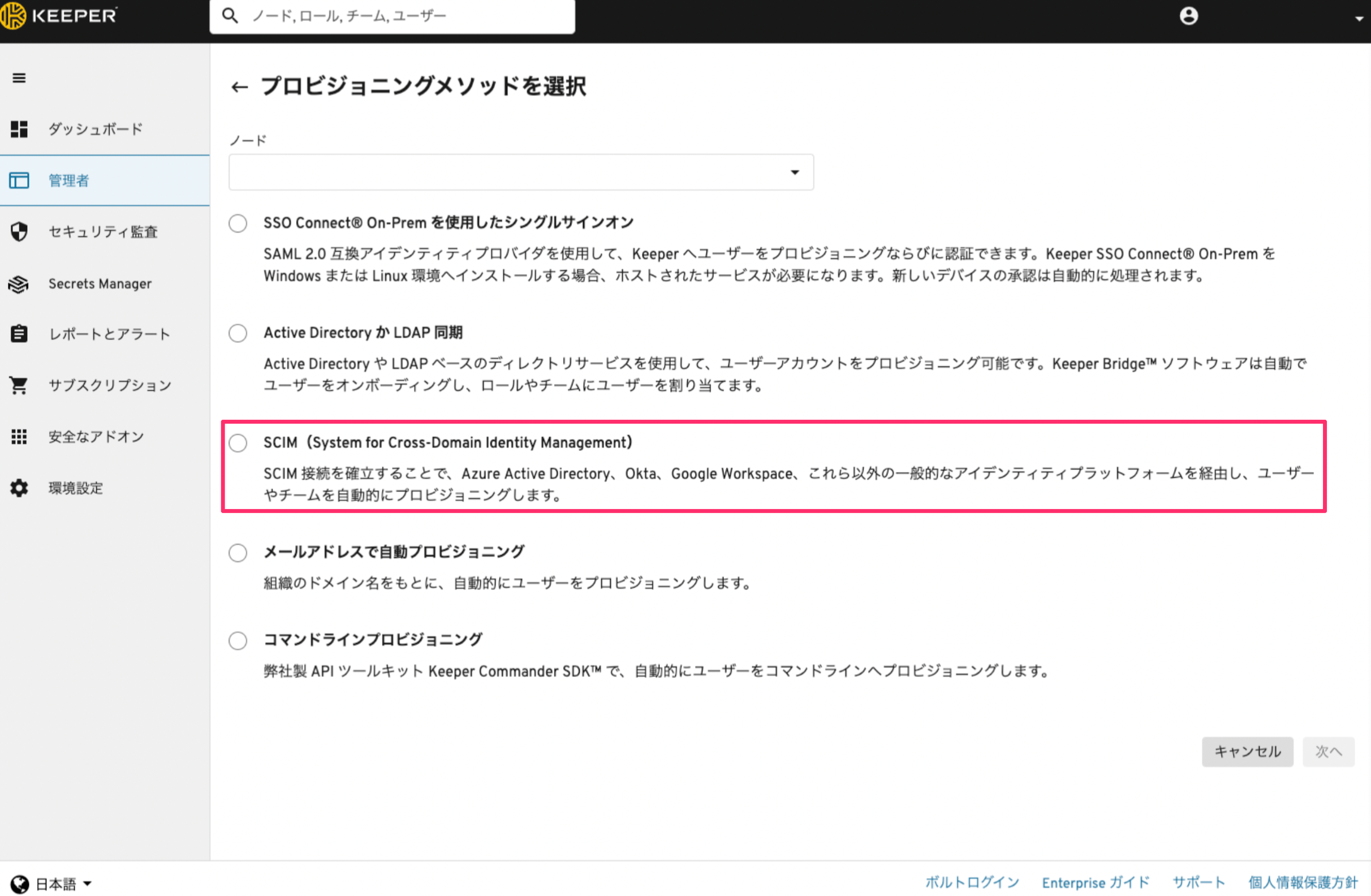
 5. Select **SCIM (System for Cross-Domain Identity Management)** as the provisioning method, then click Next.
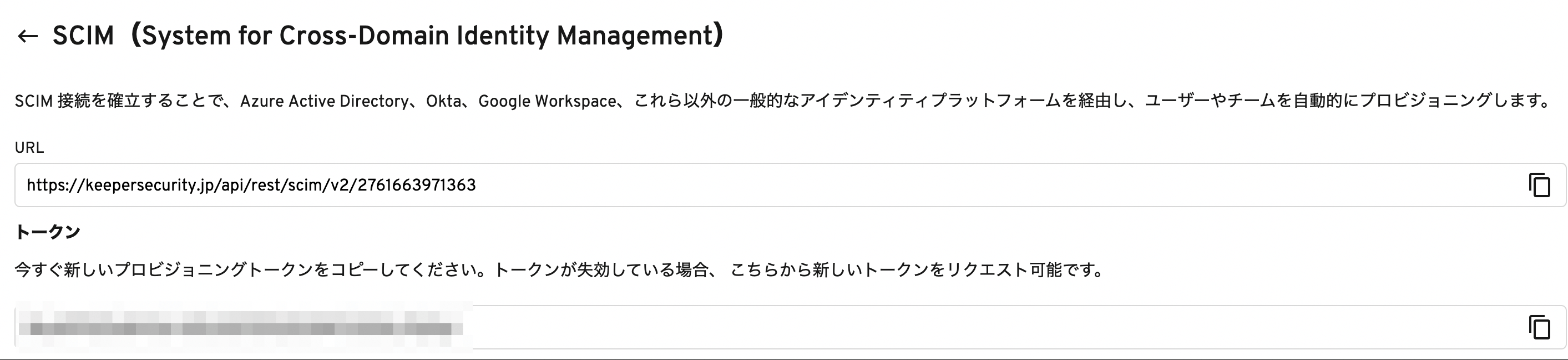
 6. Click the Generate button to issue a token. Copy and save the URL and token.

 ## Integration Setup
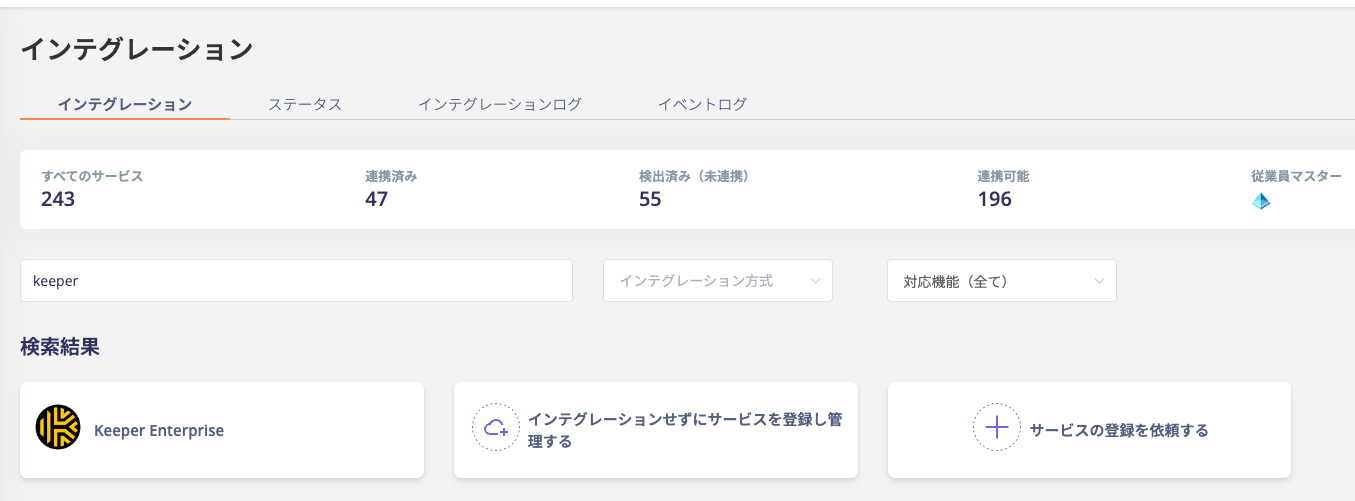
1. In the MoneyForward Admina integration screen, search for **Keeper Enterprise**.
## Integration Setup
1. In the MoneyForward Admina integration screen, search for **Keeper Enterprise**.
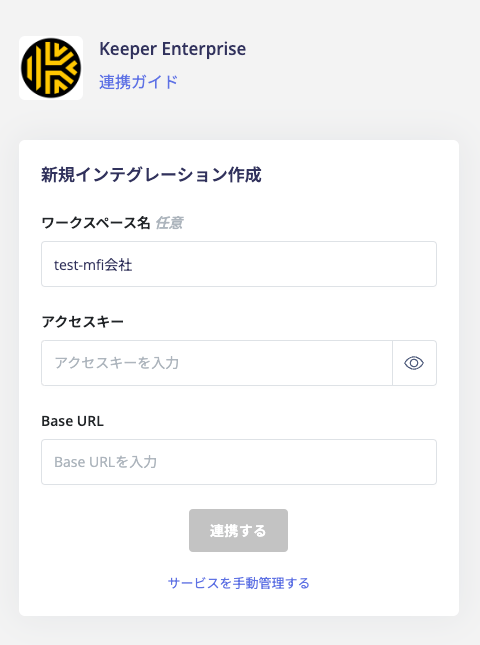
 2. Enter the **URL** obtained in the previous steps into `Base URL` and the **token** into `Access Key`, then click Connect.
 3. Once the integration with Keeper Enterprise is successful.
4. The registered user information will appear in the account list.\
If the process does not complete successfully.
Go to the Status tab on the integration screen, click **Edit**, and try again.
If the issue persists, please provide details and contact us via chat.
For an overview of the Keeper Enterprise integration, see the [integration page](https://admina.moneyforward.com/en/integrations/keeper-enterprise).
### Note: Account Deactivation in Keeper
You can deactivate (Disable) Keeper Enterprise accounts from Admina. Note that if an account is deactivated while in an invited state, it will be **deleted**. If deactivation is performed on an Active account, the account will be locked.
When deleting a Keeper Enterprise account from Admina, due to Keeper's specifications, the account will not be deleted but will be locked to prevent data loss. For details, see [API Provisioning with SCIM](https://docs.keeper.io/en/enterprise-guide/user-and-team-provisioning/automated-provisioning-with-scim).
3. Once the integration with Keeper Enterprise is successful.
4. The registered user information will appear in the account list.\
If the process does not complete successfully.
Go to the Status tab on the integration screen, click **Edit**, and try again.
If the issue persists, please provide details and contact us via chat.
For an overview of the Keeper Enterprise integration, see the [integration page](https://admina.moneyforward.com/en/integrations/keeper-enterprise).
### Note: Account Deactivation in Keeper
You can deactivate (Disable) Keeper Enterprise accounts from Admina. Note that if an account is deactivated while in an invited state, it will be **deleted**. If deactivation is performed on an Active account, the account will be locked.
When deleting a Keeper Enterprise account from Admina, due to Keeper's specifications, the account will not be deleted but will be locked to prevent data loss. For details, see [API Provisioning with SCIM](https://docs.keeper.io/en/enterprise-guide/user-and-team-provisioning/automated-provisioning-with-scim).