> ## Documentation Index
> Fetch the complete documentation index at: https://hc.saas-manager.biz.nuro.jp/llms.txt
> Use this file to discover all available pages before exploring further.
# Zoom
> Instructions for integrating with Zoom.
## Supported Features
Account Deletion Account Deactivation Account Creation
## What is the Zoom Integration?
MoneyForward Admina (hereinafter "Admina") is a SaaS management platform provided by MoneyForward i Inc. As SaaS tool usage expands within organizations.
Admina enables IT administrators to discover, optimize, and manage SaaS usage and costs — helping companies make better use of their software assets.
With the Admina and Zoom integration, users can view and manage access and license usage within the Admina dashboard. Admina analyzes access counts, utilization rates, and license consumption to help determine the optimal Zoom plan for your organization.
Admina provides the following features to help ensure corporate governance.
Reduce costs, improve security, and reduce the workload of SaaS management:
* SaaS discovery
* Centralized SaaS management and database
* SaaS and employee lifecycle management
* Integration with 200+ SaaS applications
In Admina, account management is automated.
Zoom OAuth is required to use the API, making it very easy to connect Admina and Zoom.
The Admina app calls the API daily to retrieve account data and role data. The retrieved data is only disclosed to the data owner and company members — it is never shared with third parties.
Uninstalling requires deletion on both the Zoom side and the Admina side. See the instructions below for details.
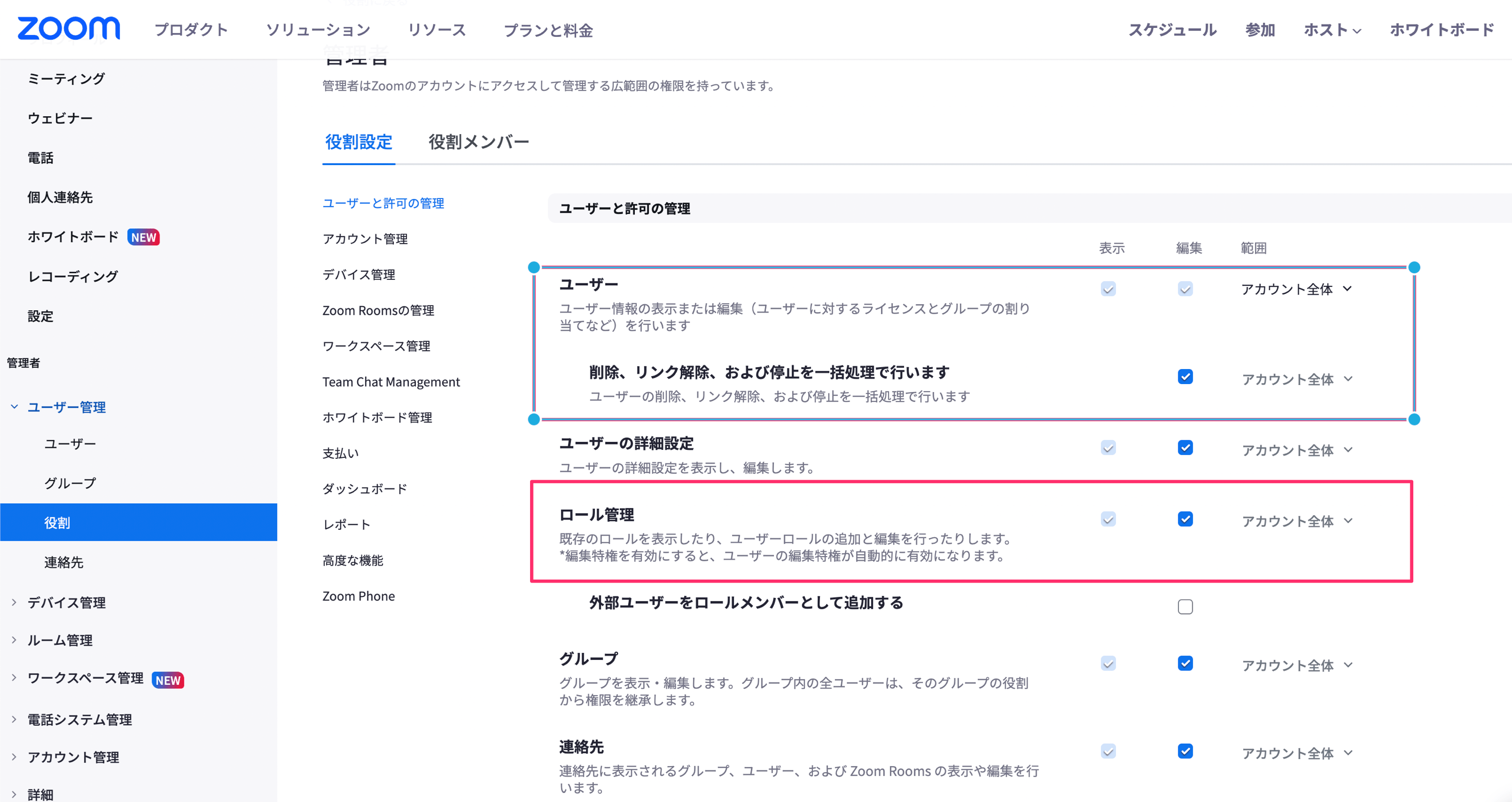
**Owner-level permissions** are required for this integration. If you do not have owner permissions, ask a user with owner permissions to change the connecting user's permissions in the following location:
Admin > Roles > Members > Role Settings > User and Permission Management
* User, role management: Check **View**
* Perform deletion, unlinking, and suspension in bulk: Check **Edit** (required if adding or deleting accounts from Admina)
* Scope: **Entire account**
 ## Integration Setup
On the MoneyForward Admina integrations screen, search for **Zoom**.
## Integration Setup
On the MoneyForward Admina integrations screen, search for **Zoom**.
 Enter any string for the workspace name (e.g., your company name) and click **Connect**.
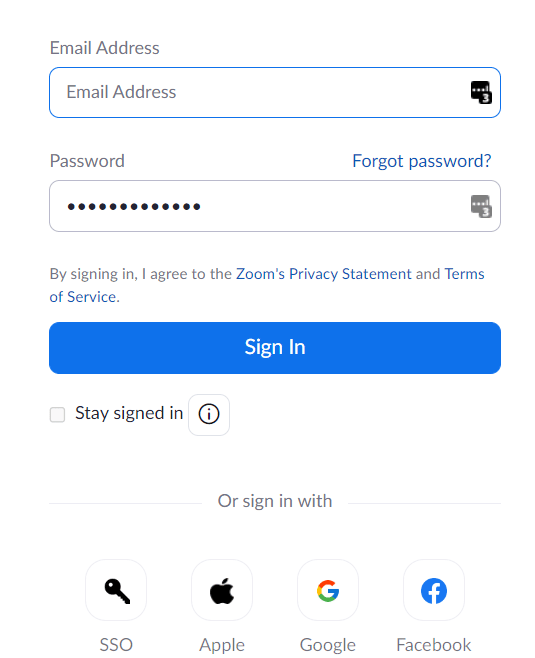
 You will be redirected to the Zoom login screen. Sign in using your preferred login method or Zoom email address and password.
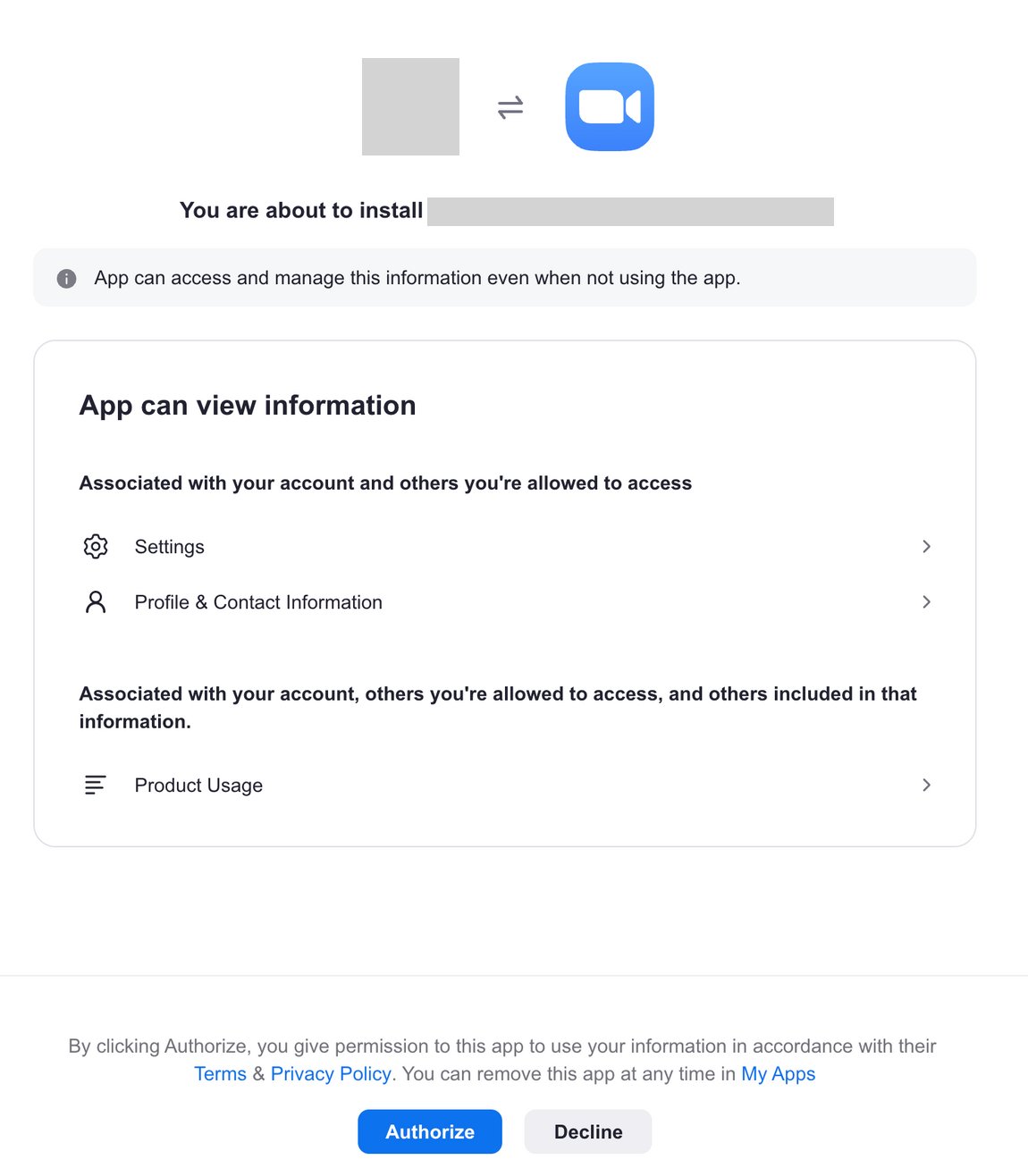
 After logging in, a permission confirmation screen will appear. Review the content and click **Authorise**.
 If you see the following screen instead of the one above, click **Approve for all users**.
 Click **Enable**.
 Click **Allow**.
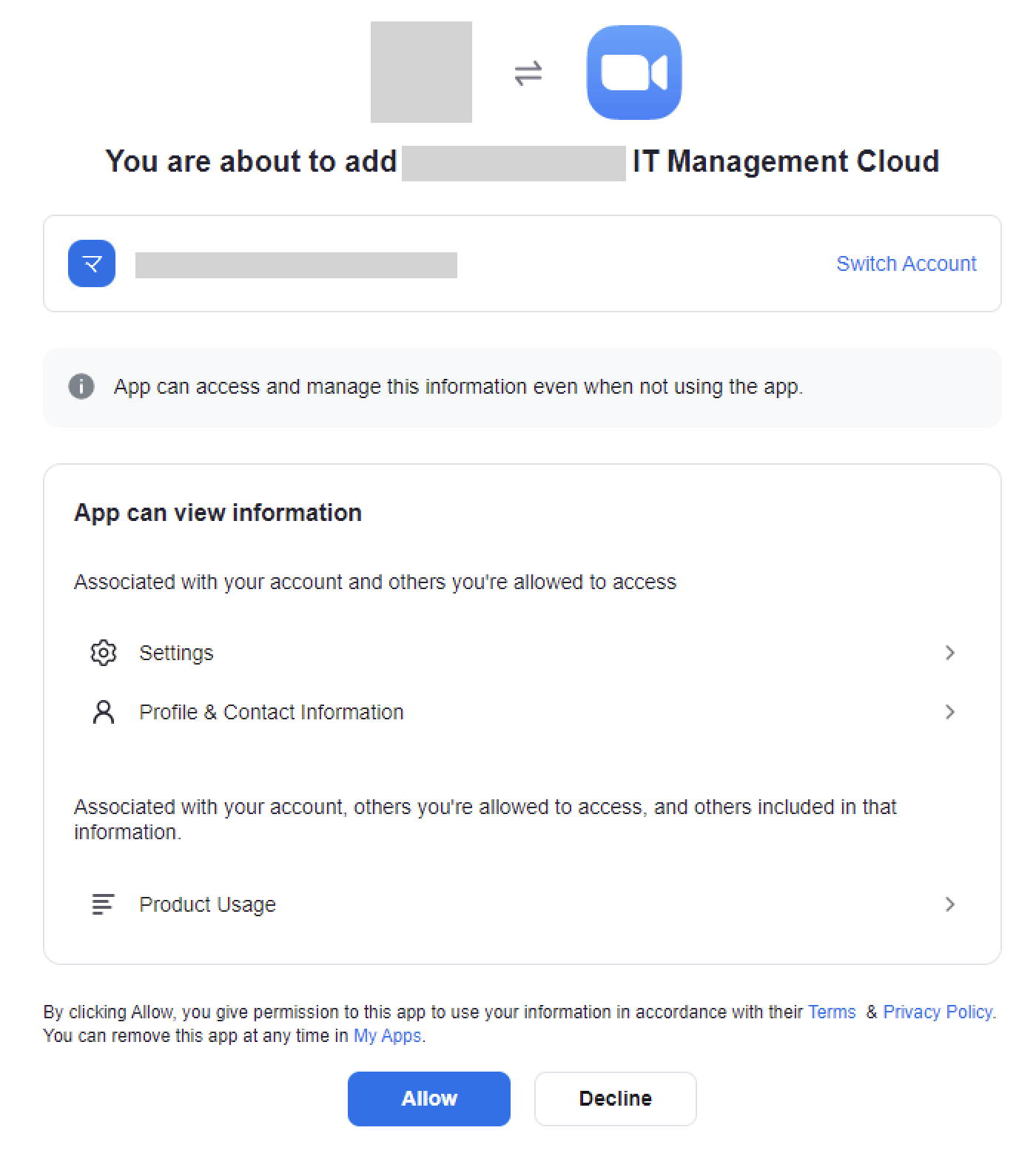 Once the integration with Zoom is successful, the registered user information will appear in the account list.
If the setup does not complete successfully, go to the status tab on the integrations screen, click **Edit**.
Try connecting again.
If the issue persists, please contact us via chat.
For an overview of the Zoom service integration, visit the [integration page](http://admina.moneyforward.com/en/integrations/zoom).
## How to Uninstall Zoom / Disconnect
Uninstalling requires deletion on both the Zoom side and the Admina side.
1. Go to the integrations screen, select Zoom, and click the delete button.
2. Navigate to the Zoom [Installed Apps](https://marketplace.zoom.us/user/installed) page, find **Money Forward Admina (IT Management Cloud)**, and click **Uninstall**.
## App Scopes
This integration uses the following scopes:
* **View all user roles / role:read:admin**
This scope is used to display the role names assigned to users.
* **View all user information / user:read and write:admin**
This scope is used to display, add, delete, and deactivate users' names and email addresses.
Once the integration with Zoom is successful, the registered user information will appear in the account list.
If the setup does not complete successfully, go to the status tab on the integrations screen, click **Edit**.
Try connecting again.
If the issue persists, please contact us via chat.
For an overview of the Zoom service integration, visit the [integration page](http://admina.moneyforward.com/en/integrations/zoom).
## How to Uninstall Zoom / Disconnect
Uninstalling requires deletion on both the Zoom side and the Admina side.
1. Go to the integrations screen, select Zoom, and click the delete button.
2. Navigate to the Zoom [Installed Apps](https://marketplace.zoom.us/user/installed) page, find **Money Forward Admina (IT Management Cloud)**, and click **Uninstall**.
## App Scopes
This integration uses the following scopes:
* **View all user roles / role:read:admin**
This scope is used to display the role names assigned to users.
* **View all user information / user:read and write:admin**
This scope is used to display, add, delete, and deactivate users' names and email addresses.