> ## Documentation Index
> Fetch the complete documentation index at: https://hc.saas-manager.biz.nuro.jp/llms.txt
> Use this file to discover all available pages before exploring further.
# Salesforce
> Steps to integrate with Salesforce. This guide covers everything from logging in as an administrator to completing the integration with MoneyForward Admina.
## Supported Features
Account Deactivation Account Provisioning
Administrator privileges are required for integration. Plans other than Professional Edition, Enterprise Edition, Unlimited Edition, and Performance Edition cannot be integrated.
## Integration Setup
1. In the MoneyForward Admina integrations screen, search for **Salesforce**.
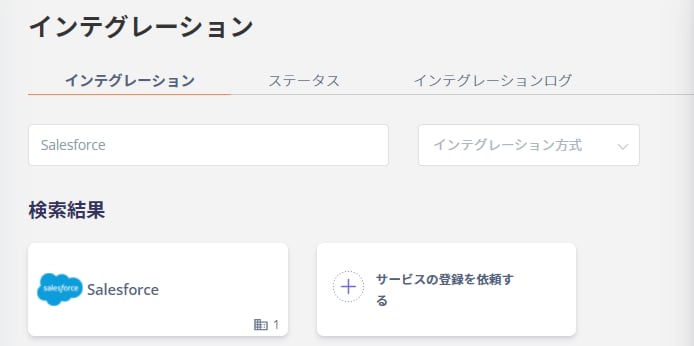 2. Enter any name (such as your company name) in the **Workspace Name** field and click **Connect**.
If you are connecting with "My Domain," enter your "My Domain" in the optional **Base URI** field.
Base URI: `https://mydomain(your My Domain).my.salesforce.com`
※ Lightning format is not supported, so be sure to use the format above.
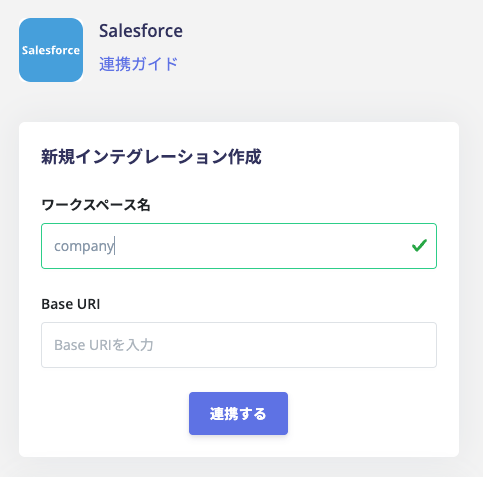
2. Enter any name (such as your company name) in the **Workspace Name** field and click **Connect**.
If you are connecting with "My Domain," enter your "My Domain" in the optional **Base URI** field.
Base URI: `https://mydomain(your My Domain).my.salesforce.com`
※ Lightning format is not supported, so be sure to use the format above.
 3. You will be redirected to the Salesforce login page. Enter your Salesforce login email address and password.
If you do not have credentials in Salesforce (e.g., using SAML for SSO), you can skip authentication by first logging in to Salesforce and then entering your "My Domain" as the Base URI.
3. You will be redirected to the Salesforce login page. Enter your Salesforce login email address and password.
If you do not have credentials in Salesforce (e.g., using SAML for SSO), you can skip authentication by first logging in to Salesforce and then entering your "My Domain" as the Base URI.
 4. An authorization screen will appear as shown below. Click **Allow**.
 5. When the Salesforce integration succeeds, registered user information will appear in the account list.
If the process does not complete successfully.
Click **Edit** from the Status tab on the integrations screen and try connecting again.
If the issue persists, please contact us via chat.
For an overview of the Salesforce integration, visit the [integration page](http://admina.moneyforward.com/en/integrations/salesforce).
## FAQ
### Q. I see "We can't authorize you due to an OAuth error..." and cannot complete the integration.
A. If the message also reads "Details: OAUTH\_APPROVAL\_ERROR\_GENERIC: An unexpected error occurred during authorization. Please try again," this may be due to a Salesforce specification change. Please refer to the [solution (external site)](https://help.salesloft.com/s/article/Common-Errors-With-the-Salesforce-Connected-App?language=en_US) and try connecting again.
5. When the Salesforce integration succeeds, registered user information will appear in the account list.
If the process does not complete successfully.
Click **Edit** from the Status tab on the integrations screen and try connecting again.
If the issue persists, please contact us via chat.
For an overview of the Salesforce integration, visit the [integration page](http://admina.moneyforward.com/en/integrations/salesforce).
## FAQ
### Q. I see "We can't authorize you due to an OAuth error..." and cannot complete the integration.
A. If the message also reads "Details: OAUTH\_APPROVAL\_ERROR\_GENERIC: An unexpected error occurred during authorization. Please try again," this may be due to a Salesforce specification change. Please refer to the [solution (external site)](https://help.salesloft.com/s/article/Common-Errors-With-the-Salesforce-Connected-App?language=en_US) and try connecting again.