> ## Documentation Index
> Fetch the complete documentation index at: https://hc.saas-manager.biz.nuro.jp/llms.txt
> Use this file to discover all available pages before exploring further.
# Jamf (Pro)
> Steps to integrate with JAMF.
## Supported Features
Account Deletion Account Creation Device Aggregation
## Prerequisites (Jamf Pro)
### Creating an API Role
To grant permissions to an API client in Jamf Pro, you must first create an API Role that defines the permission set. You can assign one or more API Roles to a client to grant permissions.
For more details, see [API Roles and Clients (external site)](https://learn.jamf.com/en-US/bundle/jamf-pro-documentation-current/page/API_Roles_and_Clients.html#).
1. In the Jamf Pro sidebar, click **Settings**.
2. Under the **System** section, click **API Roles and Clients**.
3. Click the **API Roles** tab at the top of the pane.
4. Click **New**.
5. Enter a display name for the API Role. You can enter any name you like.
6. Enter the permission set. Set the following permissions:
* `Read Accounts`
* `Delete Accounts`
* `Create Accounts`
* (`Jamf Pro User Accounts & Groups (Read)`)
If you are implementing MDM integration, also set the following permissions in addition to the above:
* `Read Buildings`
* `Read Departments`
* `Read Mobile Devices`
* `Read Computers`
* `Read Sites`
7. Click **Save**.
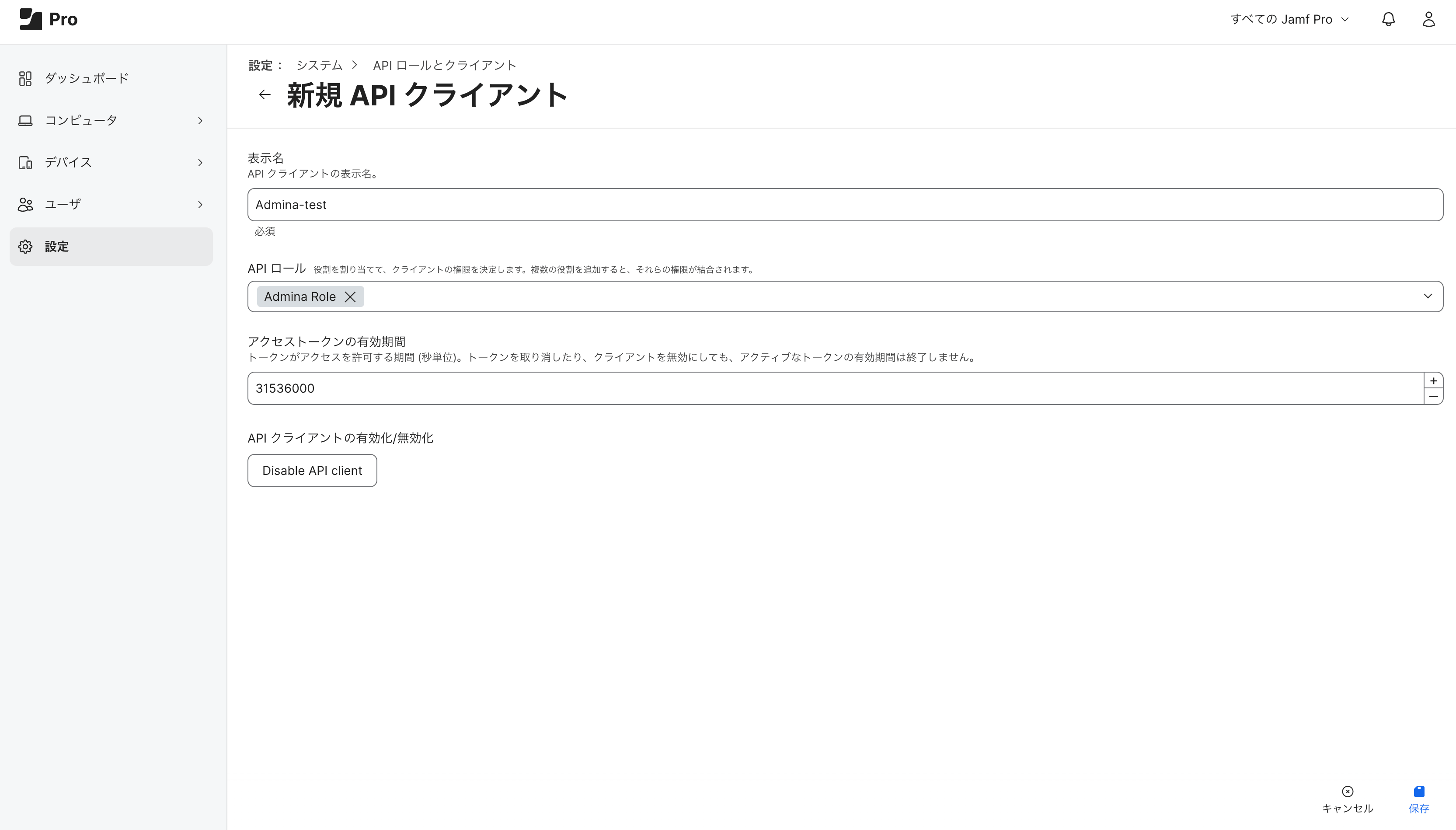
 ### Creating an API Client
1. In the Jamf Pro sidebar, click **Settings**.
2. Under the System section, click API Roles and Clients.
3. Click the **API Clients** tab at the top of the pane.
4. Click **New**.
5. Enter a display name for the API Client.
6. In the **API Roles** field, add the **API Role** you created.
Changing the access token lifetime value later does not affect access tokens previously generated from the API client. Similarly, deleting or disabling a client does not revoke previously generated access tokens that are still valid. It is recommended to set a longer value. However, any changes to the API Roles assigned to a client will immediately affect all access tokens.
7. To generate a client secret, click **Enable API Client**.
8. Click **Save**.
### Creating an API Client
1. In the Jamf Pro sidebar, click **Settings**.
2. Under the System section, click API Roles and Clients.
3. Click the **API Clients** tab at the top of the pane.
4. Click **New**.
5. Enter a display name for the API Client.
6. In the **API Roles** field, add the **API Role** you created.
Changing the access token lifetime value later does not affect access tokens previously generated from the API client. Similarly, deleting or disabling a client does not revoke previously generated access tokens that are still valid. It is recommended to set a longer value. However, any changes to the API Roles assigned to a client will immediately affect all access tokens.
7. To generate a client secret, click **Enable API Client**.
8. Click **Save**.
 ### Creating a Client Secret
1. In Jamf Pro, navigate to the API Client from which you want to generate an access token.
### Creating a Client Secret
1. In Jamf Pro, navigate to the API Client from which you want to generate an access token.
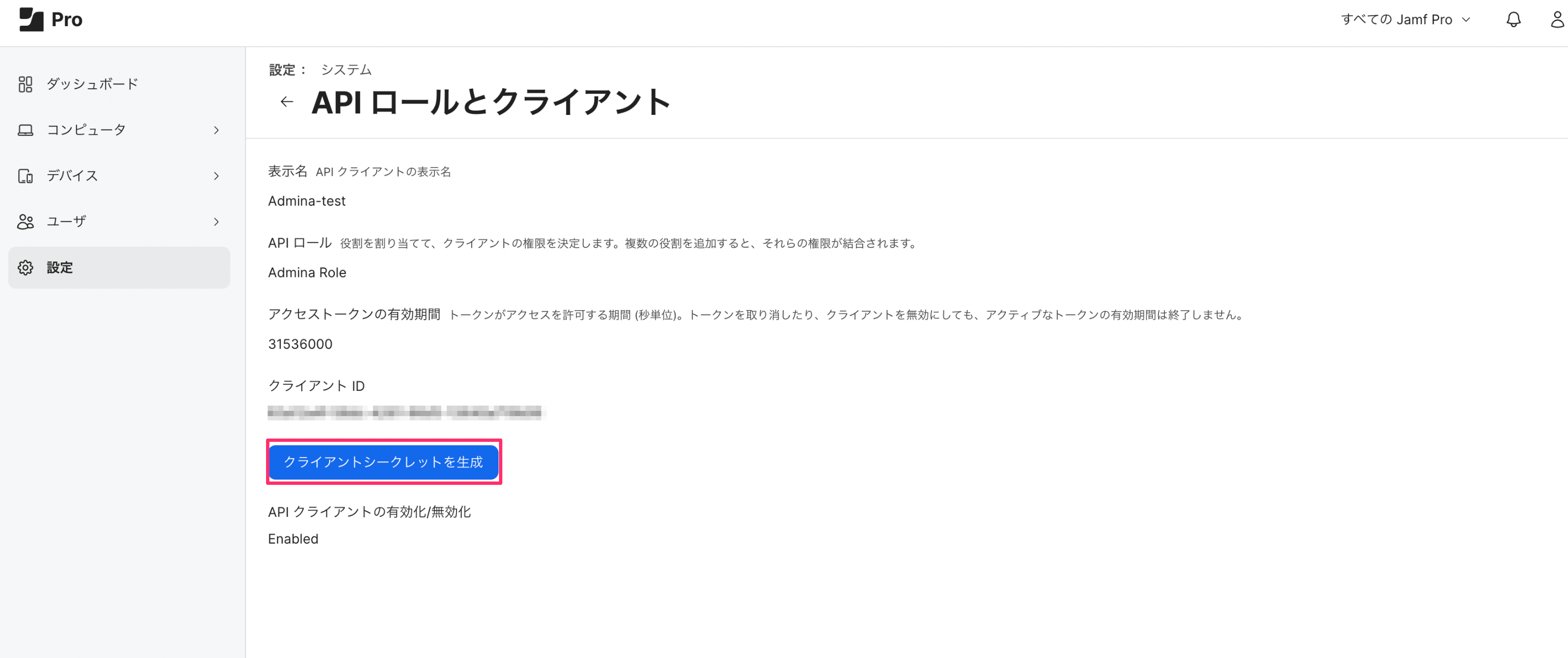 2. Click **Generate Client Secret**. A confirmation dialog will appear.
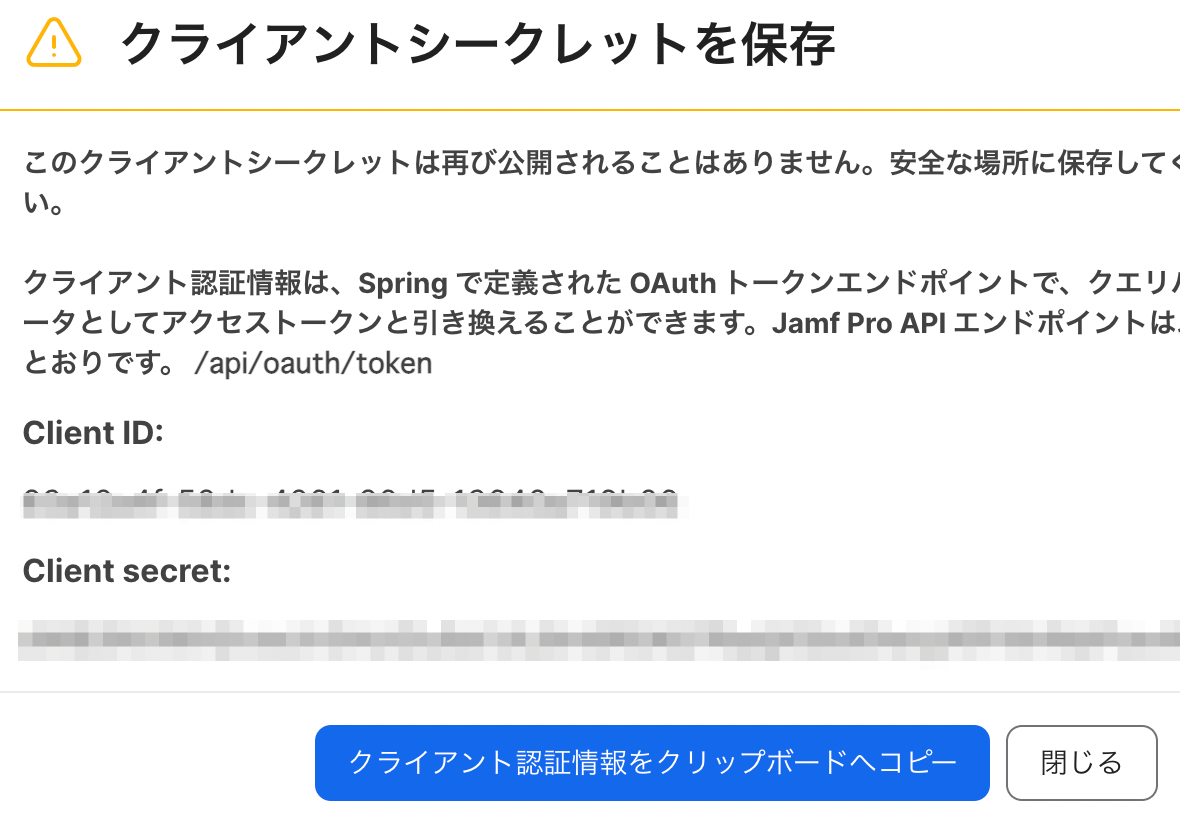
3. Click **Create Secret**. A popup window will display the **Client ID** and **Client Secret** — save them.
The client secret is only displayed once. Be sure to save it in a secure location before closing the dialog.
2. Click **Generate Client Secret**. A confirmation dialog will appear.
3. Click **Create Secret**. A popup window will display the **Client ID** and **Client Secret** — save them.
The client secret is only displayed once. Be sure to save it in a secure location before closing the dialog.
 ### Getting the Workspace Key
After logging in to Jamf, **part of the URL is the workspace key** — save it.
http\://**`{workspace-key}`**.jamfcloud.com
### Getting the Workspace Key
After logging in to Jamf, **part of the URL is the workspace key** — save it.
http\://**`{workspace-key}`**.jamfcloud.com
 ## Integration Setup (Admina)
1. In Admina, go to Integrations > Integrations and search for **Jamf**.
## Integration Setup (Admina)
1. In Admina, go to Integrations > Integrations and search for **Jamf**.
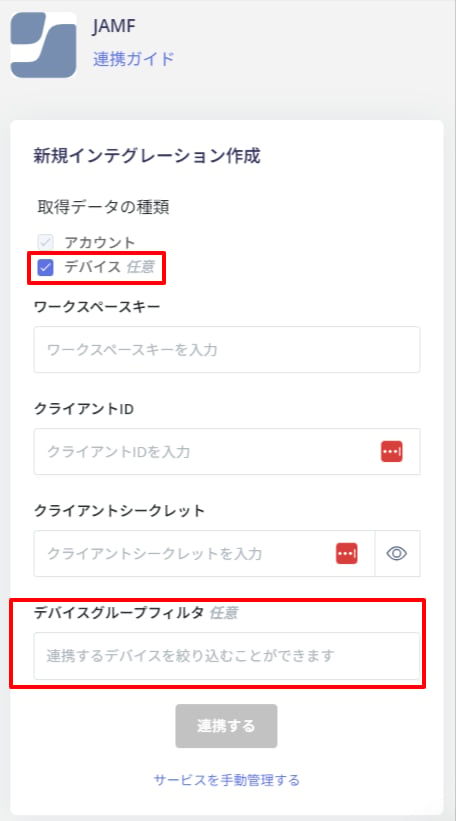
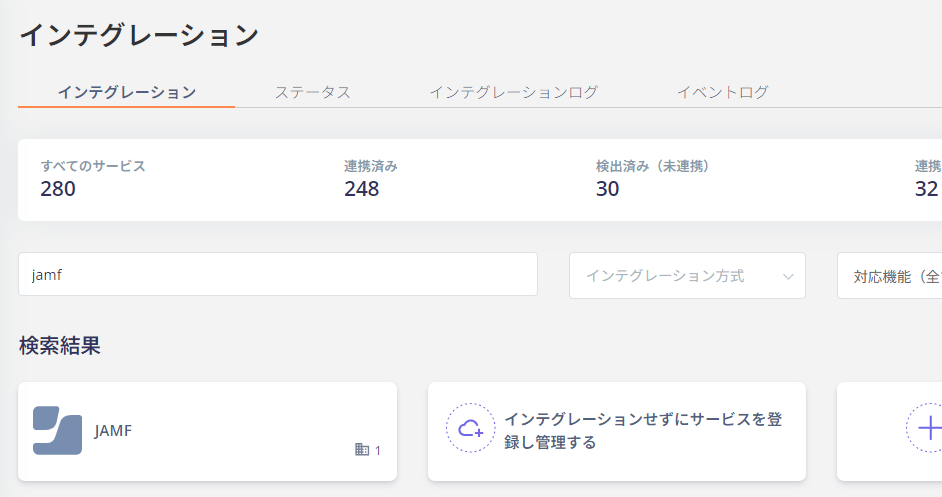 2. Enter the **Workspace Key**, **Client ID**, and **Client Secret** obtained in the previous steps, then click **Connect**.
 3. For MDM integration, check `Data type to retrieve: Devices` and click **Connect**.
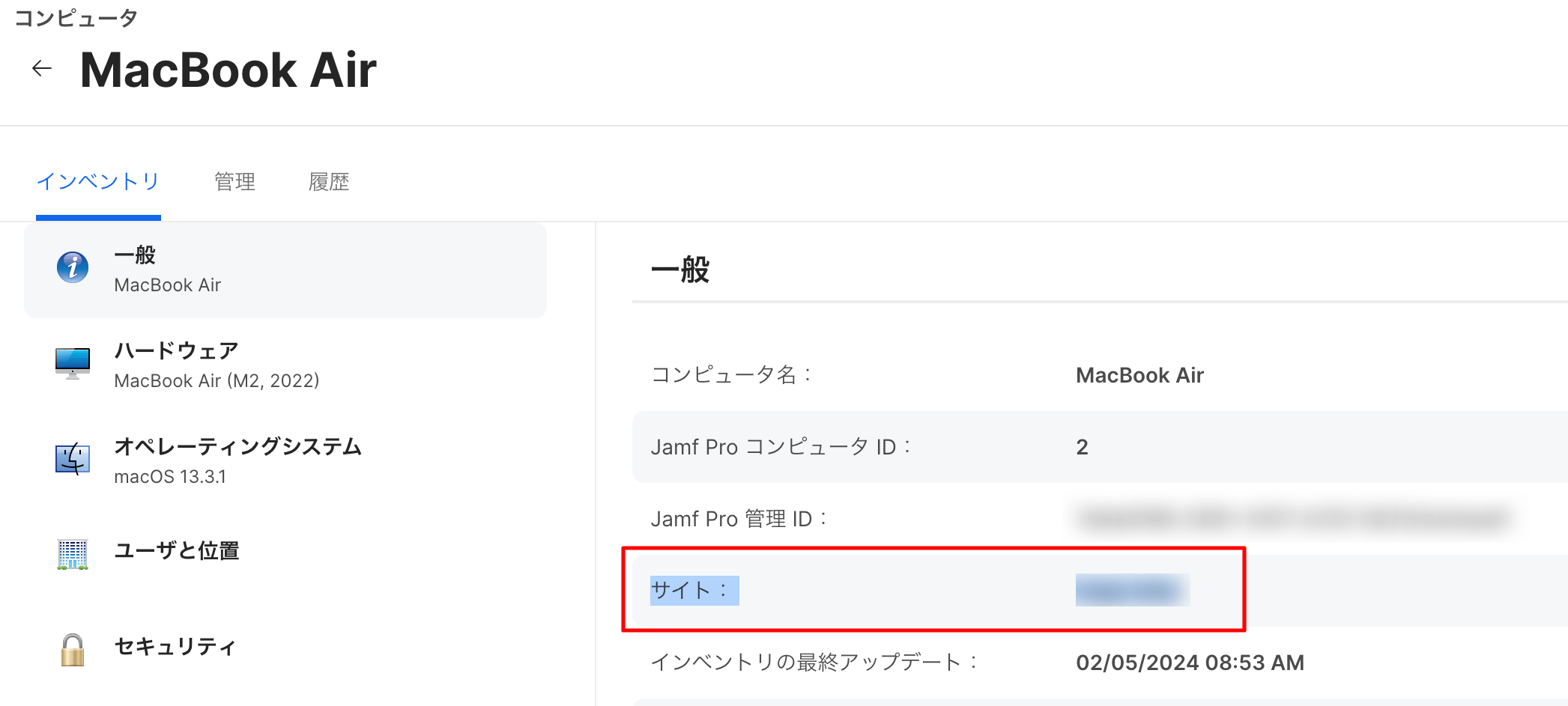
Entering a **Jamf site name** in the Device Group Filter will.
Limit the retrieved devices to only those belonging to that site.
3. For MDM integration, check `Data type to retrieve: Devices` and click **Connect**.
Entering a **Jamf site name** in the Device Group Filter will.
Limit the retrieved devices to only those belonging to that site.
 4. Once the integration with Jamf is successful, registered user information will be displayed in the account list.
If the process does not complete successfully.
Click **Edit** in the Status tab of the integration screen and try connecting again.
If the issue persists, please contact us via chat with details. For an overview of the Jamf integration, visit the [integration page](http://admina.moneyforward.com/en/integrations/jamf).
## MDM Integration
[4-0. Linking MDM-compatible SaaS with the Admina Device Ledger](/en/it-management/device/k1u975zc6h-mdm)
If you are using the device management feature, you can sync devices with Jamf. For details, see Linking MDM-compatible SaaS with the Admina Device Ledger.
### Synchronized Fields
| Admina Field | Sync Pattern | Jamf (computer) | Jamf (phone) | Notes |
| -------------------- | ---------------- | ------------------------------------------------- | ------------------------------------------------- | ----------------------------------------------------------------------------------------------------------------------------------------------------------------------------------------------------------------- |
| Asset Number | (2) Admina-based | `_` | `_` | A prefix is added in case of duplicates. |
| Model Name | (2) Admina-based | Hardware > Model | Hardware > Model | |
| Serial Number (IMEI) | (1) MDM-based | Hardware > Serial Number | Hardware > Serial Number | Merge key. |
| Email | (2) Admina-based | User and Location > Email Address | User and Location > Email Address | Even if the email address does not exist in the Admina directory, the directory-device link will be executed. The email address will also be added to the directory field at that time. |
| Type | (2) Admina-based | Hardware > Model Identifier | Hardware > Model Identifier | iMac = Desktop PC; others = Laptop PC; Phone = Phone |
| Status | (2) Admina-based | Determined from User and Location > Email Address | Determined from User and Location > Email Address | If an email address is registered on the Jamf side, status is "In Use"; otherwise "In Stock". |
| Phone Number | (1) MDM-based | — | Network > Phone Number | |
| Location 1 | (2) Admina-based | User and Location > Building | User and Location > Building | |
| Location 2 | (2) Admina-based | User and Location > Department | User and Location > Department | |
| Purchase Date | (2) Admina-based | Purchasing > Purchase Date | Purchasing > Purchase Date | |
| Manufacturer | (1) MDM-based | Hardware > Make | "Apple" | |
| Model Number | (1) MDM-based | — | Hardware > Model Number | |
| CPU | (1) MDM-based | Hardware > Processor Type | — | |
| Memory | (1) MDM-based | Hardware > Total RAM | — | |
| HDD/SSD | (1) MDM-based | Storage > Drive Capacity | — | |
| OS | (1) MDM-based | Operating System > Operating System | Device Type | |
| Version | (1) MDM-based | Operating System > OS Version | General > iOS Version | |
| Keyboard Layout | (1) MDM-based | General or Hardware > Extension Attributes | — | Field name: searches from Text Field for fields containing "Keyboard" or "キーボード". If the text field contains "US or U.S", it is identified as English keyboard; if "Japanese or JIS or JP", as Japanese keyboard. |
| Hostname | (1) MDM-based | General > Computer Name | General > Mobile Device Name | |
| SIM Number | (1) MDM-based | — | Network > ICCID | |
| Procurement Method | (2) Admina-based | Purchasing > Purchase or Lease | Purchasing > Purchase or Lease | |
| Vendor | (2) Admina-based | Purchasing > Vendor | Purchasing > Vendor | |
| Purchase Price | (2) Admina-based | Purchasing > Purchase Price | Purchasing > Purchase Price | |
| Warranty Period | (2) Admina-based | Purchasing > Lease Expiration | Purchasing > Lease Expiration | |
| Last Used (MDM) | (1) MDM-based | General > Last Check-in | General > Last Inventory Update | This field is automatically created when MDM integration starts, without creating a new custom field. |
| Managed | (1) MDM-based | General > Managed | General > Managed | |
| Managed | (3) MDM field | Managed: MDM Enabled | Managed: MDM Enabled | |
### Retrieving Extended Information
#### Keyboard
Keyboard information can be automatically synced to Admina by creating a script on the JAMF side and registering it as a JAMF.
Extension attribute. Once this setup is done, you do not need to manually register keyboards one by one in Admina or JAMF.
(Also, during MDM integration, the keyboard field is locked and cannot be updated, so this is the only way to sync it.)
For the method, please refer to the official page or community blog posts.
JAMF official documentation on extension attributes:
[https://learn.jamf.com/ja-JP/bundle/jamf-pro-documentation-current/page/Computer\_Extension\_Attributes.html](https://learn.jamf.com/ja-JP/bundle/jamf-pro-documentation-current/page/Computer_Extension_Attributes.html)
Too company blog:
[https://www.too.com/apple/apple\_tips/extended\_attributes.html](https://www.too.com/apple/apple_tips/extended_attributes.html)
Admina auto-detects based on the following rules:
```
Field name: from Text Field
- Searches for fields whose name contains "Keyboard" or "キーボード".
- If the text field contains "US or U.S", it is identified as an English keyboard; if "Japanese or JIS or JP", as a Japanese keyboard.
```
4. Once the integration with Jamf is successful, registered user information will be displayed in the account list.
If the process does not complete successfully.
Click **Edit** in the Status tab of the integration screen and try connecting again.
If the issue persists, please contact us via chat with details. For an overview of the Jamf integration, visit the [integration page](http://admina.moneyforward.com/en/integrations/jamf).
## MDM Integration
[4-0. Linking MDM-compatible SaaS with the Admina Device Ledger](/en/it-management/device/k1u975zc6h-mdm)
If you are using the device management feature, you can sync devices with Jamf. For details, see Linking MDM-compatible SaaS with the Admina Device Ledger.
### Synchronized Fields
| Admina Field | Sync Pattern | Jamf (computer) | Jamf (phone) | Notes |
| -------------------- | ---------------- | ------------------------------------------------- | ------------------------------------------------- | ----------------------------------------------------------------------------------------------------------------------------------------------------------------------------------------------------------------- |
| Asset Number | (2) Admina-based | `_` | `_` | A prefix is added in case of duplicates. |
| Model Name | (2) Admina-based | Hardware > Model | Hardware > Model | |
| Serial Number (IMEI) | (1) MDM-based | Hardware > Serial Number | Hardware > Serial Number | Merge key. |
| Email | (2) Admina-based | User and Location > Email Address | User and Location > Email Address | Even if the email address does not exist in the Admina directory, the directory-device link will be executed. The email address will also be added to the directory field at that time. |
| Type | (2) Admina-based | Hardware > Model Identifier | Hardware > Model Identifier | iMac = Desktop PC; others = Laptop PC; Phone = Phone |
| Status | (2) Admina-based | Determined from User and Location > Email Address | Determined from User and Location > Email Address | If an email address is registered on the Jamf side, status is "In Use"; otherwise "In Stock". |
| Phone Number | (1) MDM-based | — | Network > Phone Number | |
| Location 1 | (2) Admina-based | User and Location > Building | User and Location > Building | |
| Location 2 | (2) Admina-based | User and Location > Department | User and Location > Department | |
| Purchase Date | (2) Admina-based | Purchasing > Purchase Date | Purchasing > Purchase Date | |
| Manufacturer | (1) MDM-based | Hardware > Make | "Apple" | |
| Model Number | (1) MDM-based | — | Hardware > Model Number | |
| CPU | (1) MDM-based | Hardware > Processor Type | — | |
| Memory | (1) MDM-based | Hardware > Total RAM | — | |
| HDD/SSD | (1) MDM-based | Storage > Drive Capacity | — | |
| OS | (1) MDM-based | Operating System > Operating System | Device Type | |
| Version | (1) MDM-based | Operating System > OS Version | General > iOS Version | |
| Keyboard Layout | (1) MDM-based | General or Hardware > Extension Attributes | — | Field name: searches from Text Field for fields containing "Keyboard" or "キーボード". If the text field contains "US or U.S", it is identified as English keyboard; if "Japanese or JIS or JP", as Japanese keyboard. |
| Hostname | (1) MDM-based | General > Computer Name | General > Mobile Device Name | |
| SIM Number | (1) MDM-based | — | Network > ICCID | |
| Procurement Method | (2) Admina-based | Purchasing > Purchase or Lease | Purchasing > Purchase or Lease | |
| Vendor | (2) Admina-based | Purchasing > Vendor | Purchasing > Vendor | |
| Purchase Price | (2) Admina-based | Purchasing > Purchase Price | Purchasing > Purchase Price | |
| Warranty Period | (2) Admina-based | Purchasing > Lease Expiration | Purchasing > Lease Expiration | |
| Last Used (MDM) | (1) MDM-based | General > Last Check-in | General > Last Inventory Update | This field is automatically created when MDM integration starts, without creating a new custom field. |
| Managed | (1) MDM-based | General > Managed | General > Managed | |
| Managed | (3) MDM field | Managed: MDM Enabled | Managed: MDM Enabled | |
### Retrieving Extended Information
#### Keyboard
Keyboard information can be automatically synced to Admina by creating a script on the JAMF side and registering it as a JAMF.
Extension attribute. Once this setup is done, you do not need to manually register keyboards one by one in Admina or JAMF.
(Also, during MDM integration, the keyboard field is locked and cannot be updated, so this is the only way to sync it.)
For the method, please refer to the official page or community blog posts.
JAMF official documentation on extension attributes:
[https://learn.jamf.com/ja-JP/bundle/jamf-pro-documentation-current/page/Computer\_Extension\_Attributes.html](https://learn.jamf.com/ja-JP/bundle/jamf-pro-documentation-current/page/Computer_Extension_Attributes.html)
Too company blog:
[https://www.too.com/apple/apple\_tips/extended\_attributes.html](https://www.too.com/apple/apple_tips/extended_attributes.html)
Admina auto-detects based on the following rules:
```
Field name: from Text Field
- Searches for fields whose name contains "Keyboard" or "キーボード".
- If the text field contains "US or U.S", it is identified as an English keyboard; if "Japanese or JIS or JP", as a Japanese keyboard.
```