> ## Documentation Index
> Fetch the complete documentation index at: https://hc.saas-manager.biz.nuro.jp/llms.txt
> Use this file to discover all available pages before exploring further.
# Vercel
> Steps to integrate with Vercel.
## Prerequisites
### Getting the Workspace Key
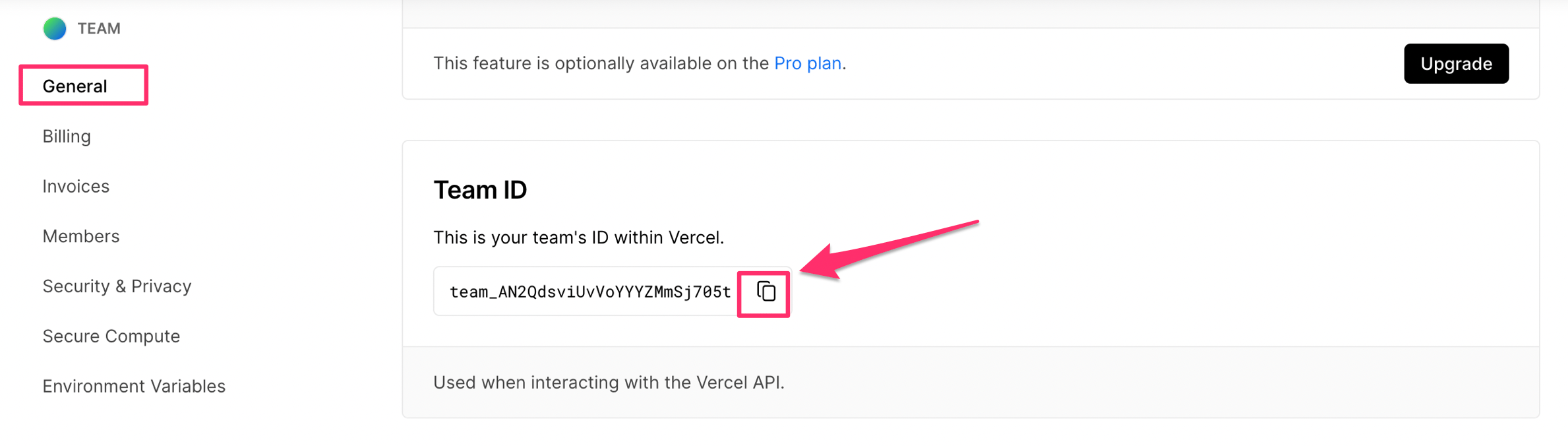
1. Log in to Vercel, select the team you want to integrate, and go to Settings.
2. Scroll through the General menu and copy the Team ID. The Team ID is your workspace key.
 ### Getting the Access Key
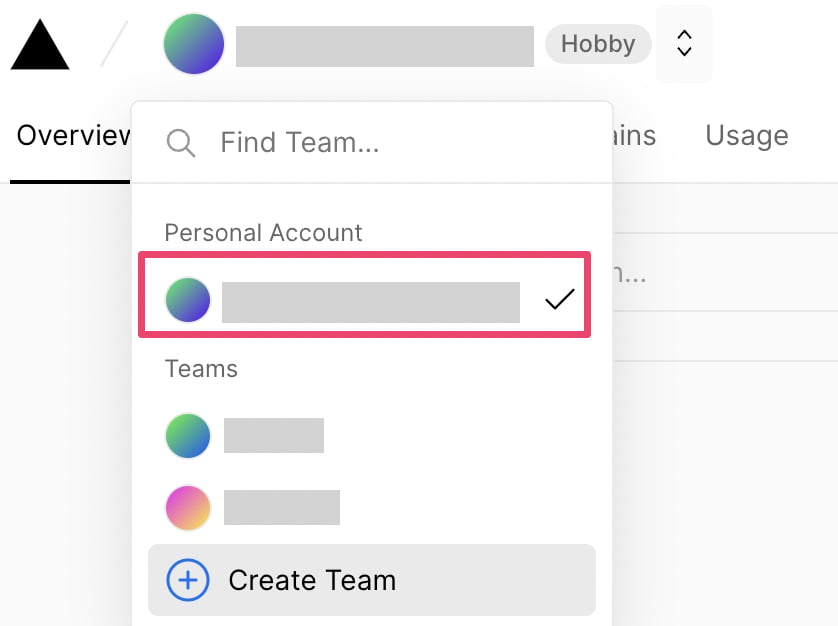
1. Select Personal Account, and create a Token from Settings > Tokens.
### Getting the Access Key
1. Select Personal Account, and create a Token from Settings > Tokens.
 2. Enter the following values and click **Create**.
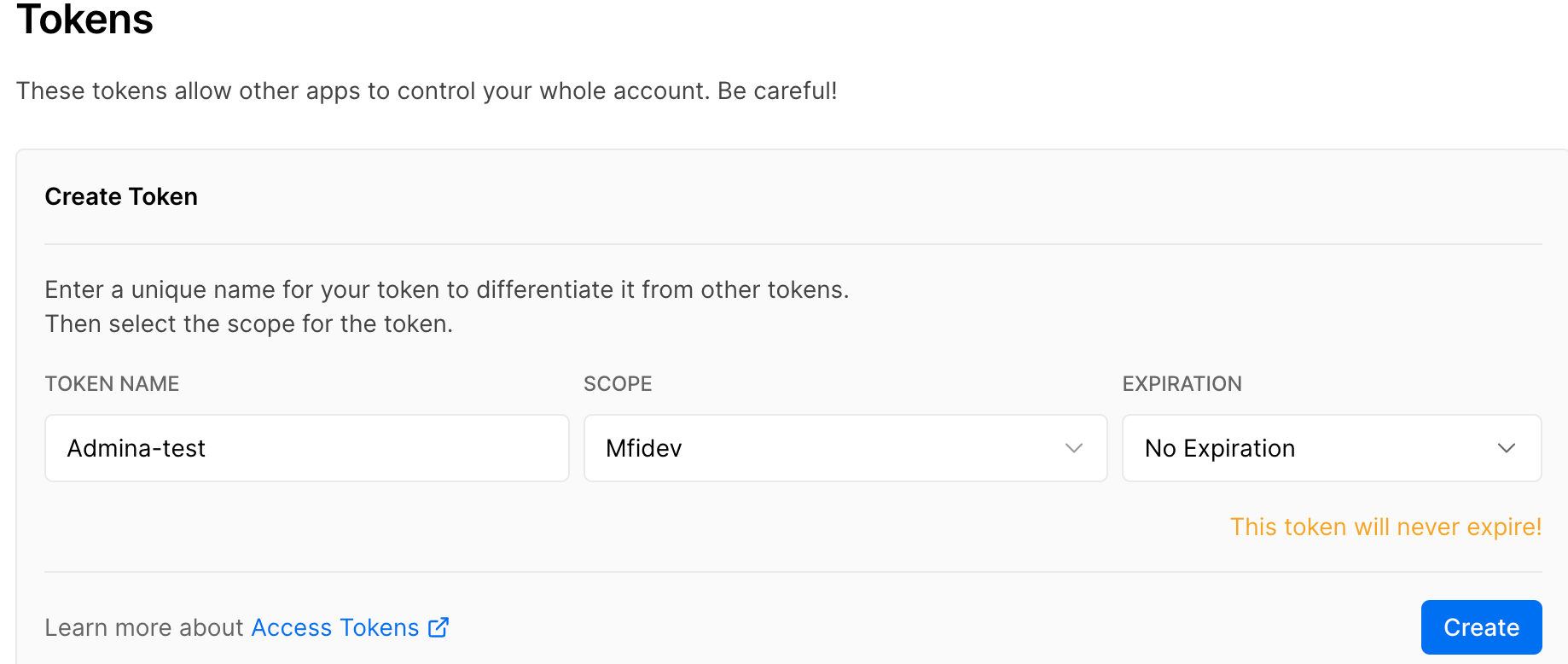 * **Token Name**: Enter any token name you prefer.
* **SCOPE**: Select the team to integrate. Note that selecting a different team from.
* The workspace key obtained in the previous step will cause the integration to fail.
* **Expiration**: Select the token expiration period. Selecting No Expiration sets it to never expire.
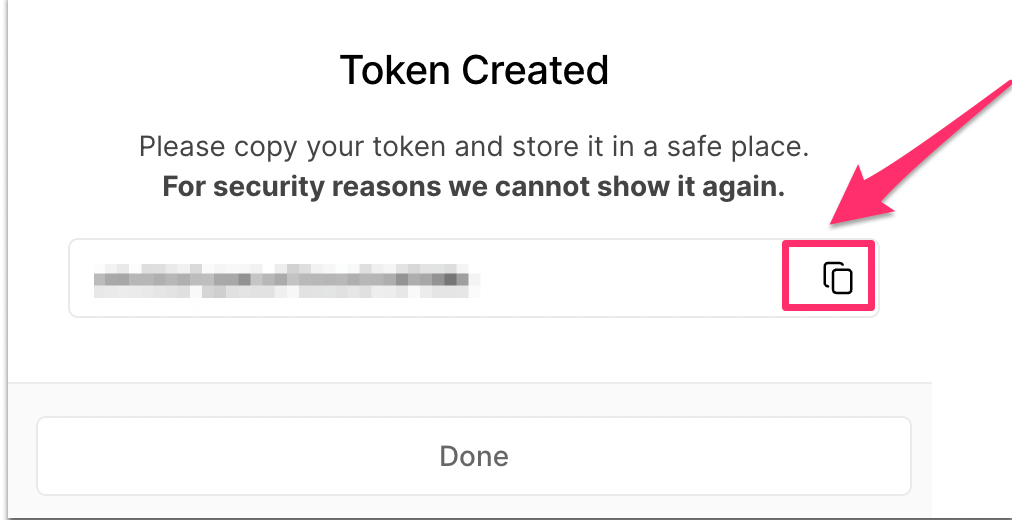
3. The displayed token is your access key — copy it. For security reasons it cannot be displayed again, so be sure to copy it here.
* **Token Name**: Enter any token name you prefer.
* **SCOPE**: Select the team to integrate. Note that selecting a different team from.
* The workspace key obtained in the previous step will cause the integration to fail.
* **Expiration**: Select the token expiration period. Selecting No Expiration sets it to never expire.
3. The displayed token is your access key — copy it. For security reasons it cannot be displayed again, so be sure to copy it here.
 ## Integration Setup
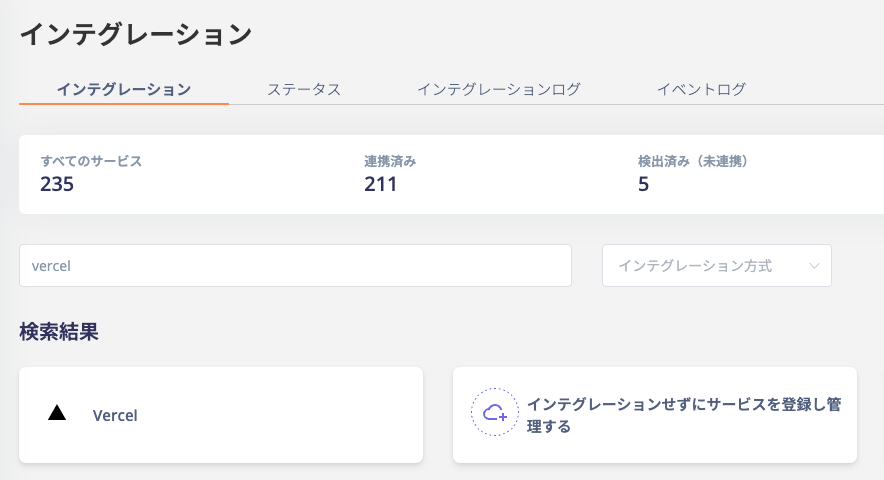
1. In the MoneyForward Admina integration screen, search for **Vercel** and click on it.
## Integration Setup
1. In the MoneyForward Admina integration screen, search for **Vercel** and click on it.
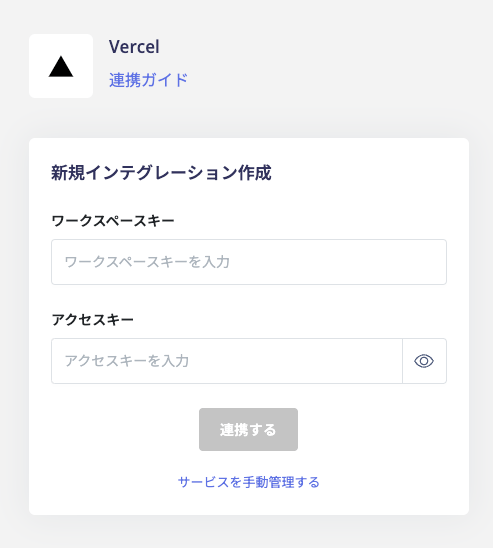
 2. Enter the **workspace key** and **access key** obtained in the previous steps, then click **Connect**.
 Once the Vercel integration is successful, the registered user information will appear in the account list.
If you have multiple teams, repeat the same steps for each team.
If the process does not complete successfully.
Click **Edit** from the Status tab on the integration screen and try connecting again.
If the issue persists, please contact us via chat.
For an overview of the Vercel integration, see the [integration page](http://admina.moneyforward.com/en/integrations/vercel).
Once the Vercel integration is successful, the registered user information will appear in the account list.
If you have multiple teams, repeat the same steps for each team.
If the process does not complete successfully.
Click **Edit** from the Status tab on the integration screen and try connecting again.
If the issue persists, please contact us via chat.
For an overview of the Vercel integration, see the [integration page](http://admina.moneyforward.com/en/integrations/vercel).