> ## Documentation Index
> Fetch the complete documentation index at: https://hc.saas-manager.biz.nuro.jp/llms.txt
> Use this file to discover all available pages before exploring further.
# Slack
> Instructions for integrating with Slack.
## Supported Features
Account Deactivation Account Provisioning
* Deactivating, adding, or registering Slack accounts from Admina requires the Business+ plan or higher.
* For Enterprise Grid organization-level integrations, Role, last activity date, and 2FA settings cannot be retrieved.
* Last Activity: Access logs are retrieved from Slack on paid plans, but due to Slack API retrieval limitations, there may be delays in reflection or missing data, which may result in inaccurate display.
## Integration Setup
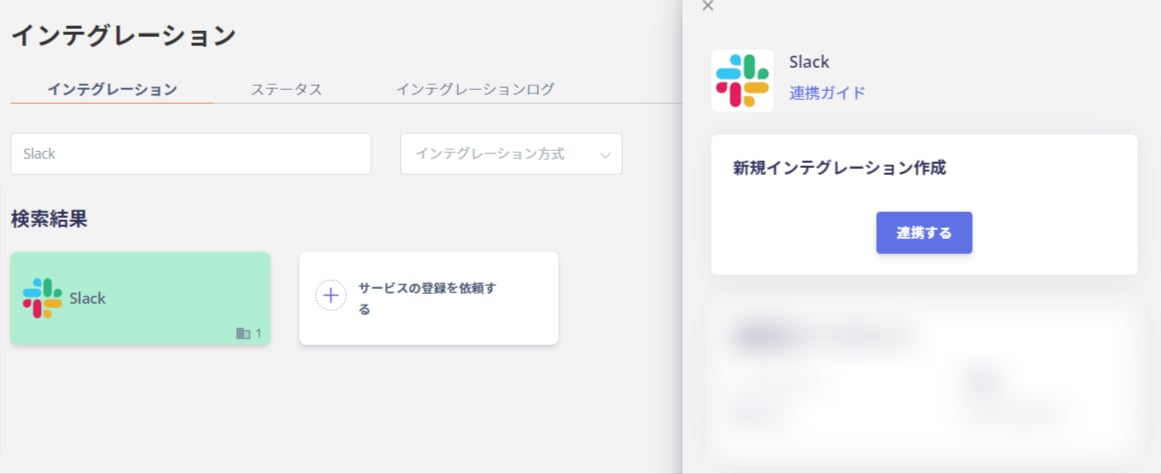
1. In Admina, go to Integrations > Integrations, search for "**Slack**", and click \[**Connect**].
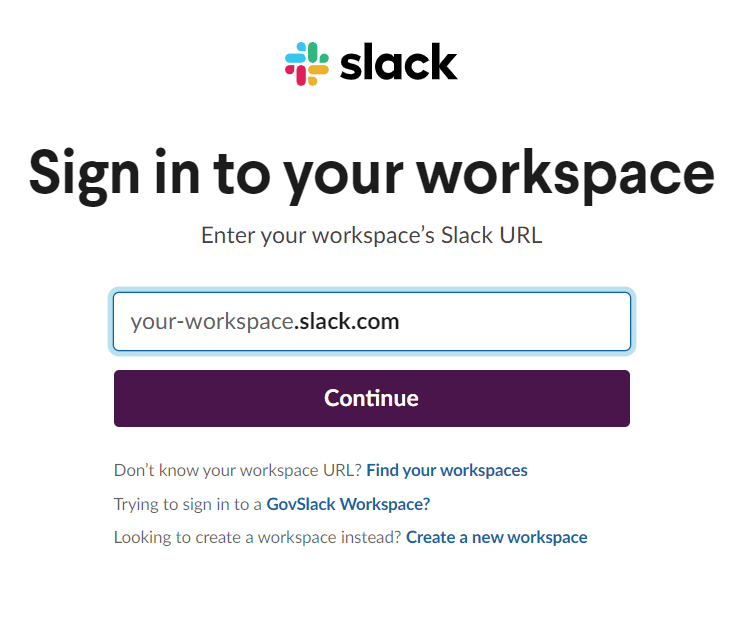
 2. You will be redirected to the Slack login screen. Enter your workspace URL, email address, and password to log in.
 3. The following permissions will be displayed. Confirm the workspace to connect to, then click **Allow**.
 If the workspace shown is different from the one you want to connect, there is a selection button in the upper right of the screen. Select the workspace you want to connect to. For Enterprise Grid, you can also specify the organization.
 4. Once the Slack integration is successful, the registered user information will appear in the account list.
If the process did not complete successfully, go to the Status tab on the Integrations screen to edit and try connecting again.
If the issue persists, please contact us via chat.
For an overview of the Slack integration, please visit the [integration page](http://admina.moneyforward.com/en/integrations/slack).
## Notes on the Message During Integration
After clicking "Connect" in Admina, the following screen may appear.
4. Once the Slack integration is successful, the registered user information will appear in the account list.
If the process did not complete successfully, go to the Status tab on the Integrations screen to edit and try connecting again.
If the issue persists, please contact us via chat.
For an overview of the Slack integration, please visit the [integration page](http://admina.moneyforward.com/en/integrations/slack).
## Notes on the Message During Integration
After clicking "Connect" in Admina, the following screen may appear.
 This message is temporarily displayed when additional permissions are needed for the Slack integration or when a re-review is required due to feature additions.
Once Slack (Salesforce) completes the approval, the message will no longer be displayed. However, the approval process may take some time, so please proceed with the integration as-is.
This message is temporarily displayed when additional permissions are needed for the Slack integration or when a re-review is required due to feature additions.
Once Slack (Salesforce) completes the approval, the message will no longer be displayed. However, the approval process may take some time, so please proceed with the integration as-is.