> ## Documentation Index
> Fetch the complete documentation index at: https://hc.saas-manager.biz.nuro.jp/llms.txt
> Use this file to discover all available pages before exploring further.
# GitLab
> Instructions for integrating with GitLab.
## Supported Features
Account Deletion Account Provisioning
## Data Retrieved from GitLab
From GitLab, you can retrieve information about members belonging to groups.
If no groups exist, the following error will occur during integration:
`errors.ids.oauth_no_workspace`
### Groups can be used in two ways:
1. Granting group-level access permissions to personal repositories (similar to a Group concept)
2. Having repositories owned by a group (similar to an Organization concept)
If you are currently inviting individuals to personal repositories, switching to group-based access management (option ①) before connecting will make day-to-day account management easier.
## Integration Setup
In the MoneyForward Admina integration screen, search for **Gitlab** and click **Connect**.
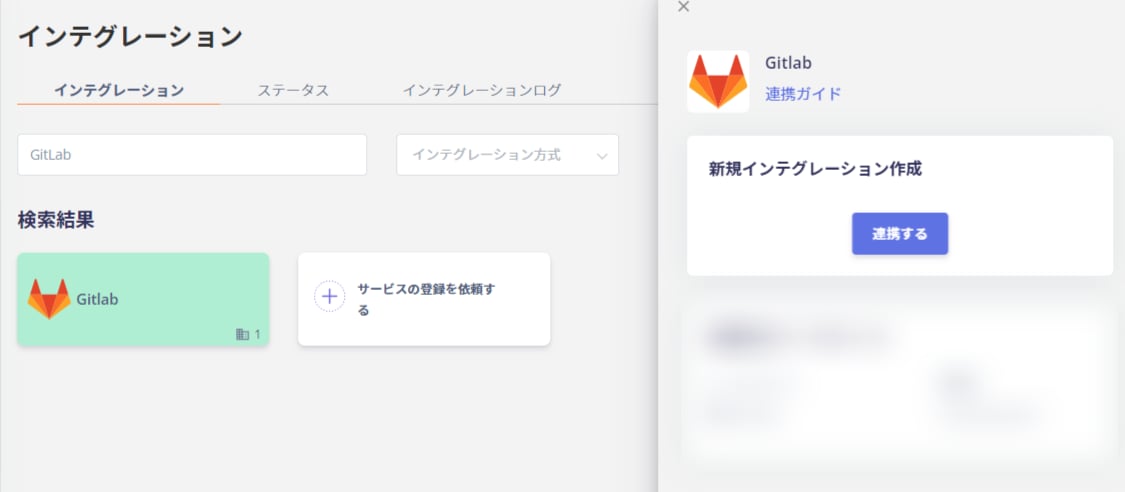 You will be redirected to the GitLab login page. Enter your login credentials or username/email address and password to log in.
 After logging in to GitLab, an authorization screen will appear. Click **Authorize**.
 Once the GitLab integration is successful, registered user information will appear in the account list.
If the setup does not complete successfully, go to the Status tab on the integration screen, click **Edit**, and try connecting again.
If the issue persists, please contact us via chat.
For an overview of the GitLab integration, visit the [integration page](http://admina.moneyforward.com/en/integrations/gitlab).
## Manual Account Linking When Email Address Cannot Be Retrieved
Since this service does not provide email addresses, user type will be determined as "Unknown."
If needed, manually link (merge) accounts with other accounts.
For details on this setting, refer to:
[Manually link (merge) SaaS accounts to other accounts](/en/it-management/saas-management/d97dy5z2l7-merge)
Once the GitLab integration is successful, registered user information will appear in the account list.
If the setup does not complete successfully, go to the Status tab on the integration screen, click **Edit**, and try connecting again.
If the issue persists, please contact us via chat.
For an overview of the GitLab integration, visit the [integration page](http://admina.moneyforward.com/en/integrations/gitlab).
## Manual Account Linking When Email Address Cannot Be Retrieved
Since this service does not provide email addresses, user type will be determined as "Unknown."
If needed, manually link (merge) accounts with other accounts.
For details on this setting, refer to:
[Manually link (merge) SaaS accounts to other accounts](/en/it-management/saas-management/d97dy5z2l7-merge)