> ## Documentation Index
> Fetch the complete documentation index at: https://hc.saas-manager.biz.nuro.jp/llms.txt
> Use this file to discover all available pages before exploring further.
# OpenAI Platform
> Instructions for integrating with OpenAI Platform.
## Prerequisites
### Log in to OpenAI
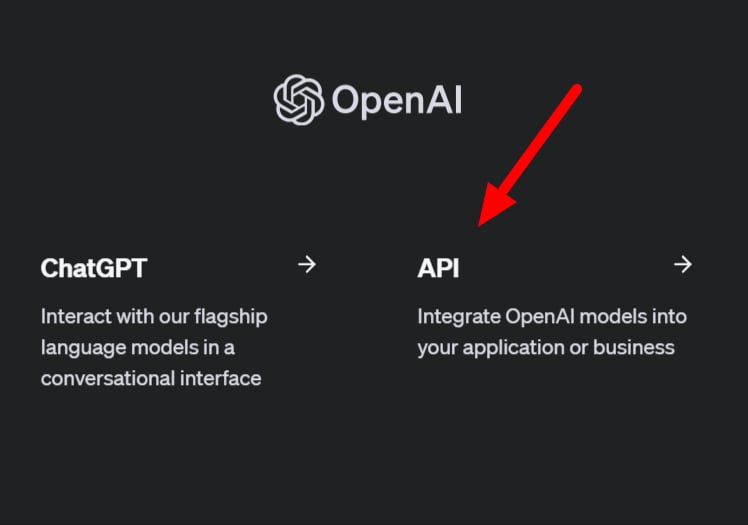
[Log in to OpenAI](https://platform.openai.com/settings/organization/admin-keys) by entering your **email address and password** to access the **API**.
This integration is for OpenAI Platform — it is separate from ChatGPT (Team plan). Note that the API is not accessible when logged into ChatGPT.
 ### How to Obtain the API Key
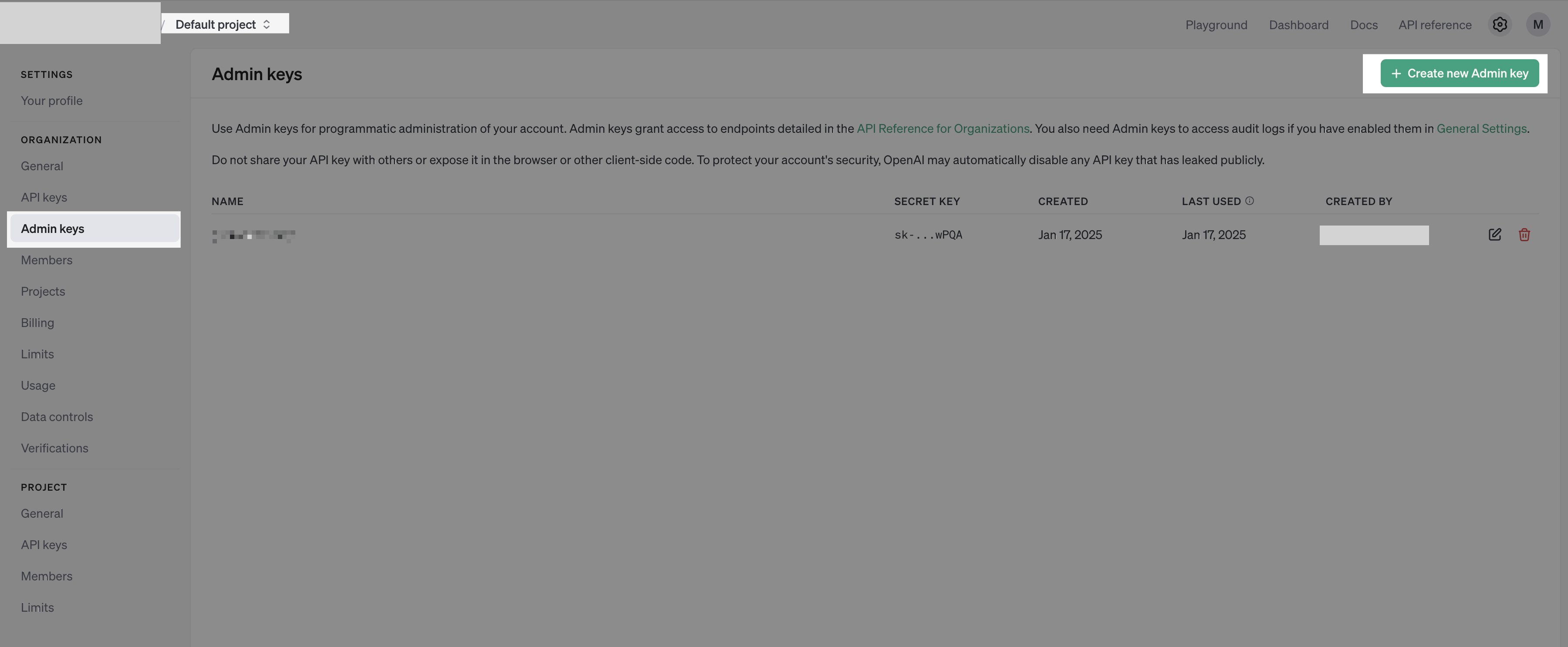
After logging in to the OpenAI API, select `Default project`. Go to the ⚙️ (**Settings**) > **Admin API keys** in the upper right, and click **+ Create new admin key**.
Direct URL: [https://platform.openai.com/settings/organization/admin-keys](https://platform.openai.com/settings/organization/admin-keys)
### How to Obtain the API Key
After logging in to the OpenAI API, select `Default project`. Go to the ⚙️ (**Settings**) > **Admin API keys** in the upper right, and click **+ Create new admin key**.
Direct URL: [https://platform.openai.com/settings/organization/admin-keys](https://platform.openai.com/settings/organization/admin-keys)
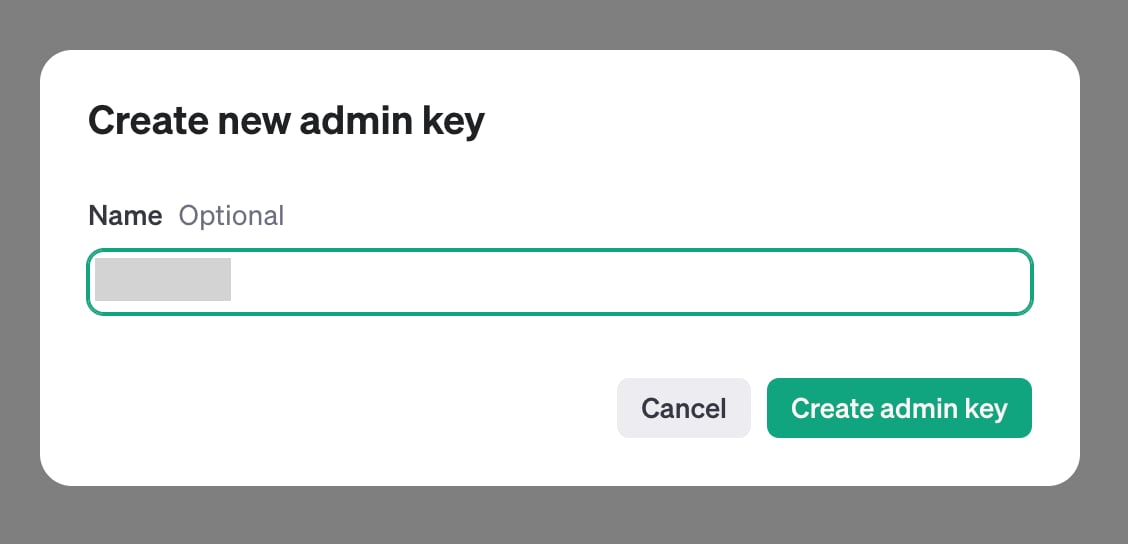
 Enter a name such as "Admina" and create the key.
 A **Secret key will be generated — this is your API key**. Copy and save it.
**The Secret key will not be displayed again.** Please save it carefully.
The API key begins with `sk-admin-`.
A **Secret key will be generated — this is your API key**. Copy and save it.
**The Secret key will not be displayed again.** Please save it carefully.
The API key begins with `sk-admin-`.
 ### How to Obtain the Workspace Key
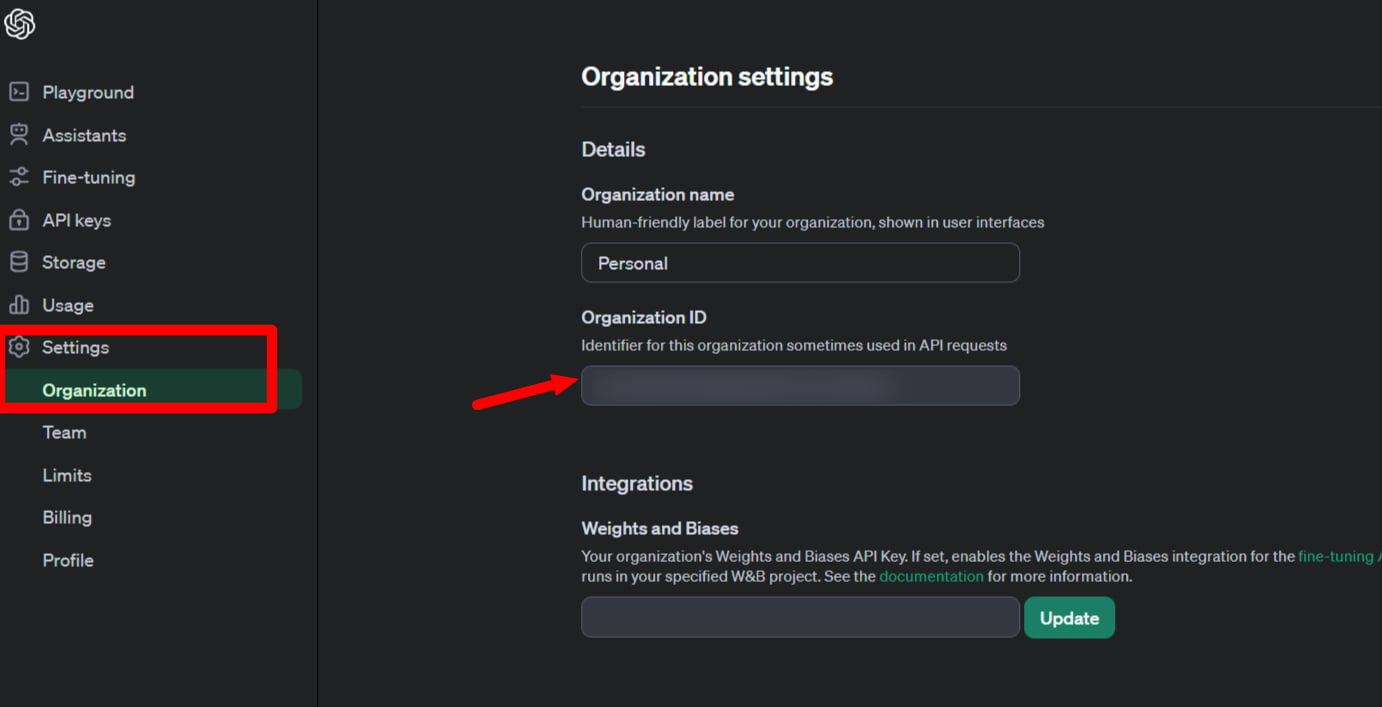
Go to **Settings > Organization** from the side menu to find the **Organization ID**.
The **Organization ID is your workspace key** — copy and save it.
### How to Obtain the Workspace Key
Go to **Settings > Organization** from the side menu to find the **Organization ID**.
The **Organization ID is your workspace key** — copy and save it.
 ## Integration Setup
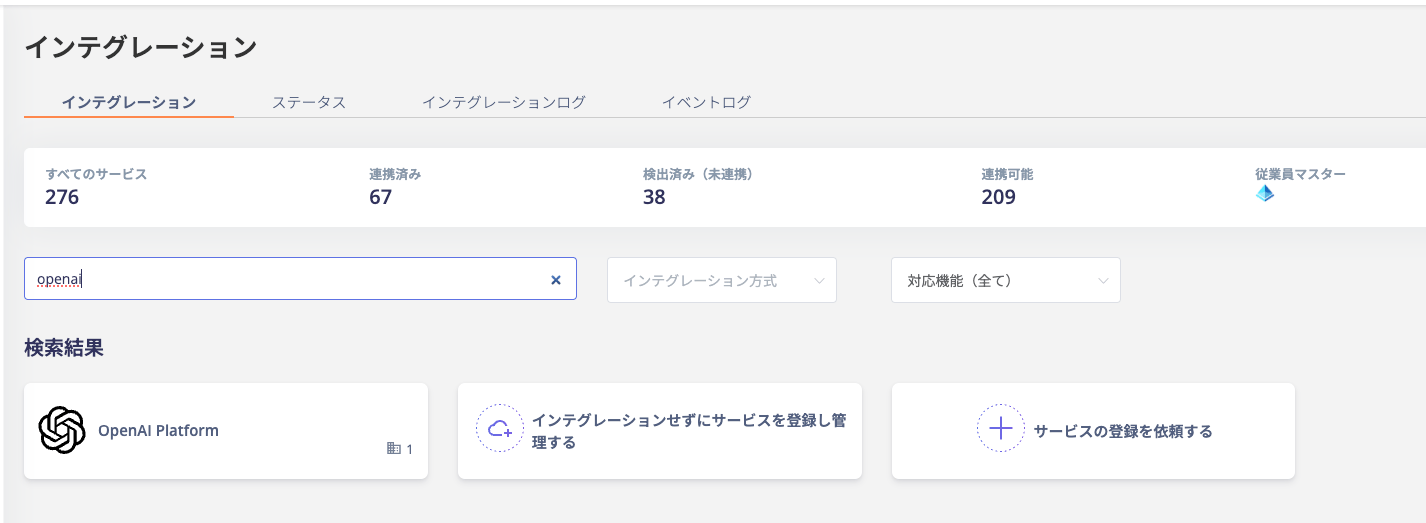
Search for **OpenAI Platform** on the MoneyForward Admina integration screen.
## Integration Setup
Search for **OpenAI Platform** on the MoneyForward Admina integration screen.
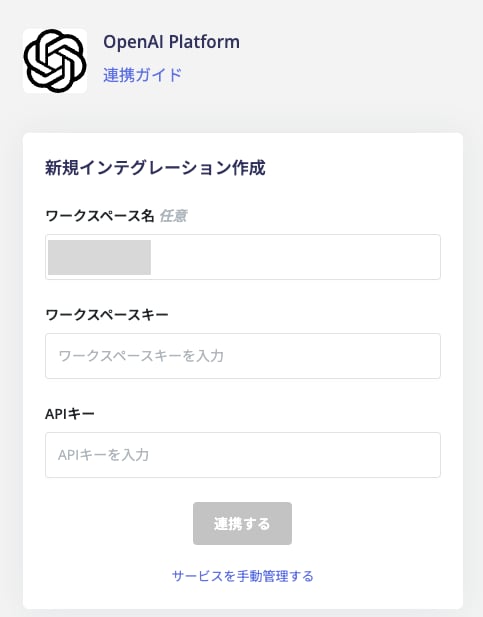
 Enter the **workspace key and API key** obtained in the previous steps, then click **Connect**.
The workspace name is optional.
Enter the **workspace key and API key** obtained in the previous steps, then click **Connect**.
The workspace name is optional.
 Once the integration with **OpenAI Platform** is successful, the registered user information will appear in the account list.
If the process does not complete successfully, click **Edit** from the Status tab on the integration screen and try connecting again.
If the issue persists, please contact us via chat.
Once the integration with **OpenAI Platform** is successful, the registered user information will appear in the account list.
If the process does not complete successfully, click **Edit** from the Status tab on the integration screen and try connecting again.
If the issue persists, please contact us via chat.