> ## Documentation Index
> Fetch the complete documentation index at: https://hc.saas-manager.biz.nuro.jp/llms.txt
> Use this file to discover all available pages before exploring further.
# dbt Cloud
> How to integrate with dbt Cloud.
This section describes a series of steps from administrator login to dbt Cloud from Admina by Money Forward to the integration method.
## Advance Preparation
### How to log in to dbt Cloud
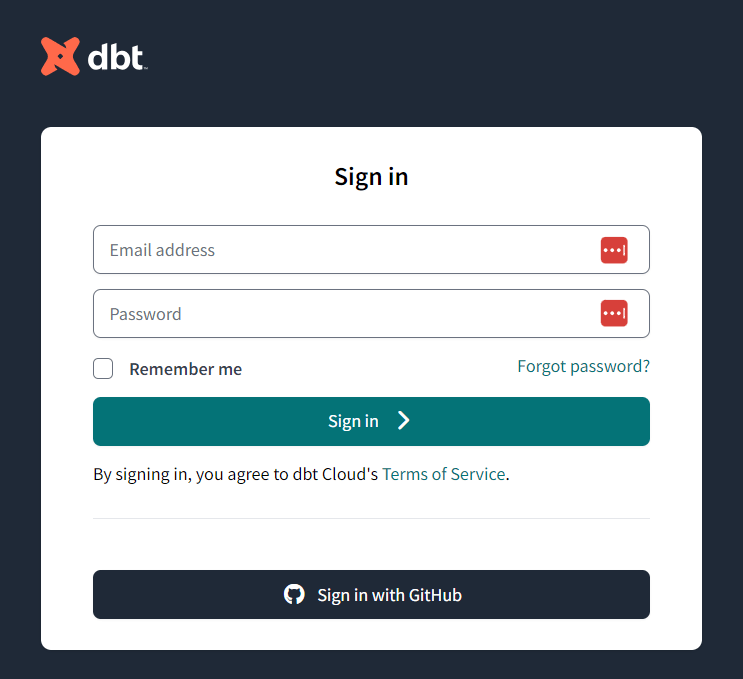
Enter your email address and password on [the dbt Cloud login page](https://auth.cloud.getdbt.com/login?state=hKFo2SBDa3JobTVPT3ZQbmRUN0dnc1ZieFVoWHZIbDY4Ql9jY6FupWxvZ2luo3RpZNkgd0dSWXRSem5FUk83WDM5ZGxYTXFyOUFpb1pJcEZhNmGjY2lk2SBSbGJ3eTBaa0FRUEJBaEhVNEpnZjZ2bW44SGFBNzNvWQ\&client=Rlbwy0ZkAQPBAhHU4Jgf6vmn8HaA73oY\&protocol=oauth2\&response_type=code\&redirect_uri=https%3A%2F%2Fcloud.getdbt.com%2Fapi%2Fauth%2Fauth-login%2F\&scope=openid%20profile) to log in.
 ### How to get a workspace key
After logging in to dbt Cloud, go to **Settings ⚙ > Account settings** > **Account**.
### How to get a workspace key
After logging in to dbt Cloud, go to **Settings ⚙ > Account settings** > **Account**.
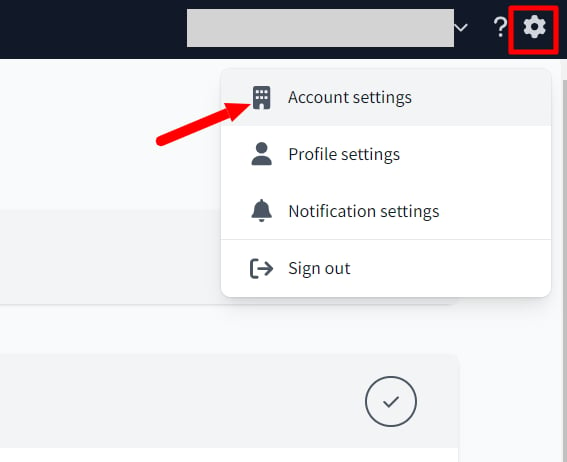 **The Account ID will be your workspace key**, so copy and save it.
 ### How to get the access key
Go to **Settings > API tokens > Personal tokens** and click **+Create personal access token**.
### How to get the access key
Go to **Settings > API tokens > Personal tokens** and click **+Create personal access token**.
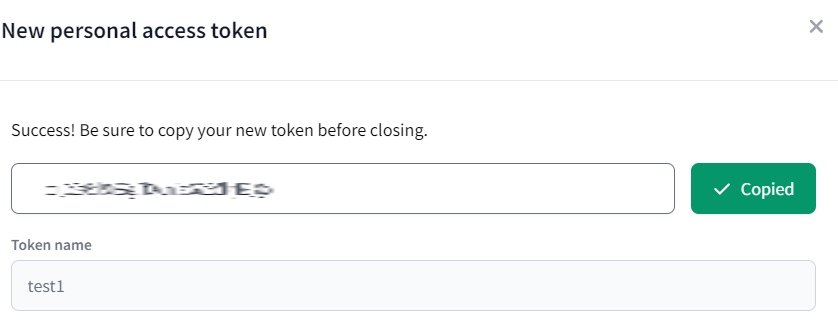
 **Enter any name (purpose, department name, etc.)** and click **SAVE** to display **the API token**.
**The API token will be your access key**, so copy and save it.
**Enter any name (purpose, department name, etc.)** and click **SAVE** to display **the API token**.
**The API token will be your access key**, so copy and save it.
 ## Setting up the integration
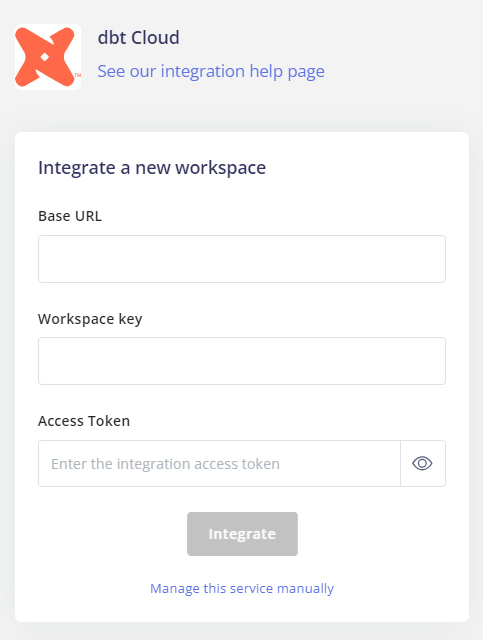
Search for **dbt Cloud** on the Money Forward Admina integration screen.
## Setting up the integration
Search for **dbt Cloud** on the Money Forward Admina integration screen.
 Enter **the Base URL**, **workspace key and access key** obtained in the previous step, and click **Connect**.
Please select the Base URL from below. Please check your current website URL to determine which Base URL to use.
* `https://cloud.getdbt.com`
* `https://emea.dbt.com`
* `https://au.dbt.com`
* `https://{account_prefix}.us1.dbt.com`
Enter **the Base URL**, **workspace key and access key** obtained in the previous step, and click **Connect**.
Please select the Base URL from below. Please check your current website URL to determine which Base URL to use.
* `https://cloud.getdbt.com`
* `https://emea.dbt.com`
* `https://au.dbt.com`
* `https://{account_prefix}.us1.dbt.com`
 If the link with dbt Cloud is successful, registered user information will be displayed in the account list.
If it does not complete successfully, please **edit** from the status tab on the integration screen and try the integration again.
If the problem is not resolved, please contact us via chat 🙏
If the link with dbt Cloud is successful, registered user information will be displayed in the account list.
If it does not complete successfully, please **edit** from the status tab on the integration screen and try the integration again.
If the problem is not resolved, please contact us via chat 🙏