> ## Documentation Index
> Fetch the complete documentation index at: https://hc.saas-manager.biz.nuro.jp/llms.txt
> Use this file to discover all available pages before exploring further.
# GitHub
> Instructions for integrating with GitHub.
## Supported Features
Account Deletion Account Creation
## Prerequisites
### Creating an Organization
Integrating with GitHub requires an organization. Go to the GitHub [admin page](https://github.com/settings/organizations) and verify that an organization has been created.
If no organization exists, create one. Attempting to integrate without an organization will result in an error (`errors.ids.oauth_no_workspace`).
If you have already created an organization but are still seeing an error, see "Integrating Multiple Organizations" below.
## Integration Setup
There are the following methods to create a new integration:
* **General (Non-Enterprise Plan · OAuth)**
* **General (Non-Enterprise Plan · App)**
* **Enterprise Plan**
### General (Non-Enterprise Plan · OAuth)
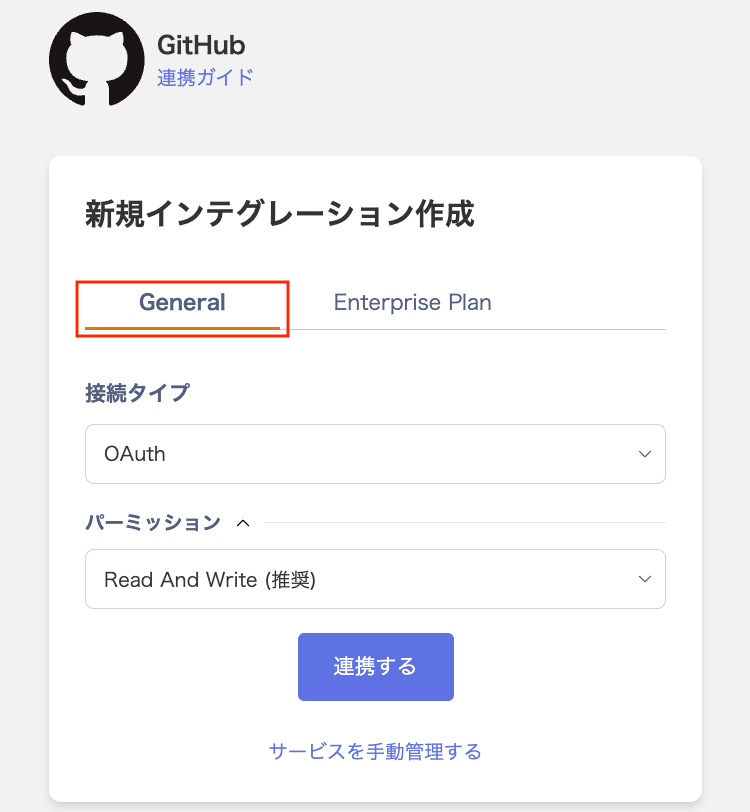
1. Go to Integrations > Integrations, search for **Github**, and select the **General** tab.
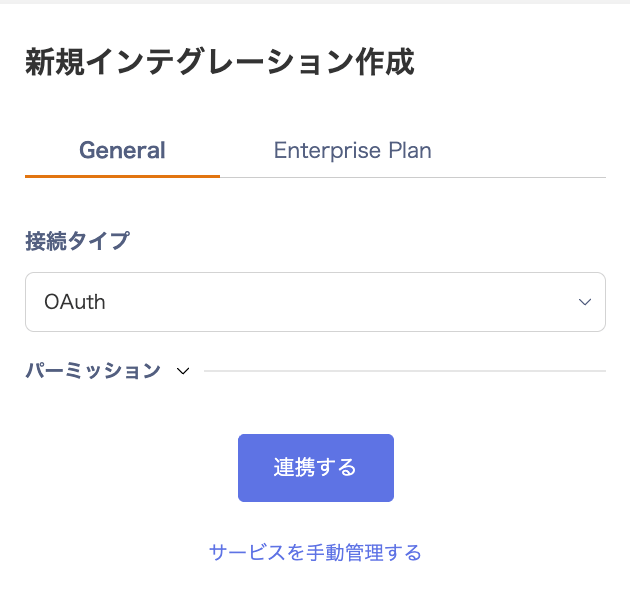
 2. Select **OAuth** from the connection type dropdown.
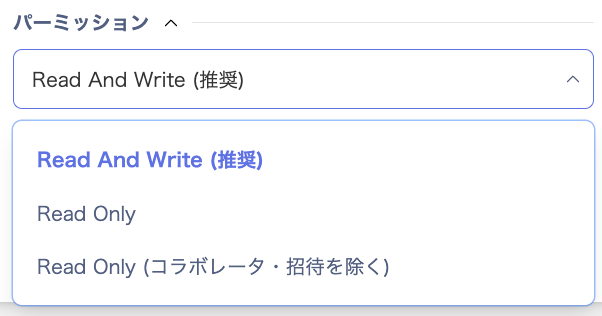
 3. Select a permission level — **Read And Write (recommended) / Read Only / Read Only (excluding collaborators and invitations)** — and click \[**Connect**].
 4. You will be redirected to the GitHub login page. Enter your GitHub username or email address and password to log in.
 5. After logging in to GitHub, a permission grant confirmation screen will appear as shown below.
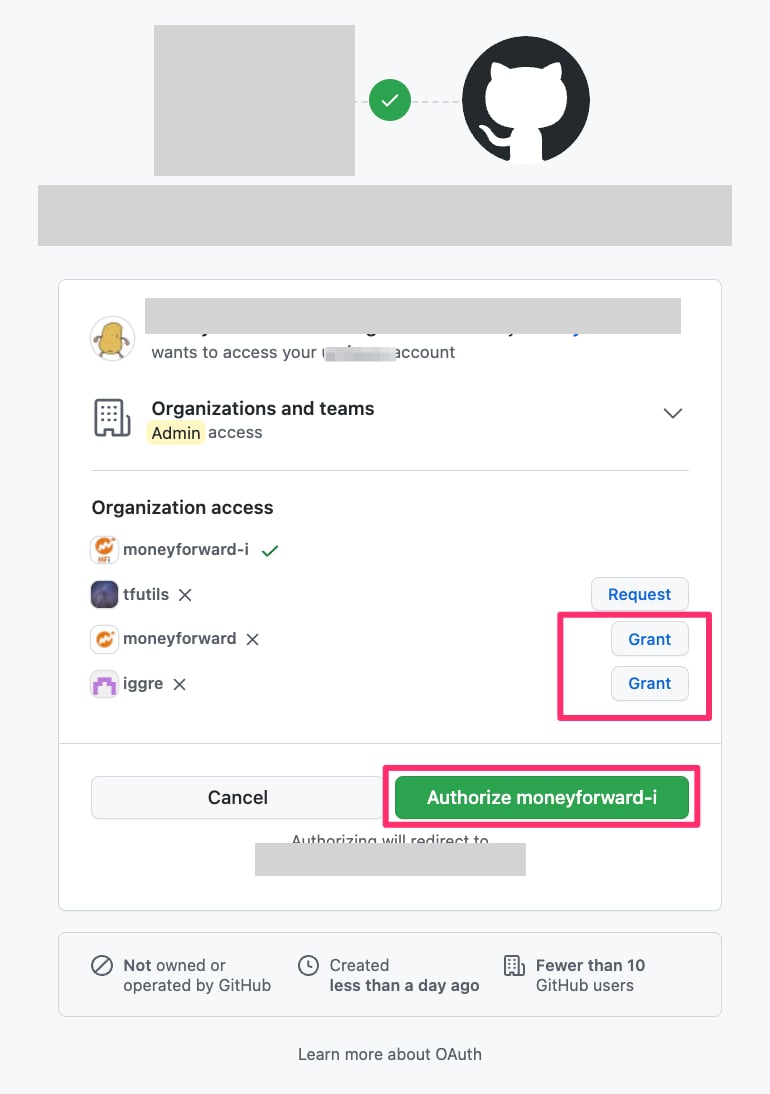 6. Review the permissions to be granted, click \[**Grant**] for your organization, then click \[**Authorize**].
7. Once the integration with GitHub is successful, registered user information will appear in the account list.
If it does not complete successfully, click **Edit** from the Status tab on the integrations screen and try again.
If the issue persists, please contact us via chat. For an overview of the GitHub integration, see the [integration page](https://admina.moneyforward.com/en/integrations/github).
If you use multiple organizations and accidentally clicked Authorize without clicking Grant, see "Integrating Multiple Organizations" below.
### General (Non-Enterprise Plan · App)
1. If you select the connection type **App**, install the [app](https://github.com/apps/admina-organization-manager) in advance.
When installing the [app](https://github.com/apps/admina-organization-manager), select your organization name. The organization name = workspace key is required during integration.
Note: When using **App**, re-integration is not required even if the linked user leaves the organization.
2. Go to Integrations > Integrations, search for **Github**, and select the **General** tab.
3. Select **App** from the connection type dropdown, enter the **organization name** as the workspace key, and click \[Apply].
6. Review the permissions to be granted, click \[**Grant**] for your organization, then click \[**Authorize**].
7. Once the integration with GitHub is successful, registered user information will appear in the account list.
If it does not complete successfully, click **Edit** from the Status tab on the integrations screen and try again.
If the issue persists, please contact us via chat. For an overview of the GitHub integration, see the [integration page](https://admina.moneyforward.com/en/integrations/github).
If you use multiple organizations and accidentally clicked Authorize without clicking Grant, see "Integrating Multiple Organizations" below.
### General (Non-Enterprise Plan · App)
1. If you select the connection type **App**, install the [app](https://github.com/apps/admina-organization-manager) in advance.
When installing the [app](https://github.com/apps/admina-organization-manager), select your organization name. The organization name = workspace key is required during integration.
Note: When using **App**, re-integration is not required even if the linked user leaves the organization.
2. Go to Integrations > Integrations, search for **Github**, and select the **General** tab.
3. Select **App** from the connection type dropdown, enter the **organization name** as the workspace key, and click \[Apply].
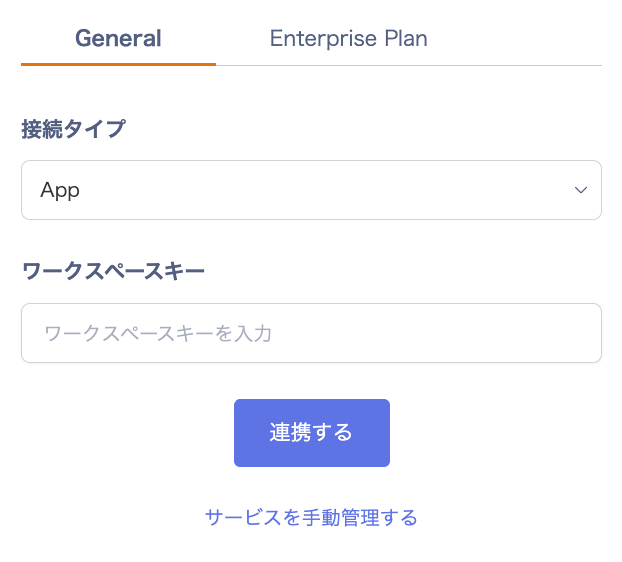 4. Select your organization. Once the integration with GitHub is successful, registered user information will appear in the account list.
If it does not complete successfully, click **Edit** from the Status tab on the integrations screen and try again.
If the issue persists, please contact us via chat. For an overview of the GitHub integration, see the [integration page](https://admina.moneyforward.com/en/integrations/github).
### GitHub Enterprise (Self-Hosted)
If you use GitHub Enterprise, the integration process is different. Follow the steps below.
These instructions apply when using GitHub in a self-hosted environment. If you use a github.com URL, integrate from the **General** tab.
#### Creating an OAuth App
1. Create an OAuth app following the [GitHub documentation](https://docs.github.com/en/enterprise-server@3.3/developers/apps/building-oauth-apps/creating-an-oauth-app). The following notes cover the parameters to enter.
4. Select your organization. Once the integration with GitHub is successful, registered user information will appear in the account list.
If it does not complete successfully, click **Edit** from the Status tab on the integrations screen and try again.
If the issue persists, please contact us via chat. For an overview of the GitHub integration, see the [integration page](https://admina.moneyforward.com/en/integrations/github).
### GitHub Enterprise (Self-Hosted)
If you use GitHub Enterprise, the integration process is different. Follow the steps below.
These instructions apply when using GitHub in a self-hosted environment. If you use a github.com URL, integrate from the **General** tab.
#### Creating an OAuth App
1. Create an OAuth app following the [GitHub documentation](https://docs.github.com/en/enterprise-server@3.3/developers/apps/building-oauth-apps/creating-an-oauth-app). The following notes cover the parameters to enter.
 2. For \[Application name], enter **`Admina by Moneyfoward`**.
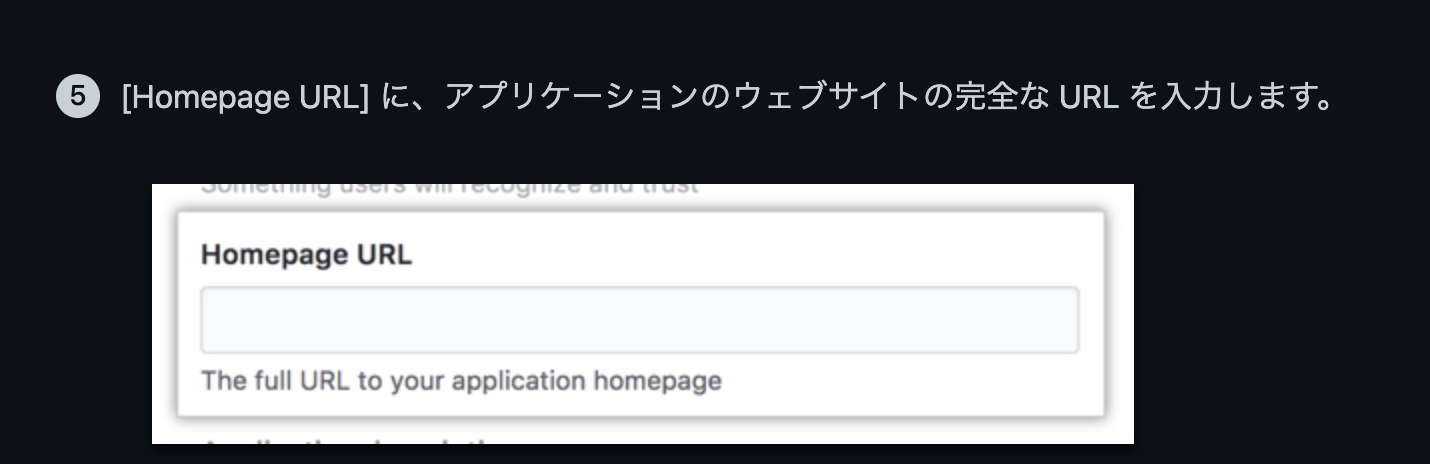 3. For \[Homepage URL], enter `**https://itmc.i.moneyforward.com/**`.
 4. For \[Authorization callback URL], enter `**https://itmc.i.moneyforward.com/oauth/callback**`.
#### Confirming the Base URI
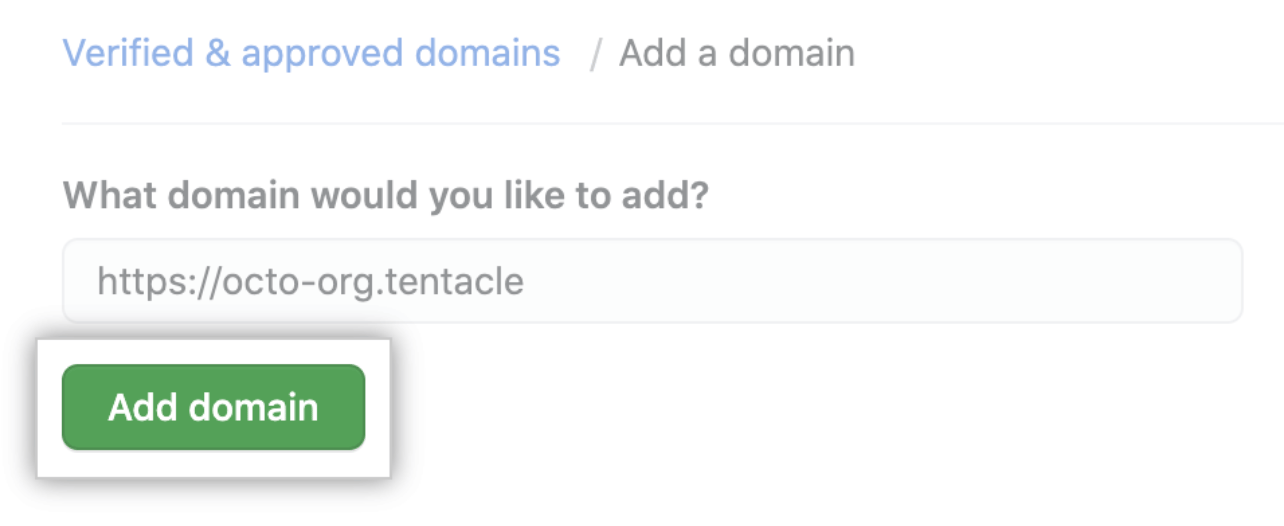
Check the domain you added when [verifying or approving a domain for your GitHub Enterprise organization](https://docs.github.com/en/enterprise-cloud@latest/organizations/managing-organization-settings/verifying-or-approving-a-domain-for-your-organization). (Include https\://)
Copy and save it.
4. For \[Authorization callback URL], enter `**https://itmc.i.moneyforward.com/oauth/callback**`.
#### Confirming the Base URI
Check the domain you added when [verifying or approving a domain for your GitHub Enterprise organization](https://docs.github.com/en/enterprise-cloud@latest/organizations/managing-organization-settings/verifying-or-approving-a-domain-for-your-organization). (Include https\://)
Copy and save it.
 #### Confirming the Client ID and Client Secret
1. After creating the OAuth app, the **Client ID** will be displayed. **The Client ID is your client ID** — save it.
#### Confirming the Client ID and Client Secret
1. After creating the OAuth app, the **Client ID** will be displayed. **The Client ID is your client ID** — save it.
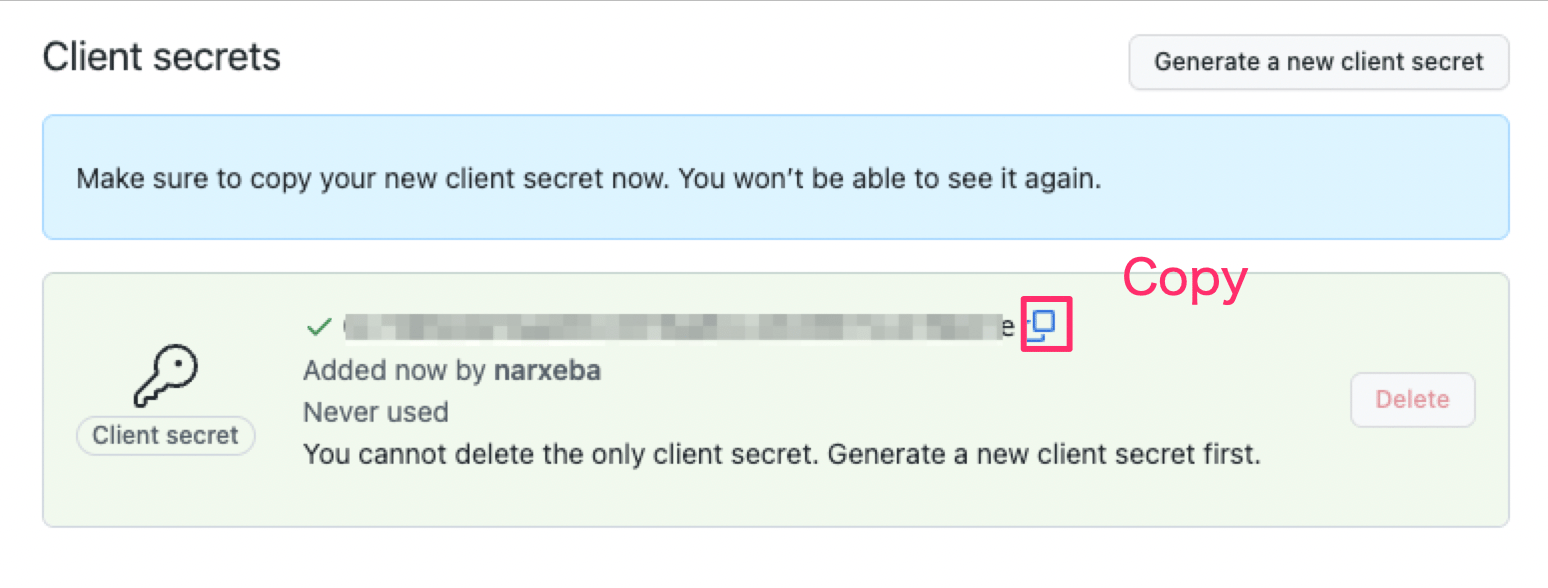
 2. Click the **\[Generate a new client secret]** button.
3. The **Client secret** will be displayed. **The Client secret is your client secret** — save it.
2. Click the **\[Generate a new client secret]** button.
3. The **Client secret** will be displayed. **The Client secret is your client secret** — save it.
 #### Integration Setup
1. Go to Integrations > Integrations, search for **Github**, and select the **Enterprise Plan** tab.
#### Integration Setup
1. Go to Integrations > Integrations, search for **Github**, and select the **Enterprise Plan** tab.
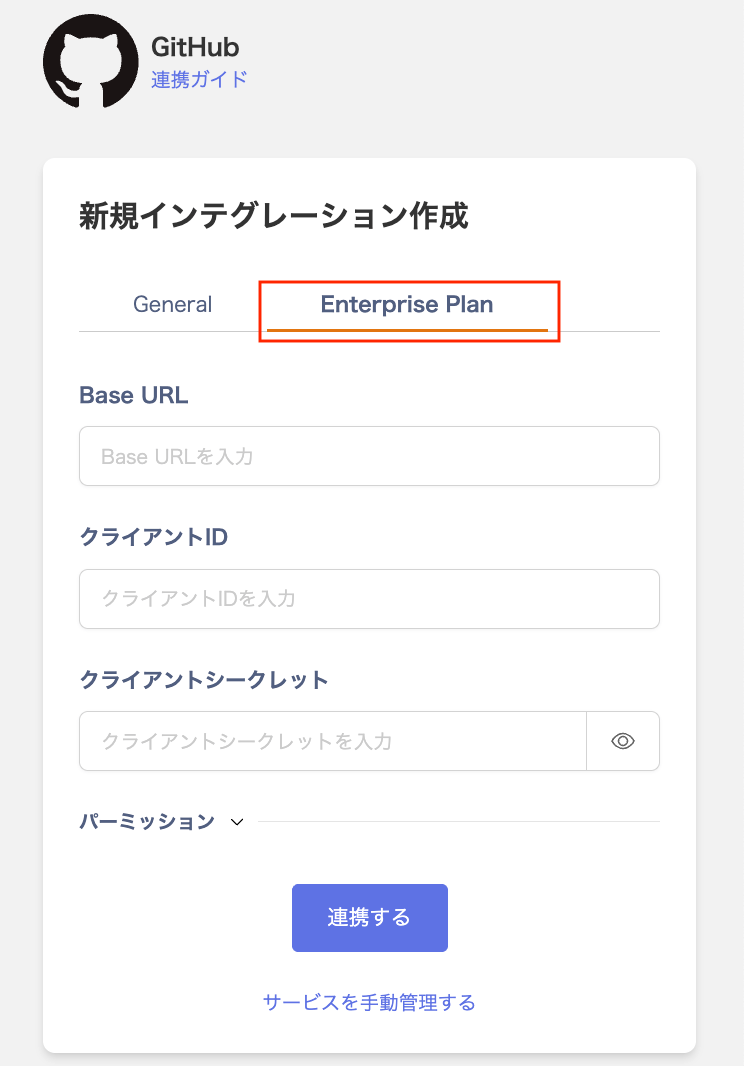 2. Enter the **Base URI**, **client ID**, and **client secret** obtained in the previous steps.
3. Select a permission level — **Read And Write (recommended) / Read Only / Read Only (excluding collaborators and invitations)** — and click \[**Connect**].
4. Once the integration with GitHub is successful, registered user information will appear in the account list.
If it does not complete successfully, click **Edit** from the Status tab on the integrations screen and try again.
If the issue persists, please contact us via chat. For an overview of the GitHub integration, see the [integration page](https://admina.moneyforward.com/en/integrations/github).
## Manual Account Matching for SaaS Services Where Email Address Cannot Be Retrieved
Because email addresses cannot be retrieved for this service, user types are identified as "Unknown."
If needed, manually match (merge) accounts with other accounts.
For configuration details, refer to [Manually Matching (Merging) SaaS Accounts with Other Accounts](/en/it-management/saas-management/d97dy5z2l7-merge).
## Integrating Multiple Organizations
The following cases require action on the GitHub side:
* You want to add a new organization after the initial GitHub integration
* You accidentally clicked Authorize without clicking Grant during initial setup (organization cannot be selected)
### Actions on the GitHub Side
Perform the following steps to grant access to the additional organization or the organization you forgot to grant.
1. Go to [https://github.com/settings/applications](https://github.com/settings/applications).
2. Click the **Admina by Money Forward** app.
2. Enter the **Base URI**, **client ID**, and **client secret** obtained in the previous steps.
3. Select a permission level — **Read And Write (recommended) / Read Only / Read Only (excluding collaborators and invitations)** — and click \[**Connect**].
4. Once the integration with GitHub is successful, registered user information will appear in the account list.
If it does not complete successfully, click **Edit** from the Status tab on the integrations screen and try again.
If the issue persists, please contact us via chat. For an overview of the GitHub integration, see the [integration page](https://admina.moneyforward.com/en/integrations/github).
## Manual Account Matching for SaaS Services Where Email Address Cannot Be Retrieved
Because email addresses cannot be retrieved for this service, user types are identified as "Unknown."
If needed, manually match (merge) accounts with other accounts.
For configuration details, refer to [Manually Matching (Merging) SaaS Accounts with Other Accounts](/en/it-management/saas-management/d97dy5z2l7-merge).
## Integrating Multiple Organizations
The following cases require action on the GitHub side:
* You want to add a new organization after the initial GitHub integration
* You accidentally clicked Authorize without clicking Grant during initial setup (organization cannot be selected)
### Actions on the GitHub Side
Perform the following steps to grant access to the additional organization or the organization you forgot to grant.
1. Go to [https://github.com/settings/applications](https://github.com/settings/applications).
2. Click the **Admina by Money Forward** app.
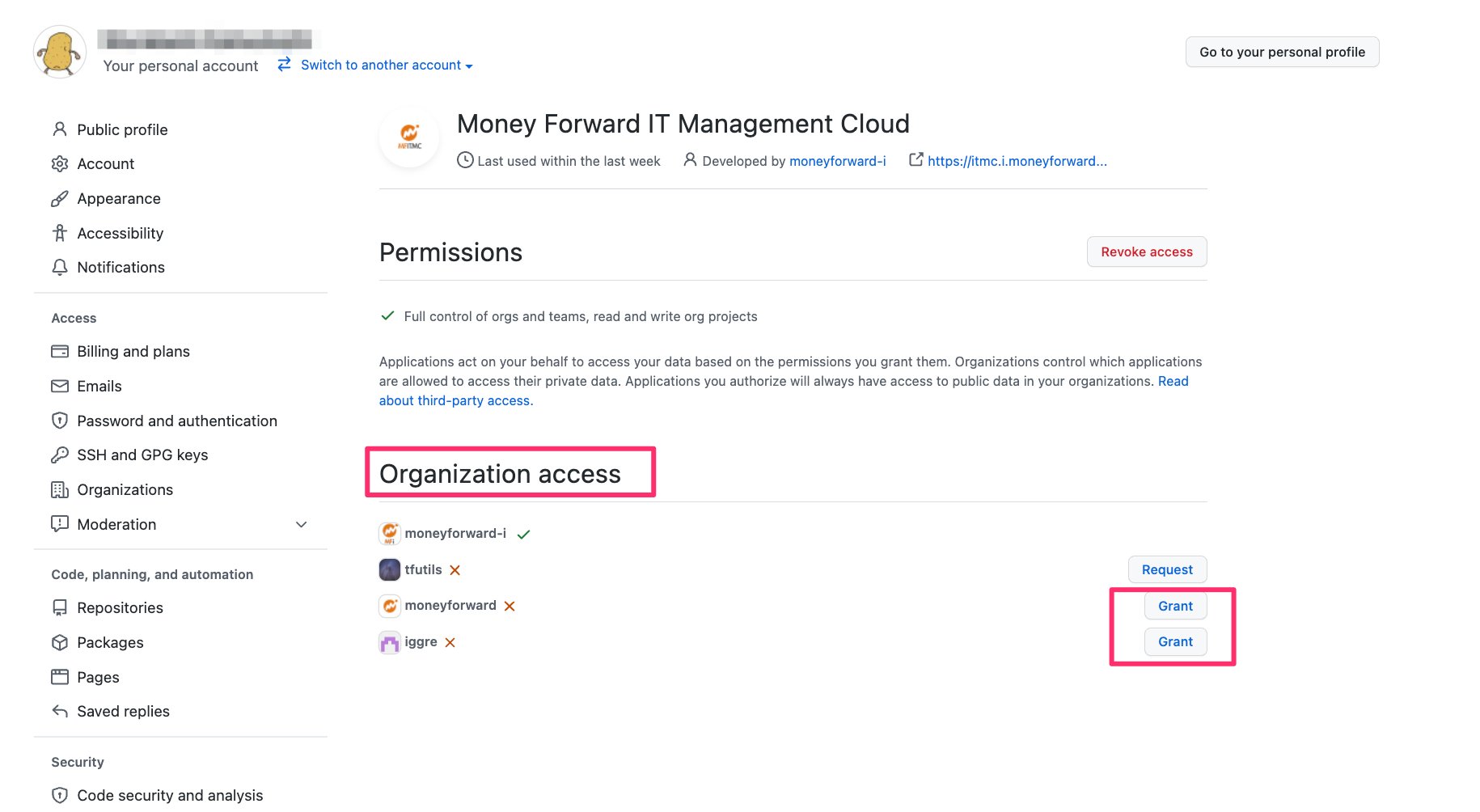
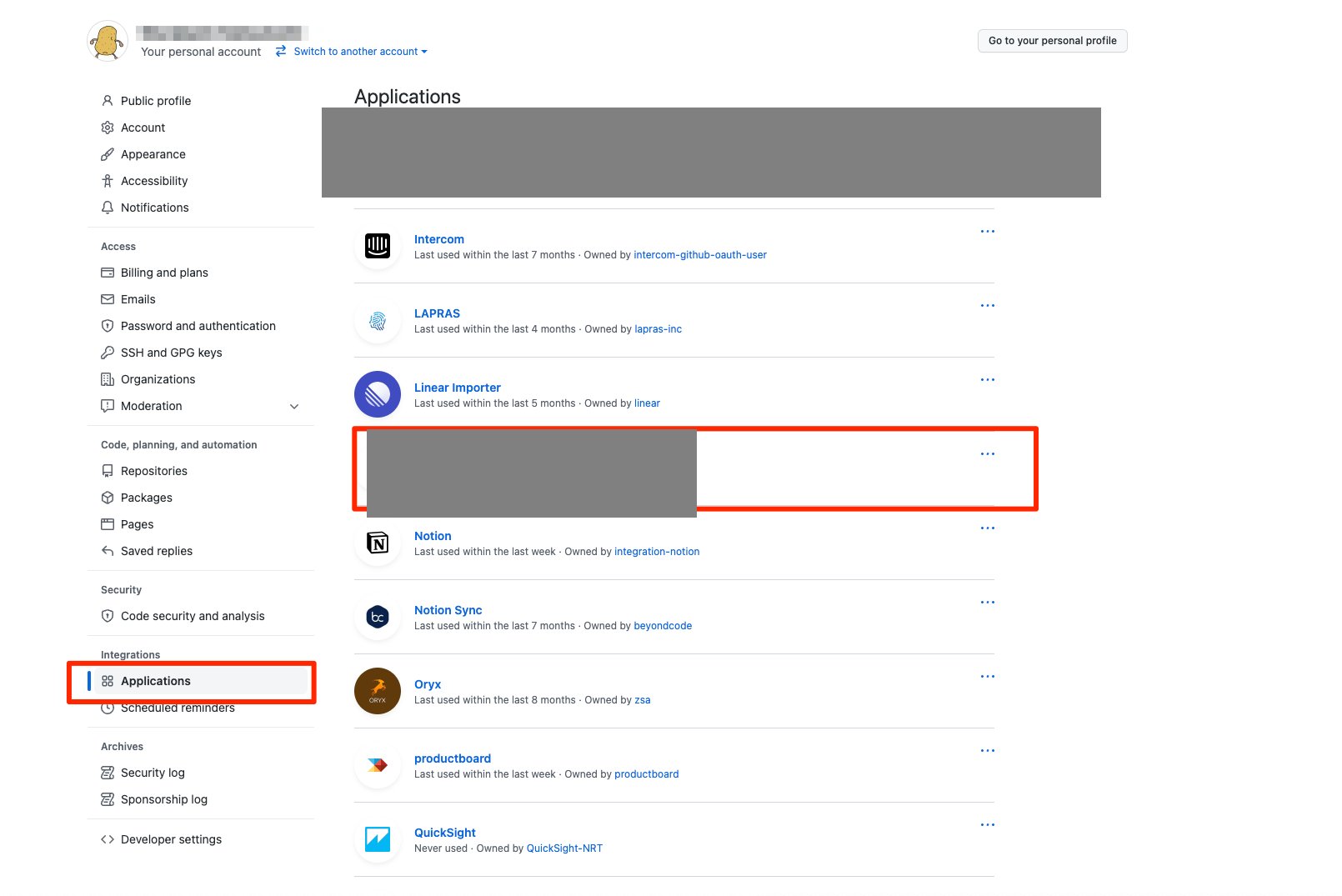 3. Click the **Grant** button under Organization access.
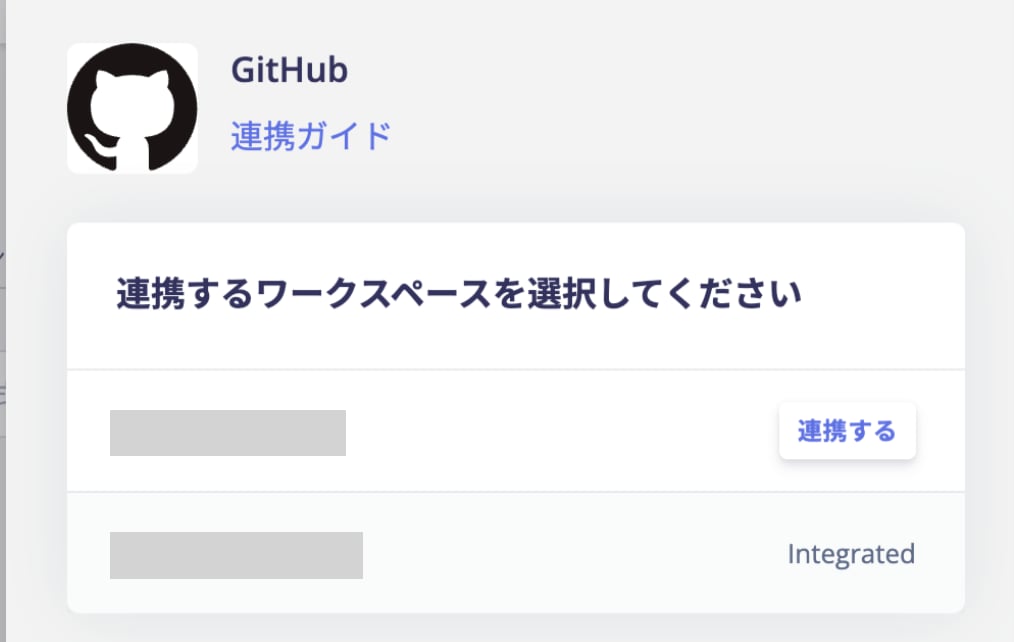
 4. Re-integrate in MoneyForward Admina. As shown in the image below, the organization you granted access to will now be selectable.
 ## Integrating 11 or More Organizations
GitHub OAuth tokens have a limit of `**10**` **tokens per user/application/scope combination**. If more than 10 tokens are created for the same user and scope combination with an application, the oldest token for that user/application/scope combination will be revoked.
[Tokens revoked due to too many OAuth app tokens with the same scope](https://docs.github.com/en/authentication/keeping-your-account-and-data-secure/token-expiration-and-revocation#token-revoked-due-to-too-many-tokens-for-an-oauth-app-with-the-same-scope)
If you need to integrate 11 or more organizations (workspaces), change the account used for integration and run the integration again.
## Integrating 11 or More Organizations
GitHub OAuth tokens have a limit of `**10**` **tokens per user/application/scope combination**. If more than 10 tokens are created for the same user and scope combination with an application, the oldest token for that user/application/scope combination will be revoked.
[Tokens revoked due to too many OAuth app tokens with the same scope](https://docs.github.com/en/authentication/keeping-your-account-and-data-secure/token-expiration-and-revocation#token-revoked-due-to-too-many-tokens-for-an-oauth-app-with-the-same-scope)
If you need to integrate 11 or more organizations (workspaces), change the account used for integration and run the integration again.