> ## Documentation Index
> Fetch the complete documentation index at: https://hc.saas-manager.biz.nuro.jp/llms.txt
> Use this file to discover all available pages before exploring further.
# Figma
> How to integrate with Figma. This section describes a series of steps from administrator login to Figma from Admina by Money Forward to the integration method.
## Supported Features
Provisioning Account Deletion File Aggregation
## Advance Preparation
In addition to the Professional Plan, the Business and Enterprise Plans can now be integrated.
For the Business and Enterprise Plans, integration can be done at the organization level to retrieve users in bulk.
An account with administrative privileges is required for the integration.
### How to Log in to Figma
Click **Log in** in the upper right corner of [Figma's homepage](https://www.figma.com/) and enter your **email address and password** to log in.
External authentication accounts such as Google or SSO cannot be used for integration.
[\[Restrictions\] Integration failure due to external authentication accounts such as Google or SSO](/en/it-management/faq/7gbneu0vz5-auth-error)
 ## How to Get the Workspace Key
Integration with Admina can be done either on a **per-team** or **per-organization** basis. The workspace key (`numeric value`) to obtain differs depending on the unit of integration selected.
### Integrate by team (Integrating by team ID)
1. After logging in to Figma, click the name of the **team you wish to link** from the menu on the left to move to the **team page**.
Note that clicking on "Team project" will take you to the project page.
## How to Get the Workspace Key
Integration with Admina can be done either on a **per-team** or **per-organization** basis. The workspace key (`numeric value`) to obtain differs depending on the unit of integration selected.
### Integrate by team (Integrating by team ID)
1. After logging in to Figma, click the name of the **team you wish to link** from the menu on the left to move to the **team page**.
Note that clicking on "Team project" will take you to the project page.
 2. **Part of the team page URL is the workspace key (numeric value)**, so save it.
[https://www.figma.com/files/team/\`\{workspace](https://www.figma.com/files/team/`\{workspace) key}\`/team name・・・
2. **Part of the team page URL is the workspace key (numeric value)**, so save it.
[https://www.figma.com/files/team/\`\{workspace](https://www.figma.com/files/team/`\{workspace) key}\`/team name・・・
 ### Integration by organization (Business, Enterprise Plan or higher)
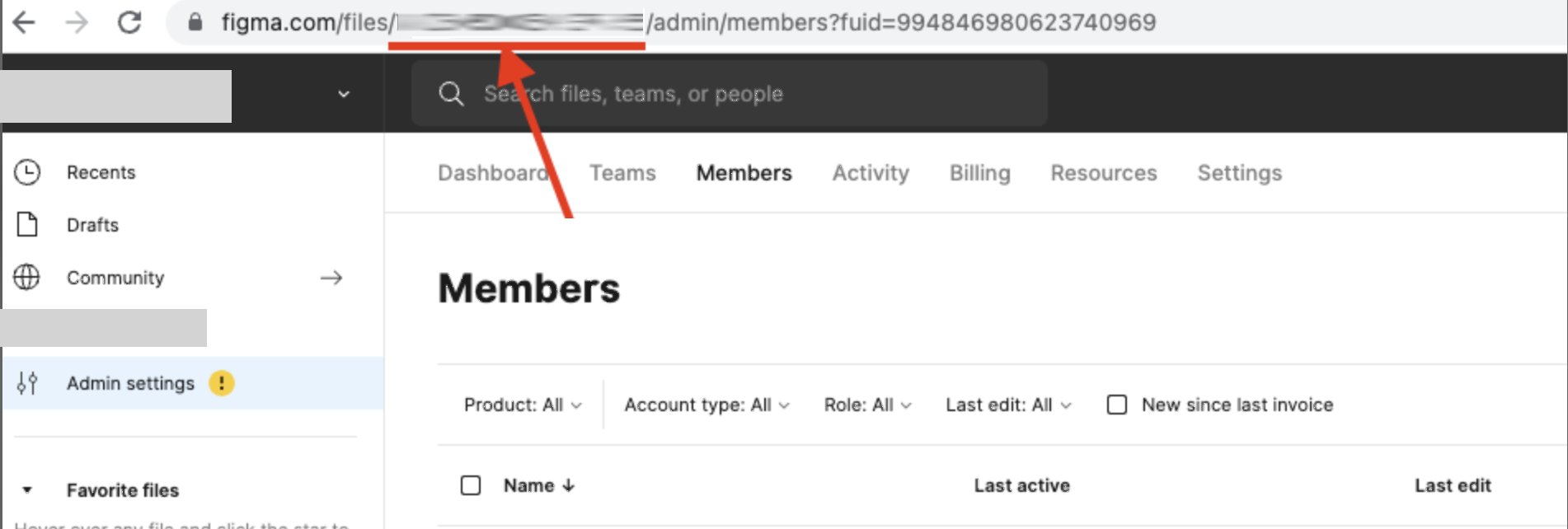
After logging into Figma, go to the **Admin Settings of the organization**. **Part of the URL is the workspace key (numeric value)**, so save it.
[https://www.figma.com/files/\`\{workspace](https://www.figma.com/files/`\{workspace) key}\`/admin/members・・・
### Integration by organization (Business, Enterprise Plan or higher)
After logging into Figma, go to the **Admin Settings of the organization**. **Part of the URL is the workspace key (numeric value)**, so save it.
[https://www.figma.com/files/\`\{workspace](https://www.figma.com/files/`\{workspace) key}\`/admin/members・・・
 ## Integration Setup
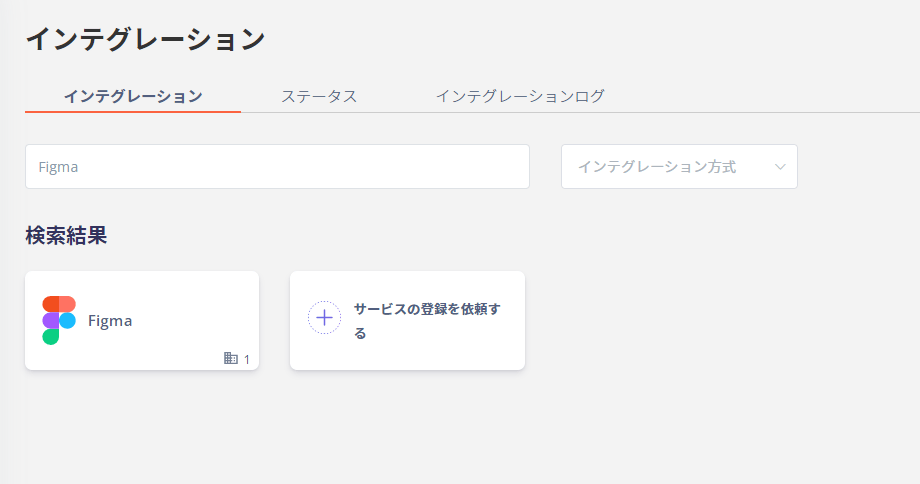
1. Search for **Figma** on the integration screen of Admina by Money Forward.
## Integration Setup
1. Search for **Figma** on the integration screen of Admina by Money Forward.
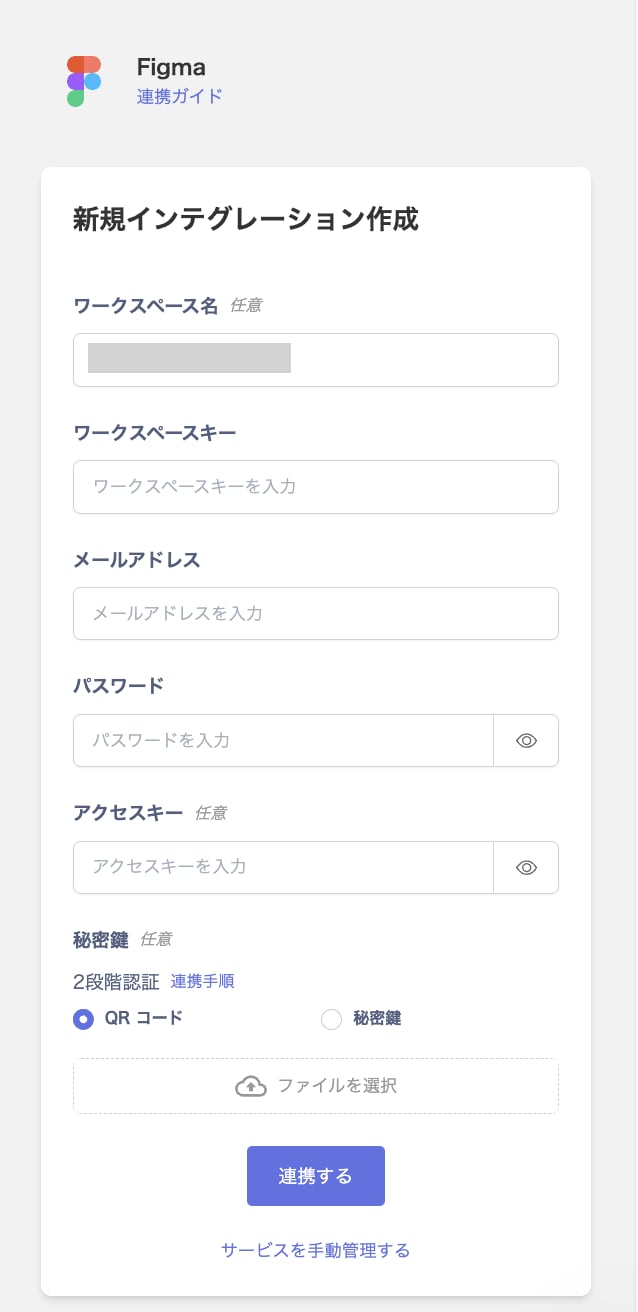
 2. Enter any name (e.g., company name) for the **workspace name**, the **workspace key** obtained in the previous step, and the **email address and password for administrative privileges**, then click **Integrate**.
\*Users who have logged in using Google Authentication or SSO will not have a password, resulting in an authentication error. Please use the email address and password of the account you created with Figma.
2. Enter any name (e.g., company name) for the **workspace name**, the **workspace key** obtained in the previous step, and the **email address and password for administrative privileges**, then click **Integrate**.
\*Users who have logged in using Google Authentication or SSO will not have a password, resulting in an authentication error. Please use the email address and password of the account you created with Figma.
 3. If the integration with Figma is successful, the registered user information will be displayed in the account list.
If it does not complete normally, **edit** it from the status tab of the integration screen and try the integration again.
If you cannot resolve the issue, please contact us via chat. For an overview of Figma integration, see the [integration page](http://admina.moneyforward.com/en/integrations/figma).
## Shared Content Management Feature
By setting an access key during integration, we will retrieve the sharing status of Figma and alert you if any pages are published on the Web. ([About the Shared Content Management Feature](/en/it-management/file-management/aakpi1r7gq-file-management#1023961436))
To retrieve public files, integration must be done at the team level (organization-level integration does not support the public file feature).
### How to Get the Access Key
1. After logging into Figma, select the user in the upper right corner and click the **\[Settings]** button.
3. If the integration with Figma is successful, the registered user information will be displayed in the account list.
If it does not complete normally, **edit** it from the status tab of the integration screen and try the integration again.
If you cannot resolve the issue, please contact us via chat. For an overview of Figma integration, see the [integration page](http://admina.moneyforward.com/en/integrations/figma).
## Shared Content Management Feature
By setting an access key during integration, we will retrieve the sharing status of Figma and alert you if any pages are published on the Web. ([About the Shared Content Management Feature](/en/it-management/file-management/aakpi1r7gq-file-management#1023961436))
To retrieve public files, integration must be done at the team level (organization-level integration does not support the public file feature).
### How to Get the Access Key
1. After logging into Figma, select the user in the upper right corner and click the **\[Settings]** button.
 2. Scroll down to the bottom of the Account tab, enter any token name in the "Personal Access Token" field, and press the Enter key.
3. A token will be displayed; copy and save it (the token is only displayed at this point, so be sure to copy it).
2. Scroll down to the bottom of the Account tab, enter any token name in the "Personal Access Token" field, and press the Enter key.
3. A token will be displayed; copy and save it (the token is only displayed at this point, so be sure to copy it).
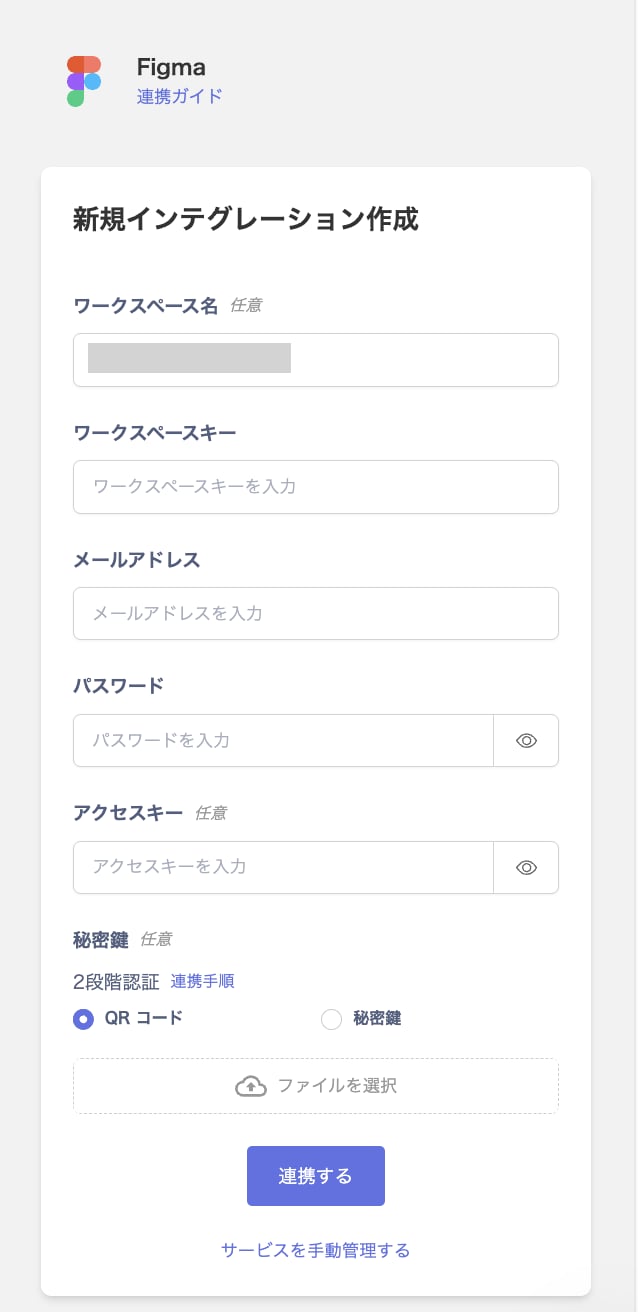
 4. On the Admina integration screen, enter the **workspace name**, the Team's **workspace key**, the **admin email address and password**, and the **access key**. Then click **Integrate**.
 ### How to Confirm Alerts
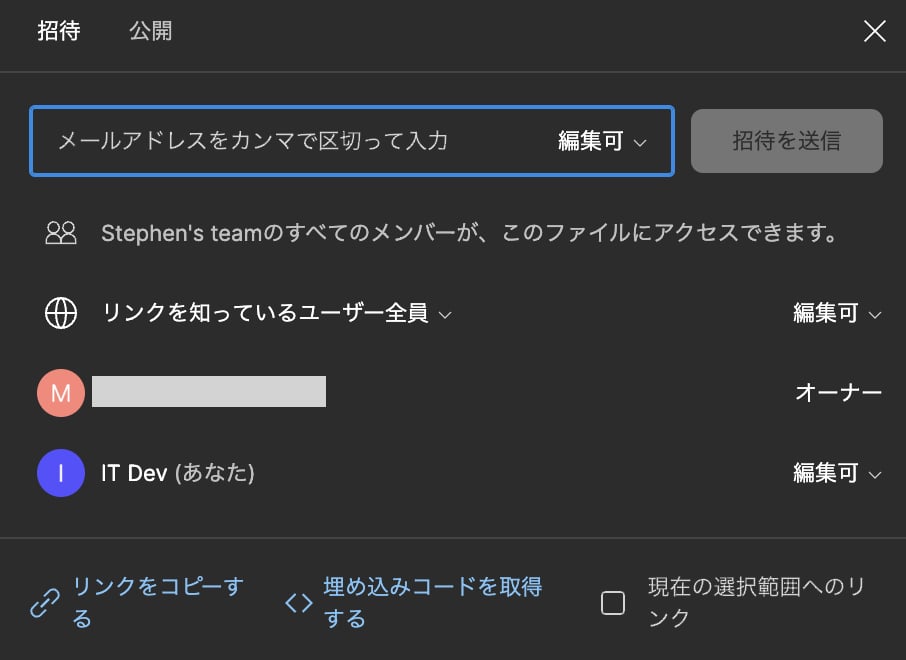 Files shared with \[`Anyone with the link`] in the sharing settings of Figma pages are retrieved and displayed in the File tab and Notifications tab of Admina > Figma.
