> ## Documentation Index
> Fetch the complete documentation index at: https://hc.saas-manager.biz.nuro.jp/llms.txt
> Use this file to discover all available pages before exploring further.
# Linear
> Steps to integrate with Linear.
## Supported Features
Account Provisioning Account Deactivation
## Integration Setup
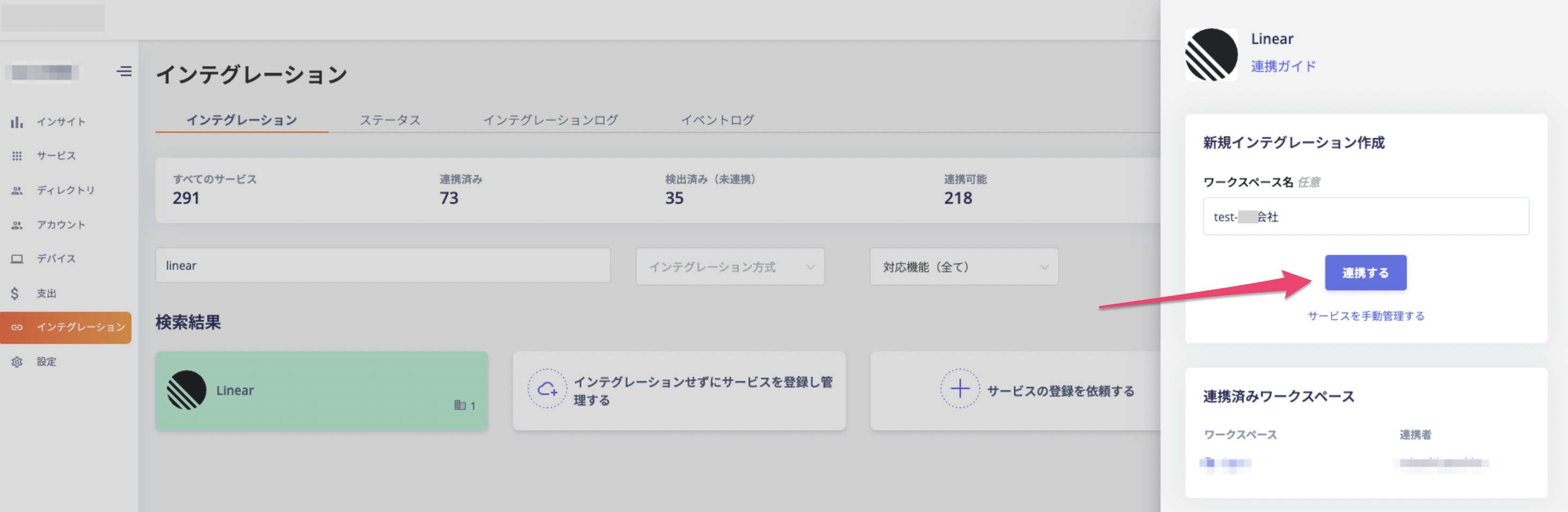
These are the steps to integrate with Linear. In the MoneyForward Admina integrations screen, search for **Linear** and click **Connect**.
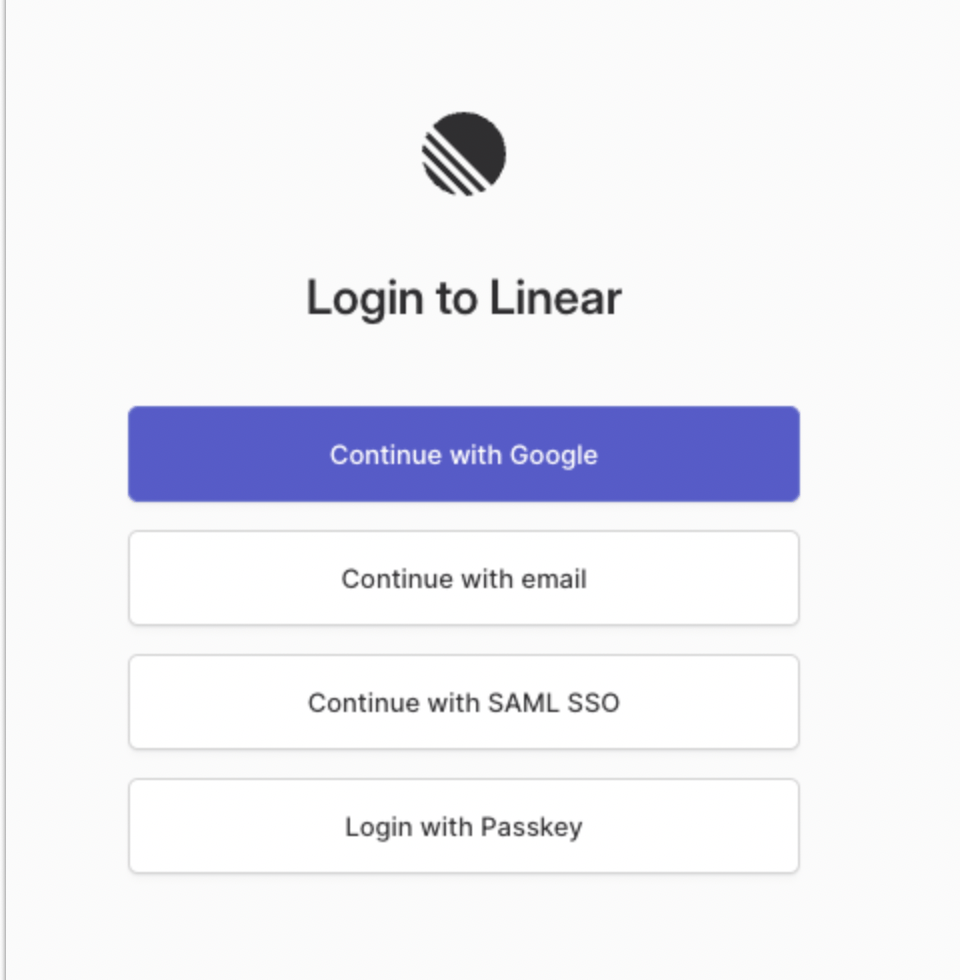
 Log in to Linear. (Skip this step if you are already logged in.)
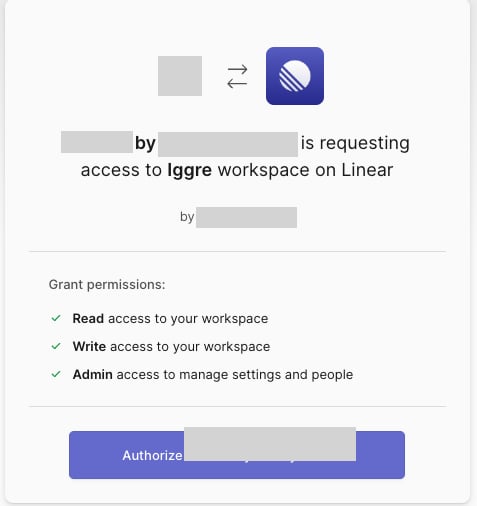
 Click **Authorize Admina by Money Forward**.
 When the Linear integration succeeds, registered user information will appear in the account list.
If the process does not complete successfully, click **Edit** from the Status tab on the integrations screen and try connecting again.
If the issue persists, please contact us via chat.
When the Linear integration succeeds, registered user information will appear in the account list.
If the process does not complete successfully, click **Edit** from the Status tab on the integrations screen and try connecting again.
If the issue persists, please contact us via chat.