> ## Documentation Index
> Fetch the complete documentation index at: https://hc.saas-manager.biz.nuro.jp/llms.txt
> Use this file to discover all available pages before exploring further.
# Rakuraku Seisan
> Steps to integrate with Rakuraku Seisan.
## Supported Features
Account Creation Account Deletion
## Prerequisites
### How to Find the Base URL
The URL of your login page is the **Base URL**.
Example: `https://etude5.rakurakuseisan.jp/xxxxx/`
 ## Integration Setup
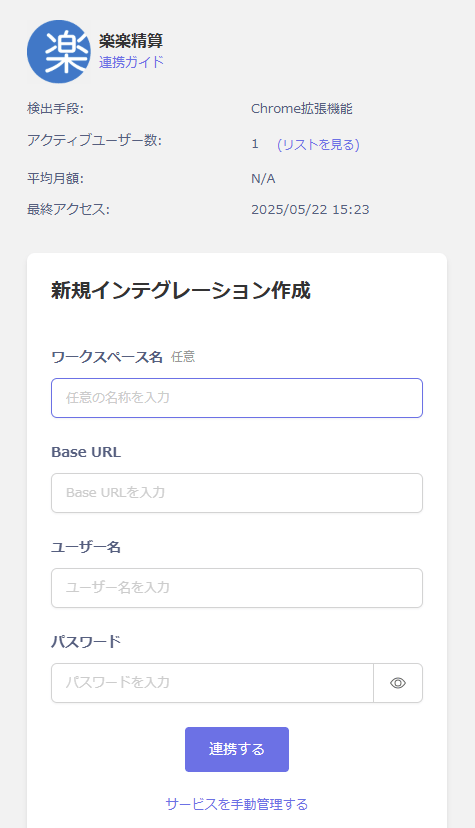
1. In the MoneyForward Admina integrations screen, search for **Rakuraku Seisan**.
2. Enter the following information and click **Connect**.
* **Workspace Name**: Any name (e.g., your company name)
* **Base URL**: The Base URL confirmed in the previous step (integration with "/ssooff" appended to the end of the URL is also supported)
* **Username**: Login ID for Rakuraku Seisan
* **Password**: Password for Rakuraku Seisan
## Integration Setup
1. In the MoneyForward Admina integrations screen, search for **Rakuraku Seisan**.
2. Enter the following information and click **Connect**.
* **Workspace Name**: Any name (e.g., your company name)
* **Base URL**: The Base URL confirmed in the previous step (integration with "/ssooff" appended to the end of the URL is also supported)
* **Username**: Login ID for Rakuraku Seisan
* **Password**: Password for Rakuraku Seisan
 3. Once the integration is successful, the registered user information will appear in the account list.
If it does not complete successfully, go to Integration > Status and try connecting again.
### If Integration with Rakuraku Seisan Fails
If the issue cannot be resolved, please contact us via chat with the following information:
* A screenshot or video of the error screen
* Error details
3. Once the integration is successful, the registered user information will appear in the account list.
If it does not complete successfully, go to Integration > Status and try connecting again.
### If Integration with Rakuraku Seisan Fails
If the issue cannot be resolved, please contact us via chat with the following information:
* A screenshot or video of the error screen
* Error details