> ## Documentation Index
> Fetch the complete documentation index at: https://hc.saas-manager.biz.nuro.jp/llms.txt
> Use this file to discover all available pages before exploring further.
# 5. Import CSV Data (Cost)
> Learn how to import CSV data and manage it in Cost Management.
#### Cost Management via CSV Data
By customizing and importing CSV data exported from accounting or expense systems,
you can manage SaaS costs (Insights and [Spending](/en/it-management/cost-management/pawv3ttutu-spending)).
#### Import Steps
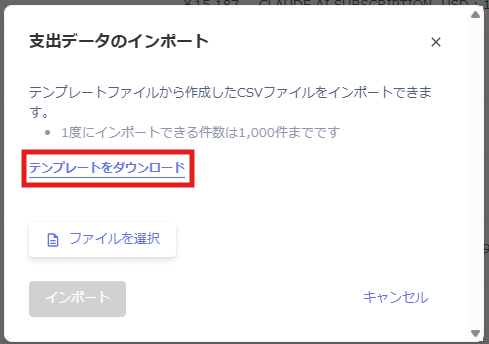
1. Go to **Spending** and click \[**`Import Spending Data`**] in the upper right of the Spending section.
 2. The **Import Spending Data** screen appears.
Download the CSV template for import and save it to a folder of your choice.
2. The **Import Spending Data** screen appears.
Download the CSV template for import and save it to a folder of your choice.
 3. Open the downloaded template file and fill in each field according to the format.
 | Field | Input format |
| ----------------------- | ------------------------------------------------------ |
| Date (required) | Use YYYY-MM-DD or YYYY/MM/DD format. |
| Amount (required) | You can use a dot to indicate decimal places. |
| Currency (required) | Use USD or JPY. You cannot mix currencies. |
| Note (optional) | Use this field for transaction details or other memos. |
| Service Name (optional) | Enter the SaaS name. |
* Row 7 contains a default description row — delete it before importing.
* Delete any unnecessary blank rows, as they will cause the import to fail.
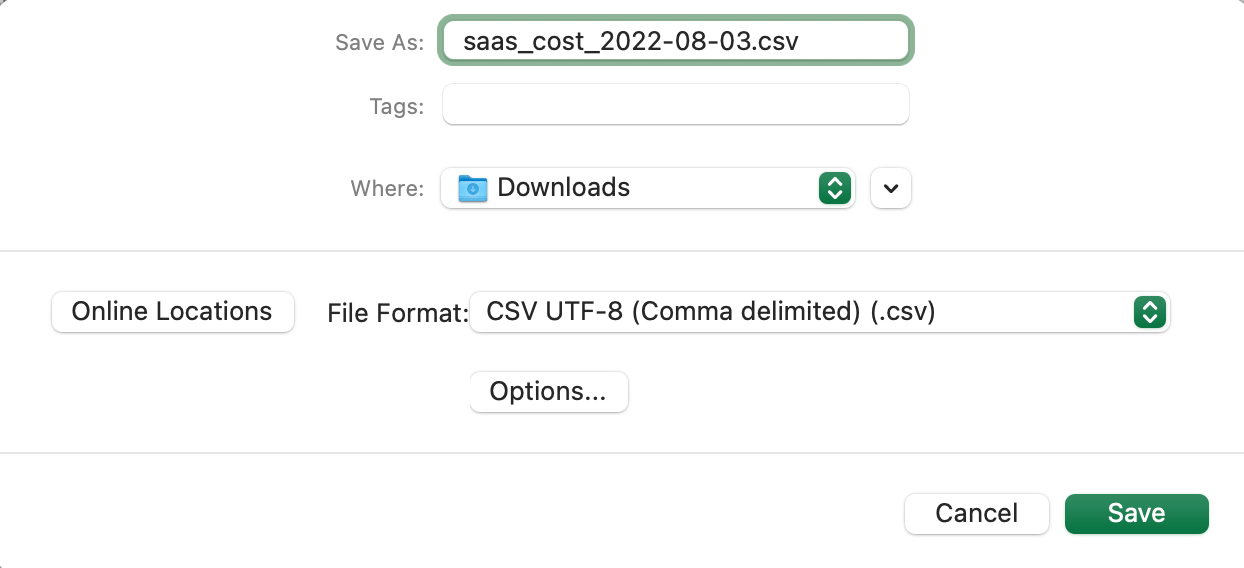
4. After creating the file, save it in **CSV format**.
* Including the date in YYYY-MM-DD format in the file name makes it easier to identify later.
* Supported character encodings for CSV files are **UTF-8, EUCJP, JIS, and SJIS**.
* Device-dependent characters are not supported.
| Field | Input format |
| ----------------------- | ------------------------------------------------------ |
| Date (required) | Use YYYY-MM-DD or YYYY/MM/DD format. |
| Amount (required) | You can use a dot to indicate decimal places. |
| Currency (required) | Use USD or JPY. You cannot mix currencies. |
| Note (optional) | Use this field for transaction details or other memos. |
| Service Name (optional) | Enter the SaaS name. |
* Row 7 contains a default description row — delete it before importing.
* Delete any unnecessary blank rows, as they will cause the import to fail.
4. After creating the file, save it in **CSV format**.
* Including the date in YYYY-MM-DD format in the file name makes it easier to identify later.
* Supported character encodings for CSV files are **UTF-8, EUCJP, JIS, and SJIS**.
* Device-dependent characters are not supported.
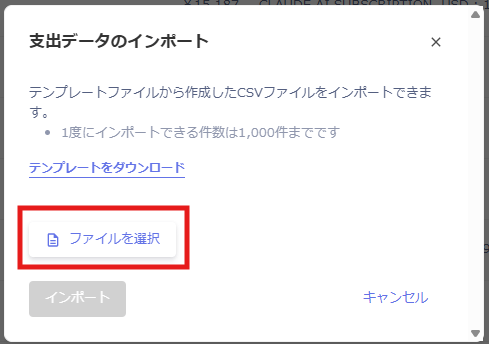
 5. Drag and drop the file onto the Import Spending Data screen to start the import.
 6. When the import completes successfully, a confirmation message appears. If it fails, correct the CSV file according to the error message.
 #### Reviewing Imported Data
Go to **Spending** and click the **All Sources** filter to view the imported file names and import timestamps.
#### Reviewing Imported Data
Go to **Spending** and click the **All Sources** filter to view the imported file names and import timestamps.
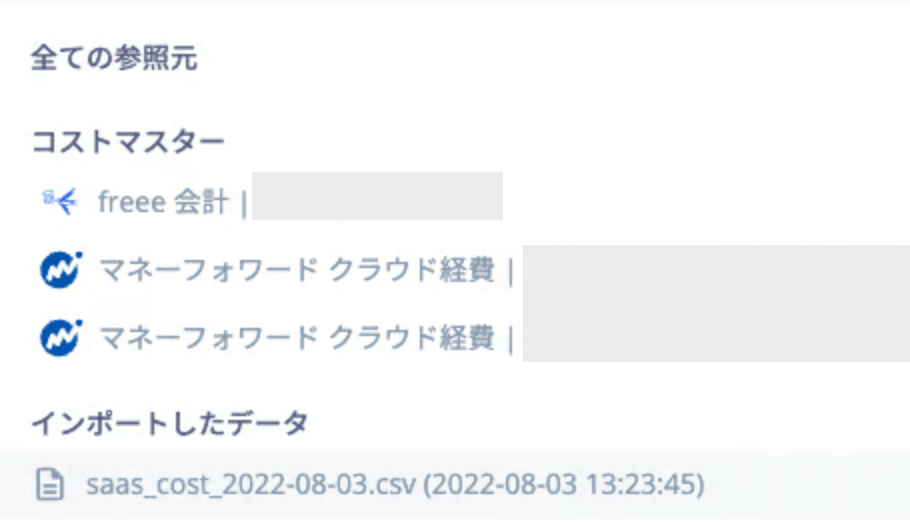 Verify that the imported data is reflected correctly.
