> ## Documentation Index
> Fetch the complete documentation index at: https://hc.saas-manager.biz.nuro.jp/llms.txt
> Use this file to discover all available pages before exploring further.

# 1-1. Identify Self-Managed IDs (Devices)

> The device search feature lets you search by free text, filter with multiple criteria, and save search conditions.

<Info>
  The Device Management feature requires a Device plan (paid subscription). To request a trial, contact us via "**Ask a support representative directly**" in the chat.
</Info>

## Device Screen Overview

<img src="https://mintcdn.com/admina-sbn/KLrPVaxE9MhiOOfJ/images/it-management/mt70ejcvcx/2025-10-12-18-30-34.png?fit=max&auto=format&n=KLrPVaxE9MhiOOfJ&q=85&s=5a3349c7d3df577e6eb2acdd8f9c0eff" alt="Device screen overview" width="2596" height="398" data-path="images/it-management/mt70ejcvcx/2025-10-12-18-30-34.png" />

<table>
  <thead><tr><th style={{width:"60px"}}>#</th><th>Item</th><th>Description</th></tr></thead>

  <tbody>
    <tr><td>1</td><td>Filter by status</td><td>Filter by status: "All / In Use / Pre-Use / In Stock / Awaiting Delivery / Unknown Location / Broken / Disposed/Cancelled".</td></tr>
    <tr><td>2</td><td>All</td><td>Use the dropdown to select fields such as "Email address / Display name / Asset number / Serial number (IMEI) / Location 1 / Location 2 / Manufacturer..." or "Custom fields (data type: text)".<br />Example: select "All" = Email address, then enter an email address as the free-text search term.</td></tr>
    <tr><td>3</td><td>Search by free text</td><td>Search the device list using free text.</td></tr>
    <tr><td>4</td><td>Type</td><td>Filter the device list by type: "PC (Desktop PC / Laptop PC / Tablet PC), Phone (Smart Phone), Other (Monitor / Other / Peripheral Device / Server)".</td></tr>
    <tr><td>5</td><td>Additional filters</td><td>Filter the device list by "User status / Device age / Purchase date / Keyboard layout / Procurement method / Purchase price / Fixed asset / Start date / End date / Return due date / Disposal/cancellation date / Status / Last used (MDM) / Custom fields (data type: selection)".</td></tr>
    <tr><td>6</td><td>Save search</td><td>Save search conditions and reuse them to filter the list.</td></tr>
  </tbody>
</table>

## Filter by "All" Fields and Free Text

You can filter the device list using the "All" field selector and free text.

The "All" option includes the following fields: "Email address / Display name / Asset number / Serial number (IMEI) / Location 1 / Location 2 / Manufacturer / Model number / CPU / Memory / HDD/SSD / OS / Version / Size / Hostname / Purchased from / Warranty period / Model name / Notes" and [custom attributes](/en/it-management/device/2gdbiob664-device-itme#edit-a-custom-field).

Example: The image below shows search results for "Location 1" and "Tokyo".

<img src="https://mintcdn.com/admina-sbn/qCnw7fyzPUmiXEmF/images/it-management/mt70ejcvcx/2026-06-07-20-19-59.png?fit=max&auto=format&n=qCnw7fyzPUmiXEmF&q=85&s=5bee1e78d9a6e6a09f97434c0eb6d0b2" alt="Search results example using &#x22;All&#x22; and free text" width="1920" height="208" data-path="images/it-management/mt70ejcvcx/2026-06-07-20-19-59.png" />

### Clear Filters

To clear a filter, click the (×) button on the right side of the filter.

<img src="https://mintcdn.com/admina-sbn/KLrPVaxE9MhiOOfJ/images/it-management/mt70ejcvcx/2025-10-12-19-03-53.png?fit=max&auto=format&n=KLrPVaxE9MhiOOfJ&q=85&s=2c84cfb020a8dc2c0f87a967985a9c73" alt="Clear filters" width="900" height="74" data-path="images/it-management/mt70ejcvcx/2025-10-12-19-03-53.png" />

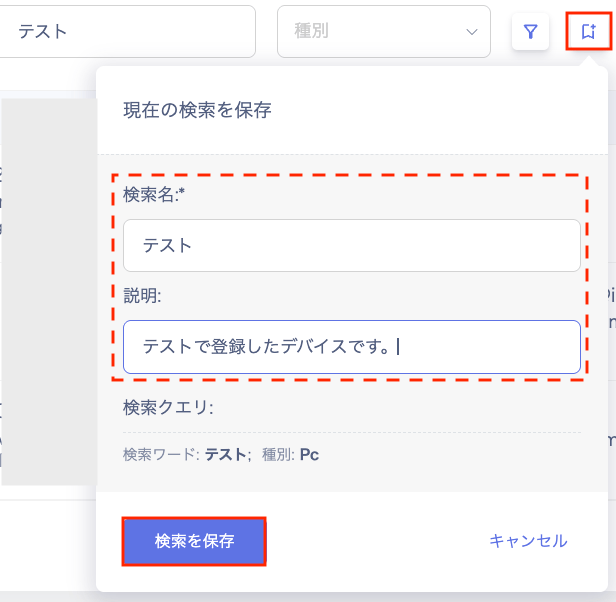
## Save Search Conditions

You can save search conditions and reuse them to filter the list.

To save a search, go to \[Save search] > \[Save current search], enter a name in the "Search name" field, then click \[Save search].
<img src="https://mintcdn.com/admina-sbn/qCnw7fyzPUmiXEmF/images/it-management/mt70ejcvcx/2026-06-07-20-24-27.png?fit=max&auto=format&n=qCnw7fyzPUmiXEmF&q=85&s=c7086f81afe1190540c14c47f317a297" alt="Save search" width="616" height="602" data-path="images/it-management/mt70ejcvcx/2026-06-07-20-24-27.png" />

### Saved Searches

Saved search conditions appear in a list. You can run, reorder, review, or delete saved searches.

<img src="https://mintcdn.com/admina-sbn/KLrPVaxE9MhiOOfJ/images/it-management/mt70ejcvcx/2025-08-29-13-37-19.png?fit=max&auto=format&n=KLrPVaxE9MhiOOfJ&q=85&s=4b326e3b29defa06d14df9813ffec08c" alt="Saved search list" width="594" height="348" data-path="images/it-management/mt70ejcvcx/2025-08-29-13-37-19.png" />

<table>
  <thead><tr><th style={{width:"60px"}}>#</th><th>Item</th><th>Description</th></tr></thead>

  <tbody>
    <tr><td>1</td><td>Reorder</td><td>Reorder saved search conditions by hovering and dragging up or down.</td></tr>
    <tr><td>2</td><td>Search conditions</td><td>Review the saved search conditions.</td></tr>
    <tr><td>3</td><td>Delete</td><td>Delete a saved search condition.</td></tr>
    <tr><td>4</td><td>Run search</td><td>Run a search from the saved search list.</td></tr>
  </tbody>
</table>

