> ## Documentation Index
> Fetch the complete documentation index at: https://hc.saas-manager.biz.nuro.jp/llms.txt
> Use this file to discover all available pages before exploring further.
# 2. Identify Self-Managed IDs
> Learn how to identify self-managed IDs in the Directory.
The Directory search feature lets you use multiple filters to identify IDs and save your search conditions.
## Screen Overview (Directory)
 | No. | Item | Description |
| --- | ----------------------- | ---------------------------------------------------------------------------------------------------- |
| 1 | Filter by ID type | Filter by ID type: All IDs / Internal IDs / External IDs / System IDs / Unknown IDs / Unmanaged IDs. |
| 2 | Search by name or email | Search the Directory list by name or email address. |
| 3 | Status | Filter the Directory list by status. |
| 4 | Period | Filter the Directory list by a specified date range. |
| 5 | Other filters | Filter the Directory list by individual attributes. |
| 6 | Save search | Save your search conditions and reuse them to filter the list. |
## Filter by ID Type
Select an ID type — All IDs / Internal IDs / External IDs / System IDs / Unknown IDs / Unmanaged IDs — to filter the list by that type. To clear the filter, select **All IDs**.
| No. | Item | Description |
| --- | ----------------------- | ---------------------------------------------------------------------------------------------------- |
| 1 | Filter by ID type | Filter by ID type: All IDs / Internal IDs / External IDs / System IDs / Unknown IDs / Unmanaged IDs. |
| 2 | Search by name or email | Search the Directory list by name or email address. |
| 3 | Status | Filter the Directory list by status. |
| 4 | Period | Filter the Directory list by a specified date range. |
| 5 | Other filters | Filter the Directory list by individual attributes. |
| 6 | Save search | Save your search conditions and reuse them to filter the list. |
## Filter by ID Type
Select an ID type — All IDs / Internal IDs / External IDs / System IDs / Unknown IDs / Unmanaged IDs — to filter the list by that type. To clear the filter, select **All IDs**.
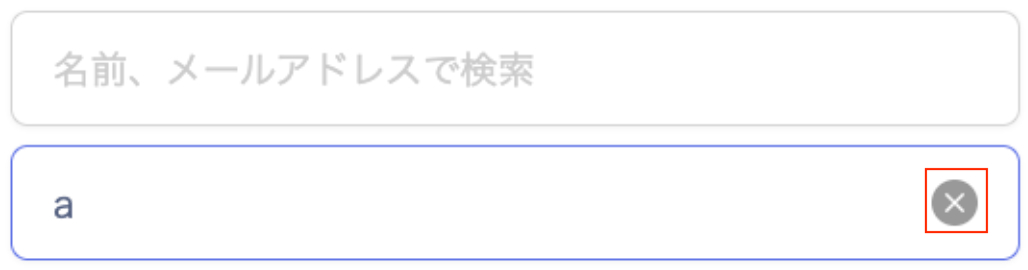
 ## Search by Name or Email
Search the Directory list by name or email address. To clear the search, click the **(×)** icon on the right.
## Search by Name or Email
Search the Directory list by name or email address. To clear the search, click the **(×)** icon on the right.
 ## Status
Filter the Directory list by status. To clear the filter, uncheck the checkbox.
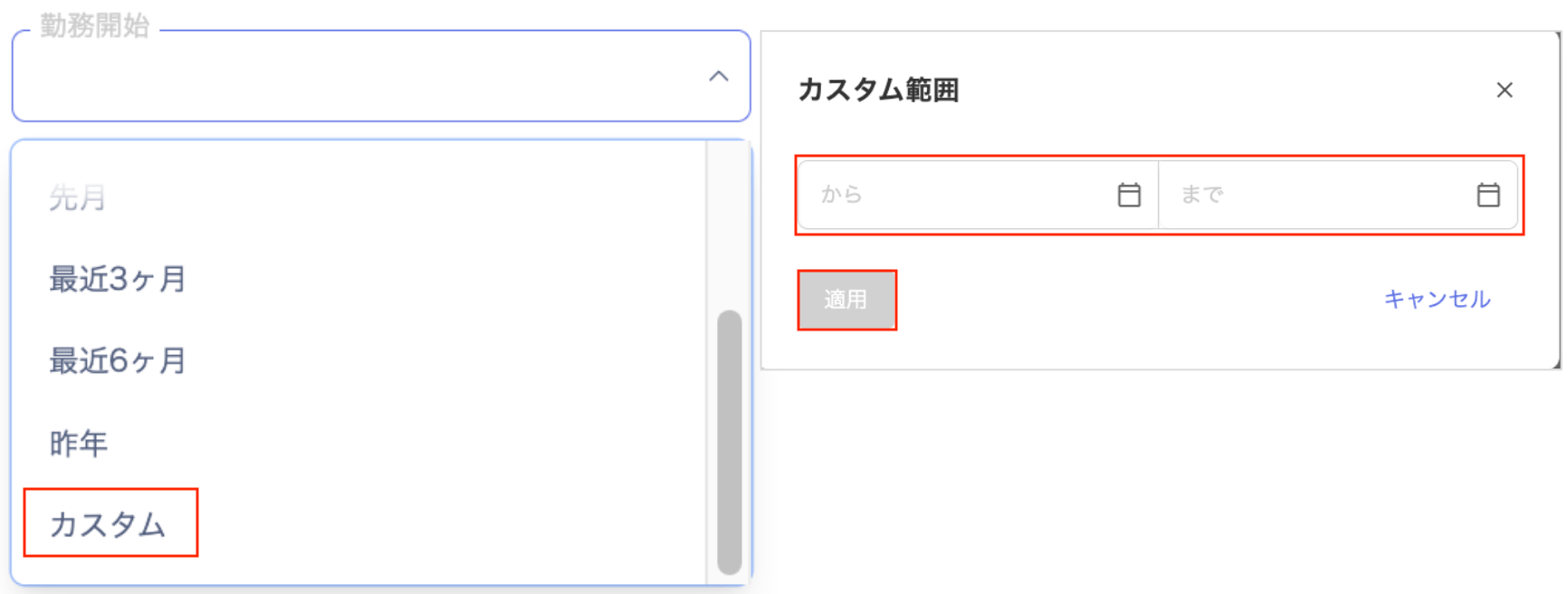
## Period
Filter the Directory list by a specified date range. To clear the filter, click the **(×)** icon on the right.
## Status
Filter the Directory list by status. To clear the filter, uncheck the checkbox.
## Period
Filter the Directory list by a specified date range. To clear the filter, click the **(×)** icon on the right.
 ### Custom
Selecting **Custom** opens the **Custom Range** screen. Set the date range and click **Apply**.
### Custom
Selecting **Custom** opens the **Custom Range** screen. Set the date range and click **Apply**.
Other Filters
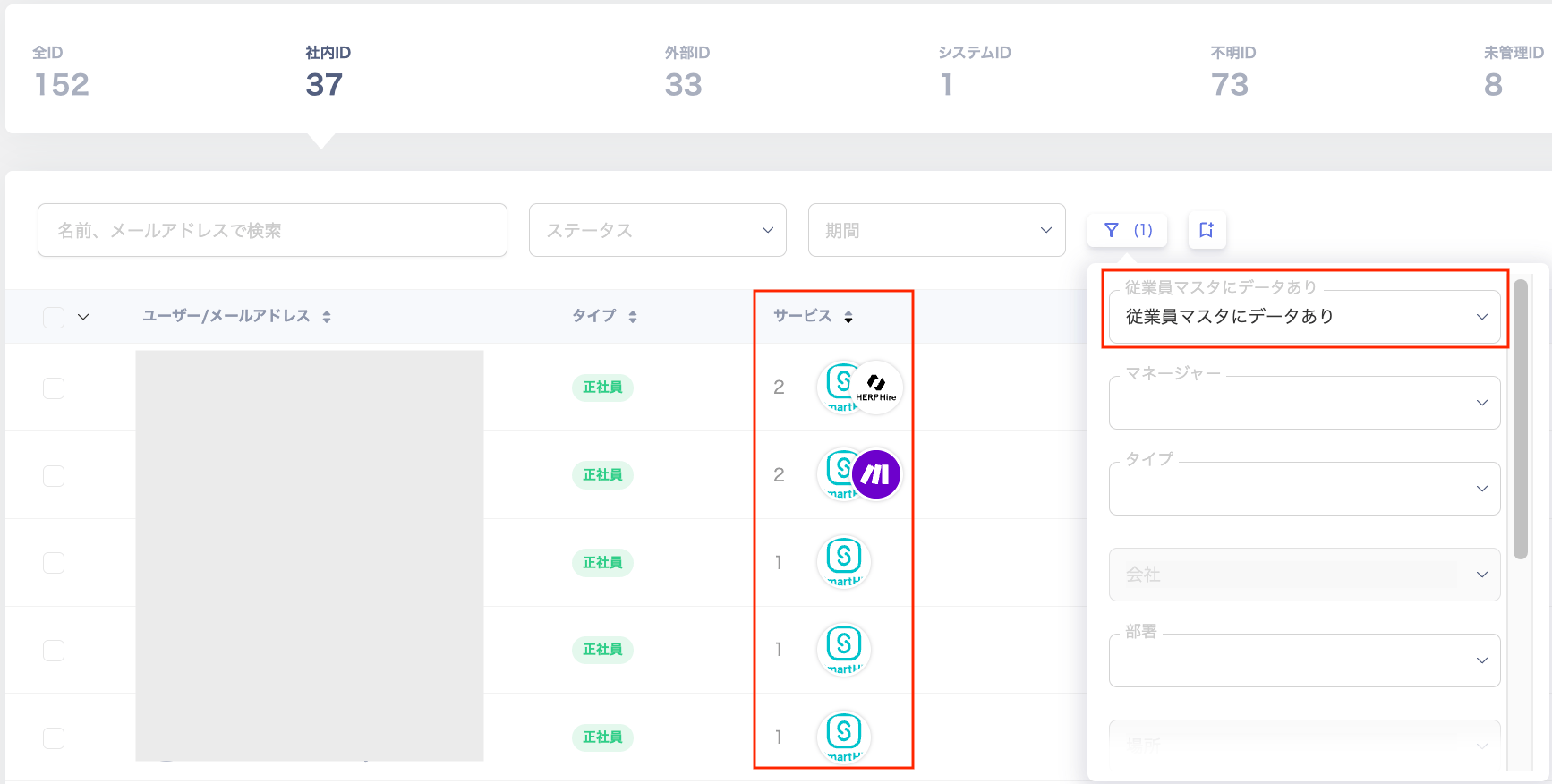
Filter the Directory list by individual attributes (including custom attributes). To clear a filter, click the **(×)** icon on the right.
 ### Has Data in Employee Master
Filter by **Has data in Employee Master**. This filter is available when an employee master is configured under **Settings > Organization > Employee Master Settings**.
### Has Data in Employee Master
Filter by **Has data in Employee Master**. This filter is available when an employee master is configured under **Settings > Organization > Employee Master Settings**.
 When you filter by **Has data in Employee Master**, the **Services** column shows the services configured in the employee master.
 ### Save Search
Save your search conditions and reuse them to filter the list.
To save a search, go to **Save Search** > **Save Current Search**, enter a **Search Name**, and click **Save Search**.
### Save Search
Save your search conditions and reuse them to filter the list.
To save a search, go to **Save Search** > **Save Current Search**, enter a **Search Name**, and click **Save Search**.
 ### Saved Searches
Saved search conditions appear in a list. You can run, reorder, view, and delete saved searches.
### Saved Searches
Saved search conditions appear in a list. You can run, reorder, view, and delete saved searches.
 | No. | Item | Description |
| --- | ----------------- | -------------------------------------------------------------------- |
| 1 | Reorder | Reorder saved search conditions by hovering and dragging up or down. |
| 2 | Search conditions | View the conditions of a saved search. |
| 3 | Delete | Delete a saved search condition. |
| 4 | Run search | Run a search using the saved conditions. |
| No. | Item | Description |
| --- | ----------------- | -------------------------------------------------------------------- |
| 1 | Reorder | Reorder saved search conditions by hovering and dragging up or down. |
| 2 | Search conditions | View the conditions of a saved search. |
| 3 | Delete | Delete a saved search condition. |
| 4 | Run search | Run a search using the saved conditions. |