> ## Documentation Index
> Fetch the complete documentation index at: https://hc.saas-manager.biz.nuro.jp/llms.txt
> Use this file to discover all available pages before exploring further.
# Deleted Atlassian Users Remain as Inactive
> After deleting a user in Atlassian, Admina may continue to show that user as an inactive (separated) employee.
#### **Overview**
After deleting a user in Atlassian, Admina may continue to show that user as an inactive (separated) employee.
#### **Details**
The following explains why Admina marks these users as inactive.
1. This affects users with a company email address who have signed up for Trello.
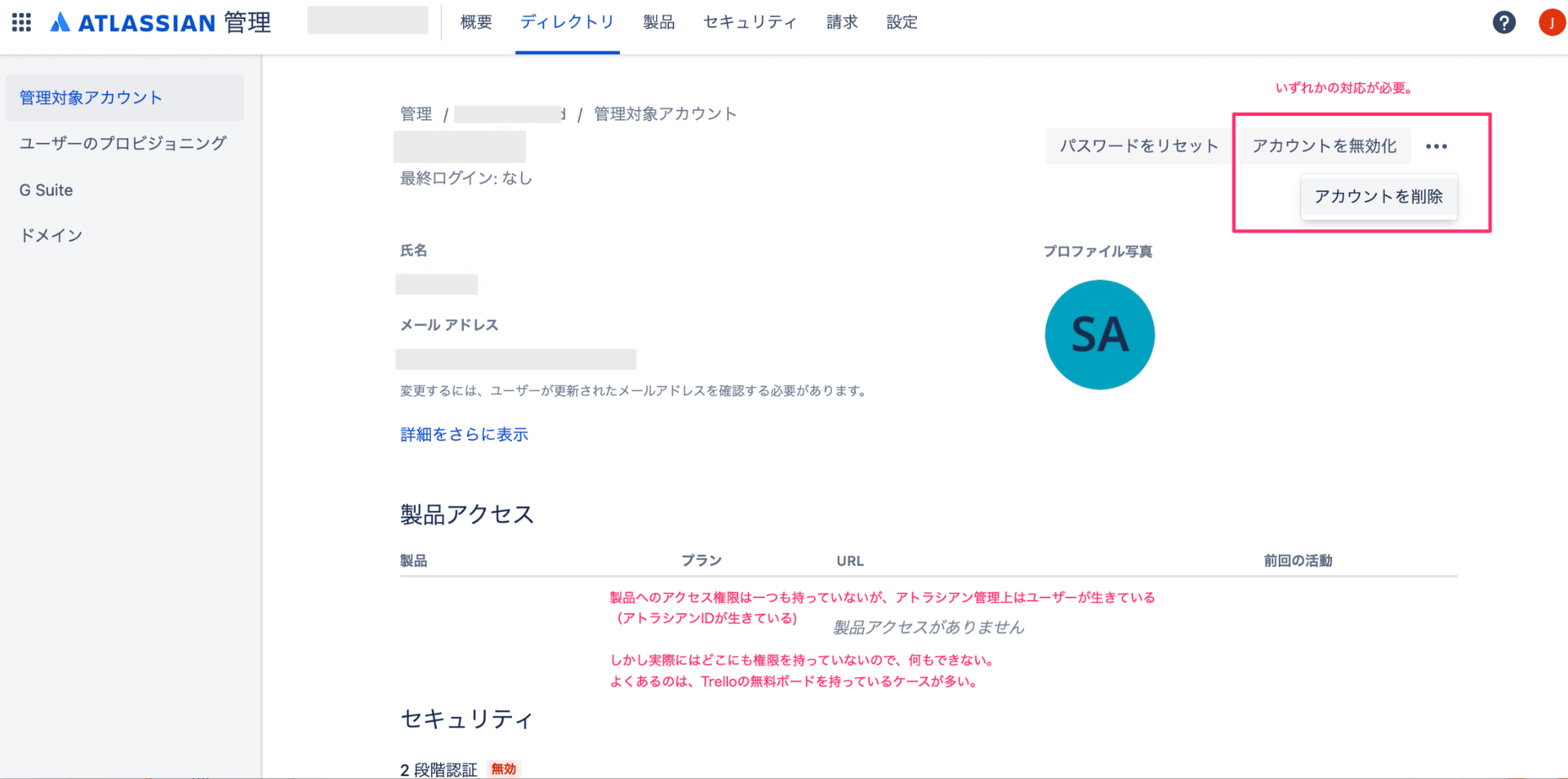
2. Even after revoking Atlassian and Trello access for a separated employee, their data often remains on personal boards. When both the user and the board remain, Admina also treats the user as still present.
3. Boards and Trello IDs outside the organization's managed scope remain, but no one can actually use them. The account still exists, however.
#### **Resolution**
1. Go to the [Atlassian Admin Console](https://admin.atlassian.com/).
2. Navigate to **Directory** > **Managed accounts**.
 3. Search for the inactive user, then select **Deactivate** or **Delete**.