> ## Documentation Index
> Fetch the complete documentation index at: https://hc.saas-manager.biz.nuro.jp/llms.txt
> Use this file to discover all available pages before exploring further.
# Error Displayed During Google OAuth Integration
> Troubleshooting errors that occur when connecting Google-related services
#### **Problem**
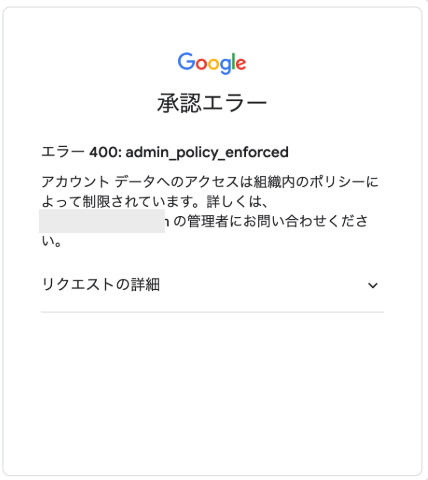
The following error may appear when connecting Google-related services.
```
**Error 400: admin_policy_enforced**
Access to account data is restricted
by a policy within your organization.
Contact your administrator at XXX for details.
```
 #### **Possible Causes**
#### **"Block all third-party API access" is turned on**
Go to `Security` > `Data access and control` > `API controls` in the [Google Workspace Admin Console](https://admin.google.com/ac/owl). If **Block all third-party API access** is enabled there, the integration may fail.
#### **Possible Causes**
#### **"Block all third-party API access" is turned on**
Go to `Security` > `Data access and control` > `API controls` in the [Google Workspace Admin Console](https://admin.google.com/ac/owl). If **Block all third-party API access** is enabled there, the integration may fail.
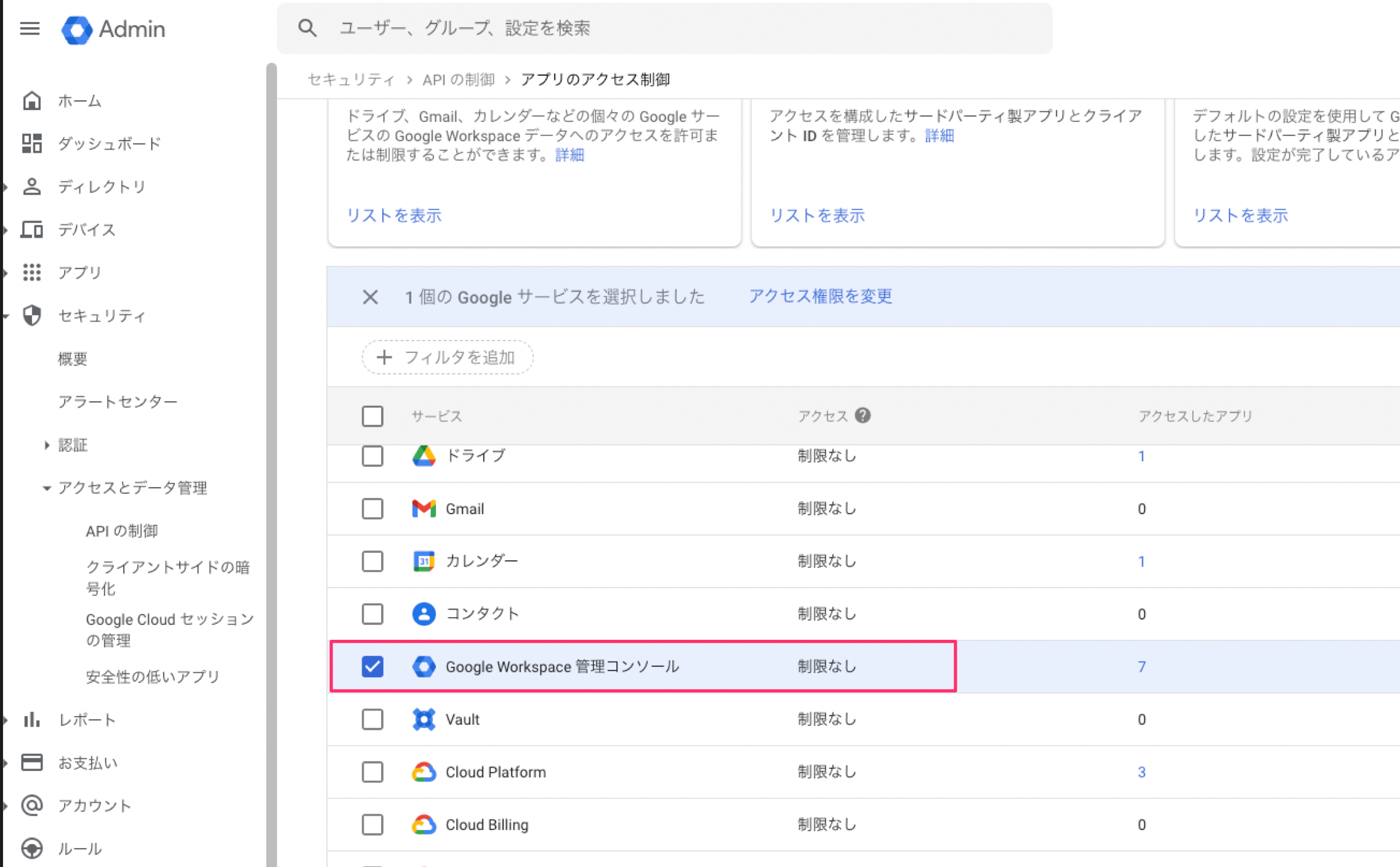
 #### **API access to Google Workspace Admin Console is set to Restricted**
Go to `Security` > `Data access and control` > `API controls` > `Manage Google services` in the [Google Workspace Admin Console](https://admin.google.com/ac/owl):
[https://admin.google.com/ac/owl/list?tab=services](https://admin.google.com/ac/owl/list?tab=services)
If the access policy for **Google Workspace Admin Console** is set to `Restricted`, the integration may fail.
#### **API access to Google Workspace Admin Console is set to Restricted**
Go to `Security` > `Data access and control` > `API controls` > `Manage Google services` in the [Google Workspace Admin Console](https://admin.google.com/ac/owl):
[https://admin.google.com/ac/owl/list?tab=services](https://admin.google.com/ac/owl/list?tab=services)
If the access policy for **Google Workspace Admin Console** is set to `Restricted`, the integration may fail.
 #### **This service is explicitly blocked**
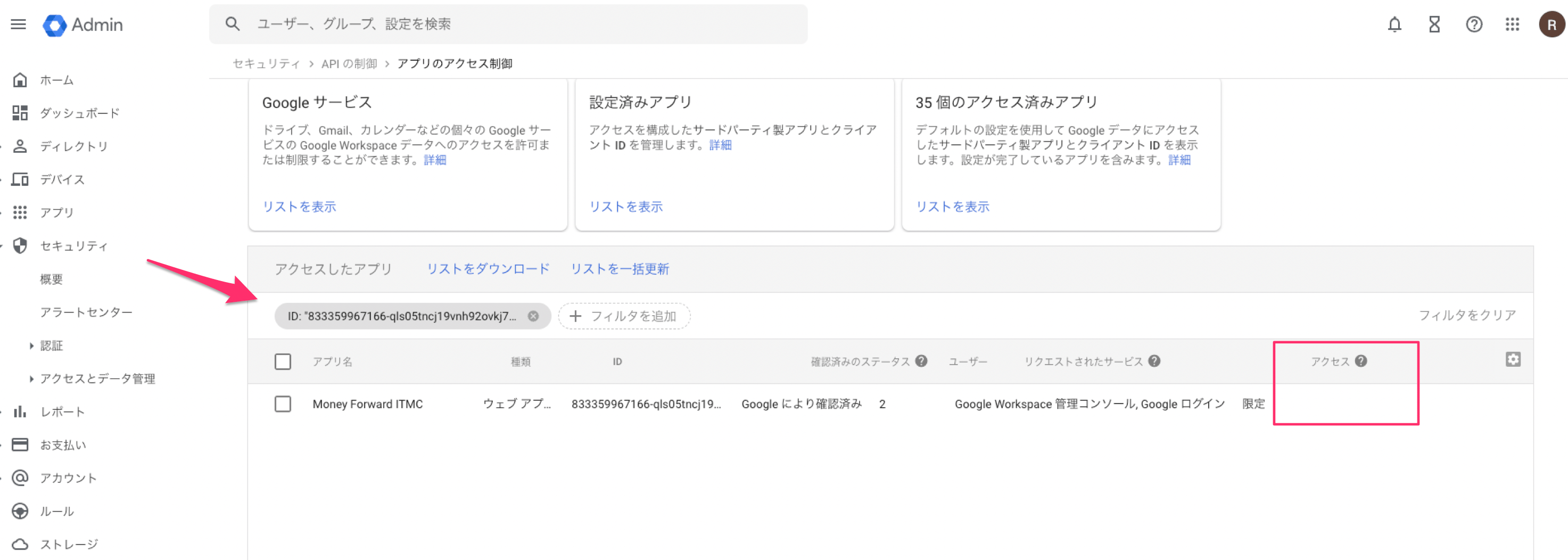
Open the [Google Workspace Admin Console](https://admin.google.com/ac/owl) and go to `Security` > `Data access and control` > `API controls`. Then select [Manage third-party app access](https://admin.google.com/ac/owl/list?tab=apps) and search for the application below.
If its access status is `Blocked` or `Restricted`, the integration will fail.
```
App ID: 833359967166-qls05tncj19vnh92ovkj7smpt1eqh45j.apps.googleusercontent.com
App name: Money Forward ITMC
Support: it@i.moneyforward.com
```
#### **This service is explicitly blocked**
Open the [Google Workspace Admin Console](https://admin.google.com/ac/owl) and go to `Security` > `Data access and control` > `API controls`. Then select [Manage third-party app access](https://admin.google.com/ac/owl/list?tab=apps) and search for the application below.
If its access status is `Blocked` or `Restricted`, the integration will fail.
```
App ID: 833359967166-qls05tncj19vnh92ovkj7smpt1eqh45j.apps.googleusercontent.com
App name: Money Forward ITMC
Support: it@i.moneyforward.com
```
 #### **Resolution**
Change the status from `Block` to `Allow` for each cause listed above.
If your organization's policy requires you to grant access only to this service, follow these steps.
* Open the [Google Workspace Admin Console](https://admin.google.com/ac/owl). Go to `Security` > `Data access and control` > `API controls` > [Manage third-party app access](https://admin.google.com/ac/owl/list?tab=apps).
#### **Resolution**
Change the status from `Block` to `Allow` for each cause listed above.
If your organization's policy requires you to grant access only to this service, follow these steps.
* Open the [Google Workspace Admin Console](https://admin.google.com/ac/owl). Go to `Security` > `Data access and control` > `API controls` > [Manage third-party app access](https://admin.google.com/ac/owl/list?tab=apps).
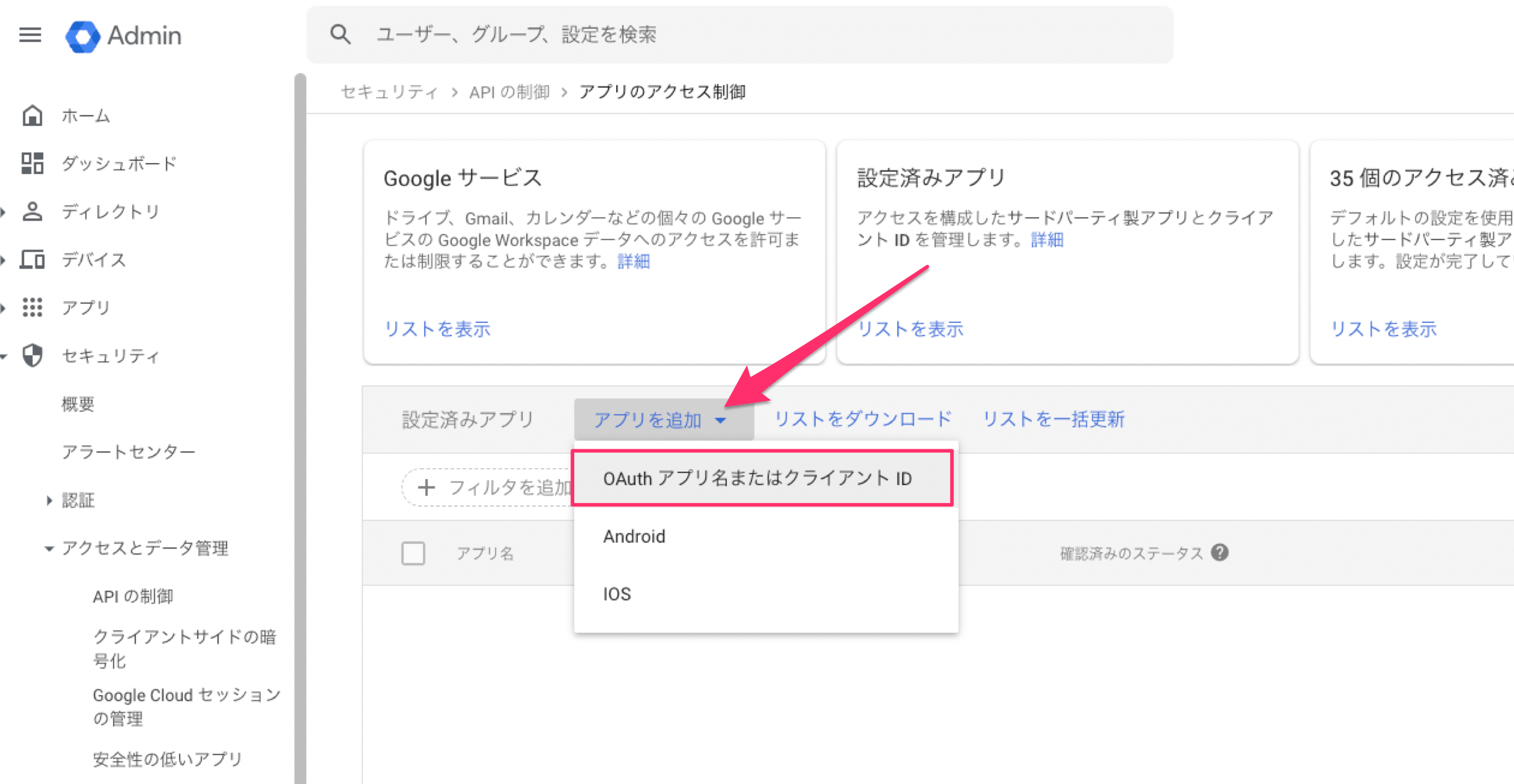
 * Select `Add app` > `OAuth App Name or Client ID`.
 * Enter the client ID below in the search field and click the search button. Select `Money Forward ITMC`.
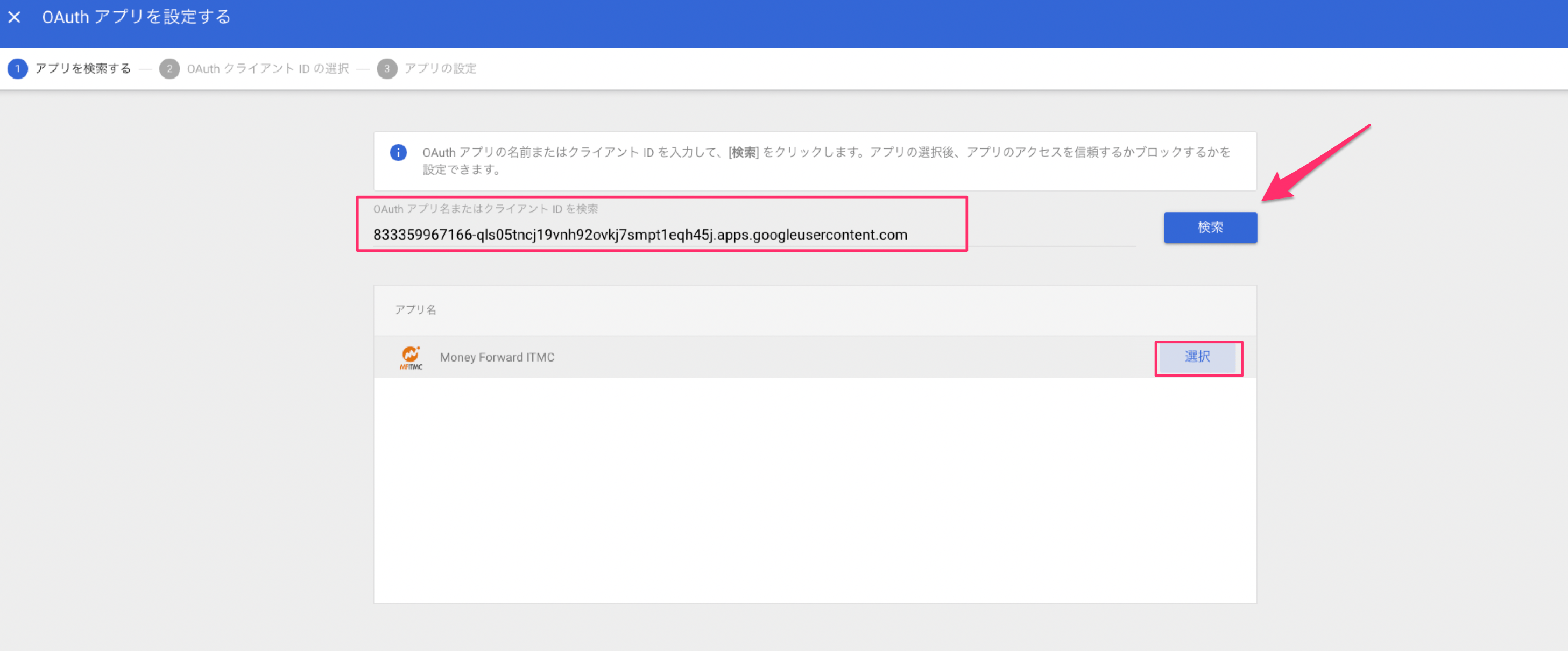 Client ID
```
833359967166-qls05tncj19vnh92ovkj7smpt1eqh45j.apps.googleusercontent.com
```
* Select the same client ID.
Client ID
```
833359967166-qls05tncj19vnh92ovkj7smpt1eqh45j.apps.googleusercontent.com
```
* Select the same client ID.
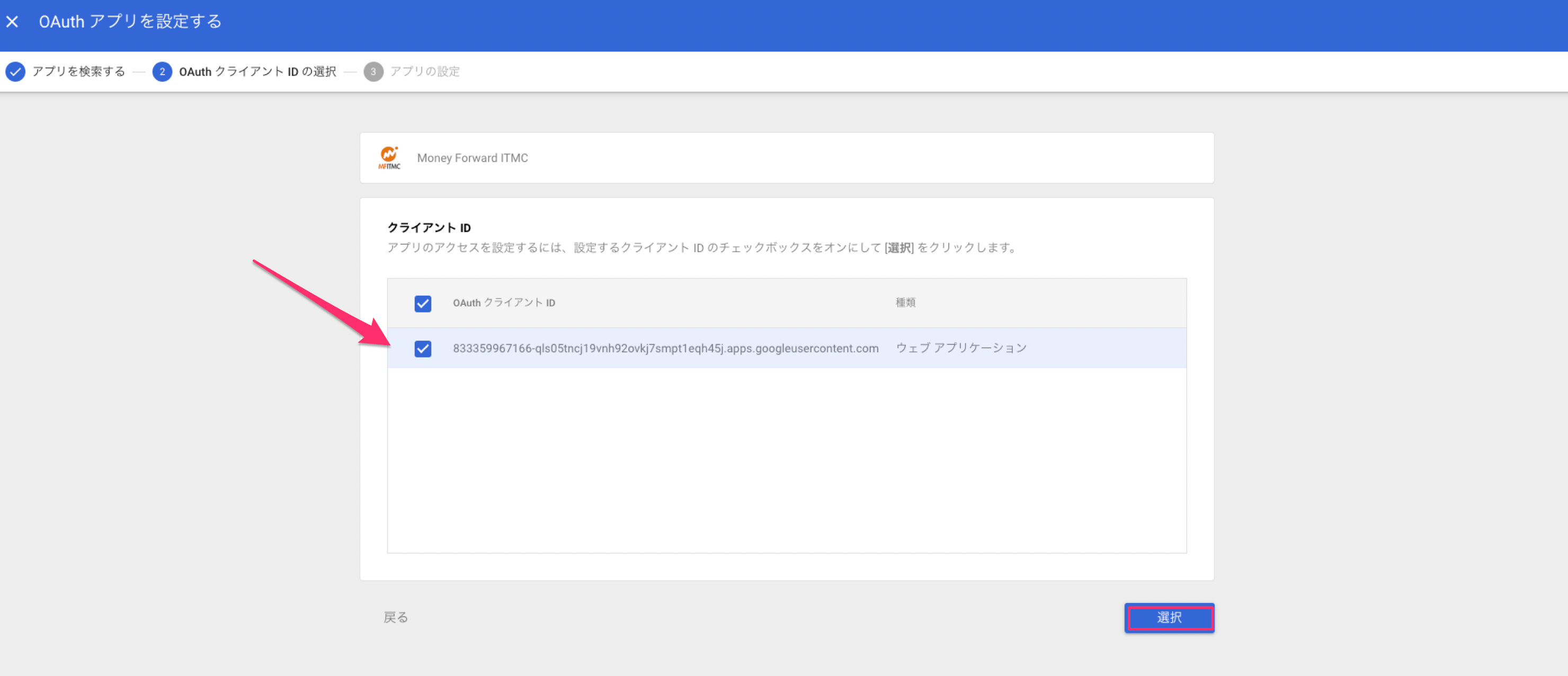 * Set the app access permission to `Trusted: Can access all Google services`, then click `Configure`.
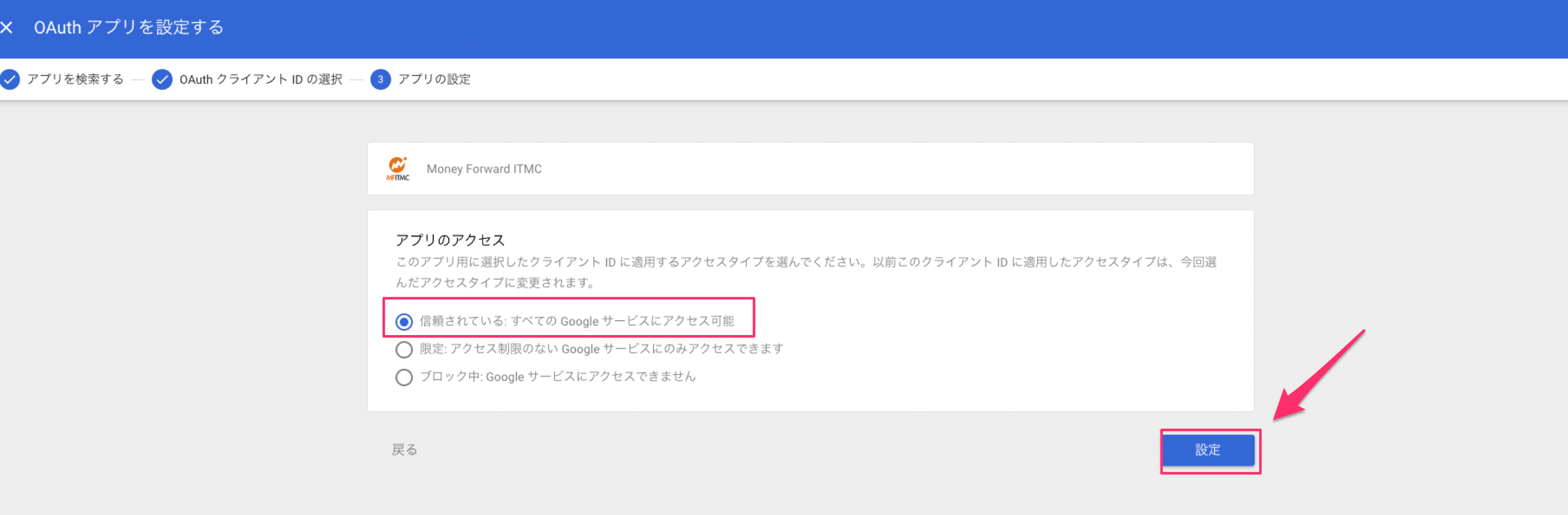 This service is now configured to allow Google integration.
Close the [login screen](https://itmc.i.moneyforward.com/login), reopen it, and connect to Google Workspace again.
[Google Workspace](/en/integrations/n0zl359vup-google-workspace)
This service is now configured to allow Google integration.
Close the [login screen](https://itmc.i.moneyforward.com/login), reopen it, and connect to Google Workspace again.
[Google Workspace](/en/integrations/n0zl359vup-google-workspace)