> ## Documentation Index
> Fetch the complete documentation index at: https://hc.saas-manager.biz.nuro.jp/llms.txt
> Use this file to discover all available pages before exploring further.
# [Google Drive] Specify conditions for file detection
> You can detect files and folders in Google Drive that match specified conditions (filtering).
## What you can do with this feature
You can detect files and folders in Google Drive that match specified conditions (filtering).
## Setup steps
1. Go to Services > Google Drive > **Files** tab, then click 🔧 **\[Settings (Change files to sync)]**.
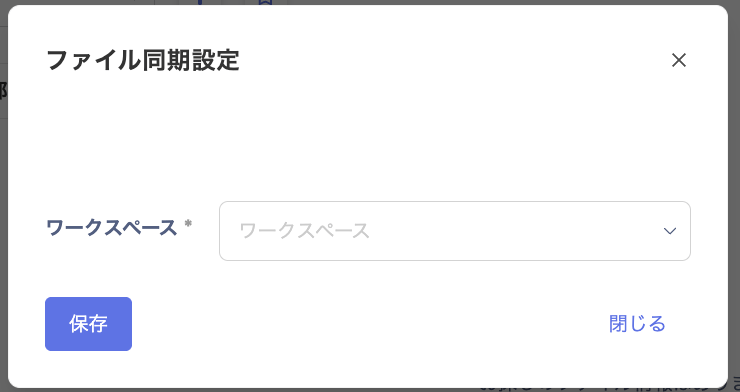
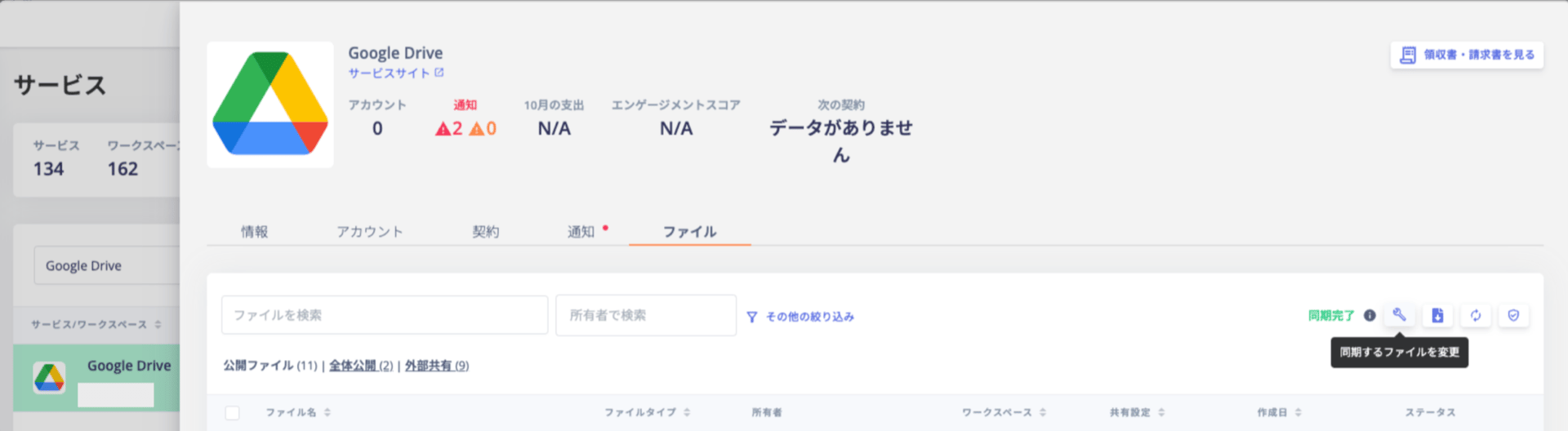 2. On the "File Sync Settings" screen, select a workspace and click **\[Save]**.
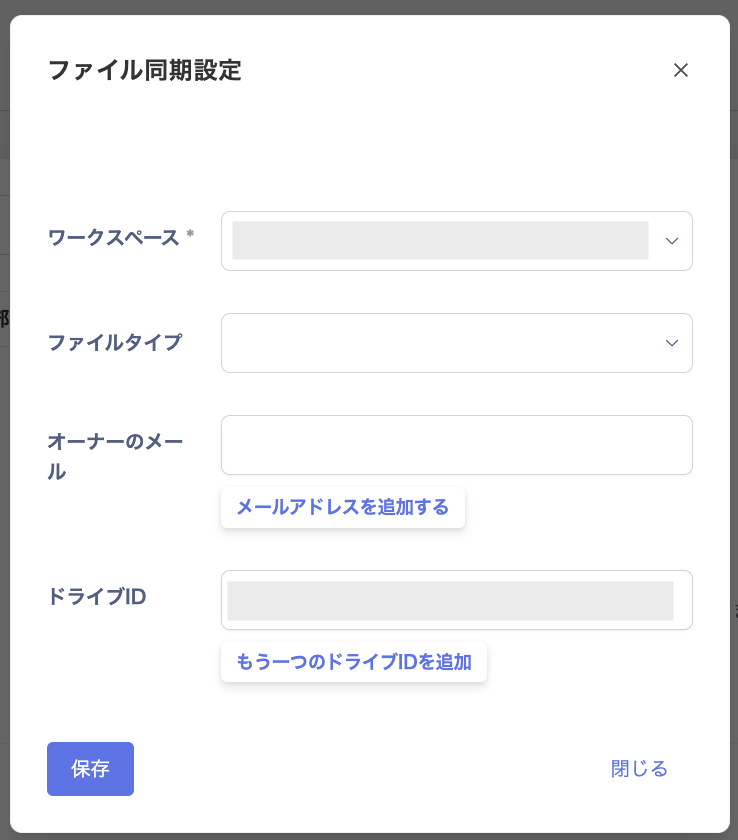
 3. Configure the conditions and click **\[Save]**.
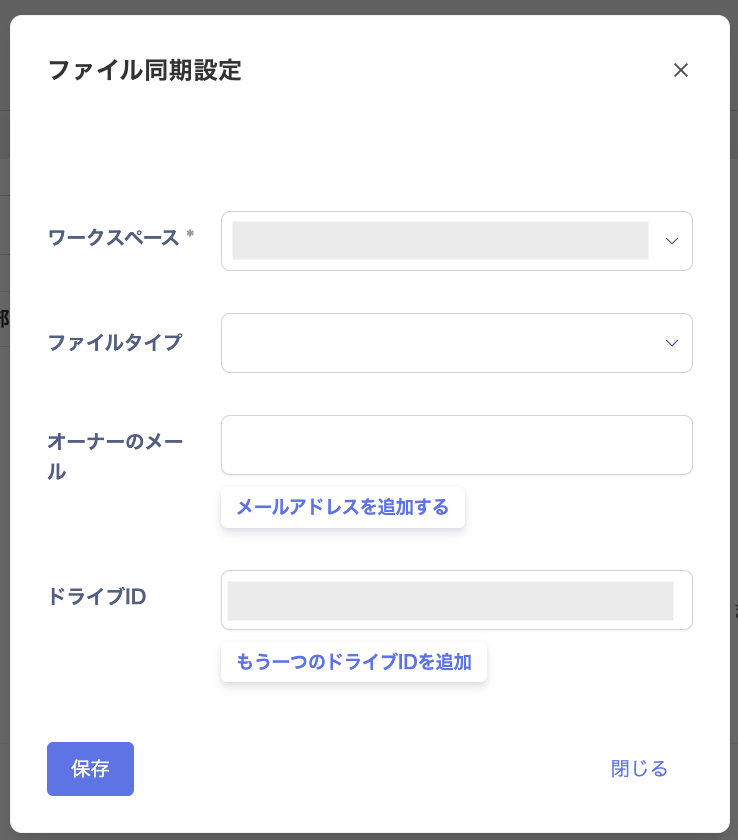 | **Item** | **Description** |
| -------------------------- | ----------------------------------------------------------------------------------------------------------------------------------------------- |
| **Workspace** | Select the target workspace. |
| **File type (MIME types)** | Select the types of files to detect. Multiple selections are possible. |
| **Owner email address** | Enter the email address of the owner whose files you want to detect. Multiple addresses can be configured. Up to 50 email addresses can be set. |
| **Drive ID** | Specify the ID of the shared drive you want to detect. Multiple IDs can be added. |
**When owner email is specified:** Only My Drives are targeted; shared drives are skipped.
**When Drive ID is specified:** Only shared drives are targeted; My Drives are skipped.
**When neither is specified:** All My Drives and shared drives are targeted.
## Specifying file types
You can select specific file types (MIME types). The available file types follow the Google Workspace and Google Drive specification.
[MIME types supported by Google Workspace and Google Drive](https://developers.google.com/drive/api/guides/mime-types?hl=en)
## Specifying file owners
You can detect files and folders of a specified owner by entering the owner's email address. Multiple addresses can be configured. Up to 50 email addresses can be set.
## Specifying shared drives
You can detect files and folders in a specified shared drive by specifying the Drive ID. The Drive ID can be found in the folder URL. Only top-level shared drives are supported; you cannot specify folder IDs.
| **Item** | **Description** |
| -------------------------- | ----------------------------------------------------------------------------------------------------------------------------------------------- |
| **Workspace** | Select the target workspace. |
| **File type (MIME types)** | Select the types of files to detect. Multiple selections are possible. |
| **Owner email address** | Enter the email address of the owner whose files you want to detect. Multiple addresses can be configured. Up to 50 email addresses can be set. |
| **Drive ID** | Specify the ID of the shared drive you want to detect. Multiple IDs can be added. |
**When owner email is specified:** Only My Drives are targeted; shared drives are skipped.
**When Drive ID is specified:** Only shared drives are targeted; My Drives are skipped.
**When neither is specified:** All My Drives and shared drives are targeted.
## Specifying file types
You can select specific file types (MIME types). The available file types follow the Google Workspace and Google Drive specification.
[MIME types supported by Google Workspace and Google Drive](https://developers.google.com/drive/api/guides/mime-types?hl=en)
## Specifying file owners
You can detect files and folders of a specified owner by entering the owner's email address. Multiple addresses can be configured. Up to 50 email addresses can be set.
## Specifying shared drives
You can detect files and folders in a specified shared drive by specifying the Drive ID. The Drive ID can be found in the folder URL. Only top-level shared drives are supported; you cannot specify folder IDs.
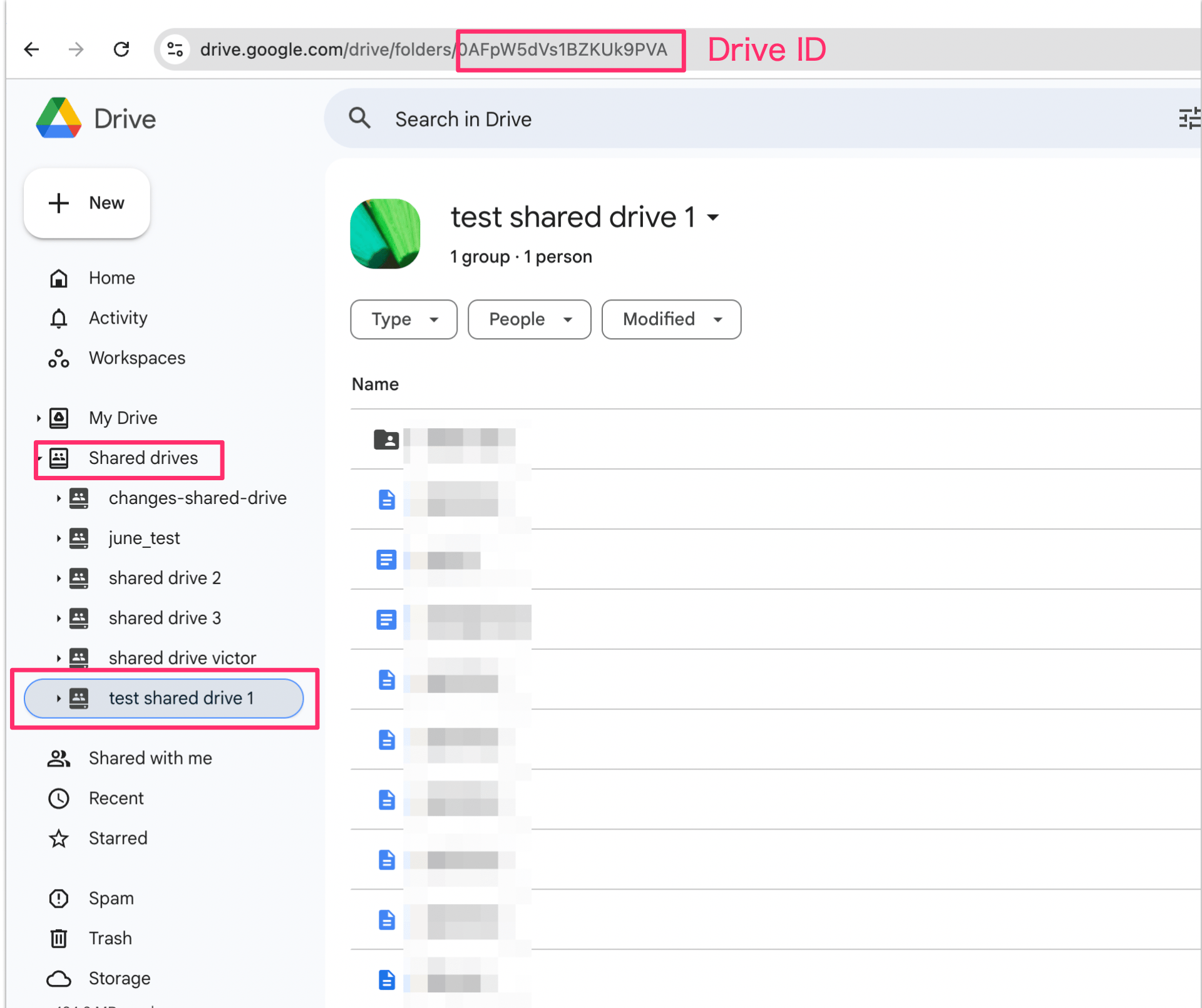 You cannot specify a folder ID. Only top-level shared drives are supported.
 ## Running a sync
After saving, the filter settings apply at the next scheduled sync. Manual execution is also possible.
## Frequently asked questions
**Q.** Can I exclude specific Drive IDs?
**A.** The Google API does not support exclusion, so this is not possible by design. Instead, specify only the Drive IDs you want to detect.
**Example:**
Drive IDs to exclude: `driveA`, `driveB`
Drive IDs to detect: `driveC`, `driveD`
Drive ID list to configure: `["driveC", "driveD"]`
## Running a sync
After saving, the filter settings apply at the next scheduled sync. Manual execution is also possible.
## Frequently asked questions
**Q.** Can I exclude specific Drive IDs?
**A.** The Google API does not support exclusion, so this is not possible by design. Instead, specify only the Drive IDs you want to detect.
**Example:**
Drive IDs to exclude: `driveA`, `driveB`
Drive IDs to detect: `driveC`, `driveD`
Drive ID list to configure: `["driveC", "driveD"]`