> ## Documentation Index
> Fetch the complete documentation index at: https://hc.saas-manager.biz.nuro.jp/llms.txt
> Use this file to discover all available pages before exploring further.
# Mute Alert Notifications
> Use the mute feature to suppress alert notifications. Exclude specific accounts from alerts when you want to stop receiving notifications for them.
#### **Feature Overview**
This feature lets you mute alert notifications. You can exclude accounts that must remain active — such as employees on leave — from alert notifications.
#### **Checking Alerts**
You can check alert notifications on the Services screen (Notifications). You can also check them on the Directory screen (the "Notifications" button in the top right).
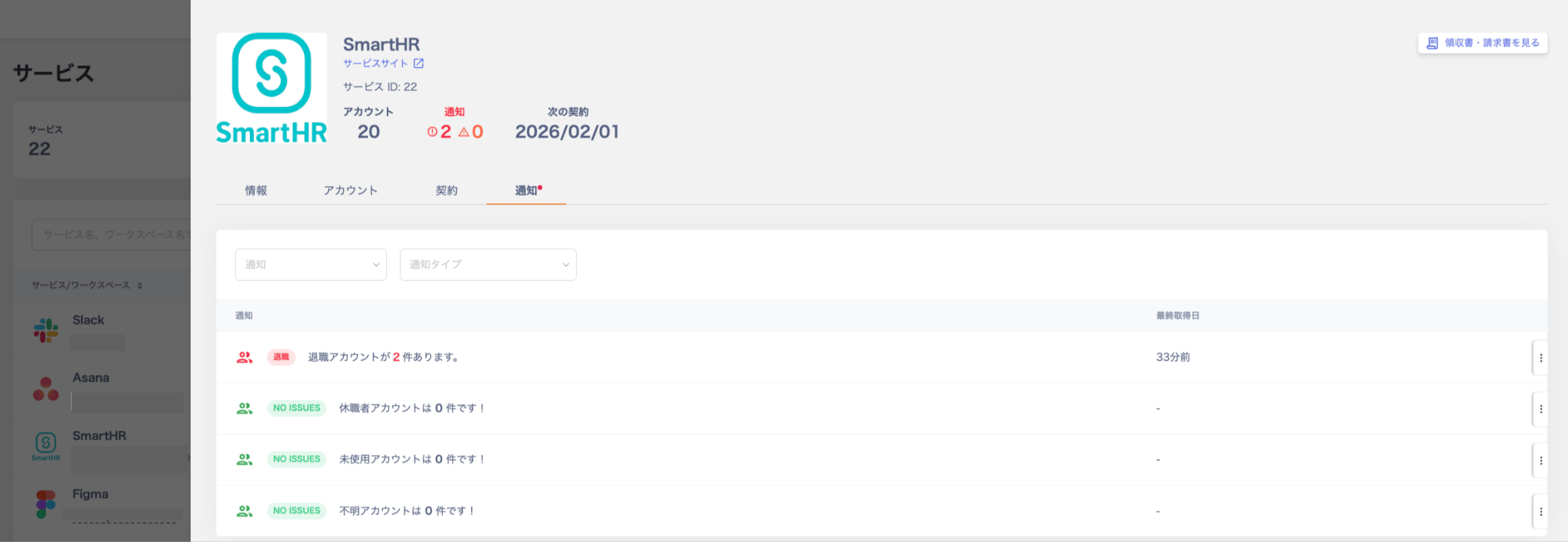 **Reference**
* Do any retired accounts remain?
* [How to clean up retired-employee accounts](/en/it-management/retired/alcptx3rdr-offboarding)
**Reference**
* Do any retired accounts remain?
* [How to clean up retired-employee accounts](/en/it-management/retired/alcptx3rdr-offboarding)
**Stopping / Muting Alerts**
You can mute a service and its notification targets when you want to stop alert notifications.
Some services keep accounts intentionally without deleting them. For these, you can mute retirement alerts instead of sending them.
#### **Stopping Notifications from the Services Screen**
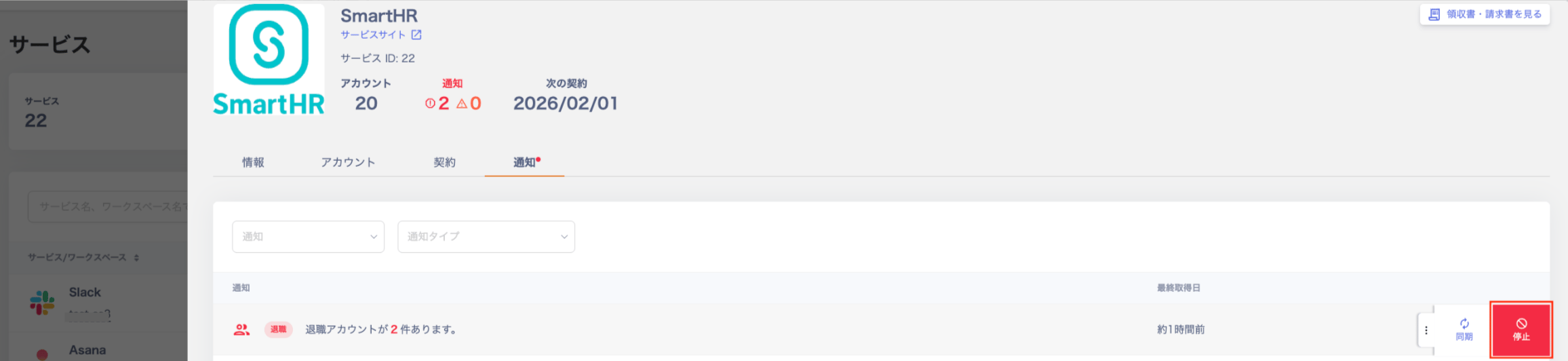
1. Go to Services, select a service, then select the notification type you want to stop under Notifications and click **Stop**.
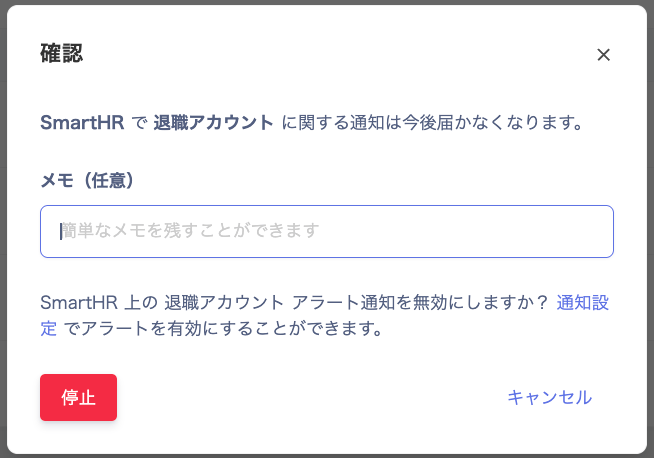
 2. A confirmation dialog appears. Click **Stop**. You can optionally leave a brief note in the **Memo** field.
 3. The status changes to "Notifications paused" and the alert is no longer sent. To resume, click **Resume**.
 #### **Muting Notifications from the Directory Screen**
1. Click "View all →" in the Notifications area at the top right of the Directory screen.
#### **Muting Notifications from the Directory Screen**
1. Click "View all →" in the Notifications area at the top right of the Directory screen.
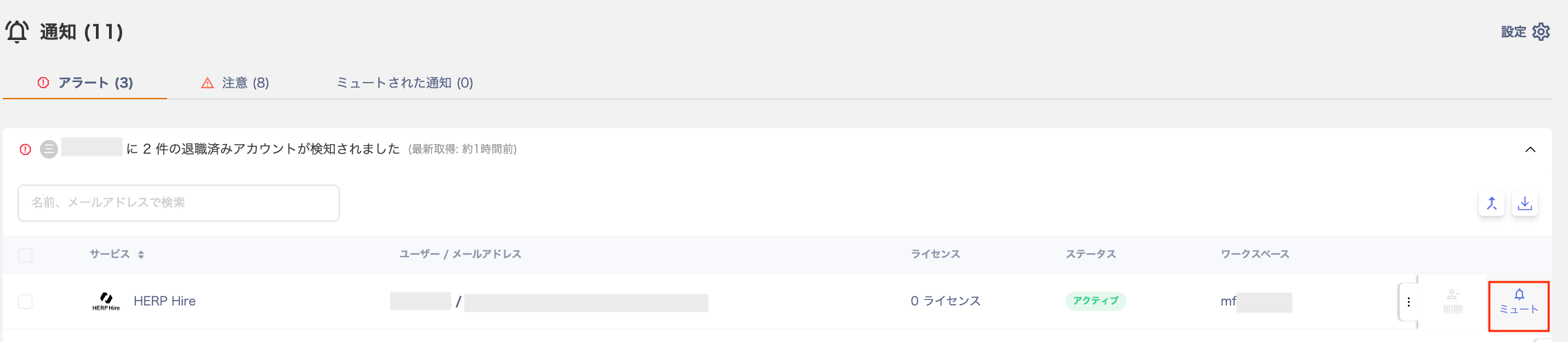
 2. Check the account you want to mute under the **Alerts / Warnings / Muted notifications** tabs. Clicking **Settings** takes you to Settings > Notifications. For details, see [Enable/Disable alert notifications in bulk](/en/it-management/saas-management/q6jgukpnvh-alert).
 3. Click the three-dot menu \[**︙**] at the right end of the account you want to mute, then click **Mute**. For **Delete**, see [Delete or deactivate service accounts](/en/it-management/retired/zw9trbb1wm-deprovisioning).
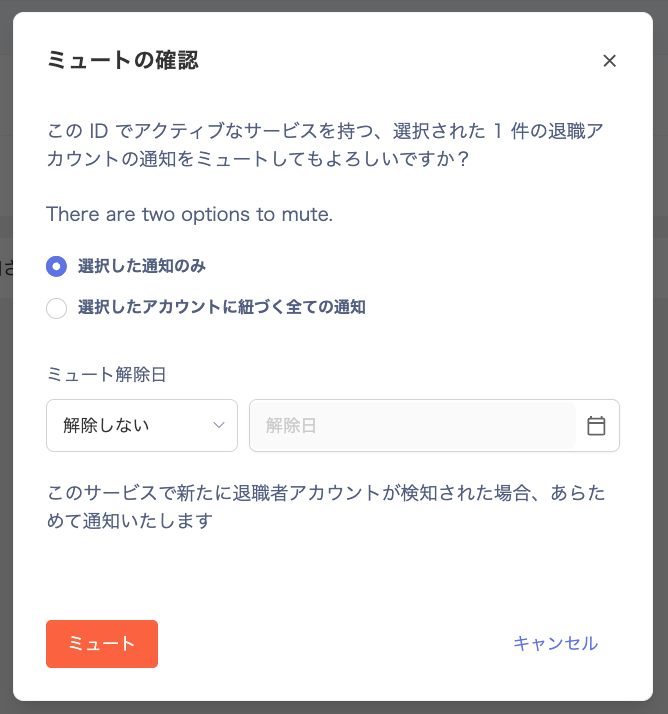
 4. The "Confirm mute" dialog appears. Configure the following options and click **Mute**.
| Option | Description |
| ------------------------------------------------ | ----------------------------------------------------------------------- |
| Selected notifications only | Mute alerts only for the selected SaaS. |
| All notifications linked to the selected account | Mute alerts for all SaaS services associated with the selected account. |
| Mute expiration date | Set a date to automatically unmute. |
4. The "Confirm mute" dialog appears. Configure the following options and click **Mute**.
| Option | Description |
| ------------------------------------------------ | ----------------------------------------------------------------------- |
| Selected notifications only | Mute alerts only for the selected SaaS. |
| All notifications linked to the selected account | Mute alerts for all SaaS services associated with the selected account. |
| Mute expiration date | Set a date to automatically unmute. |
 5. Muted notifications appear under "Muted notifications."

**Mute Expiration Date**
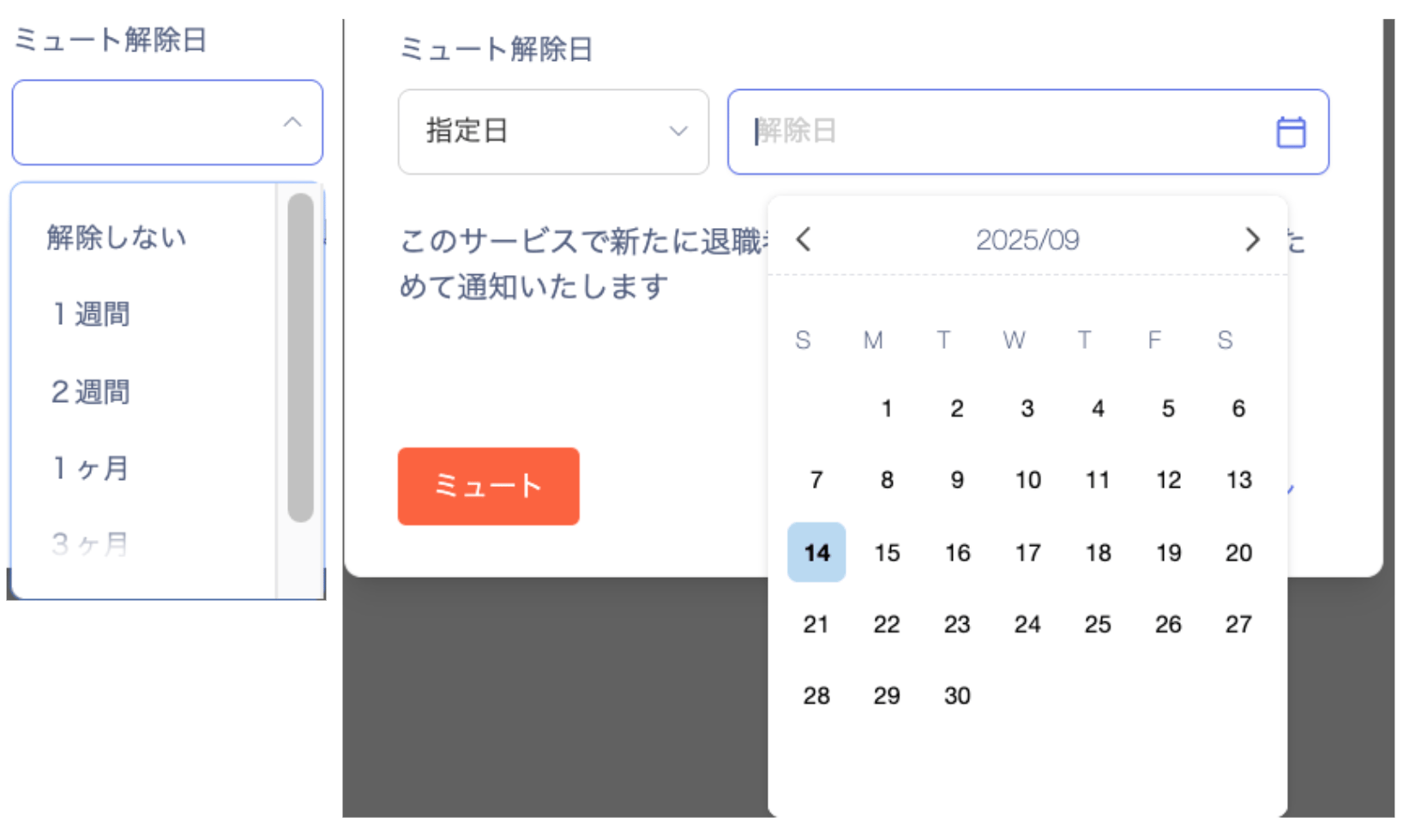
Select the unmute date from the **Mute expiration date** dropdown. Choose "Never" to mute indefinitely, or choose "Specific date" and set a date in the **Expiration date** field.
**Muted Status**
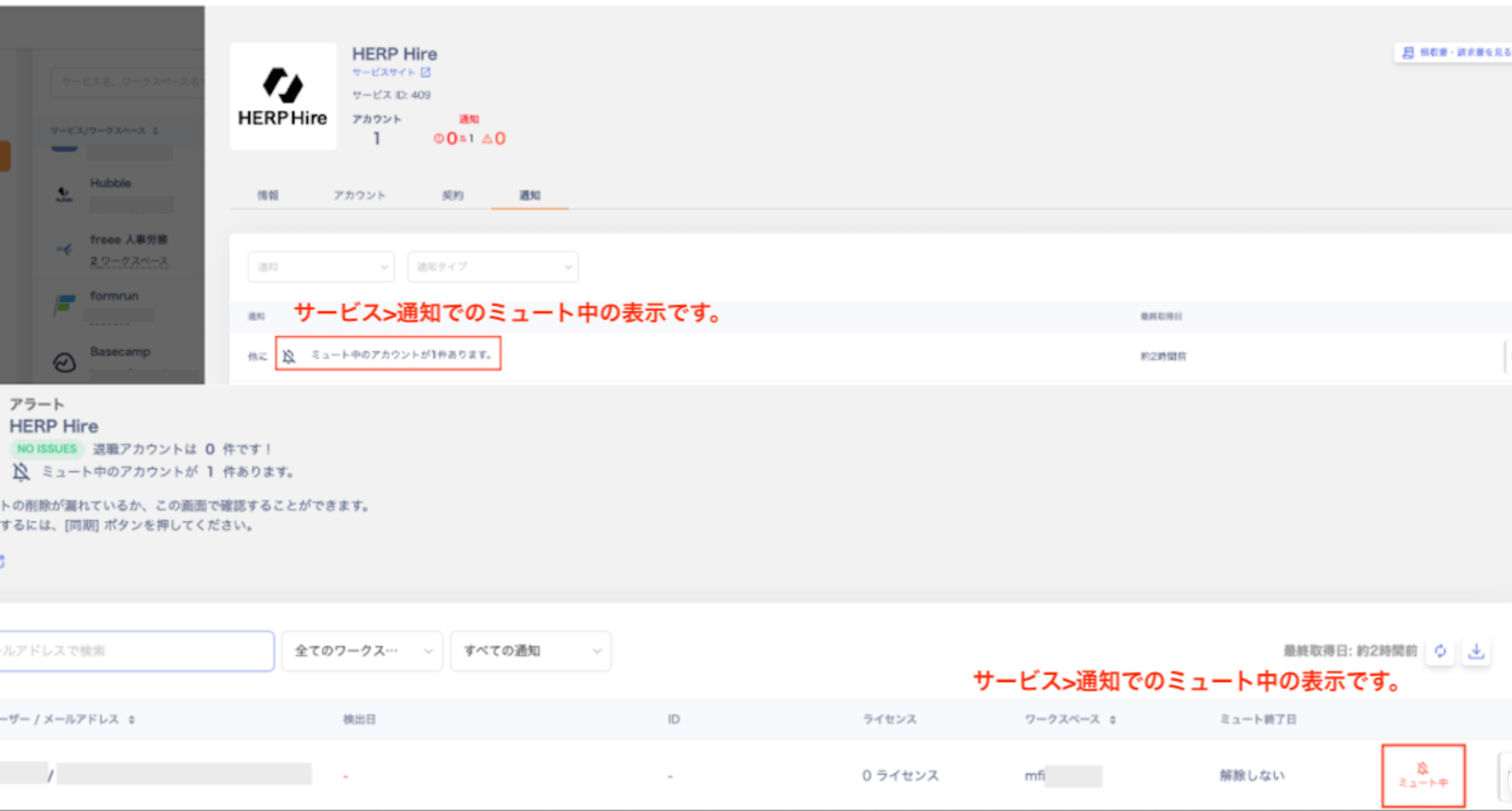
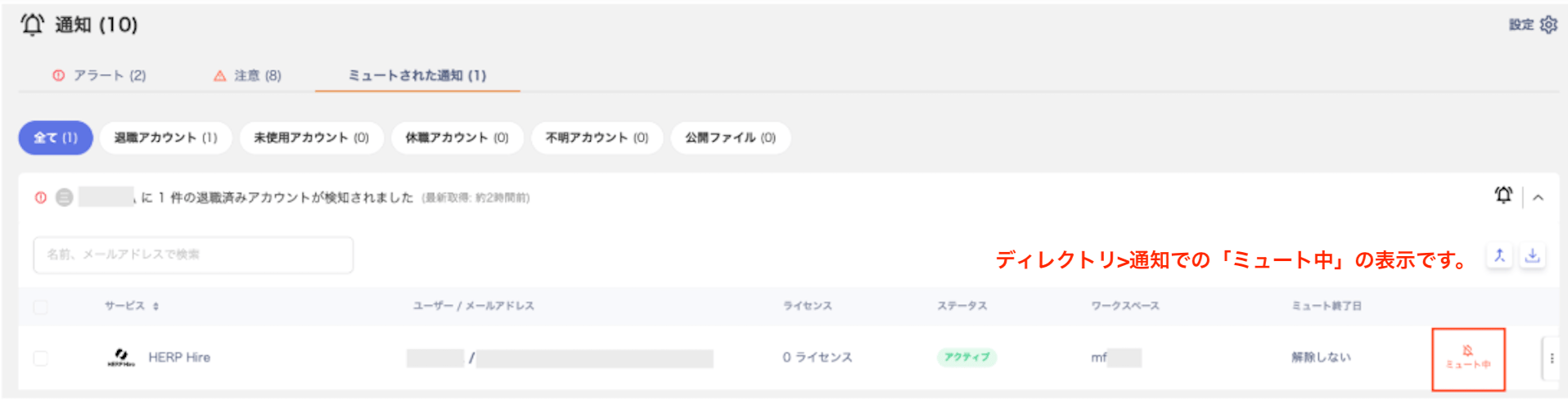
Muted accounts display a **Muted** badge. You can check them on the Services screen (Notifications) and the Directory screen (Notifications).
 #### **Unmuting**
1. Find the account you want to unmute and click **Unmute** from the three-dot menu \[**︙**]. See also [Muted Status](#muted-status).
#### **Unmuting**
1. Find the account you want to unmute and click **Unmute** from the three-dot menu \[**︙**]. See also [Muted Status](#muted-status).
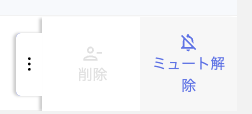 2. The unmute confirmation dialog appears. Choose one of the following options.
* Selected notifications only: Unmute alerts only for the selected SaaS.
* All notifications linked to the selected account: unmute alerts for every SaaS service linked to that account.
2. The unmute confirmation dialog appears. Choose one of the following options.
* Selected notifications only: Unmute alerts only for the selected SaaS.
* All notifications linked to the selected account: unmute alerts for every SaaS service linked to that account.
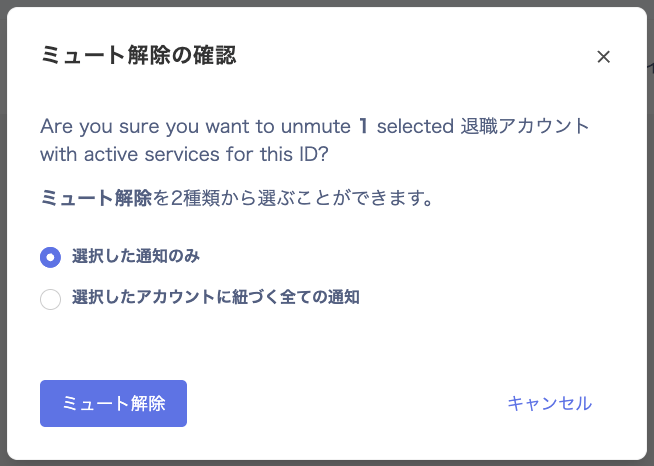 3. Click **Unmute** to complete the operation.
