> ## Documentation Index
> Fetch the complete documentation index at: https://hc.saas-manager.biz.nuro.jp/llms.txt
> Use this file to discover all available pages before exploring further.
# Delete or Deactivate Service Accounts
> Learn how to delete accounts from services.
#### **SaaS Account Deletion**
The main specifications of the account deletion feature are as follows.
* This feature is available for integrated services that support account deletion or deactivation.
For details, see the "Account Lifecycle" column (Delete / Deactivate) in the [**Supported SaaS & Features List**](/en/integrations/ey32ki15er-function).
* **Deleting a user may also delete associated content in some cases.**
* OAuth integrations and API keys linked to a user are often removed upon deletion. Please [re-integrate](/en/it-management/saas-management/93nahw45is-trouble#re-linking) after deletion. (The same applies when deleting via the UI.)
* We are implementing the feature to preserve objects created by users (such as Miro boards and WordPress posts). This depends on changes in each cloud service's specifications.
* For unsupported SaaS, contact us via the chat in the lower right or through the [request page](/en/it-management/saas-management/1vhprfkxcq-request). We will address requests in order.
#### **How to Delete or Deactivate**
This section explains the deletion operation. You need either Admin or Service Manager permissions.
There are multiple methods. Choose one of the following.
#### **Method 1: Delete or Deactivate from an Alert**
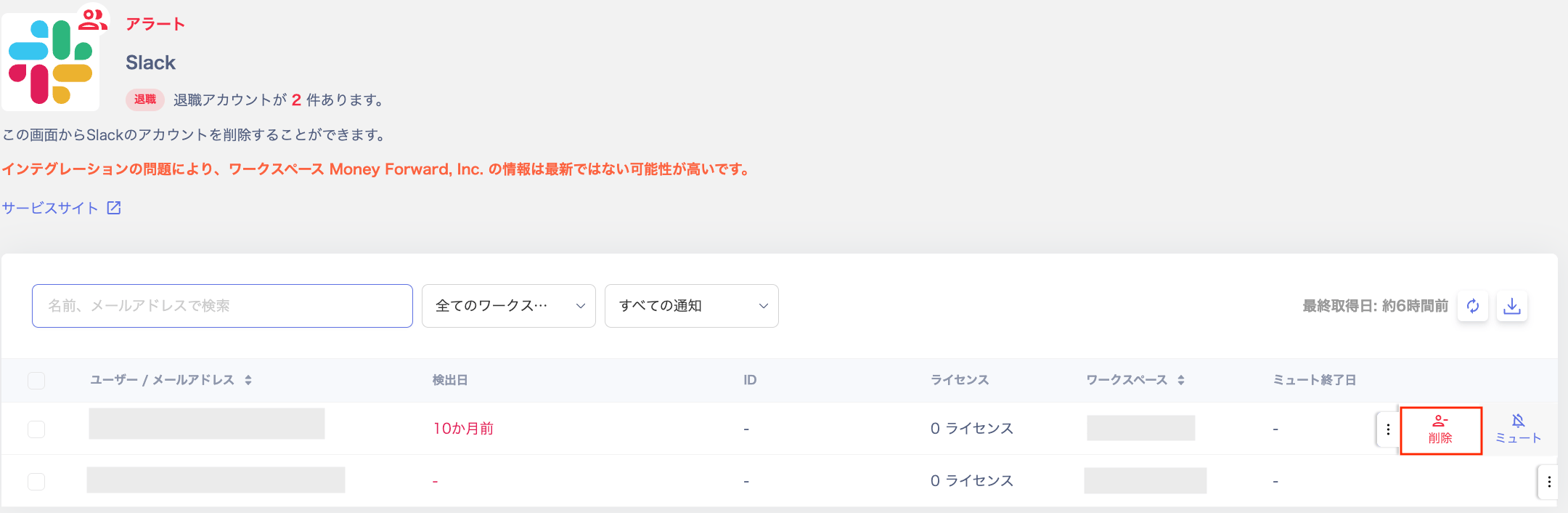
You can perform deletion from an alert notification sent to Slack. (For alert notification settings, see [Slack Notification Settings](/en/it-management/retired/76lzcncxyx-slack-notification).)
1. Click the alert in Slack, log in, then click **Delete**.
 2. A confirmation screen for account deletion appears. Click **Delete**.
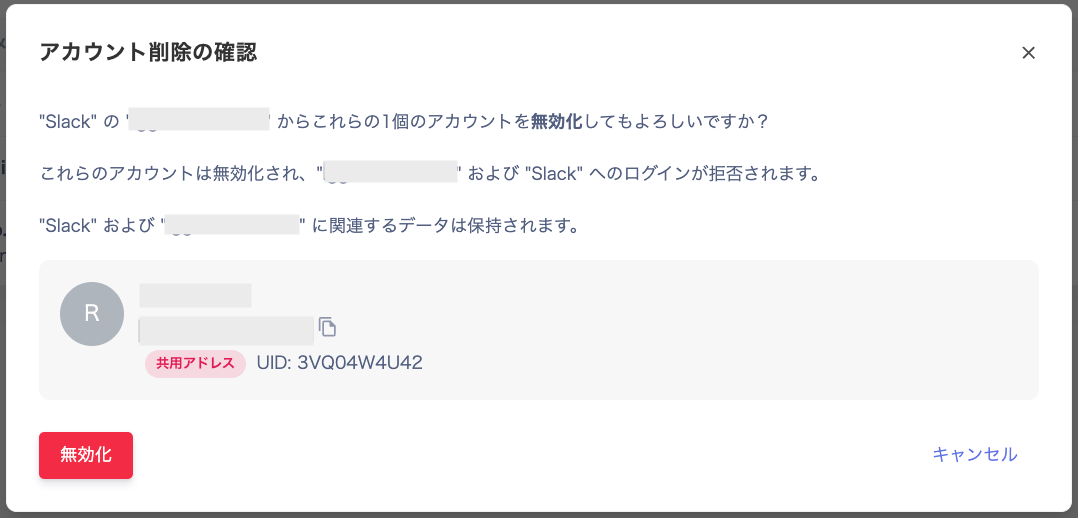 3. A deletion completion message appears and the account is deleted.
 #### **Method 2: Delete or Deactivate from the Account List in Service Details**
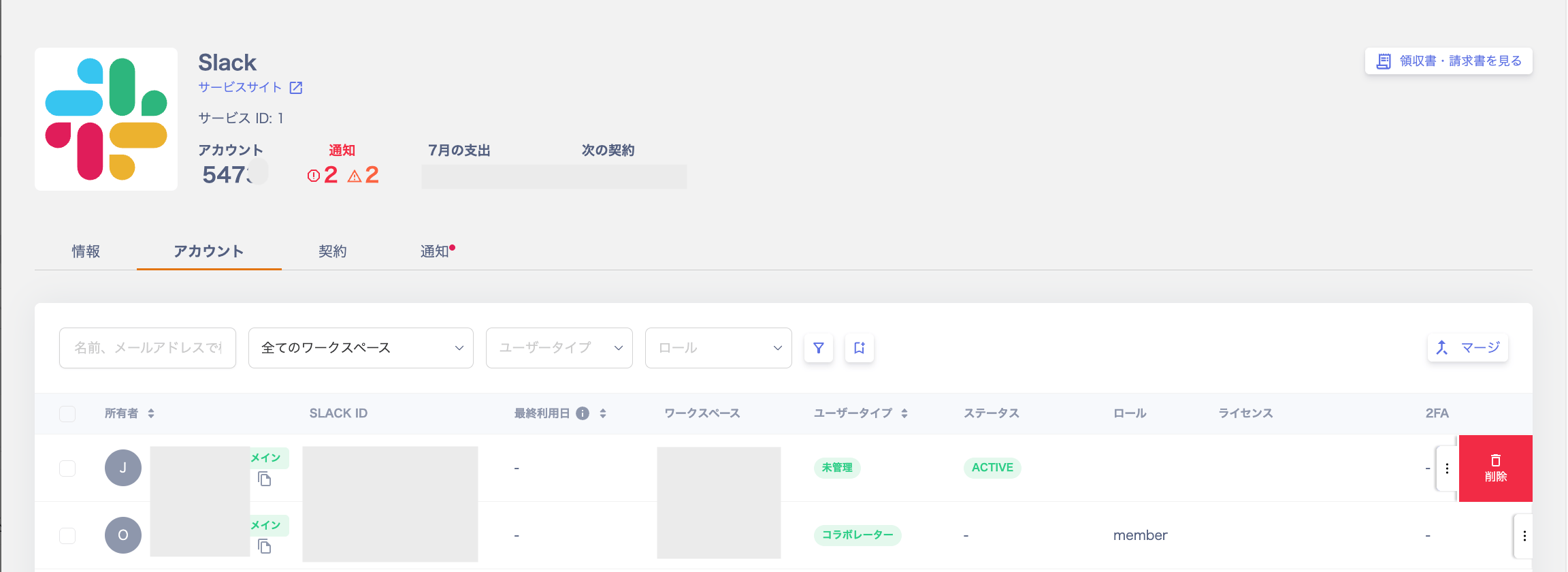
1. Go to Services, select the target service, and open Accounts.
2. Click the three-dot menu on the right and click **Delete**.
#### **Method 2: Delete or Deactivate from the Account List in Service Details**
1. Go to Services, select the target service, and open Accounts.
2. Click the three-dot menu on the right and click **Delete**.
 3. The "Confirm Account Deletion" screen appears. Review the details and click **Delete**.
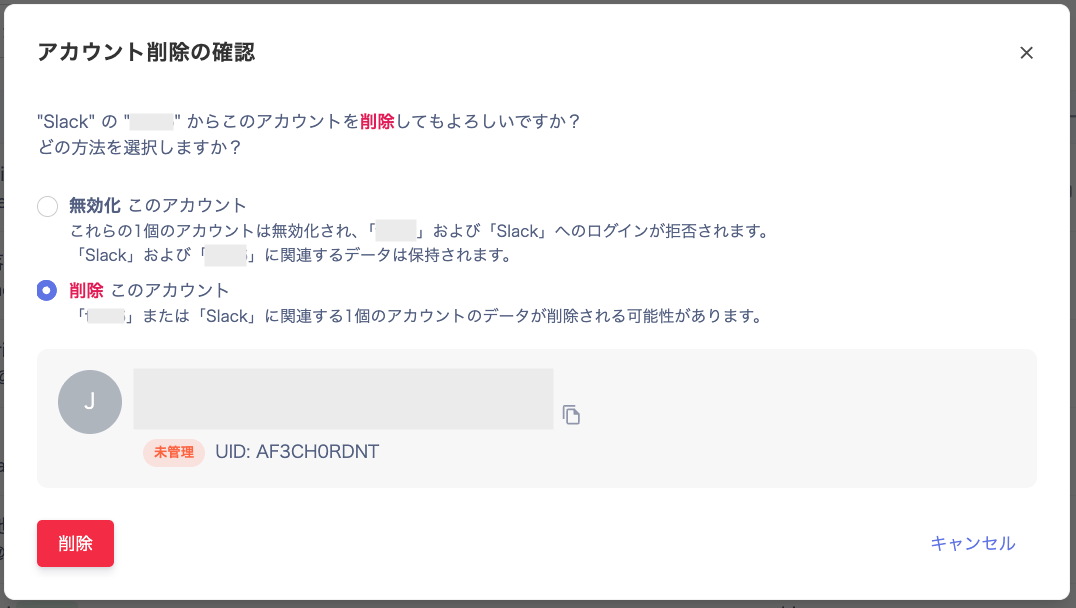 4. A deletion completion message appears and the account is deleted.
 #### **When the Feature Is Not Supported**
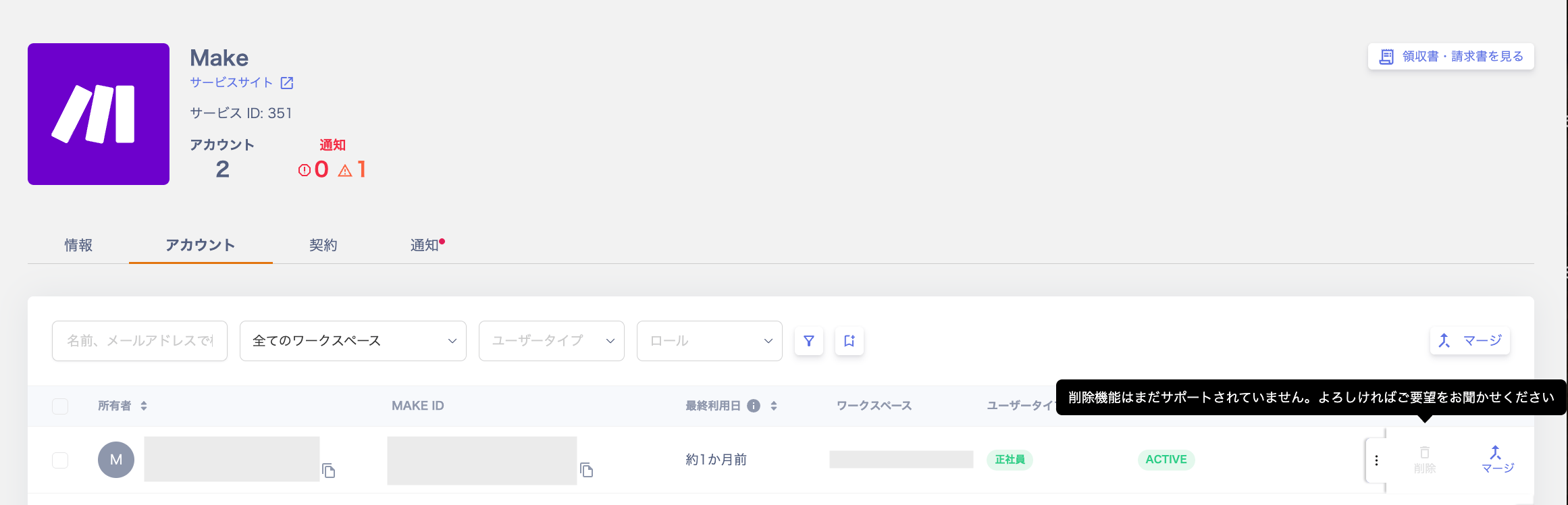
For services that do not support deletion, the message "Account deletion is not yet supported." is displayed.
We will add support for eligible services in order. Contact us via the [request page](/en/it-management/saas-management/1vhprfkxcq-request) to submit a request.
#### **When the Feature Is Not Supported**
For services that do not support deletion, the message "Account deletion is not yet supported." is displayed.
We will add support for eligible services in order. Contact us via the [request page](/en/it-management/saas-management/1vhprfkxcq-request) to submit a request.
 #### **Troubleshooting Errors**
#### **This account cannot be deleted.**
#### **Troubleshooting Errors**
#### **This account cannot be deleted.**
 The API prohibits deletion of this user. Possible reasons include: the user is connected via integration and cannot be deleted, or the user is the last Admin. Delete the account from the cloud service's own UI.
To remove a connected user, see this FAQ.
[What happens if integration settings change after connecting a SaaS, or if the person who set up the integration leaves?](/en/it-management/faq/yjfdvvhglz-saa-s)
#### **Cannot delete because this is the last administrator.**
The API prohibits deletion of this user. Possible reasons include: the user is connected via integration and cannot be deleted, or the user is the last Admin. Delete the account from the cloud service's own UI.
To remove a connected user, see this FAQ.
[What happens if integration settings change after connecting a SaaS, or if the person who set up the integration leaves?](/en/it-management/faq/yjfdvvhglz-saa-s)
#### **Cannot delete because this is the last administrator.**
 This user is determined to be the last person with Admin privileges. (The API has not been called.)
Invite another Admin, re-sync, and retry the deletion once multiple Admins exist.
To remove a connected user, see this FAQ.
[What happens if integration settings change after connecting a SaaS, or if the person who set up the integration leaves?](/en/it-management/faq/yjfdvvhglz-saa-s)
#### **The registered credentials are incorrect or have expired.**
This user is determined to be the last person with Admin privileges. (The API has not been called.)
Invite another Admin, re-sync, and retry the deletion once multiple Admins exist.
To remove a connected user, see this FAQ.
[What happens if integration settings change after connecting a SaaS, or if the person who set up the integration leaves?](/en/it-management/faq/yjfdvvhglz-saa-s)
#### **The registered credentials are incorrect or have expired.**
 The integration with the SaaS has insufficient permissions. Re-integrating may resolve this issue.
Refer to [How to troubleshoot SaaS integration failures](/en/it-management/saas-management/93nahw45is-trouble) and re-integrate using the latest permissions.
The integration with the SaaS has insufficient permissions. Re-integrating may resolve this issue.
Refer to [How to troubleshoot SaaS integration failures](/en/it-management/saas-management/93nahw45is-trouble) and re-integrate using the latest permissions.