> ## Documentation Index
> Fetch the complete documentation index at: https://hc.saas-manager.biz.nuro.jp/llms.txt
> Use this file to discover all available pages before exploring further.
# 3-5. Troubleshooting SaaS Integration Failures
> Troubleshooting steps for failed cloud service integrations, including authentication errors, sync issues, and re-linking procedures.
If your SaaS integration fails, follow the steps below.
#### Authentication Errors
Check whether any of the following apply to your situation.
* The issue may fall under known restrictions:
[Authentication errors and unsupported integration methods](/en/it-management/faq/7gbneu0vz5-auth-error)
* If you have configured IP address access restrictions:
[IP addresses, URLs, and port numbers](/en/it-management/faq/nmglgrm1ik-restrict-ip)
#### Integration Status and Guidance
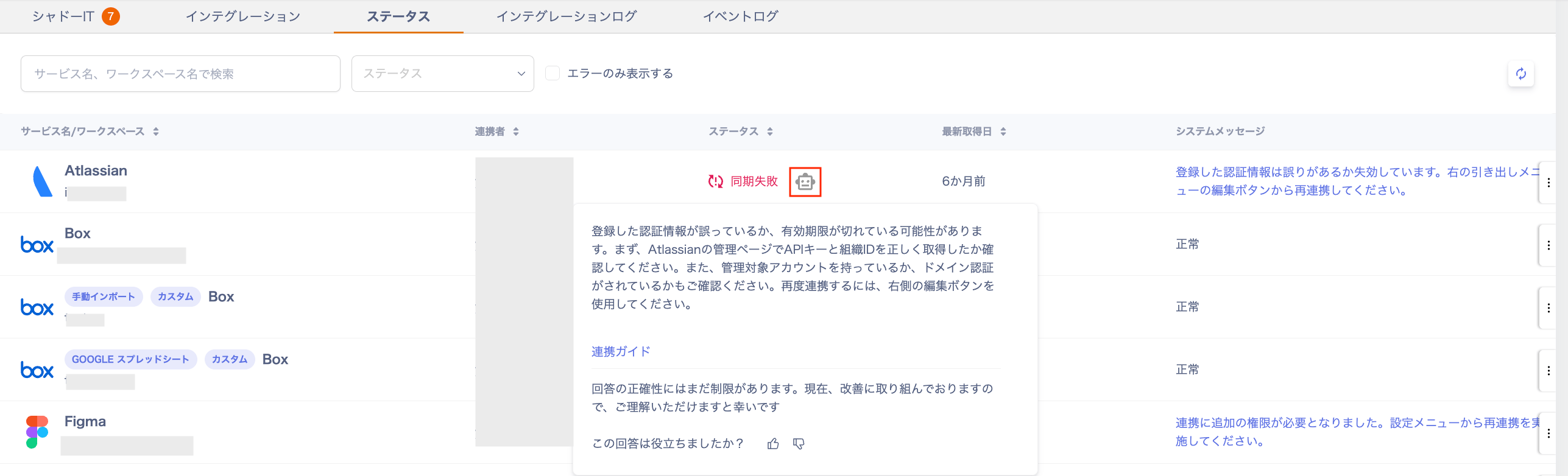
You can check the integration status under Integrations > Status.
* **Integration status:** Shows the sync state of each SaaS (e.g., Synced, Sync Failed).
* **Error resolution guidance:** For services showing "Sync Failed," click the robot icon for the cause and resolution. Follow the guidance to resolve the issue.
 #### Running a Sync
If a connected service is temporarily unavailable, or you want to refresh the SaaS status, try re-syncing.
1. Go to Integrations > Status, click the three-dot menu \[**︙**], and select \[Sync].
* Alternatively, go to Services > select a SaaS > Info > Workspace > three-dot menu \[**︙**] > \[Sync].
#### Running a Sync
If a connected service is temporarily unavailable, or you want to refresh the SaaS status, try re-syncing.
1. Go to Integrations > Status, click the three-dot menu \[**︙**], and select \[Sync].
* Alternatively, go to Services > select a SaaS > Info > Workspace > three-dot menu \[**︙**] > \[Sync].
 2. Wait for the re-sync to complete. Confirm that the status updates to "Synced."
Re-linking
If an error occurs with a connected service, or if you need to re-link with a different account, follow these steps.
1. Go to Integrations > Status, click the three-dot menu \[**︙**], and select \[Edit].
* Alternatively, re-link from Services > select a service > Info > Workspace > three-dot menu \[**︙**] > \[Re-link].
 2. The integration settings screen appears again. Complete the re-linking process.
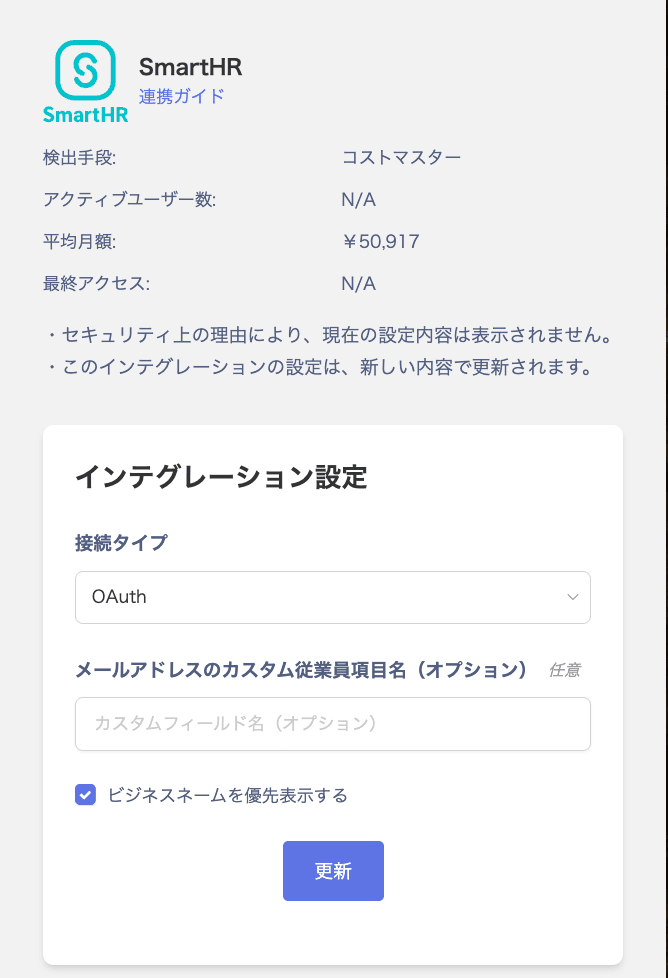 As shown in the image above, **when linking via OAuth**, the session already logged in to your browser is used. If the user does not have admin privileges, or if you use multiple tenants and are logged in to a different tenant, the re-linking attempt may fail because it tries to use the current session. Log out of the browser session first, then retry the steps above.
#### If Re-linking Fails
If the integration still fails, disconnecting it and [re-linking](#re-linking) may resolve the issue.
To disconnect an integration, see [Stop a connected service](/en/it-management/saas-management/i0gvqajtjd-disassociation).
#### Contact Support for Persistent Failures
If the integration continues to fail after re-linking, contact the [support desk](/en/it-management/changelog/3e6sz4xzsx-support) with the following information:
* Cloud service name
* Screenshot of the screen when the error occurred
* Date and time the issue occurred
#### Managing SaaS Through Alternative Methods
If the integration fails, consider managing your SaaS using a custom app.
Two options are available:
[**\[Custom App\] Register a cloud service manually**](/en/it-management/saas-management/jbzpcipgo5-custome-app)
[**\[Custom App\] Connect SaaS via Google Sheets**](/en/it-management/saas-management/iwb7akg6zp-saa-s-spreadsheet)
As shown in the image above, **when linking via OAuth**, the session already logged in to your browser is used. If the user does not have admin privileges, or if you use multiple tenants and are logged in to a different tenant, the re-linking attempt may fail because it tries to use the current session. Log out of the browser session first, then retry the steps above.
#### If Re-linking Fails
If the integration still fails, disconnecting it and [re-linking](#re-linking) may resolve the issue.
To disconnect an integration, see [Stop a connected service](/en/it-management/saas-management/i0gvqajtjd-disassociation).
#### Contact Support for Persistent Failures
If the integration continues to fail after re-linking, contact the [support desk](/en/it-management/changelog/3e6sz4xzsx-support) with the following information:
* Cloud service name
* Screenshot of the screen when the error occurred
* Date and time the issue occurred
#### Managing SaaS Through Alternative Methods
If the integration fails, consider managing your SaaS using a custom app.
Two options are available:
[**\[Custom App\] Register a cloud service manually**](/en/it-management/saas-management/jbzpcipgo5-custome-app)
[**\[Custom App\] Connect SaaS via Google Sheets**](/en/it-management/saas-management/iwb7akg6zp-saa-s-spreadsheet)