> ## Documentation Index
> Fetch the complete documentation index at: https://hc.saas-manager.biz.nuro.jp/llms.txt
> Use this file to discover all available pages before exploring further.
# Export Account List
> Export account lists for connected SaaS services to CSV or Excel.
This page explains the following ways to export account lists.
* [**Export all accounts**](#export-all-accounts)
* [**Export service accounts**](#service-account-export)
* [**Export directory list**](#directory-list-export)
**Export all accounts**
Export account lists for all connected SaaS services to Excel.
The **Settings** screen is available only to accounts with Admin privileges.
For details, see [Managing admin users and roles](/en/it-management/settings/yne7fl2lcy-role-new).
## **Steps to export the account list**
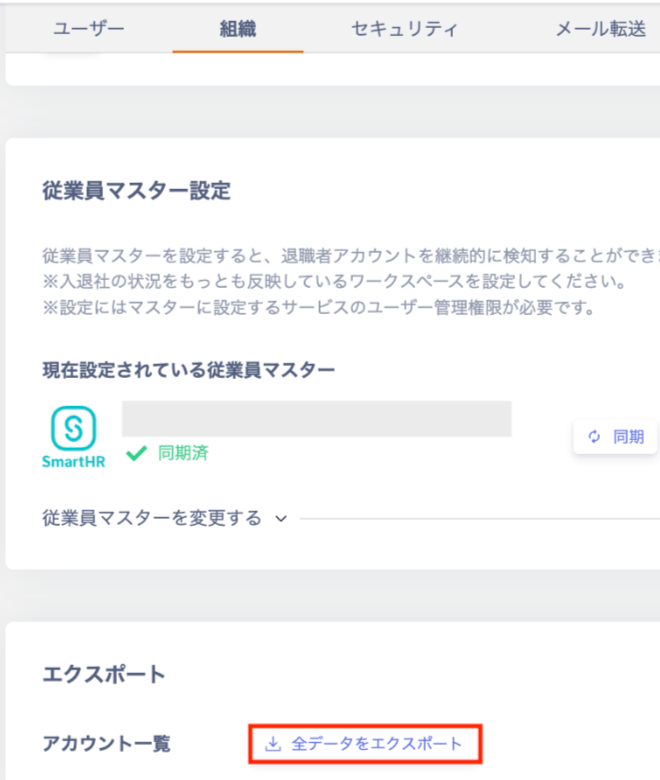
1. Go to **Settings** > **Organization** > **Account List**, then click **Export all data**.
 2. An Excel file (.xlsx) will download. Save it to your preferred location.
## **Export contents (all accounts)**
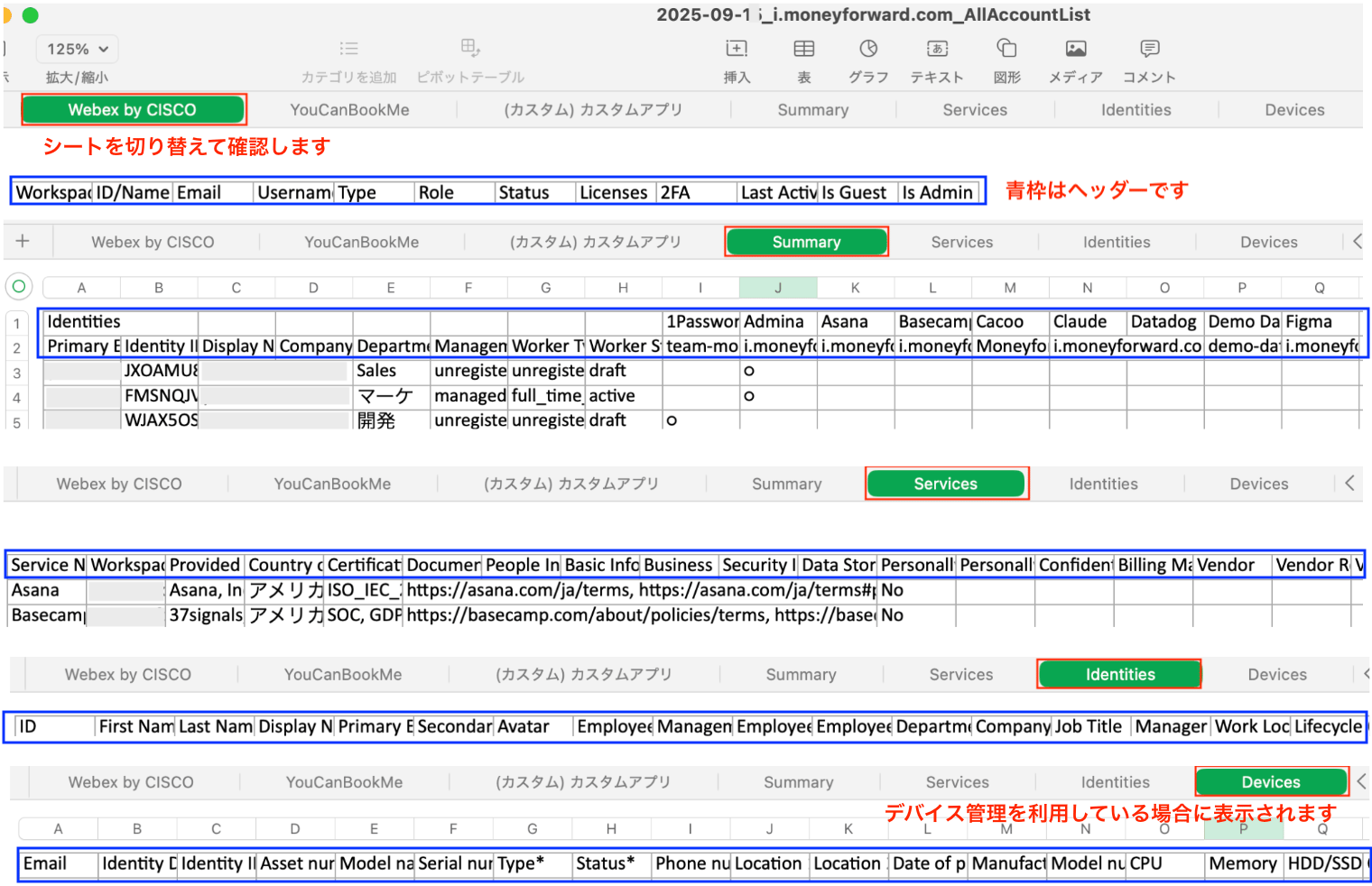
| Sheet | Contents |
| --------------------- | ----------------------------------------------------------------------------------------- |
| Account list per SaaS | Outputs accounts in separate Excel sheets for each SaaS service. |
| SaaS Summary | Outputs a SaaS summary with a list of email addresses and a SaaS table on a single sheet. |
| Identities | Outputs the directory list on a single sheet. |
| Devices | Outputs the device list on a single sheet. (Displayed when device management is enabled.) |
2. An Excel file (.xlsx) will download. Save it to your preferred location.
## **Export contents (all accounts)**
| Sheet | Contents |
| --------------------- | ----------------------------------------------------------------------------------------- |
| Account list per SaaS | Outputs accounts in separate Excel sheets for each SaaS service. |
| SaaS Summary | Outputs a SaaS summary with a list of email addresses and a SaaS table on a single sheet. |
| Identities | Outputs the directory list on a single sheet. |
| Devices | Outputs the device list on a single sheet. (Displayed when device management is enabled.) |
**Export service accounts**
Export the account list for a SaaS service to CSV.
## **Export contents (account list)**
* Account list for a SaaS service: Outputs accounts in CSV format.
 ## **Steps to export service accounts**
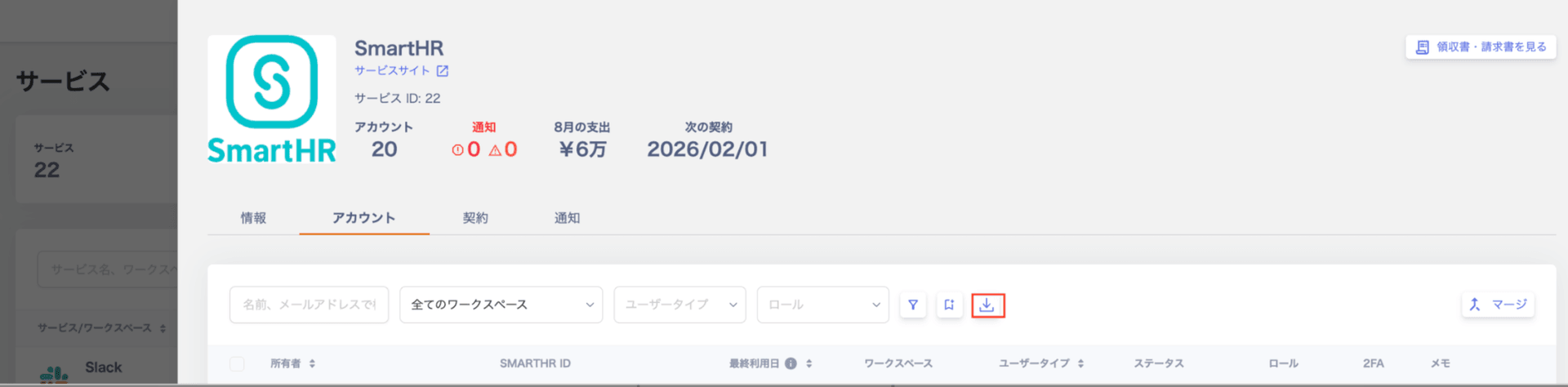
1. Go to **Services** > select a service > **Accounts**, then click **Export**.
## **Steps to export service accounts**
1. Go to **Services** > select a service > **Accounts**, then click **Export**.
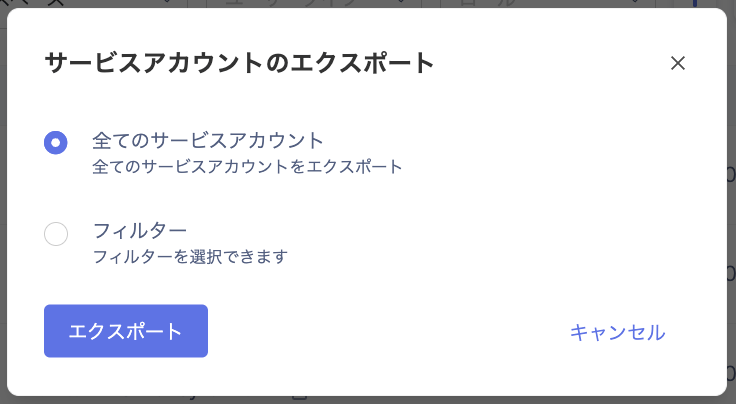
 2. The **Export Service Accounts** screen appears. Select one of the following options and click **Export**.
| Option | Contents |
| ------------------------ | --------------------------------------------------------------------------------------------- |
| **All service accounts** | Exports all accounts shown on the service's **Accounts** screen. |
| **Filter** | Exports accounts based on the filter conditions applied on the service's **Accounts** screen. |
2. The **Export Service Accounts** screen appears. Select one of the following options and click **Export**.
| Option | Contents |
| ------------------------ | --------------------------------------------------------------------------------------------- |
| **All service accounts** | Exports all accounts shown on the service's **Accounts** screen. |
| **Filter** | Exports accounts based on the filter conditions applied on the service's **Accounts** screen. |
 3. A CSV file (.csv) will download. Save it to your preferred location.
**Export directory list**
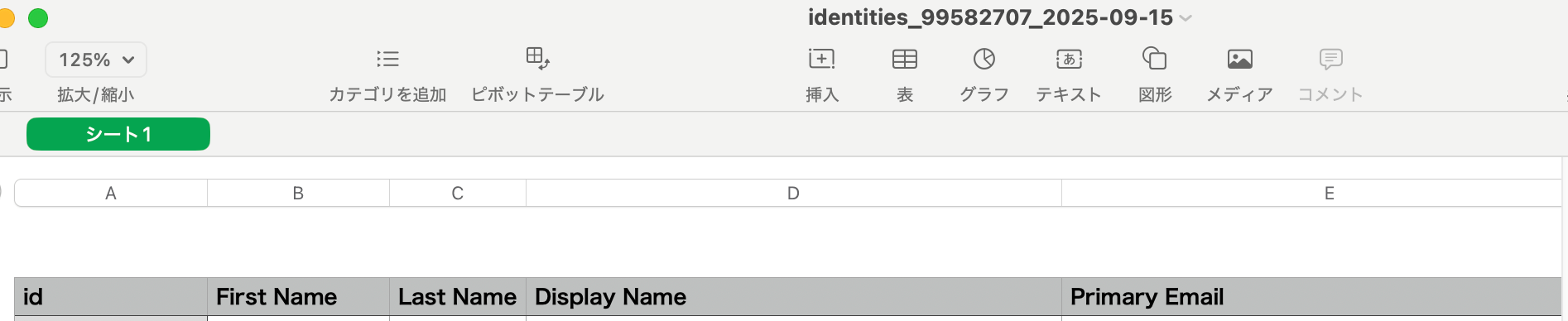
Export the Identities list from the directory to CSV.
## **Export contents (directory list)**
* Directory list: Outputs the Identities list in CSV format.
 ## **Steps to export the directory list**
1. Click **Export** in the directory.
## **Steps to export the directory list**
1. Click **Export** in the directory.
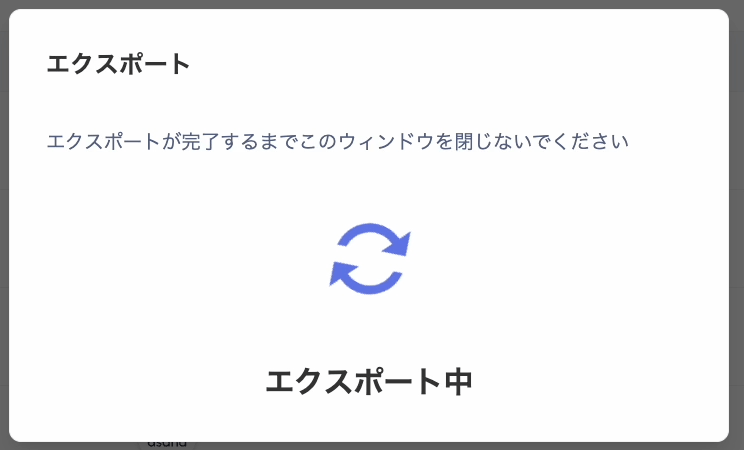
 2. The **Export** screen shows **Exporting**. Wait until the export completes.
 3. A CSV file (.csv) will download. Save it to your preferred location.