> ## Documentation Index
> Fetch the complete documentation index at: https://hc.saas-manager.biz.nuro.jp/llms.txt
> Use this file to discover all available pages before exploring further.
# Manually link (merge) a SaaS account to another account
> You can link unknown accounts or guest accounts that have no retrievable email address to another employee account or system account.
## Overview
Manually merge SaaS accounts (guest or employee) to another employee account, system account, or guest account.
## Use cases
You can use this feature for the following purposes:
* SaaS services that cannot retrieve email addresses (e.g., GitHub) produce unknown IDs. Link those accounts to manage offboarding.
* Link a guest account with an email domain different from the employee master to the same person's primary account. This applies when the guest account uses a secondary address.
Example: The employee master uses Google Workspace. Microsoft 365 operates under the "onmicrosoft.com" domain. Link the onmicrosoft.com account to the Google Workspace domain email address for offboarding management.
## **Managing unknown accounts**
1. Connect a SaaS service.
2. Detect unknown accounts.
3. Use merge to link them to an employee account or another account.
**How to link (merge)**
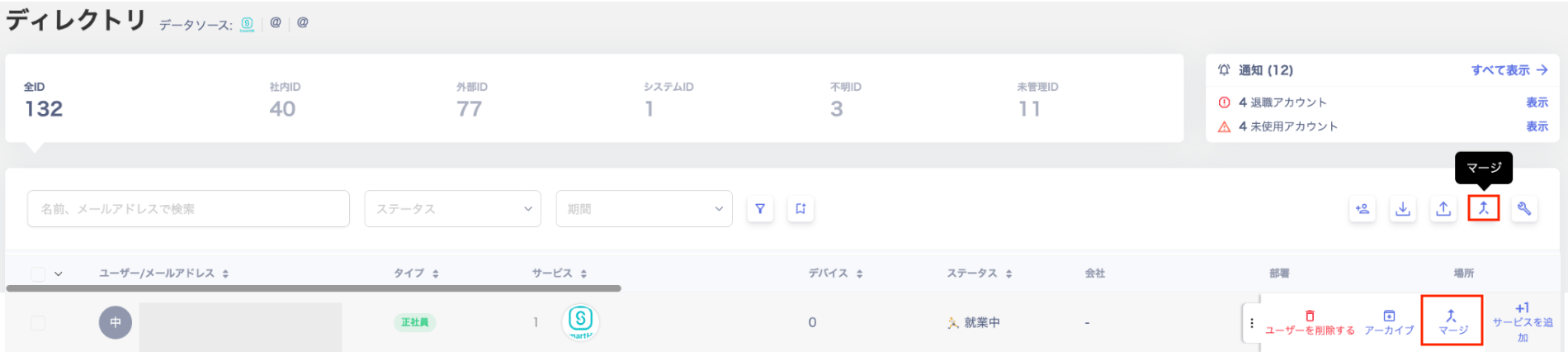
The Directory screen offers two ways to link (merge) accounts.
**Bulk change**: Click **\[Merge]** in the upper right.
**Individual change**: Click the three-dot menu **\[︙]** on the source account, then click **\[Merge]**.
 ## **Running a merge**
1. Click **\[Merge]** to open the "Merge IDs" screen. This screen shows the list of mergeable accounts (or the individually selected account).
## **Running a merge**
1. Click **\[Merge]** to open the "Merge IDs" screen. This screen shows the list of mergeable accounts (or the individually selected account).
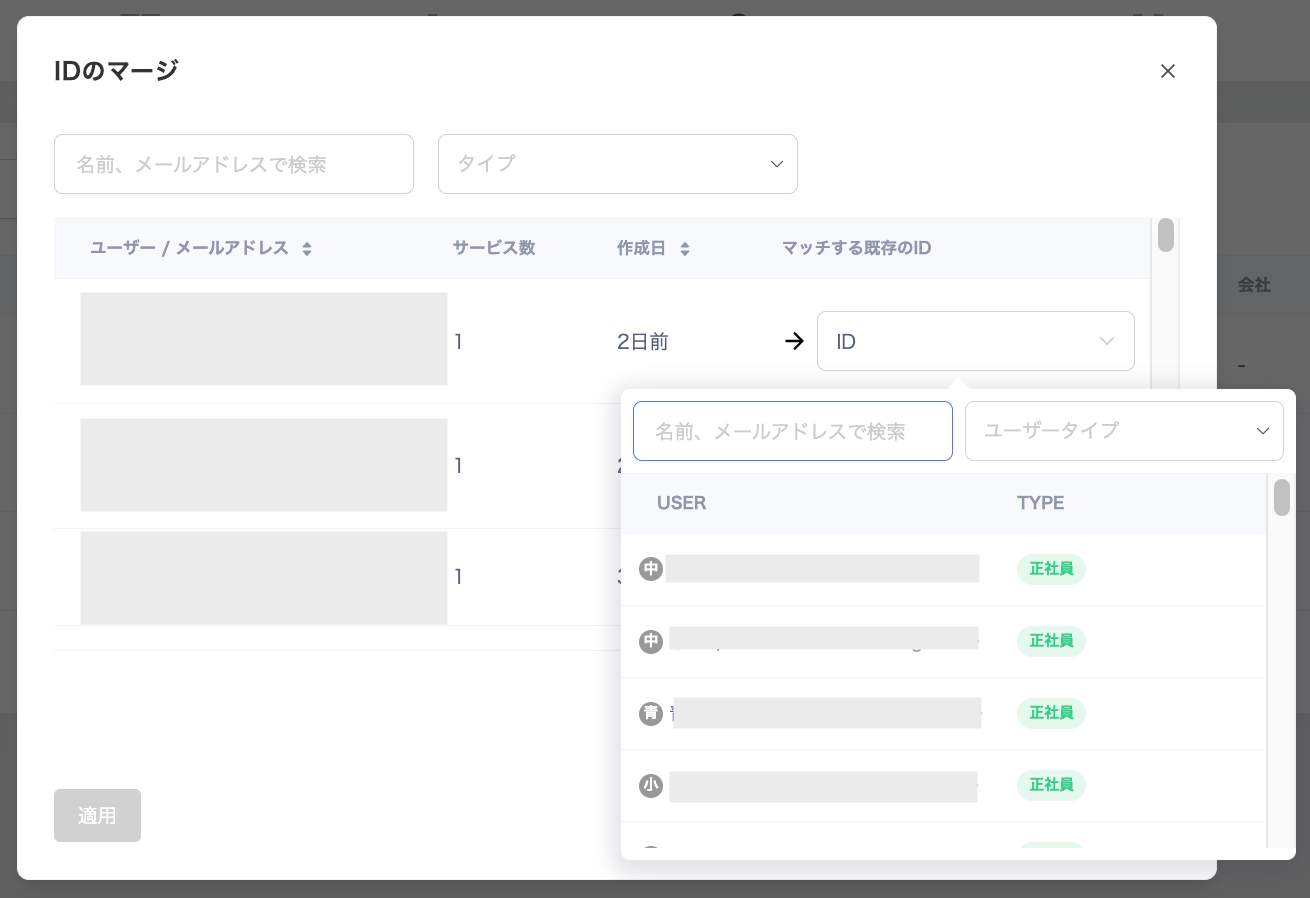
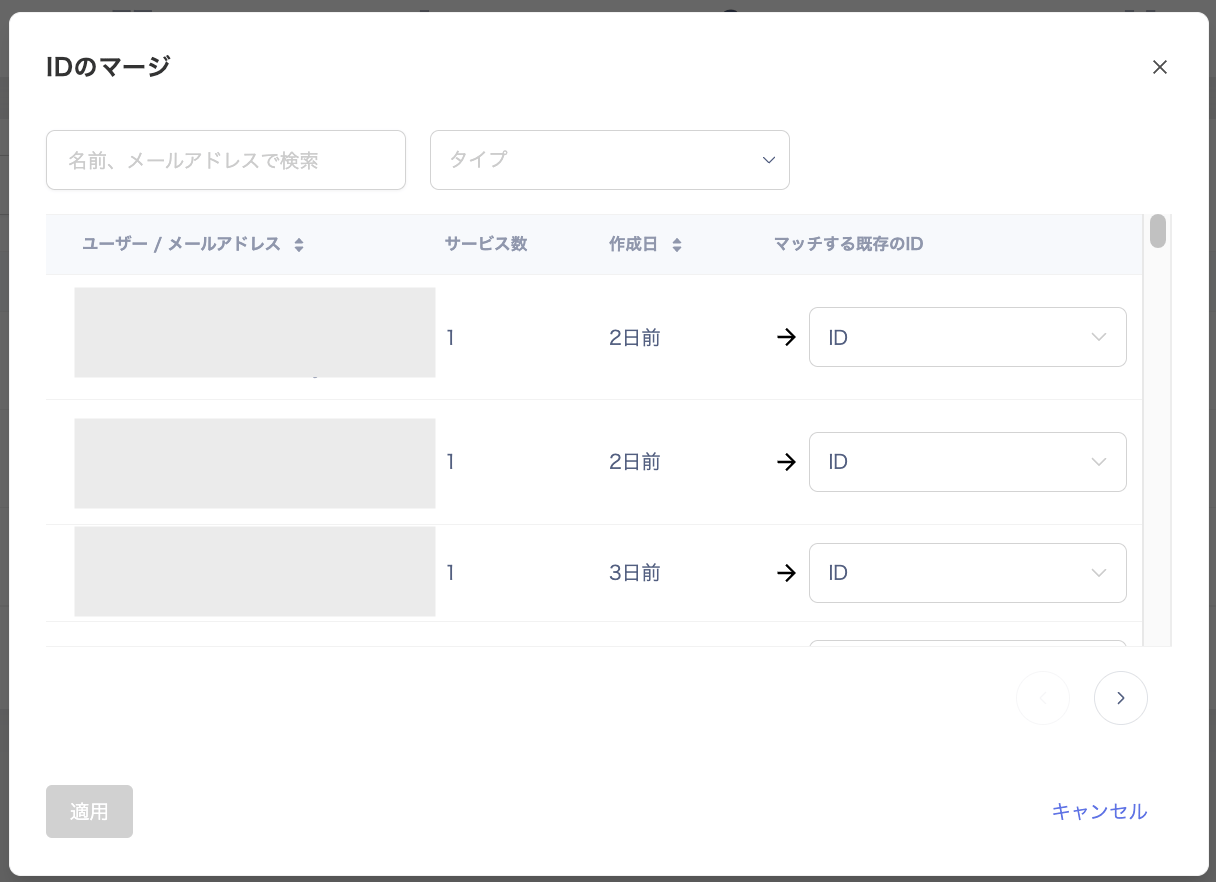 2. Click an ID in the "Matching existing ID" column to display the target account for linking.
The target account list shows up to 50 accounts. Search by name or email address to find the right account.
If the user has multiple email addresses, find the **Primary** one under Directory > User Info > Email Address. Specify that account as the merge target.
2. Click an ID in the "Matching existing ID" column to display the target account for linking.
The target account list shows up to 50 accounts. Search by name or email address to find the right account.
If the user has multiple email addresses, find the **Primary** one under Directory > User Info > Email Address. Specify that account as the merge target.
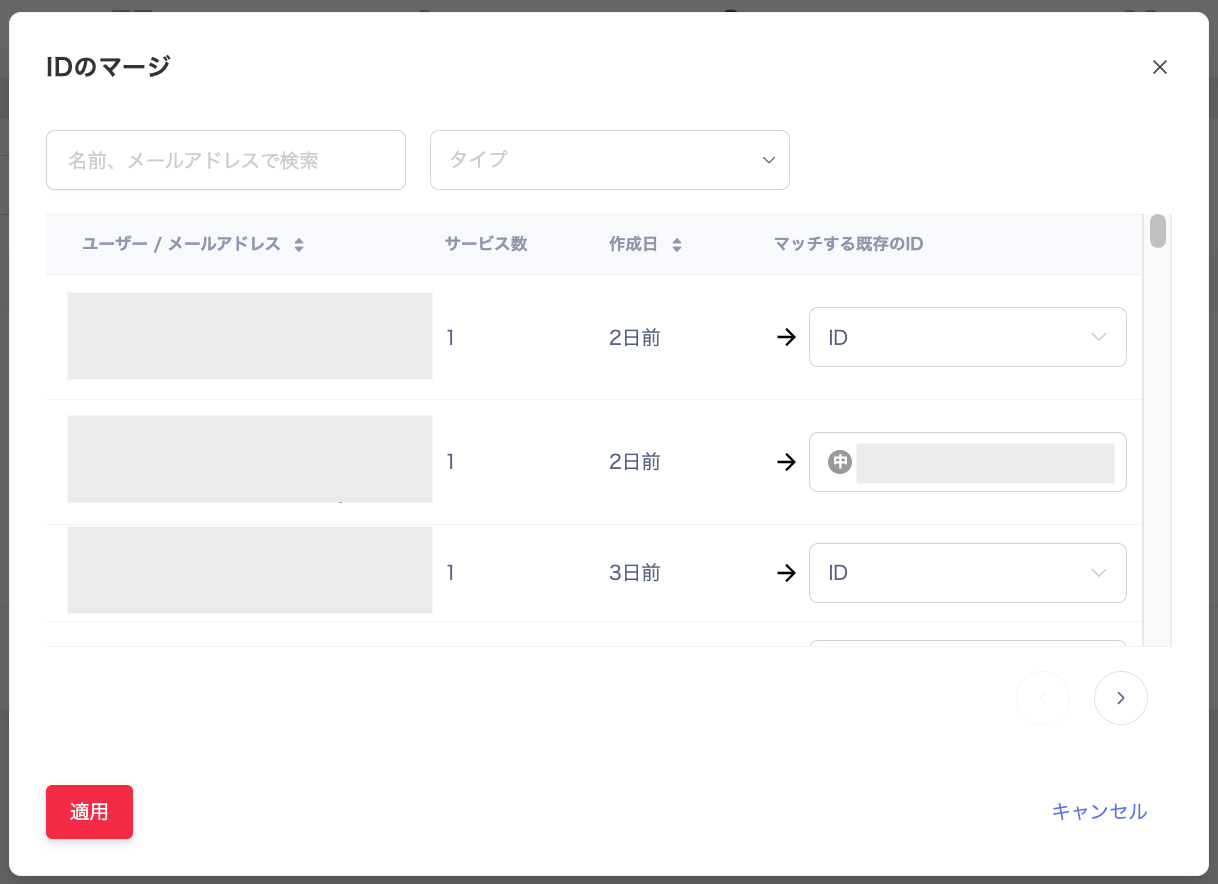
 3. Select the target account and click **\[Apply]**.
 4. A confirmation message appears when the merge succeeds.
 ## **Checking merge results**
Check the target account in the Directory. After a successful merge, the merged account count appears as "N account(s)".
## **Checking merge results**
Check the target account in the Directory. After a successful merge, the merged account count appears as "N account(s)".
 Click **\[Total IDs]** to view the linked accounts.
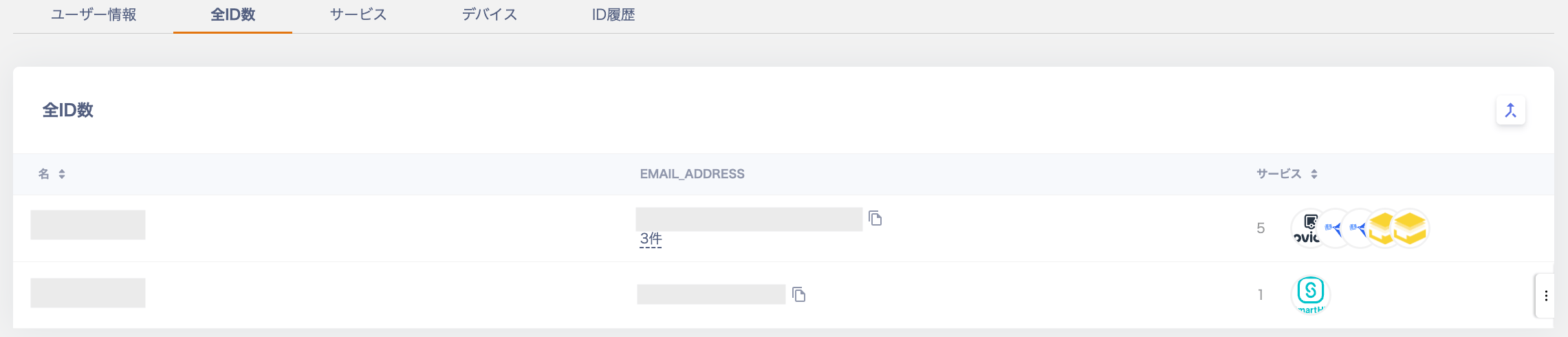
**Separating accounts (unmerge)**
Remove a link (merge) and restore the account to its pre-merge state.
1. Go to Directory > select the account to unlink > select the **\[Total IDs]** tab. Click **\[Separate]** from the three-dot menu **\[︙]**.
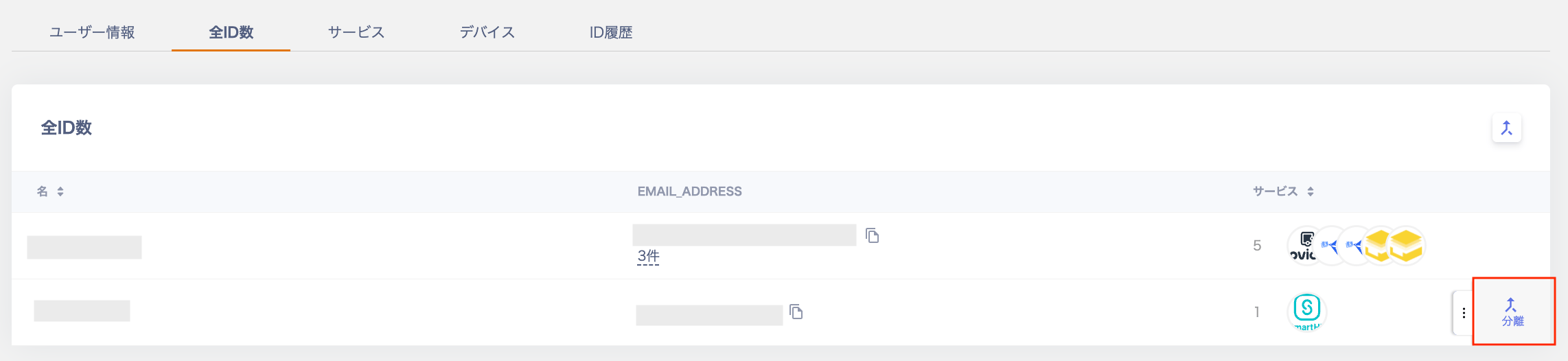 2. A confirmation screen appears. Click **\[Separate]**.
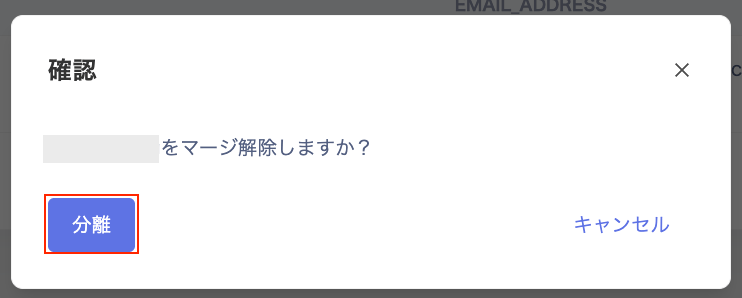 3. "Merge cancelled" appears when the separation succeeds.
 4. The separated account appears in the Directory list.
 ## **Merging and unmerging via API**
You can also merge and unmerge using the following API endpoints.
Merge: [Merge people in batch](/en/api-reference/it-management/introduction#tag/Organization/operation/mergePeople)
[How to use the Merge identity with addressless entities Tool](/en/it-management/saas-management/6ax6mziqu2-merge-identity-with-addressless-entities#usage)
Unmerge: [Unmerges people](/en/api-reference/it-management/introduction#tag/Organization/operation/unmergePeople)
## **Notes**
Merged accounts no longer appear in the Directory list. Check the source account before merging.
When you remove a merge, the account reappears in the Directory list.
Perform merges and unmerges while the connected SaaS is syncing normally.
## **Merge targets**
The following table shows the ID types that can be used as merge source and merge target for manual linking.
See [Supplement 2: Type](/en/it-management/directory/nqxa0so8wh-admina-directory#type) for details on ID types.
| ID type **(source / target)** | Internal ID | External ID | System ID | Unknown | Unmanaged ID |
| ----------------------------- | ----------- | ----------- | --------- | ------- | ------------ |
| Internal ID | ◯ | - | - | - | - |
| External ID | ◯ | ◯ | - | - | - |
| System ID | ◯ | ◯ | ◯ | - | - |
| Unknown | ◯ | ◯ | ◯ | - | ◯ |
| Unmanaged ID | ◯ | ◯ | ◯ | - | - |
## **FAQ**
## Q. I cannot find the unmerge screen.
A. Go to Directory > select the account to unlink > click **\[Total IDs]** to remove the merge. See the [Separating accounts (unmerge)](#account-separation-unmerge) section for details.
## Q. After merging, I try to change the primary/secondary email address. I see "A user with this email address already exists" and cannot proceed.
A. If that message appears after merging, perform an [**Account separation (unmerge)**](#account-separation-unmerge).
Then specify the account to register as **Primary** under Directory > User Info > Email Address as the merge target. After that, [run the merge](#linking-merge-method) again.
## **Merging and unmerging via API**
You can also merge and unmerge using the following API endpoints.
Merge: [Merge people in batch](/en/api-reference/it-management/introduction#tag/Organization/operation/mergePeople)
[How to use the Merge identity with addressless entities Tool](/en/it-management/saas-management/6ax6mziqu2-merge-identity-with-addressless-entities#usage)
Unmerge: [Unmerges people](/en/api-reference/it-management/introduction#tag/Organization/operation/unmergePeople)
## **Notes**
Merged accounts no longer appear in the Directory list. Check the source account before merging.
When you remove a merge, the account reappears in the Directory list.
Perform merges and unmerges while the connected SaaS is syncing normally.
## **Merge targets**
The following table shows the ID types that can be used as merge source and merge target for manual linking.
See [Supplement 2: Type](/en/it-management/directory/nqxa0so8wh-admina-directory#type) for details on ID types.
| ID type **(source / target)** | Internal ID | External ID | System ID | Unknown | Unmanaged ID |
| ----------------------------- | ----------- | ----------- | --------- | ------- | ------------ |
| Internal ID | ◯ | - | - | - | - |
| External ID | ◯ | ◯ | - | - | - |
| System ID | ◯ | ◯ | ◯ | - | - |
| Unknown | ◯ | ◯ | ◯ | - | ◯ |
| Unmanaged ID | ◯ | ◯ | ◯ | - | - |
## **FAQ**
## Q. I cannot find the unmerge screen.
A. Go to Directory > select the account to unlink > click **\[Total IDs]** to remove the merge. See the [Separating accounts (unmerge)](#account-separation-unmerge) section for details.
## Q. After merging, I try to change the primary/secondary email address. I see "A user with this email address already exists" and cannot proceed.
A. If that message appears after merging, perform an [**Account separation (unmerge)**](#account-separation-unmerge).
Then specify the account to register as **Primary** under Directory > User Info > Email Address as the merge target. After that, [run the merge](#linking-merge-method) again.