> ## Documentation Index
> Fetch the complete documentation index at: https://hc.saas-manager.biz.nuro.jp/llms.txt
> Use this file to discover all available pages before exploring further.
# Alert Types
> Learn about the types of alerts and notifications available.
Learn about the types of alerts and notifications available.
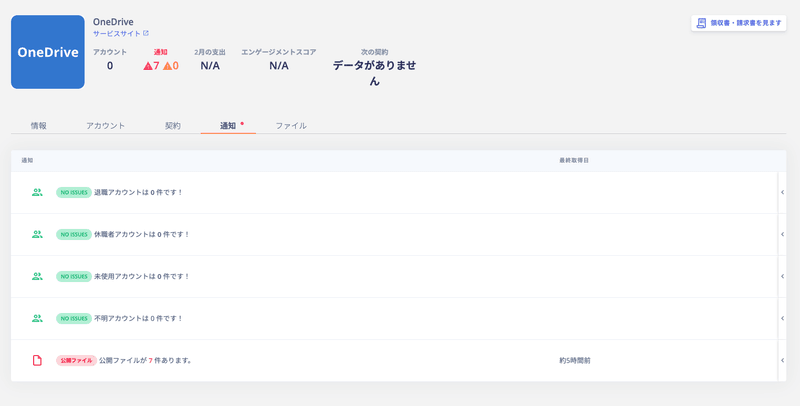
You can check alerts under the **Notifications** section for each directory or service.
Alerts for Services
There are five types of alerts for services.
| Alert | Description |
| ----------------------------- | --------------------------------------------------------------------------------------------------------------------- |
| **Resigned accounts** | Notifies accounts with the "Resigned" status. |
| **Leave of absence accounts** | Notifies accounts with the "Leave of absence" status. |
| **Unused accounts** | Notifies accounts whose last activity date was **45 days or more ago**. |
| **Unknown accounts** | Notifies accounts with the "Unknown" status. |
| **Public files** | Notifies about files shared with everyone. For more on managing public files, see External Shared Content Management. |
For the criteria used to determine each status, see the [Status Determination Criteria: Quick Reference](/en/it-management/directory/dcrxyhzb39-user-type).
 ## Exporting Alerts
You can export accounts and services with active alerts from the Service screen or the Directory screen.
## Service Screen
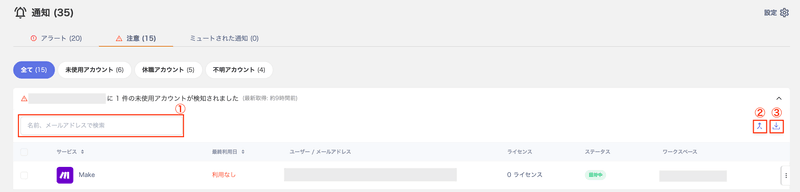
Select a SaaS > Notifications, then click the notification to export. Use the export button in the upper right to download it as a CSV file.
## Exporting Alerts
You can export accounts and services with active alerts from the Service screen or the Directory screen.
## Service Screen
Select a SaaS > Notifications, then click the notification to export. Use the export button in the upper right to download it as a CSV file.
 | No. | Item | Description |
| --- | --------------------- | -------------------------------------------------------------------------------------------------- |
| 1 | **Search and filter** | Search by name or email address, and filter by workspace or notification type using the dropdowns. |
| 2 | **Sync** | Click **Sync** to manually trigger a sync. |
| 3 | **Export** | Export the accounts listed in the notifications for each service. |
## Directory Screen
Go to Notifications in the upper right > **Show all** → > **Warnings**, then click the account to export. Use the export button in the upper right to download it as a CSV file.
| No. | Item | Description |
| --- | --------------------- | -------------------------------------------------------------------------------------------------- |
| 1 | **Search and filter** | Search by name or email address, and filter by workspace or notification type using the dropdowns. |
| 2 | **Sync** | Click **Sync** to manually trigger a sync. |
| 3 | **Export** | Export the accounts listed in the notifications for each service. |
## Directory Screen
Go to Notifications in the upper right > **Show all** → > **Warnings**, then click the account to export. Use the export button in the upper right to download it as a CSV file.
 | No. | Item | Description |
| --- | ----------------------------------- | -------------------------------------------------------------------------------- |
| 1 | **Search by name or email address** | Search for accounts shown in notifications by name or email address. |
| 2 | **Merge** | Button to merge accounts. For details, see **Linking (Merging) Accounts**. |
| 3 | **Export** | Export the SaaS and account information shown in notifications for each account. |
## Slack Alert Notifications
Some notifications can be sent to a Slack channel. For details, see [Send Alerts via Slack](/en/it-management/retired/76lzcncxyx-slack-notification).
## Stopping Alert Notifications
To stop a notification, click **Stop** to mute the alert. For details, see [Stop (Mute) Alert Notifications](/en/it-management/retired/j61yplowpw-mute).
## Enabling/Disabling All Alert Notifications
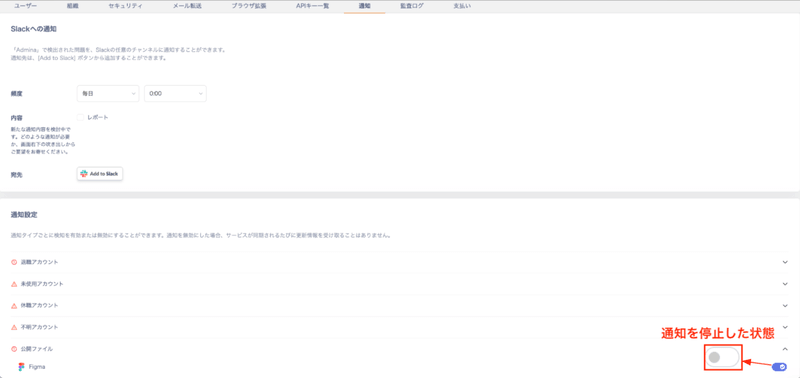
Go to **Settings** > **Notifications** to enable or disable all alert notifications at once. The Settings menu is only visible to accounts with Admin privileges.
On the **Notification Settings** screen, turn off the toggle switch for each notification type you want to disable.
| No. | Item | Description |
| --- | ----------------------------------- | -------------------------------------------------------------------------------- |
| 1 | **Search by name or email address** | Search for accounts shown in notifications by name or email address. |
| 2 | **Merge** | Button to merge accounts. For details, see **Linking (Merging) Accounts**. |
| 3 | **Export** | Export the SaaS and account information shown in notifications for each account. |
## Slack Alert Notifications
Some notifications can be sent to a Slack channel. For details, see [Send Alerts via Slack](/en/it-management/retired/76lzcncxyx-slack-notification).
## Stopping Alert Notifications
To stop a notification, click **Stop** to mute the alert. For details, see [Stop (Mute) Alert Notifications](/en/it-management/retired/j61yplowpw-mute).
## Enabling/Disabling All Alert Notifications
Go to **Settings** > **Notifications** to enable or disable all alert notifications at once. The Settings menu is only visible to accounts with Admin privileges.
On the **Notification Settings** screen, turn off the toggle switch for each notification type you want to disable.
 ## FAQ
## Q. How can I check the last activity date for unused accounts?
A. Go to Service or Directory > Notifications > Unused Accounts to see each account along with its last activity date.
The last activity date is retrieved using the method described in [How Last Activity Is Retrieved](/en/it-management/saas-management/lewx96sin2-last-activity#retrieval-method).
You may also find results by going to Directory > People > Event Log and searching by SaaS name.
## FAQ
## Q. How can I check the last activity date for unused accounts?
A. Go to Service or Directory > Notifications > Unused Accounts to see each account along with its last activity date.
The last activity date is retrieved using the method described in [How Last Activity Is Retrieved](/en/it-management/saas-management/lewx96sin2-last-activity#retrieval-method).
You may also find results by going to Directory > People > Event Log and searching by SaaS name.