> ## Documentation Index
> Fetch the complete documentation index at: https://hc.saas-manager.biz.nuro.jp/llms.txt
> Use this file to discover all available pages before exploring further.

# 4. Review the Survey and Conduct Inventory

> This page explains how to review a distributed survey and conduct an inventory.

<Info>
  All operations for this feature require **Admin** permission or the **Survey Manager** role. Viewing requires **Member** permission or the **Survey Viewer** role. For details, see [Basic Roles](/en/it-management/settings/yne7fl2lcy-role-new#basic-roles).
  To use the target type "Device," you must separately add the "Device feature."
</Info>

This page explains how to review a distributed survey and conduct an inventory. For the overall survey flow, see [0. Flow from Getting Started to Survey](/en/it-management/survey/juswdothub-0-survey).

#### How to Use

1. Review survey results
   * [Check survey answers](#survey-answers)
   * [Check survey response status](#survey-response-status)
2. Conduct inventory
   * [Conduct inventory](#inventory-check)

## Review Survey Results

<h3 id="survey-answers">
  Check survey answers
</h3>

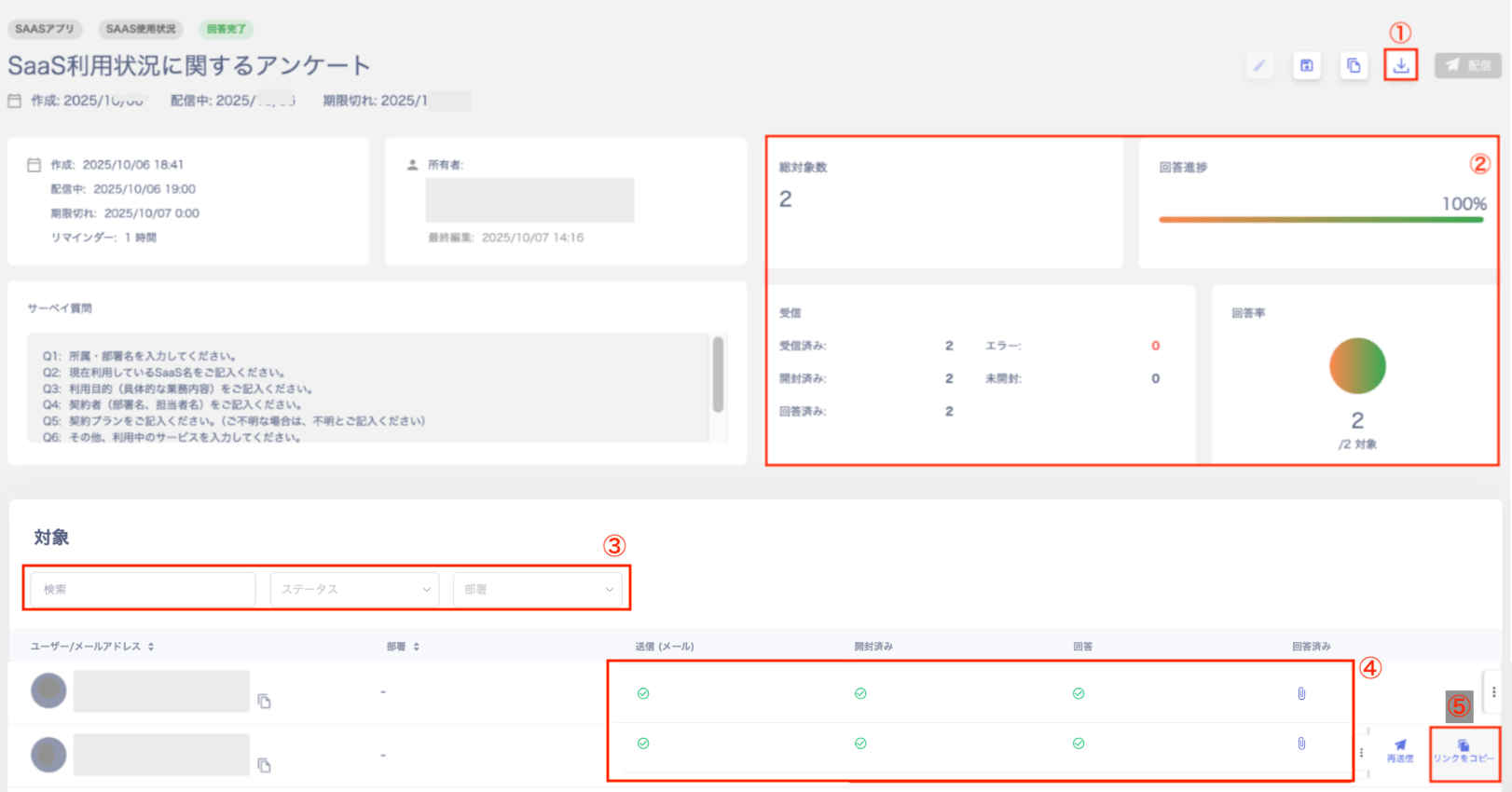
Select the survey you want to review on the survey list screen and check the survey answer results.

Completed surveys display the status "Answer Completed."

You can also run \[Export] from the three-dot menu \[**︙**] on the survey list screen.

<img src="https://mintcdn.com/admina-sbn/PEEndzio9f5-afJr/images/it-management/duof745x7d/2025-11-30-17-05-50.png?fit=max&auto=format&n=PEEndzio9f5-afJr&q=85&s=02ad5fec498c5510b4fce180bbaa08b6" alt="Survey answer review screen" width="1622" height="850" data-path="images/it-management/duof745x7d/2025-11-30-17-05-50.png" />

<table>
  <thead><tr><th style={{width:"60px"}}>No.</th><th>Item</th><th>Description</th></tr></thead>

  <tbody>
    <tr><td>1</td><td>**Export**</td><td>Export to CSV to check the response status.</td></tr>
    <tr><td>2</td><td>**Dashboard**</td><td>Check "Total Targets / Answer Progress / Received / Response Rate" on the dashboard.</td></tr>
    <tr><td>3</td><td>**Search & Filter**</td><td>Filter by "Search," "Status," and "Department." Filter by status using "Waiting / Sent / Opened / Answered."</td></tr>
    <tr><td>4</td><td>**Target List**</td><td>Check "Sent / Opened / Answered / Completed" in the target list. Click the "Answered" clip to view answer details in a popup.</td></tr>
    <tr><td>5</td><td>**Copy Link**</td><td>Copy the link URL. Each person receives a unique URL, so avoid reusing link URLs.</td></tr>
  </tbody>
</table>

<h3 id="survey-response-status">
  Check survey response status
</h3>

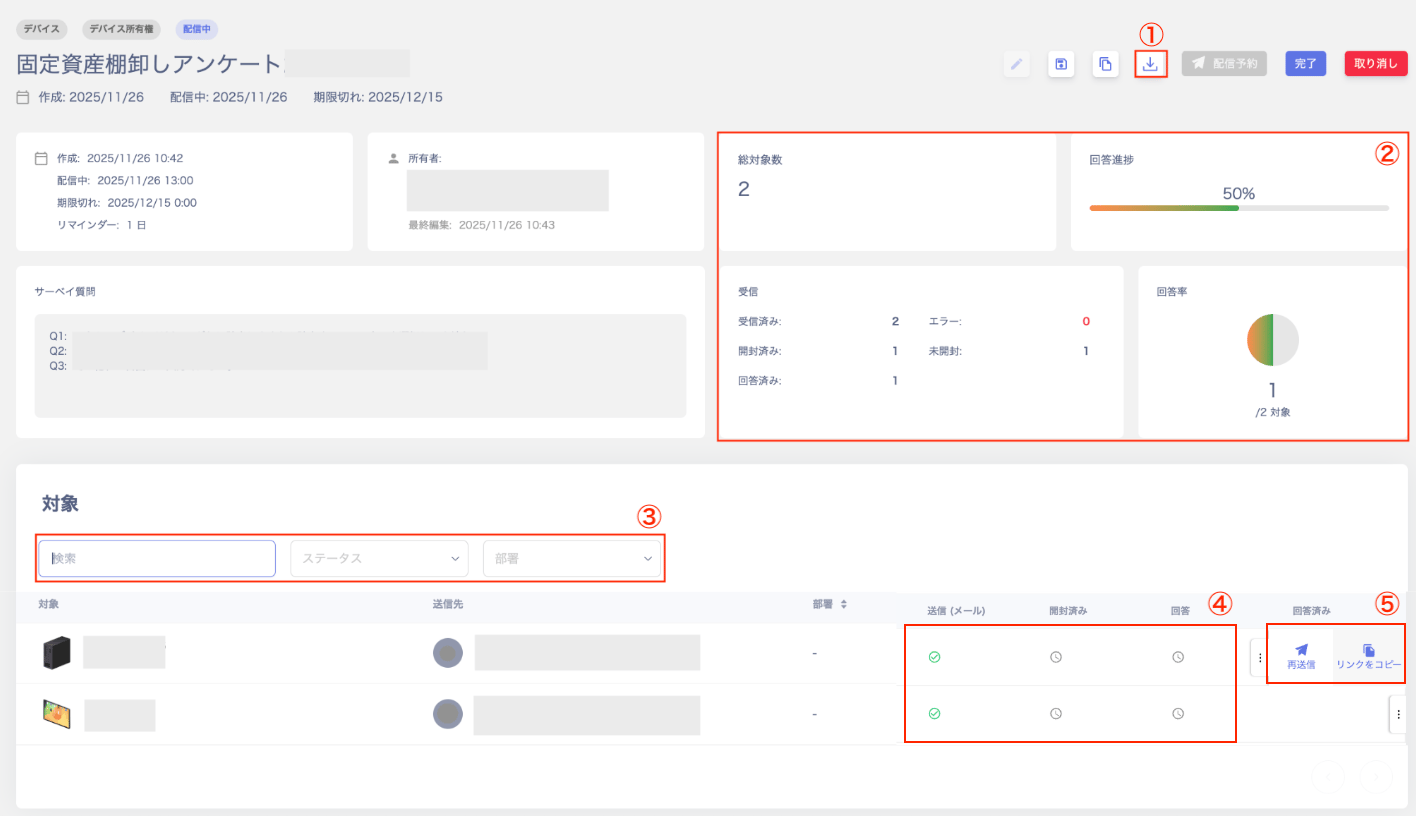
Select the survey you want to review on the survey list screen. Check the response status of a survey in distribution.

Surveys in distribution display the status "Distributing."

For items 1 through 5 in the image below, see [**Check survey answers**](#survey-answers).

<img src="https://mintcdn.com/admina-sbn/PEEndzio9f5-afJr/images/it-management/duof745x7d/2025-11-30-17-29-33.png?fit=max&auto=format&n=PEEndzio9f5-afJr&q=85&s=6f0cc6722ffbd85ea7364c08f93242c4" alt="Survey response status screen" width="1416" height="816" data-path="images/it-management/duof745x7d/2025-11-30-17-29-33.png" />

<h2 id="inventory-check">
  Conduct Inventory
</h2>

After exporting survey answer results to CSV, conduct the inventory by cross-referencing with the following screens.

* Check the Service or Device screen and conduct inventory
* Export information from the Service or Device screen and conduct inventory

For details, see [Export account list](/en/it-management/saas-management/bvfxjlx09m-export-account).

### FAQ

Q. Can I import survey answers into the Device or SaaS screen in this service?

A. Currently, there is no feature to import data into the Device or SaaS screen. Please export the survey results and conduct the inventory manually.