> ## Documentation Index
> Fetch the complete documentation index at: https://hc.saas-manager.biz.nuro.jp/llms.txt
> Use this file to discover all available pages before exploring further.

# 6. Invite Users

> You can invite users to the organization you created. Invited users can connect to services and view data retrieved through those connections.

You can invite users to [the organization you created](/en/it-management/tutorial/yvd9n2qzh1-new). Invited users can connect to services and view data retrieved through those connections.

If you manage users with SSO, refer to the following documentation.

* [How to Configure SAML](/en/it-management/settings/sni7chcawy-saml)
* [How to Configure SCIM](/en/it-management/settings/msu9u84kyh-scim)

## Invite Users to This Service

1. Go to Settings > Users and click \[Invite User] in the upper right. <img src="https://mintcdn.com/admina-sbn/SGaLkLAYjRKTTbC4/images/it-management/93a9bikaqq/1780796973256-2026-06-07-10-48-55.png?fit=max&auto=format&n=SGaLkLAYjRKTTbC4&q=85&s=ac88683299e16b2e80122d9ed7b5d7f6" alt="Screenshot of the Invite User button on the Settings screen" width="2198" height="404" data-path="images/it-management/93a9bikaqq/1780796973256-2026-06-07-10-48-55.png" />

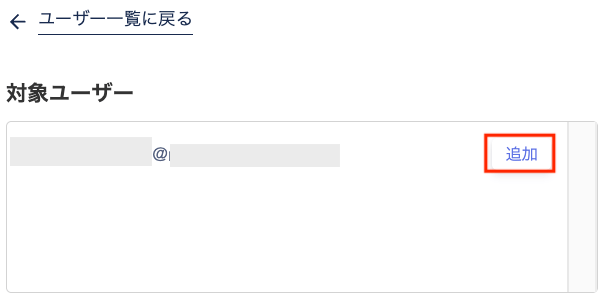
2. Enter the invited user's email address in the "Target User" field and click \[Add]. <img src="https://mintcdn.com/admina-sbn/niA9KijZSm52jzoI/images/it-management/93a9bikaqq/2025-05-30-11-03-19.png?fit=max&auto=format&n=niA9KijZSm52jzoI&q=85&s=d953d83b26e348ad194a9ccc869565ef" alt="Screenshot of the email address input field" width="606" height="306" data-path="images/it-management/93a9bikaqq/2025-05-30-11-03-19.png" />
3. Select the role to assign and click \[Apply]. For role details, see [Admin Users and Role Settings](/en/it-management/settings/yne7fl2lcy-role-new).

<img src="https://mintcdn.com/admina-sbn/niA9KijZSm52jzoI/images/it-management/93a9bikaqq/image.png?fit=max&auto=format&n=niA9KijZSm52jzoI&q=85&s=83d2e0490ce36e51a5857627e32d5f4b" alt="Screenshot of the role selection screen" width="1740" height="836" data-path="images/it-management/93a9bikaqq/image.png" />

## Check the Invitation Email

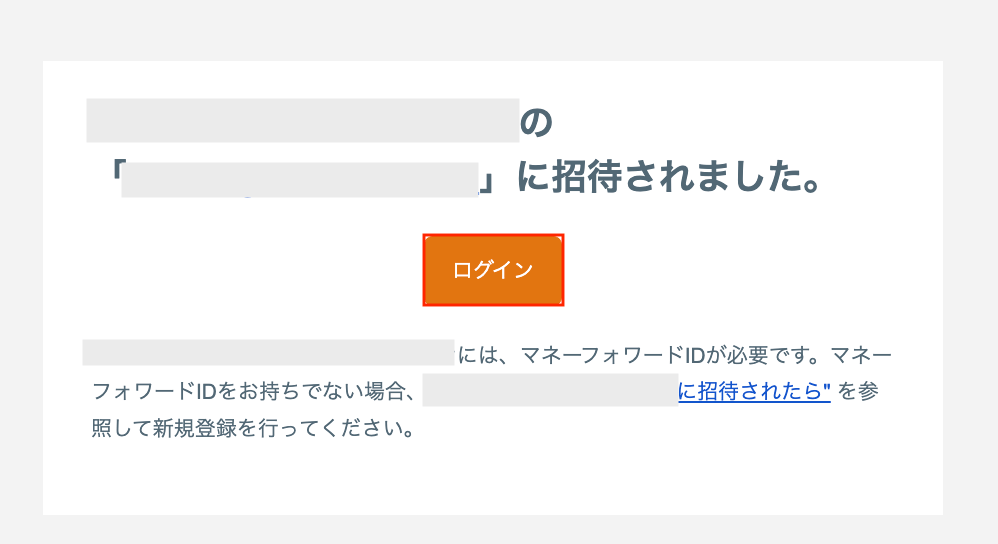
1. An invitation email is sent to the invited user. Click \[Log In] in the email. <img src="https://mintcdn.com/admina-sbn/SGaLkLAYjRKTTbC4/images/it-management/93a9bikaqq/1780798361823-2026-06-07-11-10-57.png?fit=max&auto=format&n=SGaLkLAYjRKTTbC4&q=85&s=ac75edec712a4ffeccbac75b2d871c3c" alt="Screenshot of the invitation email" width="998" height="544" data-path="images/it-management/93a9bikaqq/1780798361823-2026-06-07-11-10-57.png" />
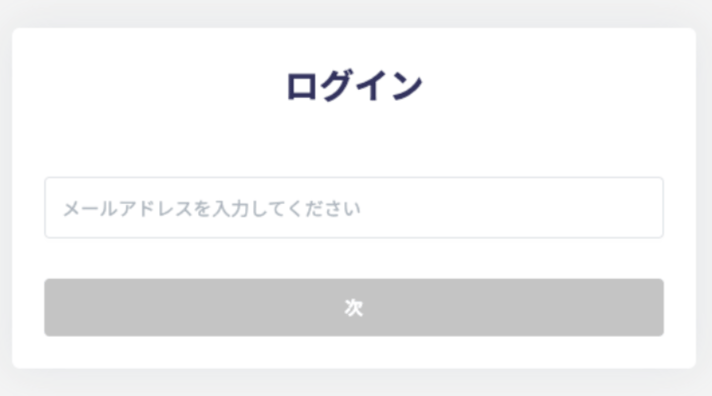
2. Enter the invited email address and log in. <img src="https://mintcdn.com/admina-sbn/SGaLkLAYjRKTTbC4/images/it-management/93a9bikaqq/1780798461191-2026-06-07-11-13-29.png?fit=max&auto=format&n=SGaLkLAYjRKTTbC4&q=85&s=9f6b23365fff91cbc669899f90a9c73b" alt="Screenshot of the email address input field on the login screen" width="712" height="396" data-path="images/it-management/93a9bikaqq/1780798461191-2026-06-07-11-13-29.png" />
3. Log in using "Log in with MoneyForward ID" or "Log in with another method."
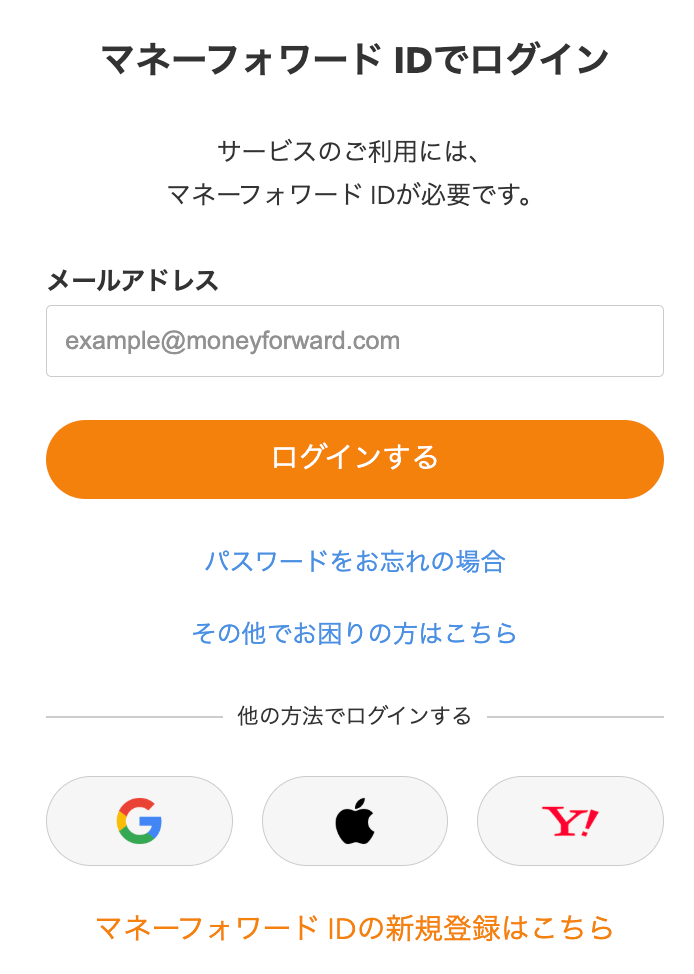
<img src="https://mintcdn.com/admina-sbn/SGaLkLAYjRKTTbC4/images/it-management/93a9bikaqq/1748570267865-2025-05-30-10-45-22.png?fit=max&auto=format&n=SGaLkLAYjRKTTbC4&q=85&s=50716068545c459876d5e7bd6f9342a0" alt="Screenshot of the login method selection screen" width="694" height="974" data-path="images/it-management/93a9bikaqq/1748570267865-2025-05-30-10-45-22.png" />

<h2 id="moneyforward-id-login">
  Logging in with MoneyForward ID
</h2>

1. Enter your email address and click \[Log In]. <img src="https://mintcdn.com/admina-sbn/SGaLkLAYjRKTTbC4/images/it-management/93a9bikaqq/1748570267865-2025-05-30-10-45-22.png?fit=max&auto=format&n=SGaLkLAYjRKTTbC4&q=85&s=50716068545c459876d5e7bd6f9342a0" alt="Screenshot of the MoneyForward ID login screen" width="694" height="974" data-path="images/it-management/93a9bikaqq/1748570267865-2025-05-30-10-45-22.png" />
2. Enter your password and click \[Log In].
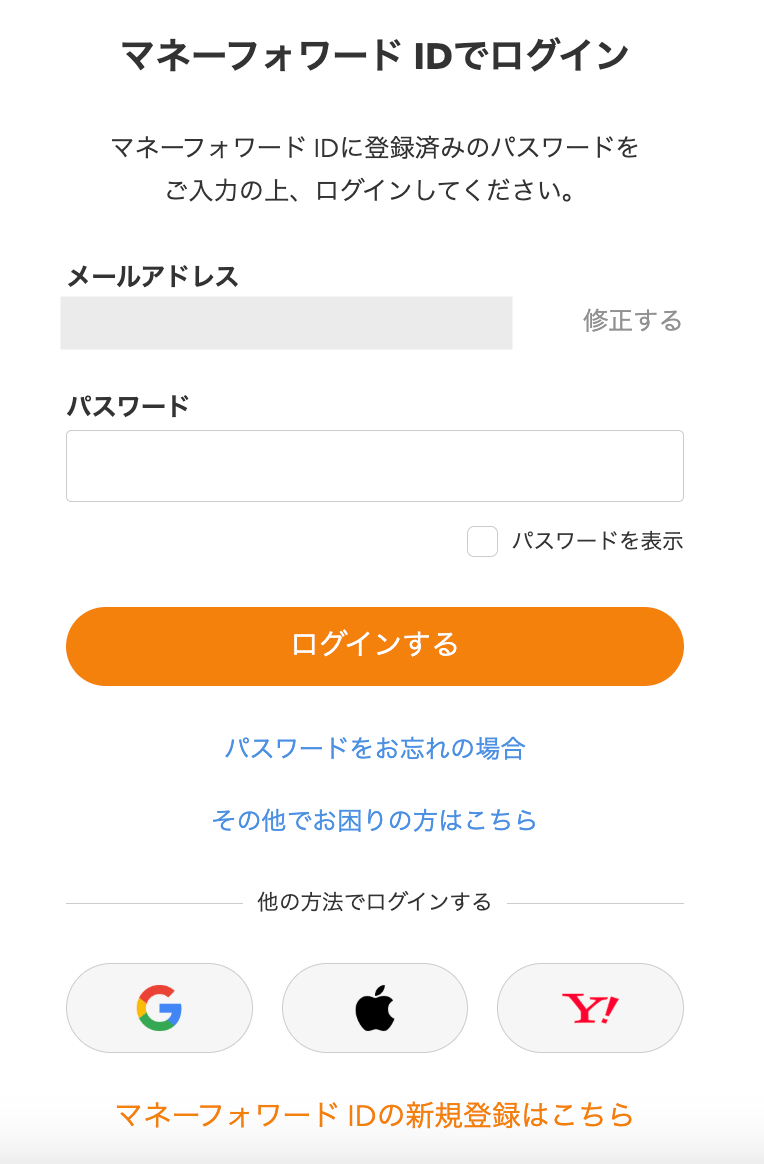
<img src="https://mintcdn.com/admina-sbn/niA9KijZSm52jzoI/images/it-management/93a9bikaqq/2025-05-30-11-21-49.png?fit=max&auto=format&n=niA9KijZSm52jzoI&q=85&s=5ce321bc7a10791fae2044c491d965c0" alt="Screenshot of the password input screen" width="764" height="1164" data-path="images/it-management/93a9bikaqq/2025-05-30-11-21-49.png" />

<h2 id="other-login-methods">
  Logging in with Another Method
</h2>

Select another method and follow the on-screen instructions to log in.
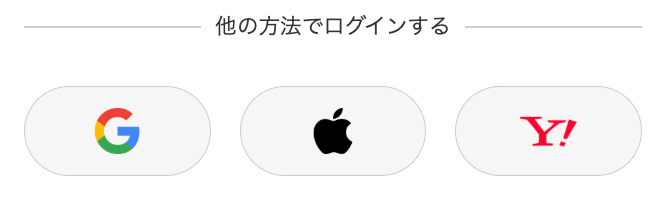
<img src="https://mintcdn.com/admina-sbn/niA9KijZSm52jzoI/images/it-management/93a9bikaqq/2025-05-30-11-27-35.png?fit=max&auto=format&n=niA9KijZSm52jzoI&q=85&s=80b68397d72e97629c7bd6886a95aa50" alt="Screenshot of the login method selection screen" width="662" height="212" data-path="images/it-management/93a9bikaqq/2025-05-30-11-27-35.png" />

<h2 id="no-moneyforward-id">
  If You Do Not Have a MoneyForward ID
</h2>

If the invited email address is not registered with a MoneyForward ID, you cannot log in.

1. You are on the "Log in with MoneyForward ID" screen. Click "Register a new MoneyForward ID here" to register. <img src="https://mintcdn.com/admina-sbn/niA9KijZSm52jzoI/images/it-management/93a9bikaqq/2025-05-30-10-45-22.png?fit=max&auto=format&n=niA9KijZSm52jzoI&q=85&s=aa5ae96e656da2301f9de29746cb2fc8" alt="Screenshot of the new registration link" width="694" height="974" data-path="images/it-management/93a9bikaqq/2025-05-30-10-45-22.png" />
2. Create a MoneyForward ID using one of the methods shown on the next screen, then log in to this service.
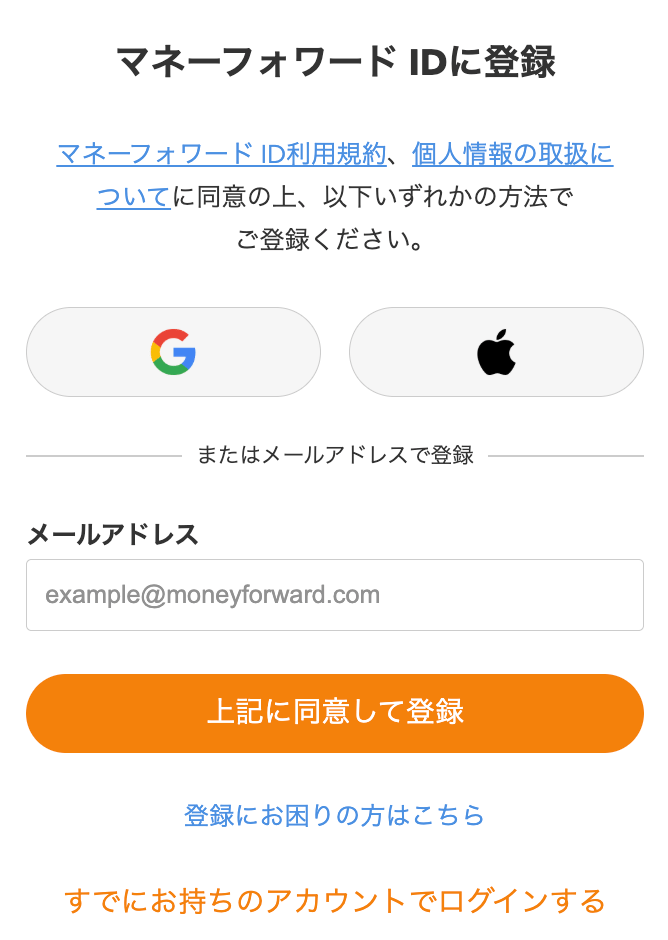
<img src="https://mintcdn.com/admina-sbn/niA9KijZSm52jzoI/images/it-management/93a9bikaqq/2025-05-30-11-34-32.png?fit=max&auto=format&n=niA9KijZSm52jzoI&q=85&s=bb1e33ab1b89e2b3b37858bb8bfc973c" alt="Screenshot of the ID creation method selection screen" width="668" height="940" data-path="images/it-management/93a9bikaqq/2025-05-30-11-34-32.png" />

## Related Resources

[Change your MoneyForward ID login information](/en/it-management/faq/rxbj8qxpro-password)

[Can I log in with two-factor authentication?](/en/it-management/faq/hl8a9vau11-2-falogin)

[Unable to log in](/en/it-management/faq/lu65gvh5xj-login)
