> ## Documentation Index
> Fetch the complete documentation index at: https://hc.saas-manager.biz.nuro.jp/llms.txt
> Use this file to discover all available pages before exploring further.
# 3. Connect Your SaaS!
> Let's connect your cloud services! Connecting a cloud service lets you retrieve a list of accounts.
Start by deciding which SaaS to connect first, then set up the integration.
Connecting a SaaS lets you retrieve a list of accounts.
The integration applies [account aggregation](https://ja.wikipedia.org/wiki/%E3%82%A2%E3%82%AB%E3%82%A6%E3%83%B3%E3%83%88%E3%82%A2%E3%82%B0%E3%83%AA%E3%82%B2%E3%83%BC%E3%82%B7%E3%83%A7%E3%83%B3#:~:text=%E3%82%A2%E3%82%AB%E3%82%A6%E3%83%B3%E3%83%88%E3%82%A2%E3%82%B0%E3%83%AA%E3%82%B2%E3%83%BC%E3%82%B7%E3%83%A7%E3%83%B3\(Account%20aggregation\)%20%E3%81%A8,%E8%A1%A8%E7%A4%BA%E3%81%99%E3%82%8B%E3%82%B5%E3%83%BC%E3%83%93%E3%82%B9%E3%81%AE%E7%B7%8F%E7%A7%B0%E3%80%82) technology, so you can connect services safely without affecting them.
#### Connecting a SaaS
Follow these steps to connect a SaaS:
1. Go to Integrations > Integrations.
2. Search for the SaaS by name, or click its icon. 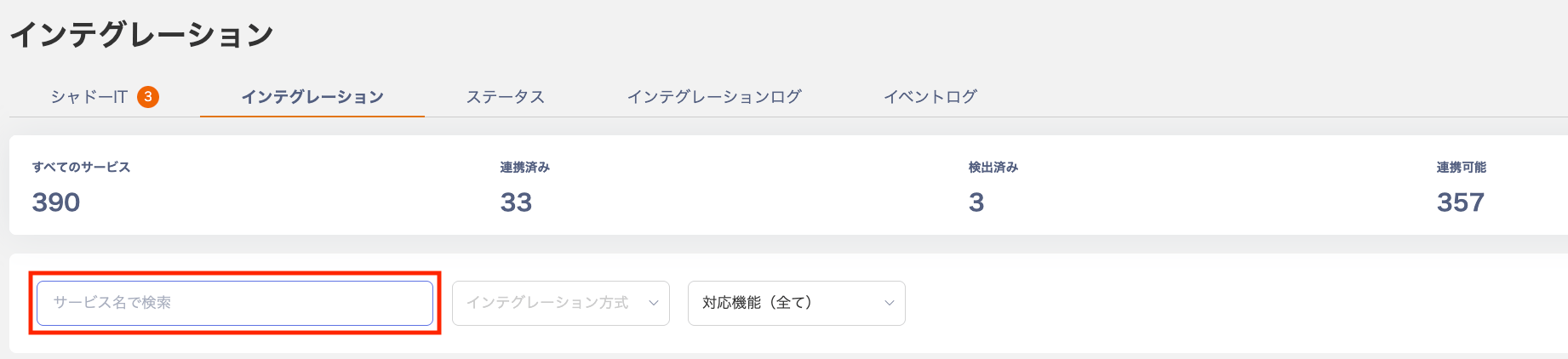 3. A **Create New Integration** panel appears on the right. Fill in the required fields and click **Connect**. Refer to the Integration Guide for details on each field.
  The connection method varies by SaaS. Check the following for details: - [SaaS Integration Guide](/en/integrations/) - [SaaS Connection Patterns](/en/it-management/saas-management/8iscw8ce8k-saa-s)
4. The time to complete the connection depends on the type: API and OAuth — a few seconds; ID/Password — 1 to 5 minutes.
5. \*For ID/Password integrations, connection is not possible in the following situations: when login via a third-party service (e.g., Google Login) or Single Sign-On (SSO) is enforced; or when connecting employee accounts is not permitted for security reasons. In these cases, create a dedicated system account on the SaaS side and use that for the integration.
The integration starts. Wait a moment for it to complete.
The connection method varies by SaaS. Check the following for details: - [SaaS Integration Guide](/en/integrations/) - [SaaS Connection Patterns](/en/it-management/saas-management/8iscw8ce8k-saa-s)
4. The time to complete the connection depends on the type: API and OAuth — a few seconds; ID/Password — 1 to 5 minutes.
5. \*For ID/Password integrations, connection is not possible in the following situations: when login via a third-party service (e.g., Google Login) or Single Sign-On (SSO) is enforced; or when connecting employee accounts is not permitted for security reasons. In these cases, create a dedicated system account on the SaaS side and use that for the integration.
The integration starts. Wait a moment for it to complete.
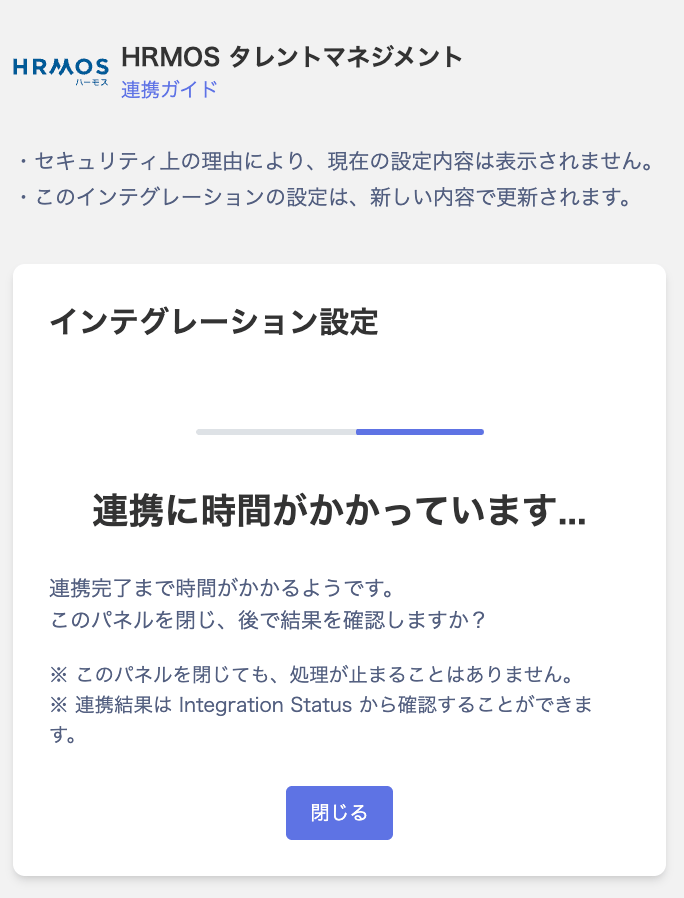 When the integration succeeds, **Integration Settings** shows a success status.
You can view the connected SaaS by clicking **View Retrieved Information** or from the service screen.
If the integration fails, refer to [Troubleshooting SaaS Integration Failures](/en/it-management/saas-management/93nahw45is-trouble).
When the integration succeeds, **Integration Settings** shows a success status.
You can view the connected SaaS by clicking **View Retrieved Information** or from the service screen.
If the integration fails, refer to [Troubleshooting SaaS Integration Failures](/en/it-management/saas-management/93nahw45is-trouble).
 #### Checking Connected SaaS and Accounts
After a successful connection, the connected SaaS and accounts appear in the **Services** and **Directory** sections in the left menu.
**Services**: [1-1. Checking the Services Screen](/en/it-management/saas-management/dcqgfmkgaq-services)
Select a connected SaaS from the service list, then check the accounts under **Accounts**.
**Directory**: [2. Identifying Self-Managed IDs](/en/it-management/directory/m6uehl3rzi-admina-directory-rdy)
Filter by **Service** in the Directory to view accounts for a connected SaaS.
\* Connected SaaS data syncs automatically on a daily basis (overnight) to keep information up to date.
#### Checking Connected SaaS and Accounts
After a successful connection, the connected SaaS and accounts appear in the **Services** and **Directory** sections in the left menu.
**Services**: [1-1. Checking the Services Screen](/en/it-management/saas-management/dcqgfmkgaq-services)
Select a connected SaaS from the service list, then check the accounts under **Accounts**.
**Directory**: [2. Identifying Self-Managed IDs](/en/it-management/directory/m6uehl3rzi-admina-directory-rdy)
Filter by **Service** in the Directory to view accounts for a connected SaaS.
\* Connected SaaS data syncs automatically on a daily basis (overnight) to keep information up to date.
 #### Next Step
Keep connecting more SaaS services to expand your integrations.
Connecting around 20 services is a good milestone to start seeing clear value.
Once you have more connected services, check whether any [accounts remain for former employees](/en/it-management/retired/49ob8gvkxn-retiree-account-check).
When you are ready to start using this service in earnest, [register a credit card](/en/it-management/tutorial/z0lxs3jc9p-5).
For billing details, see [How Pricing is Calculated](/en/it-management/faq/ghm83nwmvs-price). For trial usage, see [Using, Resuming, or Extending Your Trial](/en/it-management/faq/uzbi1mlxtx-trial).
#### Next Step
Keep connecting more SaaS services to expand your integrations.
Connecting around 20 services is a good milestone to start seeing clear value.
Once you have more connected services, check whether any [accounts remain for former employees](/en/it-management/retired/49ob8gvkxn-retiree-account-check).
When you are ready to start using this service in earnest, [register a credit card](/en/it-management/tutorial/z0lxs3jc9p-5).
For billing details, see [How Pricing is Calculated](/en/it-management/faq/ghm83nwmvs-price). For trial usage, see [Using, Resuming, or Extending Your Trial](/en/it-management/faq/uzbi1mlxtx-trial).