> ## Documentation Index
> Fetch the complete documentation index at: https://hc.saas-manager.biz.nuro.jp/llms.txt
> Use this file to discover all available pages before exploring further.
# 5. How Onboarding/Offboarding Automation Runs
> Explains the workflow execution flow for automation.
**Permission for this service:** This feature requires **Admin** or **Automation Manager** permission.
**SaaS status:** The target SaaS must already be connected, with administrator privileges (including API permissions) needed to create and delete accounts.
After you configure a workflow, this page explains how onboarding/offboarding automation runs. Specifically, it covers steps ③④⑤ in the overall automation (workflow) execution flow.
## Automation (Workflow) Execution Flow
1. [Pre-configure automation (mapping)](/en/it-management/workflows/ms4wo45v27-admina-automation-wic)
2. Configure a workflow
[Set up an automation workflow for new employee onboarding](/en/it-management/workflows/ygzni03g1c-admina-automation-wic-ggx)
[Set up an automation workflow for employee offboarding](/en/it-management/workflows/clsb6alwrc-admina-automation-rtp)
3. [Set trigger items in the directory](#directory-trigger-settings)
4. [Check the queue](#check-queue)
5. [**Workflow execution timing**](#execution-timing)
6. [Check automation execution history](#execution-history)
Set Trigger Items in the Directory
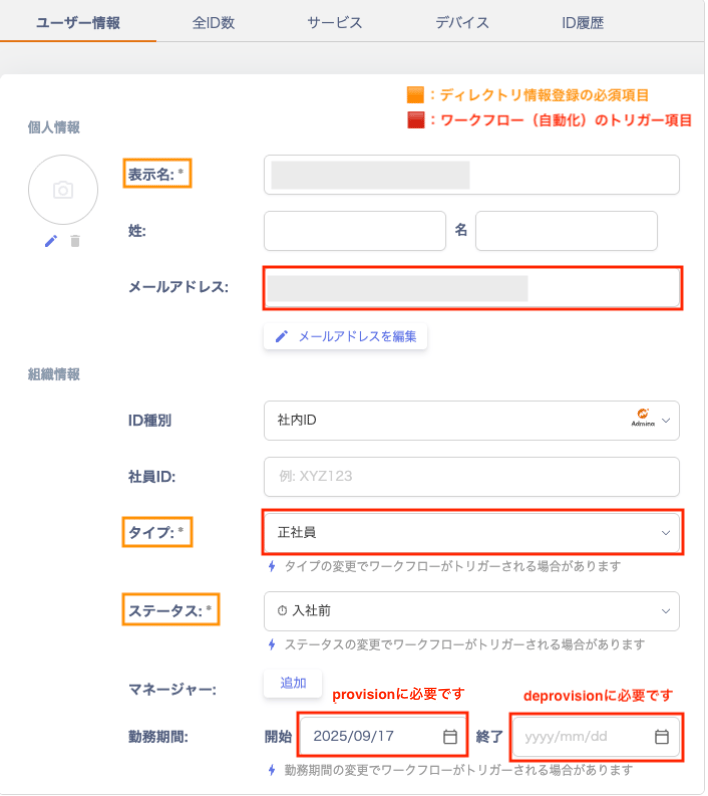
In Directory > Directory Information, configure the following fields that trigger the workflow (automation).
* Email address
* Employment period: Start date (hire date) / End date (departure date)
* Type: Select from "Executive / Full-time employee / Contract employee / Temporary employee / Part-time employee". Additional options include "Seconded employee / Fixed-term employee / Collaborator / Group address / Shared address". You can also choose "Test address / Other / Unknown / Unmanaged".
Note: Directory > User Information has additional required fields (display name, status) beyond those listed above.
Note: Some SaaS services create email addresses, such as Google Workspace. For these services, see [Add a Google Workspace account with automation](/en/it-management/workflows/wmxqkuo9yp-google-workspace).
Check the Queue
After you configure Directory > Directory Information, the workflow is triggered. The triggered workflow then shows its scheduled executions in the **Queue** section. If the queue remains empty, check the [FAQ](#faq).

Workflow Execution Timing
Automation can run a configured workflow either automatically or manually. Choose the method that best fits your operation.
| Execution method | Execution time | Details |
| ---------------- | ------------------------------------------------------------- | ------------------------------------------------------------------------------------------------------------------------------------------------------------------------------------------------ |
| **Automatic** | Contract start/end date: same day = 23:59, future date = 0:00 | When a trigger condition is registered or updated in Directory > User Information, the condition is evaluated. If it matches, the execution is scheduled and added to the [queue](#check-queue). |
| **Manual** | Immediately | Run a workflow manually from the directory. ([Run a workflow manually](/en/it-management/workflows/1m4dk48wa6-automation#run-workflow-manually)) |
### Check Execution / Logs
Go to Automation > **Automation** tab > select a workflow > Execution/Logs to see triggered queues.

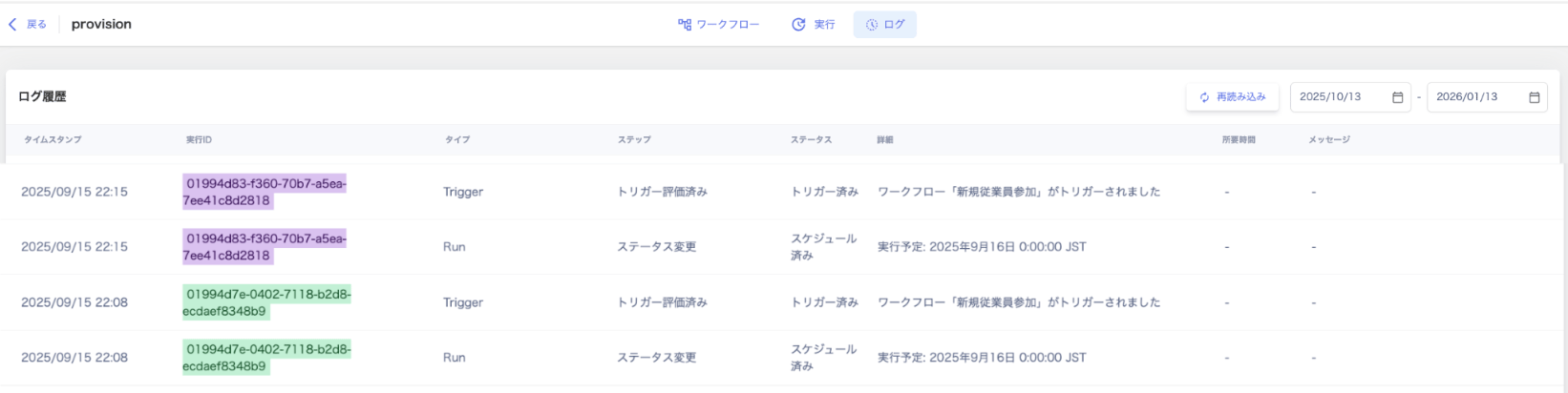 The **Status/Details** column shows the following log entries.
**Scheduled**: Scheduled execution: 2025/MM/DD 0:00:00 JST
**Triggered**: Workflow "New Employee Onboarding" was triggered
The **Status/Details** column shows the following log entries.
**Scheduled**: Scheduled execution: 2025/MM/DD 0:00:00 JST
**Triggered**: Workflow "New Employee Onboarding" was triggered
Check Automation Execution History
Go to Automation > **Automation** tab > workflow list > **Last Run** to check execution status.
 #### Check the Execution Log
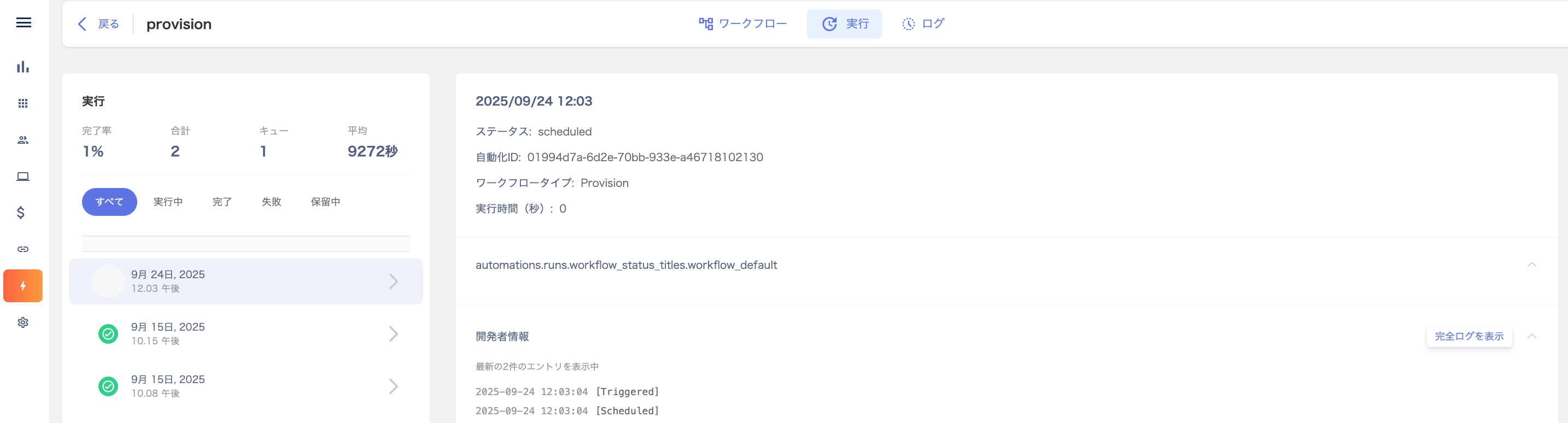
Go to Automation > select a workflow > Execution to view execution details.
#### Check the Execution Log
Go to Automation > select a workflow > Execution to view execution details.
 #### Check Execution History in Logs
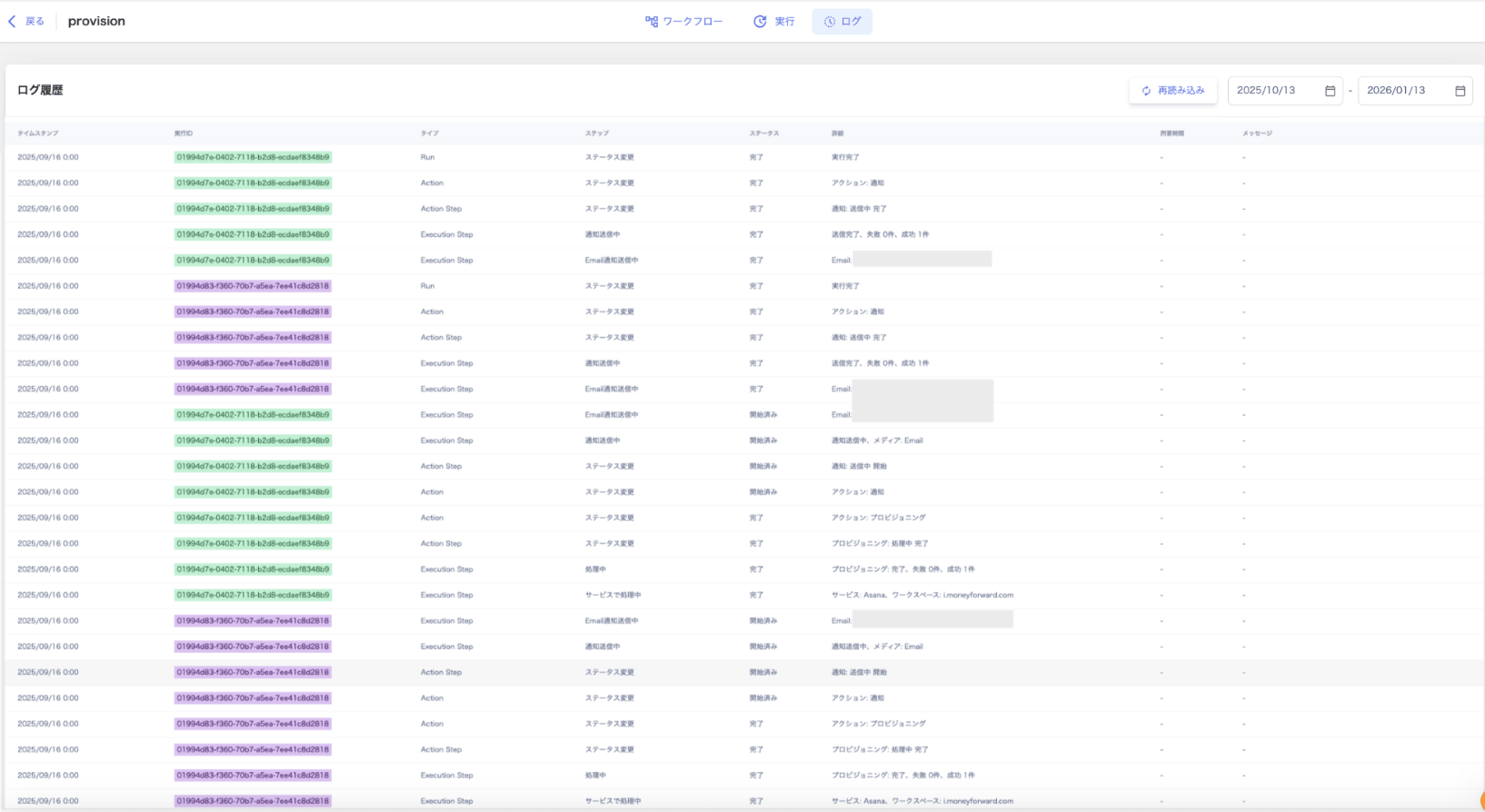
Go to Automation > **Automation** tab > select a workflow > **Logs** to review execution history.
#### Check Execution History in Logs
Go to Automation > **Automation** tab > select a workflow > **Logs** to review execution history.
FAQ
#### Q. When does a workflow run?
**A.** If the execution schedule is a future date, the workflow runs at **0:00** on the scheduled date. If the execution schedule falls on the same day as the contract date, the automation runs at **23:59** (23:59:59).
For instructions on running a workflow manually, see [Run a workflow manually (directory screen)](/en/it-management/workflows/1m4dk48wa6-automation).
#### Q. Can I specify the execution time for a workflow?
**A.** Currently, you cannot specify an exact time for workflow execution.
#### Q. What should I check when a workflow does not enter the queue?
**A.** Check the following.
* Confirm that the [trigger items for the workflow (automation) are correctly set](#directory-trigger-settings) in Directory > Directory Information.
* Verify that you set the contract start date or contract end date as the trigger after configuring the workflow.
* When testing automation, do not set the contract start date and contract end date at the same time. Doing so prevents the item from entering the queue.
* Verify that the workflow execution schedule is not set to a past date.
Example: If the provision execution schedule is set to "1 day before the contract date" and the hire date is 2026/4/1:
The workflow execution schedule is 2026/3/31 at 0:00 (one day before).
Set the employment period start date to "2026/4/1" in Directory > User Information by 2026/3/30 at the latest.
If you set the employment period start date on 2026/3/31, the item will not enter the queue. Execution will be skipped.
 #### Q. I have set up a "provisioning" workflow for Google Workspace. What should I check if the item does not enter the queue?
**A.** Check the following settings.
* Confirm that you have [set trigger items in the directory](#directory-trigger-settings).
* Go to Services > Google Workspace > Workspace to check the connected domains.
* Verify that the email address in Directory > User Information > Email Address includes one of the connected domains.
* To provision an account with a different domain, connect it via Integration > Integrations.
* For details, see [**Manage multiple workspaces (domains, tenants)**](/en/it-management/saas-management/g6zipm1ez7-multi-workspace).
* Check the [automation mapping](/en/it-management/workflows/ms4wo45v27-admina-automation-wic).
* If you have multiple workspaces, you must configure settings for each workspace. Confirm that the domain for the email address you want to create is registered.
#### Q. I have set up a "provisioning" workflow for Google Workspace. What should I check if the item does not enter the queue?
**A.** Check the following settings.
* Confirm that you have [set trigger items in the directory](#directory-trigger-settings).
* Go to Services > Google Workspace > Workspace to check the connected domains.
* Verify that the email address in Directory > User Information > Email Address includes one of the connected domains.
* To provision an account with a different domain, connect it via Integration > Integrations.
* For details, see [**Manage multiple workspaces (domains, tenants)**](/en/it-management/saas-management/g6zipm1ez7-multi-workspace).
* Check the [automation mapping](/en/it-management/workflows/ms4wo45v27-admina-automation-wic).
* If you have multiple workspaces, you must configure settings for each workspace. Confirm that the domain for the email address you want to create is registered.