> ## Documentation Index
> Fetch the complete documentation index at: https://hc.saas-manager.biz.nuro.jp/llms.txt
> Use this file to discover all available pages before exploring further.
# Pipefy
> Pipefy連携には管理者権限が必須。組織IDとアクセスキーを取得後、Admina画面で入力して連携するだけで完了。ユーザー情報が表示されます。
## サポートする機能
アカウント削除
連携には管理者権限のアカウントが必要です。
## 事前準備
### ログイン方法
[Pipefyログインページ](https://signin.pipefy.com/realms/pipefy/protocol/openid-connect/auth?afterLoginRedirectTo=\&client_id=pipefy-auth\&redirect_uri=https%3A%2F%2Fapp-auth.pipefy.com%2Fauth_callback\&response_type=code\&scope=openid+email+profile)にて、メールアドレス・パスワードを入力し、ログインします。
 ### 組織 IDの確認方法
Pipefyログイン後、**URL**を確認します。organizations/ の後ろが**組織ID**です。
`https://app.pipefy.com/organizations/`**`(organization ID)`**
### アクセスキーの取得方法
プロフィールアイコンをクリックし、**My profile** をクリックします。
### 組織 IDの確認方法
Pipefyログイン後、**URL**を確認します。organizations/ の後ろが**組織ID**です。
`https://app.pipefy.com/organizations/`**`(organization ID)`**
### アクセスキーの取得方法
プロフィールアイコンをクリックし、**My profile** をクリックします。
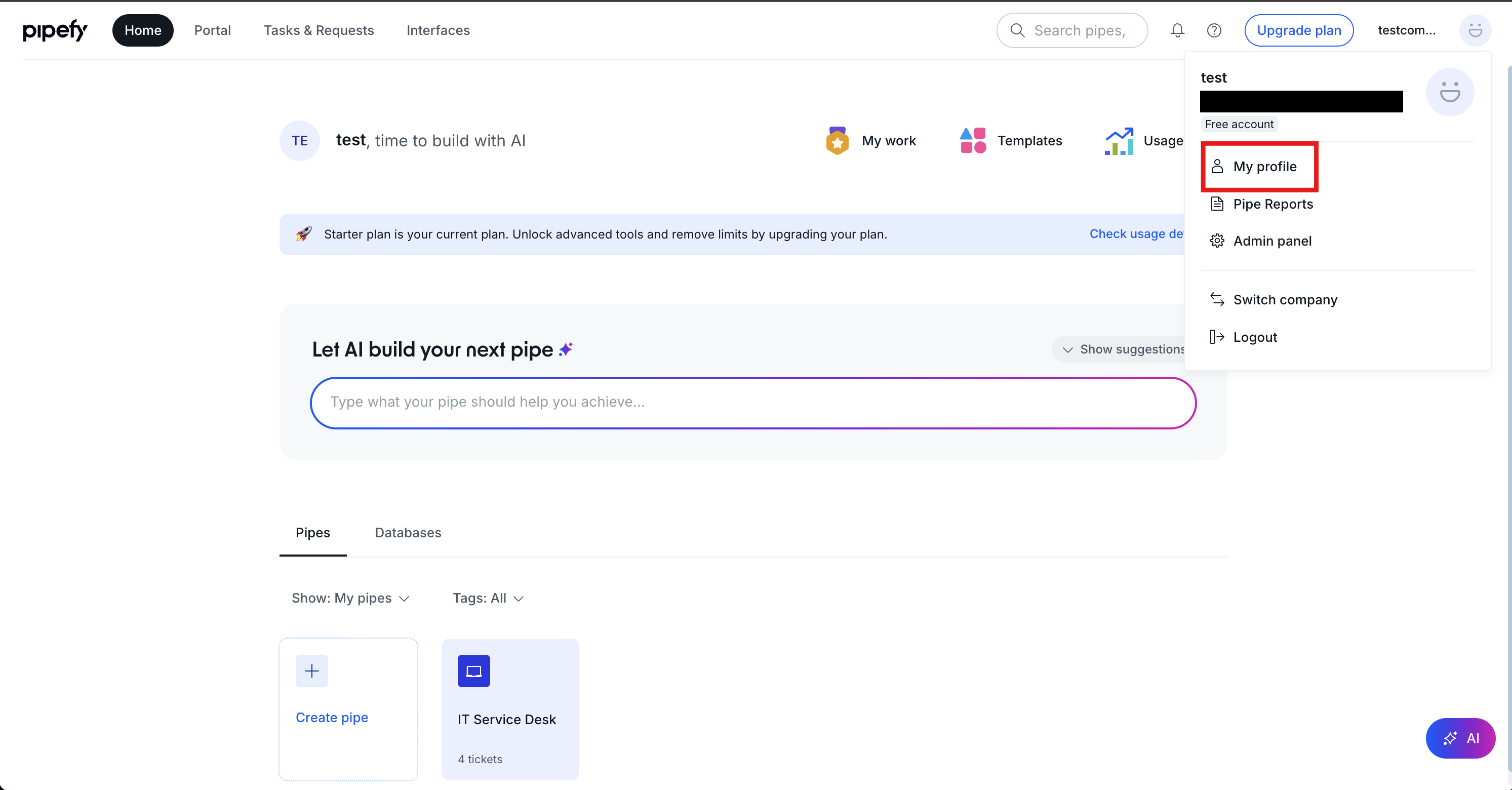 **Personal access tokens** > **Generate new token** をクリックします。
 **Token description** を入力し、**Save** をクリックします。
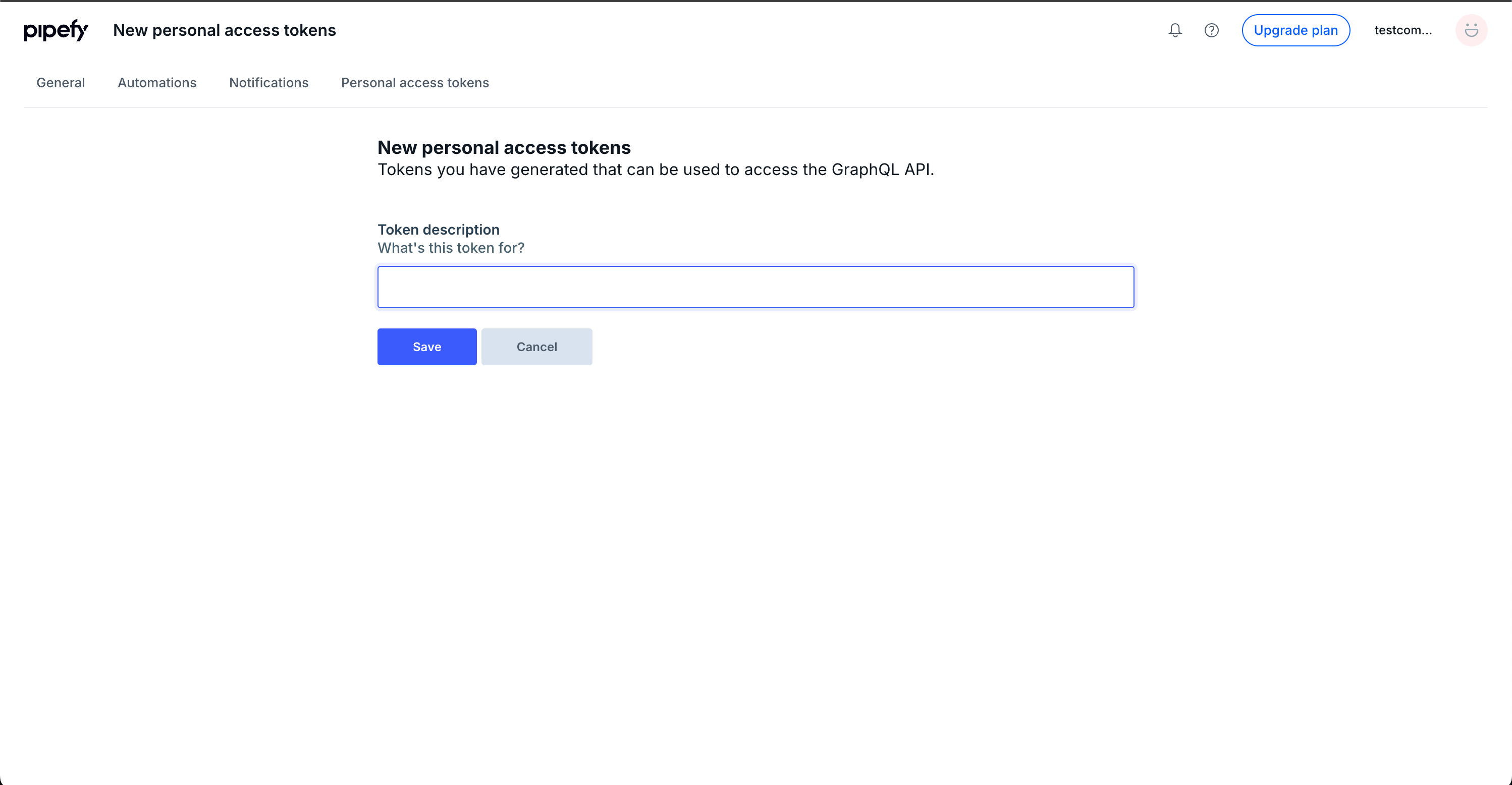 表示された**アクセスキー**をコピーします。
## インテグレーションのセットアップ
インテグレーション画面にて、**Pipefy**で検索します。
前の手順で取得した**組織ID**、**アクセスキー**を入力し、**連携する**をクリックします。
表示された**アクセスキー**をコピーします。
## インテグレーションのセットアップ
インテグレーション画面にて、**Pipefy**で検索します。
前の手順で取得した**組織ID**、**アクセスキー**を入力し、**連携する**をクリックします。
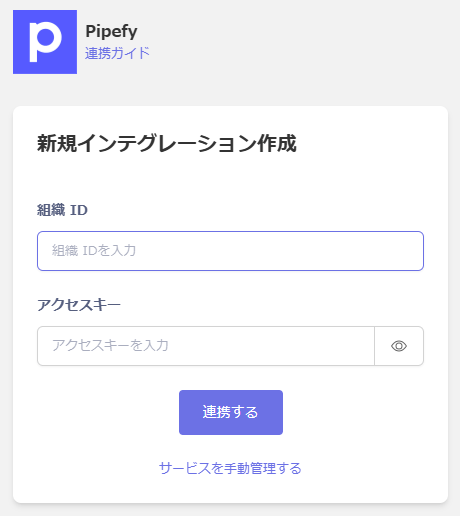 連携に成功すると、アカウント一覧に登録済みのユーザー情報が表示されます。
正常に完了しない場合は、インテグレーション画面のステータスタブから**編集**し、再度連携をお試しください。
解決しない場合はチャットにてお問い合わせください。
連携に成功すると、アカウント一覧に登録済みのユーザー情報が表示されます。
正常に完了しない場合は、インテグレーション画面のステータスタブから**編集**し、再度連携をお試しください。
解決しない場合はチャットにてお問い合わせください。