> ## Documentation Index
> Fetch the complete documentation index at: https://hc.saas-manager.biz.nuro.jp/llms.txt
> Use this file to discover all available pages before exploring further.

# Okta

> Oktaとの連携の手順です。

## サポートする機能

<Badge color="blue">IDプロバイダー連携</Badge> <Badge color="blue">従業員マスター連携</Badge> <Badge color="blue">アカウント削除</Badge> <Badge color="blue">アカウント作成</Badge> <Badge color="blue">アカウント無効化</Badge>

<Info>
  連携には、Super Admin権限が必要です。
</Info>

## 事前準備

### Oktaへのログイン方法

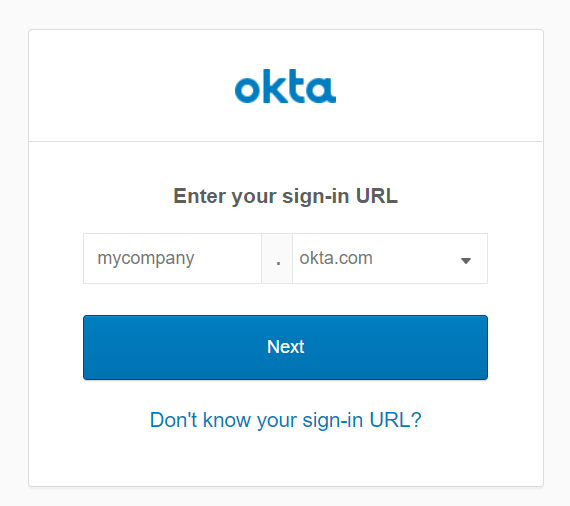
[Oktaログインページ](https://login.okta.com/)にて、sign-in URLを入力しログインします。
<img src="https://mintcdn.com/admina-sbn/mlLqMbuj39LUEXaG/images/integrations/5rad7jk230/image-1661742009908.png?fit=max&auto=format&n=mlLqMbuj39LUEXaG&q=85&s=a39f9ffde17ce8839f3fa08f6855181a" alt="Oktaログイン画面" width="570" height="506" data-path="images/integrations/5rad7jk230/image-1661742009908.png" />

### ワークスペースキーの取得方法

Oktaにログイン後、**URLの一部がワークスペースキー**となるので、保存します。

`http://{ワークスペースキー}.okta.com/admin`（https: を含みません）

<img src="https://mintcdn.com/admina-sbn/mlLqMbuj39LUEXaG/images/integrations/5rad7jk230/image-1678436426131.png?fit=max&auto=format&n=mlLqMbuj39LUEXaG&q=85&s=3d56a31a9457e6c6477d2d9e99b46bb6" alt="ワークスペースキーの確認" width="1030" height="190" data-path="images/integrations/5rad7jk230/image-1678436426131.png" />

### アクセスキーの取得方法

左メニューより**セキュリティ > API > トークン**と進み、**トークンの作成**をクリックします。

<img src="https://mintcdn.com/admina-sbn/mlLqMbuj39LUEXaG/images/integrations/5rad7jk230/image-1729847354751.png?fit=max&auto=format&n=mlLqMbuj39LUEXaG&q=85&s=e934069aabb3649ee26d619189fa6885" alt="トークン作成画面" width="1672" height="970" data-path="images/integrations/5rad7jk230/image-1729847354751.png" />

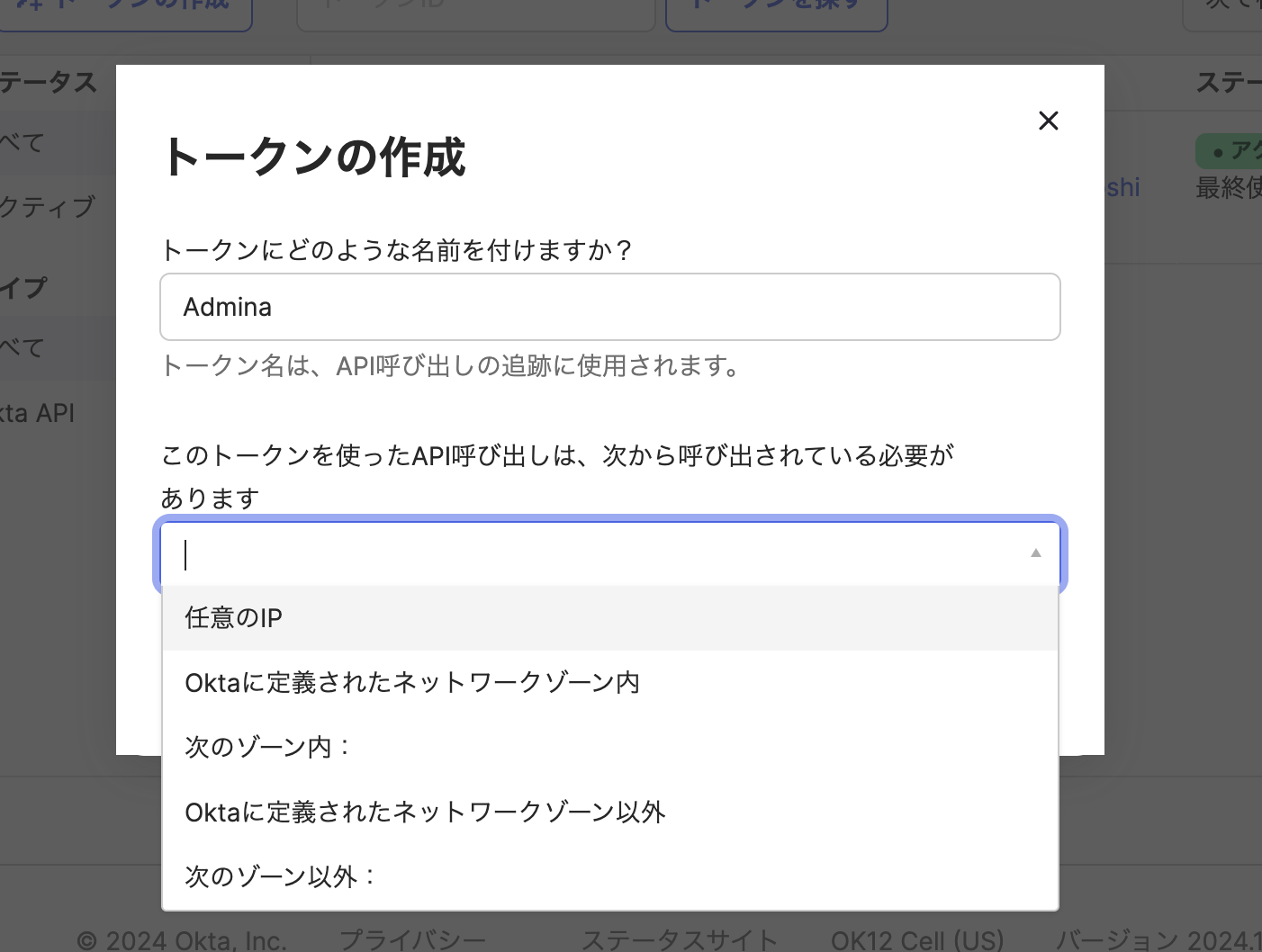
以下のような画面が出ます、**任意のトークン名**を入力し、**トークンの作成**をクリックします。

**このトークンを使ったAPI呼び出しは、次から呼び出されている必要があります** は、`任意のIP`を選択ください。
<img src="https://mintcdn.com/admina-sbn/mlLqMbuj39LUEXaG/images/integrations/5rad7jk230/image-1729847384670.png?fit=max&auto=format&n=mlLqMbuj39LUEXaG&q=85&s=109ff73f6d311cb638f2406757c6e05d" alt="トークン名入力画面" width="1402" height="1058" data-path="images/integrations/5rad7jk230/image-1729847384670.png" />

Tokenが作成されます。トークン値が**アクセスキー**となるので、コピーしておきます。

<img src="https://mintcdn.com/admina-sbn/mlLqMbuj39LUEXaG/images/integrations/5rad7jk230/image-1729847466167.png?fit=max&auto=format&n=mlLqMbuj39LUEXaG&q=85&s=606f059dc5f82755d03820c8e036d733" alt="トークン値の確認" width="1314" height="890" data-path="images/integrations/5rad7jk230/image-1729847466167.png" />

## インテグレーションのセットアップ

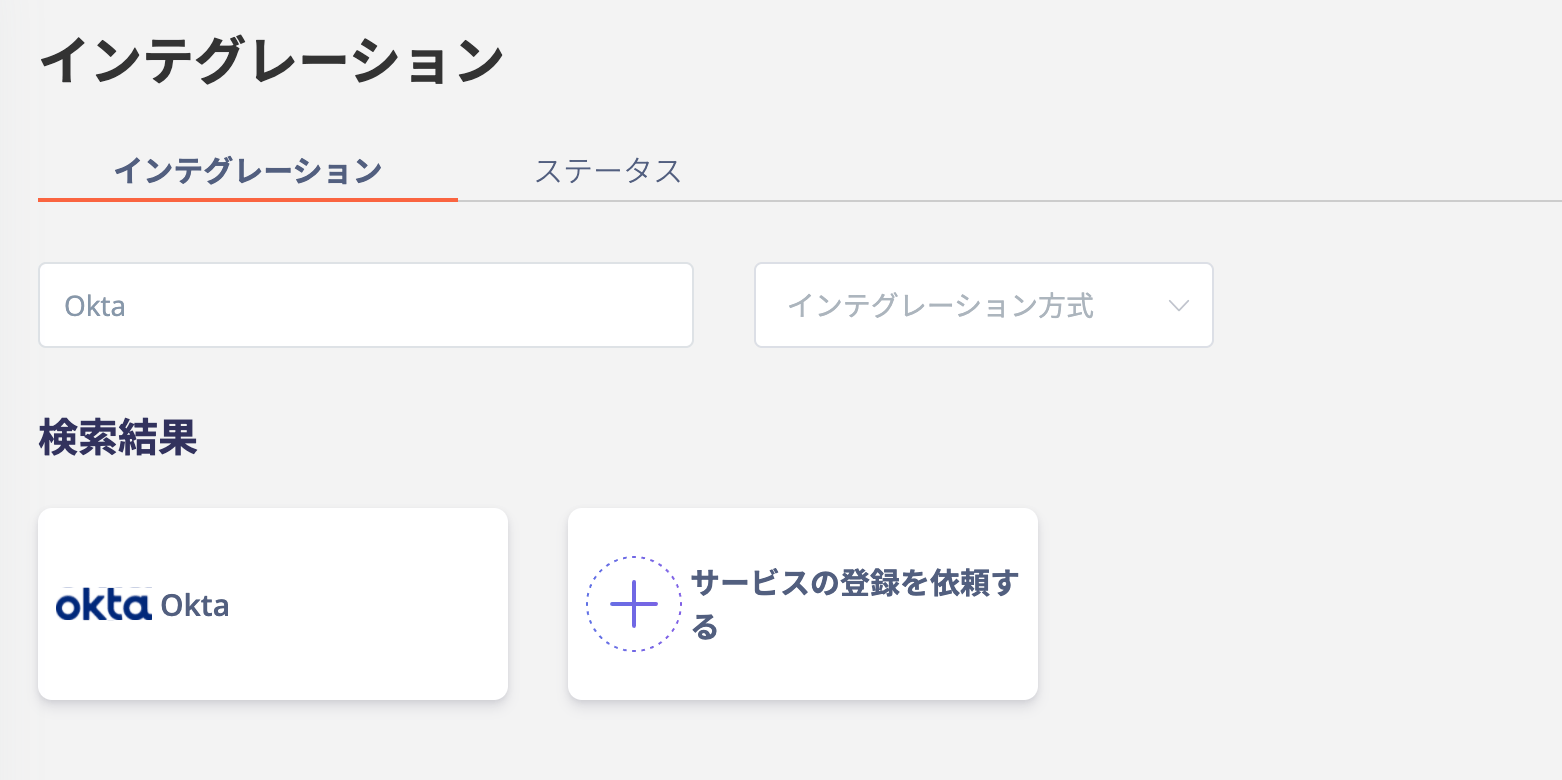
インテグレーション画面にて、**Okta**で検索しクリックします。
<img src="https://mintcdn.com/admina-sbn/mlLqMbuj39LUEXaG/images/integrations/5rad7jk230/screen-shot-2022-01-30-at-12-07-10.png?fit=max&auto=format&n=mlLqMbuj39LUEXaG&q=85&s=5920bf8327983ccebdda9a5aa1b12406" alt="インテグレーション検索画面" width="1562" height="780" data-path="images/integrations/5rad7jk230/screen-shot-2022-01-30-at-12-07-10.png" />

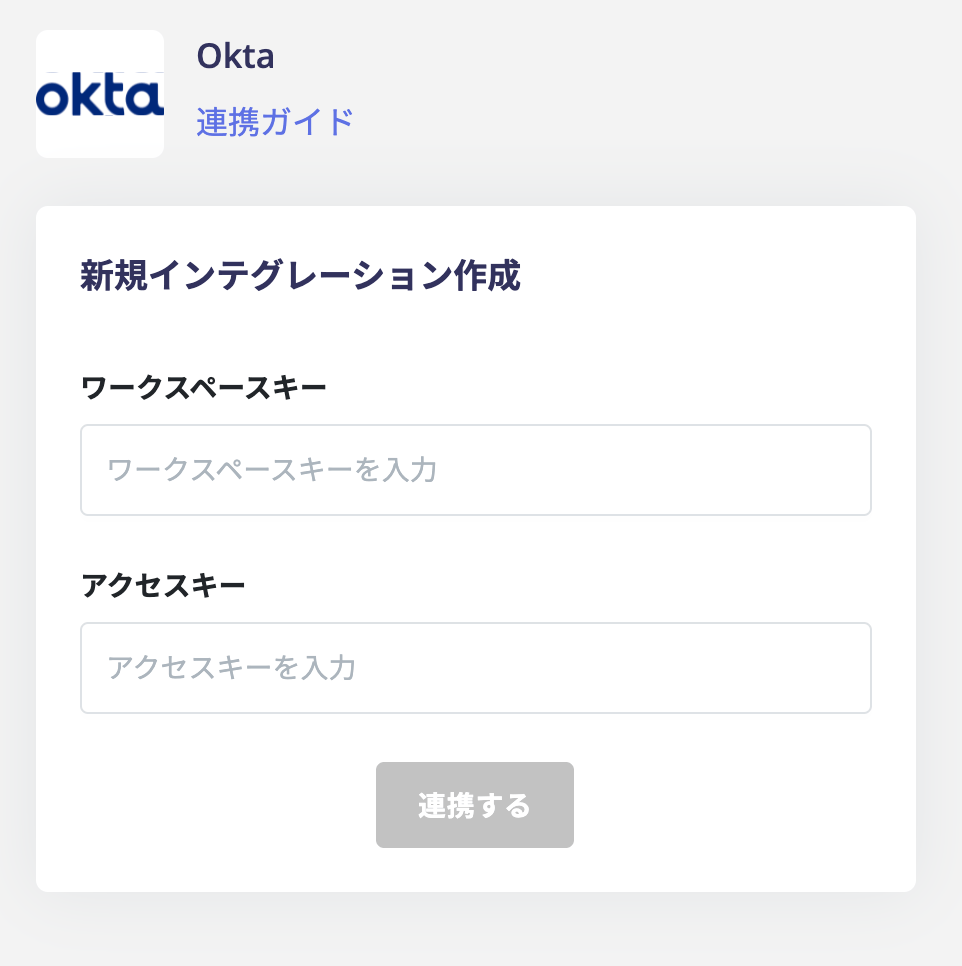
**前の手順で取得したワークスペースキー、アクセスキー**を入力し、**連携する**をクリックします。
<img src="https://mintcdn.com/admina-sbn/mlLqMbuj39LUEXaG/images/integrations/5rad7jk230/screen-shot-2022-01-30-at-12-08-15.png?fit=max&auto=format&n=mlLqMbuj39LUEXaG&q=85&s=5fe08bf8b1d254a047f47b58a7e973dd" alt="連携設定画面" width="962" height="966" data-path="images/integrations/5rad7jk230/screen-shot-2022-01-30-at-12-08-15.png" />

Oktaとの連携に成功すると、アカウント一覧に登録済みのユーザー情報が表示されます。

正常に完了しない場合は、インテグレーション画面のステータスタブから**編集**し、再度連携をお試しください。

解決しない場合はチャットにてお問い合わせください。

Oktaの連携概要については[連携ページ](http://admina.moneyforward.com/jp/integrations/okta)をご覧ください。
