> ## Documentation Index
> Fetch the complete documentation index at: https://hc.saas-manager.biz.nuro.jp/llms.txt
> Use this file to discover all available pages before exploring further.

# Zeplin

> Zeplin との連携の手順です。

## サポートする機能

<Badge color="blue">アカウント削除</Badge>

## 事前準備

<Info>
  連携には[有償プラン](https://zeplin.io/pricing/)のご契約が必要です。
</Info>

### Zeplinへのログイン方法

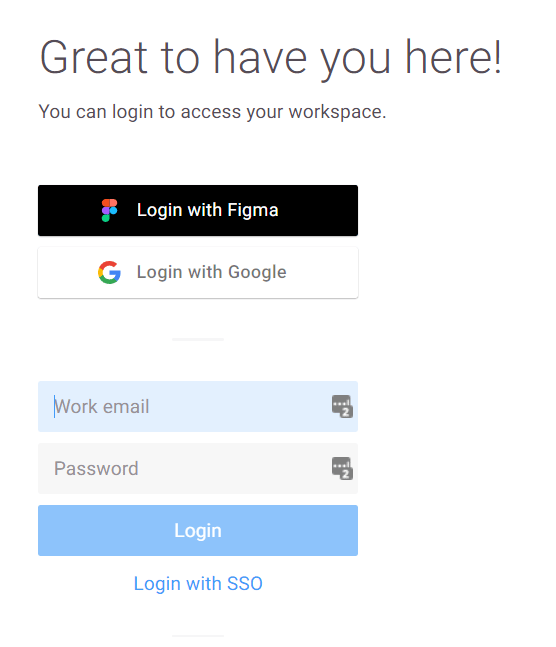
[Zeplinログインページ](https://app.zeplin.io/login)にて、ご利用のログイン方法またはメールアドレス・パスワードを入力し、ログインします。
<img src="https://mintcdn.com/admina-sbn/ORUY-8P7xU7apqUD/images/integrations/64d9vmzsuo/image-1661938647493.png?fit=max&auto=format&n=ORUY-8P7xU7apqUD&q=85&s=47755cc0a87d7c9d677ebb5d7e825a95" alt="Zeplinログイン画面" width="556" height="647" data-path="images/integrations/64d9vmzsuo/image-1661938647493.png" />

### ワークスペースキーの取得方法

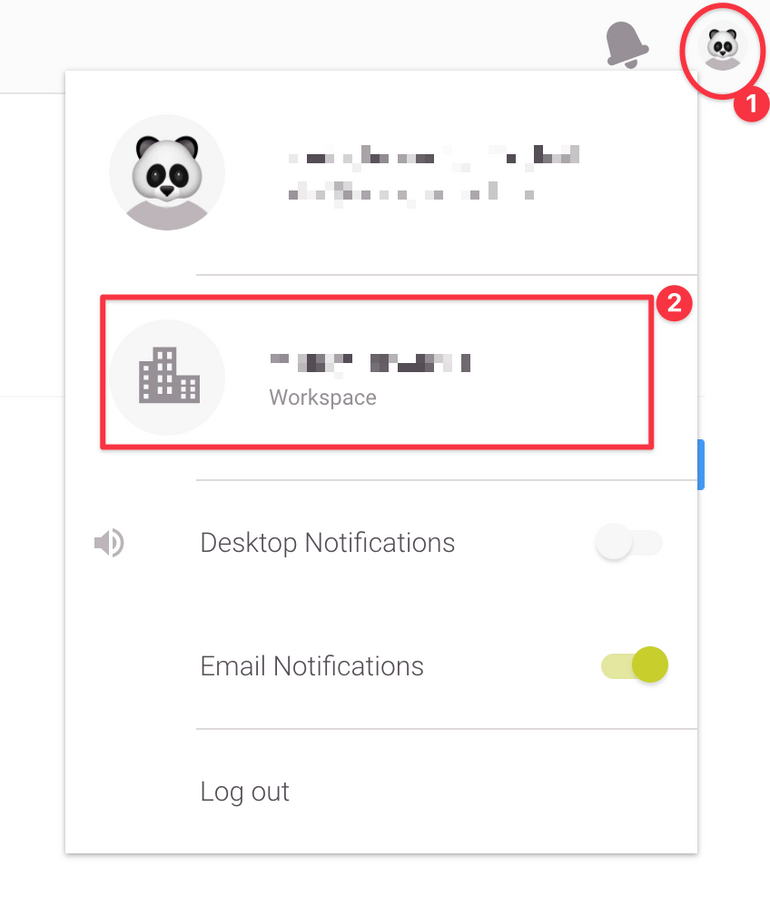
Zeplinにログイン後、右上の**プロフィール写真**をクリック、**Workspace**を選択します。
<img src="https://mintcdn.com/admina-sbn/ORUY-8P7xU7apqUD/images/integrations/64d9vmzsuo/clean-shot-2021-09-08-at-4-36-312-x.png?fit=max&auto=format&n=ORUY-8P7xU7apqUD&q=85&s=294639787d65a4d2ff23093344a16da8" alt="Workspaceメニュー" width="770" height="904" data-path="images/integrations/64d9vmzsuo/clean-shot-2021-09-08-at-4-36-312-x.png" />

次に表示される画面の**URLの部分がワークスペースキー**となりますので、コピーしておきます。

```
https://app.zeplin.io/workspace/{ワークスペースキー}/members
```

<img src="https://mintcdn.com/admina-sbn/ORUY-8P7xU7apqUD/images/integrations/64d9vmzsuo/clean-shot-2021-09-08-at-4-38-132-x.png?fit=max&auto=format&n=ORUY-8P7xU7apqUD&q=85&s=0e5814f564638551a5946823f475d71a" alt="ワークスペースキーの場所" width="960" height="434" data-path="images/integrations/64d9vmzsuo/clean-shot-2021-09-08-at-4-38-132-x.png" />

### アクセスキーの取得方法

**右上のプロフィール写真**をクリックし、**アカウント**を選択します。

<img src="https://mintcdn.com/admina-sbn/mlLqMbuj39LUEXaG/images/integrations/64d9vmzsuo/clean-shot-2021-09-08-at-4-18-022-x.png?fit=max&auto=format&n=mlLqMbuj39LUEXaG&q=85&s=1f1976ef4f96c5b74cbee335ae18e85c" alt="アカウントメニュー" width="770" height="905" data-path="images/integrations/64d9vmzsuo/clean-shot-2021-09-08-at-4-18-022-x.png" />

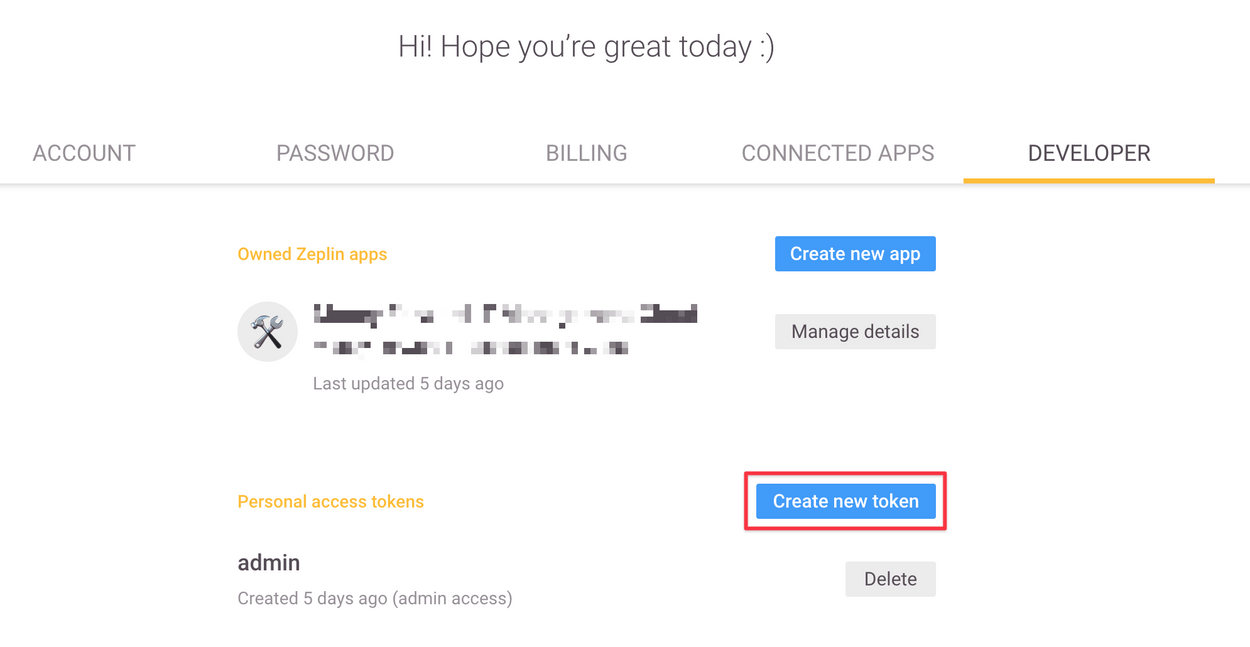
**DEVELOPER**タブの**Create new token** をクリックします。
<img src="https://mintcdn.com/admina-sbn/mlLqMbuj39LUEXaG/images/integrations/64d9vmzsuo/clean-shot-2021-09-08-at-4-23-202-x.png?fit=max&auto=format&n=mlLqMbuj39LUEXaG&q=85&s=330d81cb46247b19e8951371aea8eab2" alt="Create new tokenボタン" width="1250" height="647" data-path="images/integrations/64d9vmzsuo/clean-shot-2021-09-08-at-4-23-202-x.png" />

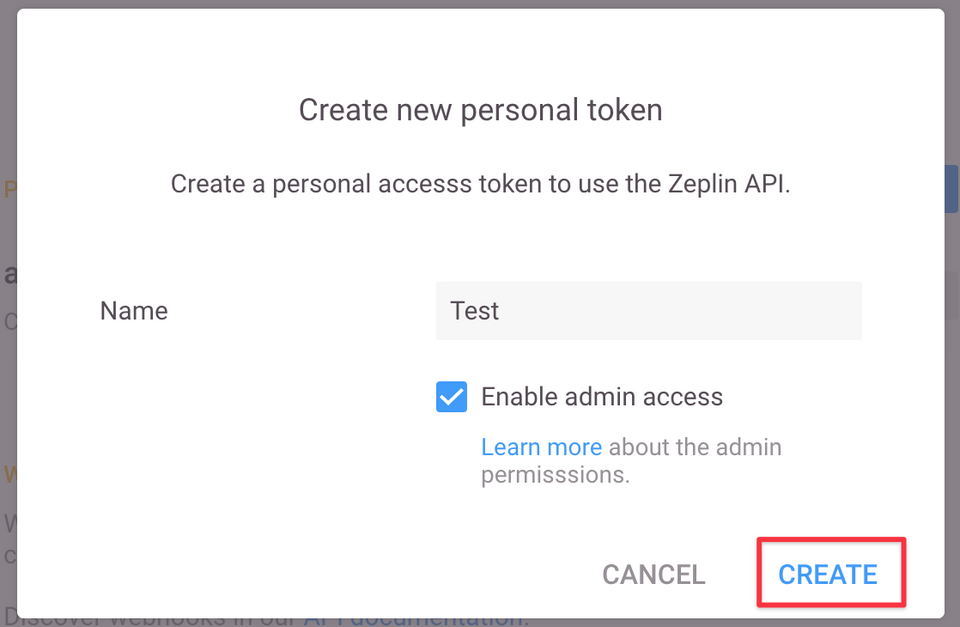
以下の画面が表示されますので、任意の名前を入力し、**Enable Admin access**を✅し、**Create** をクリックします。
<img src="https://mintcdn.com/admina-sbn/ORUY-8P7xU7apqUD/images/integrations/64d9vmzsuo/clean-shot-2021-09-08-at-4-26-562-x.png?fit=max&auto=format&n=ORUY-8P7xU7apqUD&q=85&s=9806048fd5982bf15149b50150b2de6b" alt="トークン作成フォーム" width="960" height="627" data-path="images/integrations/64d9vmzsuo/clean-shot-2021-09-08-at-4-26-562-x.png" />

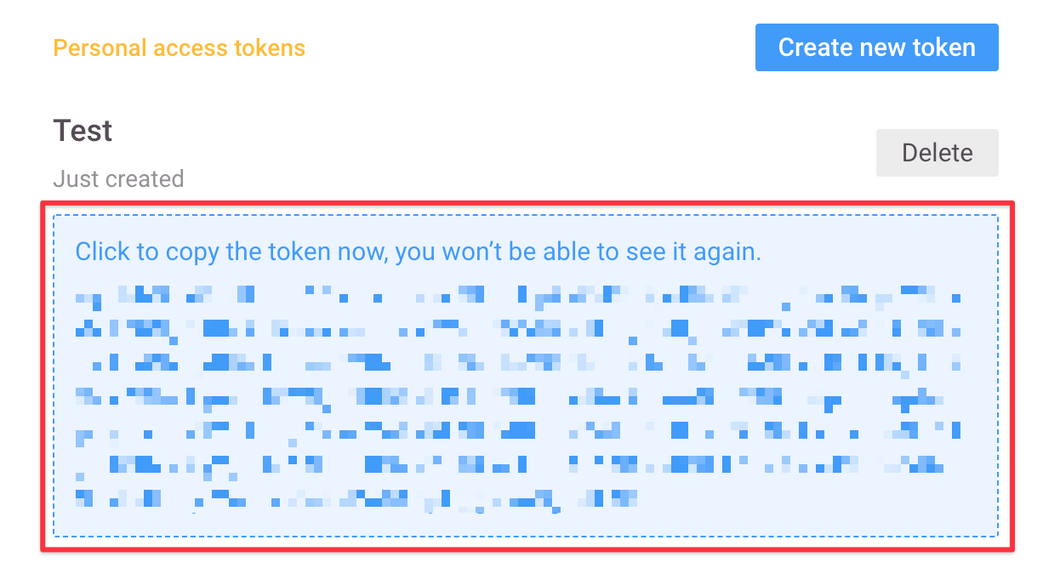
下記のように**Access Token**が表示されます。**Access Tokenがアクセスキー**となるので、保存しておきます。

<Info>
  トークンは再表示されませんので、ご注意ください。
</Info>

<img src="https://mintcdn.com/admina-sbn/ORUY-8P7xU7apqUD/images/integrations/64d9vmzsuo/clean-shot-2021-09-08-at-4-33-262-x.png?fit=max&auto=format&n=ORUY-8P7xU7apqUD&q=85&s=f13526b98bfed0461fe75fedbb8ac478" alt="Access Token表示" width="1060" height="561" data-path="images/integrations/64d9vmzsuo/clean-shot-2021-09-08-at-4-33-262-x.png" />

## インテグレーションのセットアップ

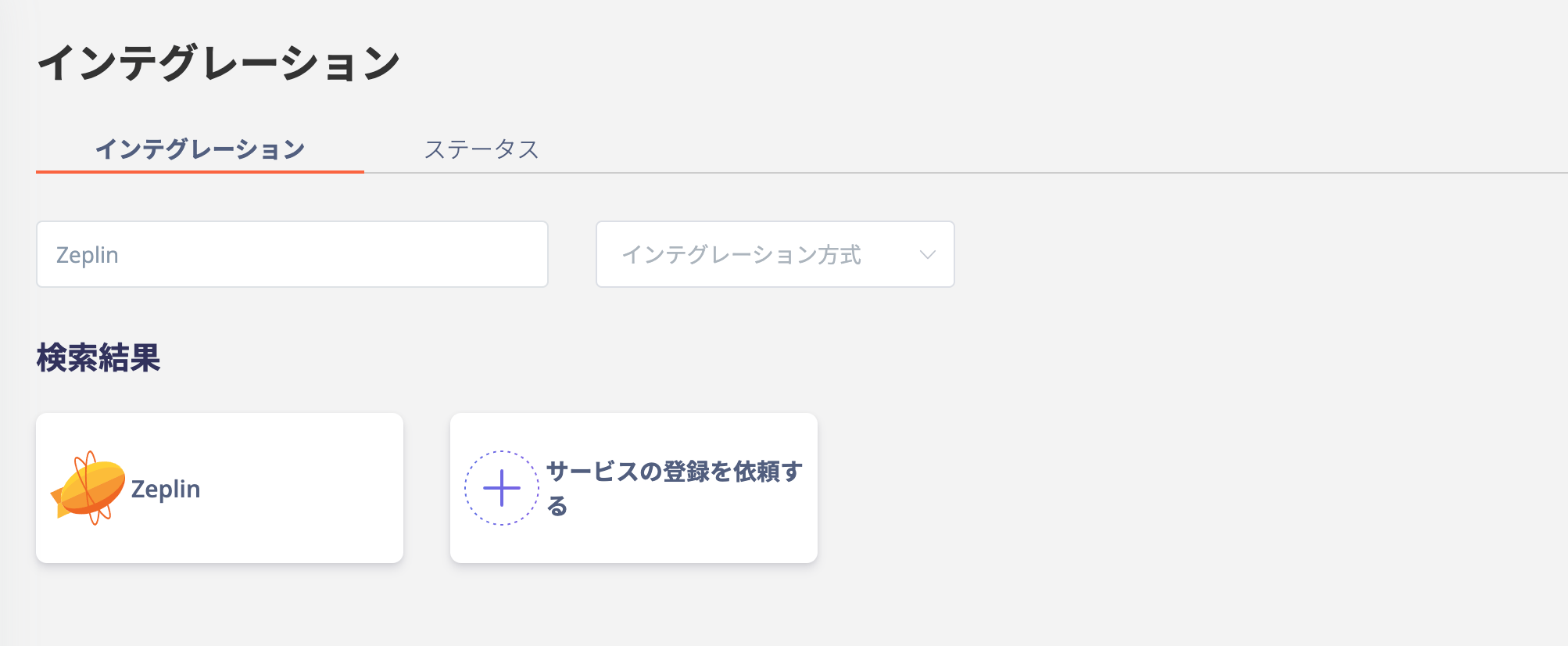
インテグレーション画面にて、**Zeplin**で検索します。
<img src="https://mintcdn.com/admina-sbn/ORUY-8P7xU7apqUD/images/integrations/64d9vmzsuo/screen-shot-2022-01-30-at-18-19-09.png?fit=max&auto=format&n=ORUY-8P7xU7apqUD&q=85&s=d1bc040683d2aa870081b69e3567ab1b" alt="Admina連携画面での検索" width="2006" height="826" data-path="images/integrations/64d9vmzsuo/screen-shot-2022-01-30-at-18-19-09.png" />

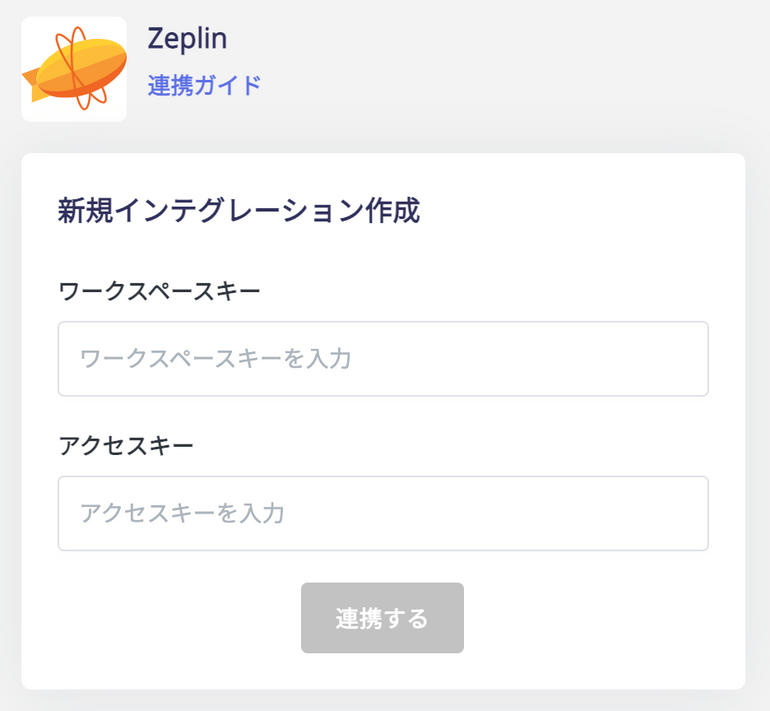
**前の手順で取得したワークスペースキー** と **アクセスキー**入力し、**連携する**をクリックします。
<img src="https://mintcdn.com/admina-sbn/ORUY-8P7xU7apqUD/images/integrations/64d9vmzsuo/clean-shot-2021-09-08-at-4-44-052-x.png?fit=max&auto=format&n=ORUY-8P7xU7apqUD&q=85&s=cb1e4bb06b4db55b15097326bea0fed7" alt="連携情報の入力" width="770" height="711" data-path="images/integrations/64d9vmzsuo/clean-shot-2021-09-08-at-4-44-052-x.png" />

Zeplinとの連携に成功すると、アカウント一覧に登録済みのユーザー情報が表示されます。

正常に完了しない場合は、インテグレーション画面のステータスタブから**編集**し、再度連携をお試しください。

解決しない場合はチャットにてお問い合わせください。

Zeplinの連携概要については[連携ページ](http://admina.moneyforward.com/jp/integrations/zeplin)をご覧ください。