> ## Documentation Index
> Fetch the complete documentation index at: https://hc.saas-manager.biz.nuro.jp/llms.txt
> Use this file to discover all available pages before exploring further.

# AppFollow

> AppFollow APIキー取得から管理者権限での連携手順。Admina統合の詳細な設定ガイド。

<Info>
  連携には管理者権限のアカウントが必要です。
</Info>

## 事前準備

### ログイン方法

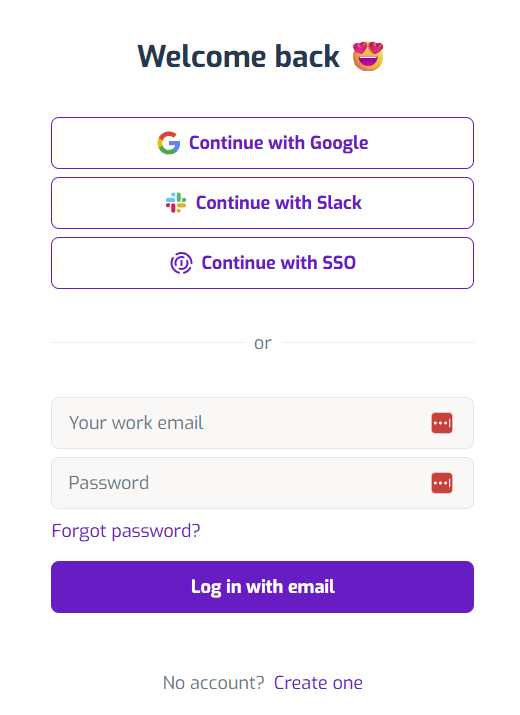
[Appfollowログインページ](https://watch.appfollow.io)にて、メールアドレス・パスワードを入力し、ログインします。
<img src="https://mintcdn.com/admina-sbn/qJjJh1wxF6j7EyS6/images/integrations/7cfqtg86oq/2025-12-04-183655.png?fit=max&auto=format&n=qJjJh1wxF6j7EyS6&q=85&s=3a2446f331b892d129d2f583f0f44356" alt="Appfollowログイン画面" width="520" height="715" data-path="images/integrations/7cfqtg86oq/2025-12-04-183655.png" />

### APIキーの取得方法

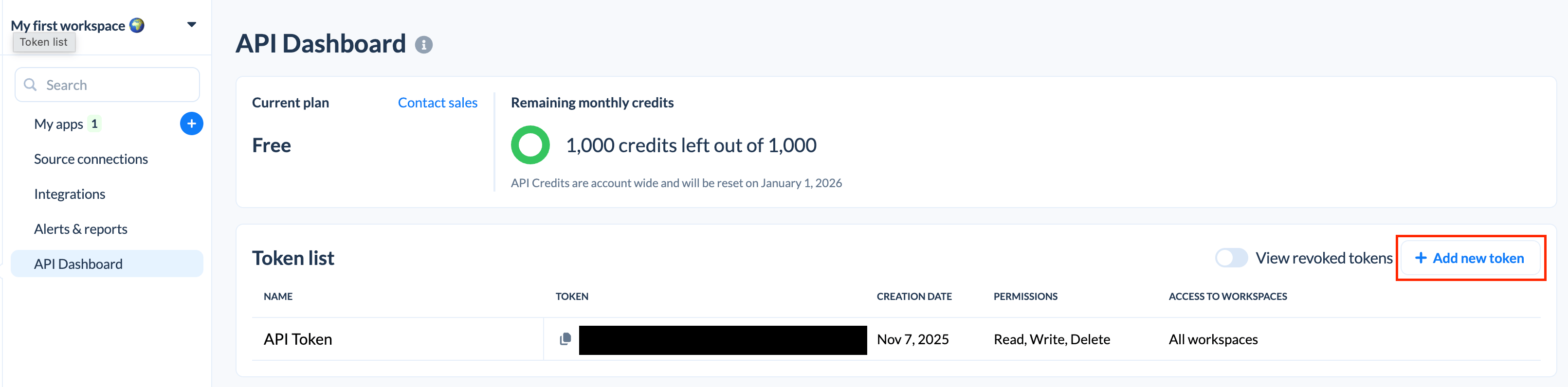
Appfollowログイン後、**Integrations > API Dashboard** をクリックします。

<img src="https://mintcdn.com/admina-sbn/qJjJh1wxF6j7EyS6/images/integrations/7cfqtg86oq/screenshot-2025-12-01-at-11-01-03.png?fit=max&auto=format&n=qJjJh1wxF6j7EyS6&q=85&s=75d78dd1cad0f9a064e6f3e57d379041" alt="Integrations > API Dashboard" data-og-width="1344" width="1344" data-og-height="896" height="896" data-path="images/integrations/7cfqtg86oq/screenshot-2025-12-01-at-11-01-03.png" data-optimize="true" data-opv="3" srcset="https://mintcdn.com/admina-sbn/qJjJh1wxF6j7EyS6/images/integrations/7cfqtg86oq/screenshot-2025-12-01-at-11-01-03.png?w=280&fit=max&auto=format&n=qJjJh1wxF6j7EyS6&q=85&s=b65062cba47090d19a3f84448f7568c8 280w, https://mintcdn.com/admina-sbn/qJjJh1wxF6j7EyS6/images/integrations/7cfqtg86oq/screenshot-2025-12-01-at-11-01-03.png?w=560&fit=max&auto=format&n=qJjJh1wxF6j7EyS6&q=85&s=56d6b834bf743f4151a82e6f626b877f 560w, https://mintcdn.com/admina-sbn/qJjJh1wxF6j7EyS6/images/integrations/7cfqtg86oq/screenshot-2025-12-01-at-11-01-03.png?w=840&fit=max&auto=format&n=qJjJh1wxF6j7EyS6&q=85&s=330174b9c24fbea57507ccb00d4f9242 840w, https://mintcdn.com/admina-sbn/qJjJh1wxF6j7EyS6/images/integrations/7cfqtg86oq/screenshot-2025-12-01-at-11-01-03.png?w=1100&fit=max&auto=format&n=qJjJh1wxF6j7EyS6&q=85&s=6c3264a16d96ca4e84e82db8cfc03379 1100w, https://mintcdn.com/admina-sbn/qJjJh1wxF6j7EyS6/images/integrations/7cfqtg86oq/screenshot-2025-12-01-at-11-01-03.png?w=1650&fit=max&auto=format&n=qJjJh1wxF6j7EyS6&q=85&s=25ca591698593d62f3e813f3d5ec8c95 1650w, https://mintcdn.com/admina-sbn/qJjJh1wxF6j7EyS6/images/integrations/7cfqtg86oq/screenshot-2025-12-01-at-11-01-03.png?w=2500&fit=max&auto=format&n=qJjJh1wxF6j7EyS6&q=85&s=839300a7947b183ecf0d5e4e7471417b 2500w" />

**Add new token** をクリックします。

<img src="https://mintcdn.com/admina-sbn/qJjJh1wxF6j7EyS6/images/integrations/7cfqtg86oq/screenshot-2025-12-01-at-11-02-01.png?fit=max&auto=format&n=qJjJh1wxF6j7EyS6&q=85&s=213c191f1fac22d3a4cf80f8c0e7db0f" alt="Add new token" width="3222" height="796" data-path="images/integrations/7cfqtg86oq/screenshot-2025-12-01-at-11-02-01.png" />

以下の通り入力し、**Create**をクリックします。

* Token name：任意のトークン名を入力
* Permissions：Select all を選択
* Access to workspaces：All woekspaces を選択

<img src="https://mintcdn.com/admina-sbn/qJjJh1wxF6j7EyS6/images/integrations/7cfqtg86oq/screenshot-2025-12-01-at-11-04-27.png?fit=max&auto=format&n=qJjJh1wxF6j7EyS6&q=85&s=6d07afadcefeec34f53337fd56df6e81" alt="トークン作成画面" width="1054" height="744" data-path="images/integrations/7cfqtg86oq/screenshot-2025-12-01-at-11-04-27.png" />

作成された**APIキー**をコピーします。

## インテグレーションのセットアップ

インテグレーション画面にて、**Appfollow**で検索します。

任意のワークスペース名、前の手順で取得した**APIキー**を入力し、**連携する**をクリックします。

<img src="https://mintcdn.com/admina-sbn/qJjJh1wxF6j7EyS6/images/integrations/7cfqtg86oq/2025-12-05-121748.png?fit=max&auto=format&n=qJjJh1wxF6j7EyS6&q=85&s=31f45567d28ffef8432b662b817d3509" alt="Admina連携画面" width="475" height="522" data-path="images/integrations/7cfqtg86oq/2025-12-05-121748.png" />

連携に成功すると、アカウント一覧に登録済みのユーザー情報が表示されます。

正常に完了しない場合は、インテグレーション画面のステータスタブから**編集**し、再度連携をお試しください。

解決しない場合はチャットにてお問い合わせください。