> ## Documentation Index
> Fetch the complete documentation index at: https://hc.saas-manager.biz.nuro.jp/llms.txt
> Use this file to discover all available pages before exploring further.
# GMOサイン
> 電子印鑑GMOサインとの連携方法です。
## サポートする機能
アカウント削除 アカウント作成
連携には、オプションの\*\*外部システム連携(API連携)\*\*のお申込みが必要です。
電子印鑑GMOサイン: [API連携](https://www.gmosign.com/app-connect/api.html)
GMOサインのAPIにIPアドレス制限がある場合がございますので、[APIのIPアドレス解除制限](https://helpcenter.gmosign.com/hc/ja/articles/45501033583385-API%E3%81%AEIP%E3%82%A2%E3%83%89%E3%83%AC%E3%82%B9%E5%88%B6%E9%99%90%E8%A7%A3%E9%99%A4-%E3%82%AA%E3%83%97%E3%82%B7%E3%83%A7%E3%83%B3-Ver-1)をご確認の上、当サービスで利用するIPアドレスを許可、または解除して頂く必要がございます。
[IPアドレス・URL・ポート番号](/it-management/faq/nmglgrm1ik-restrict-ip)
## 事前準備
### 電子印鑑GMOサインのログイン方法
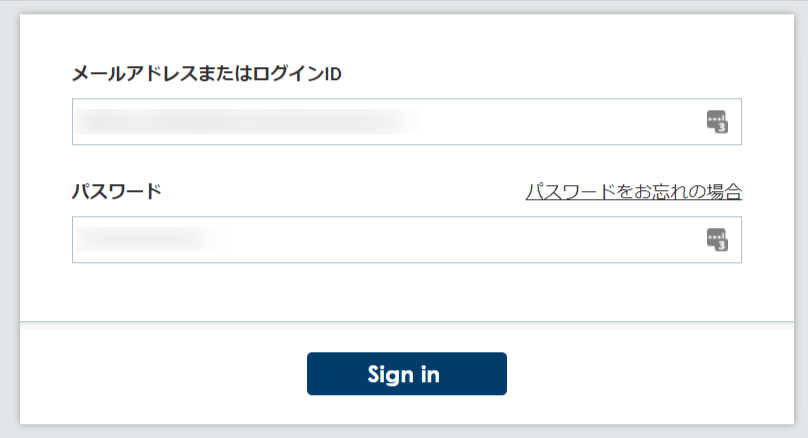
[電子印鑑GMOサインログインページ](https://secure.gmosign.com/login/)にて、**メールアドレス・パスワード**を入力しログインします。
 ### クライアントIDとクライアントシークレットの取得方法
GMOサインにログイン後、**利用パネル** から **オプション**を確認します。
\*\*外部システム連携より(API連携)\*\*の[お問い合わせ](https://www.gmosign.com/form/option/)から利用申請をし、**カスタマーIDとSecret Key**を取得します。
これが、**クライアントIDとクライアントシークレット**になります。
### クライアントIDとクライアントシークレットの取得方法
GMOサインにログイン後、**利用パネル** から **オプション**を確認します。
\*\*外部システム連携より(API連携)\*\*の[お問い合わせ](https://www.gmosign.com/form/option/)から利用申請をし、**カスタマーIDとSecret Key**を取得します。
これが、**クライアントIDとクライアントシークレット**になります。
 ## インテグレーションのセットアップ
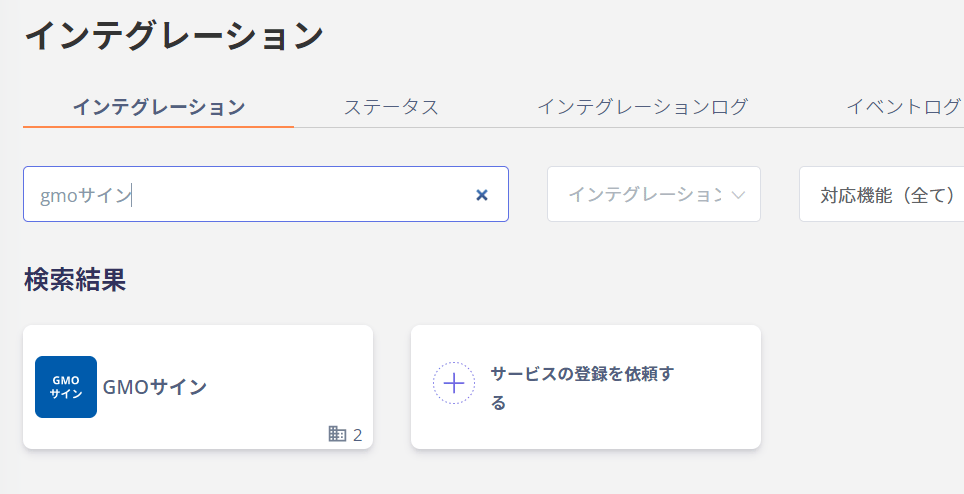
インテグレーション画面にて、**GMOサイン**で検索します。
## インテグレーションのセットアップ
インテグレーション画面にて、**GMOサイン**で検索します。
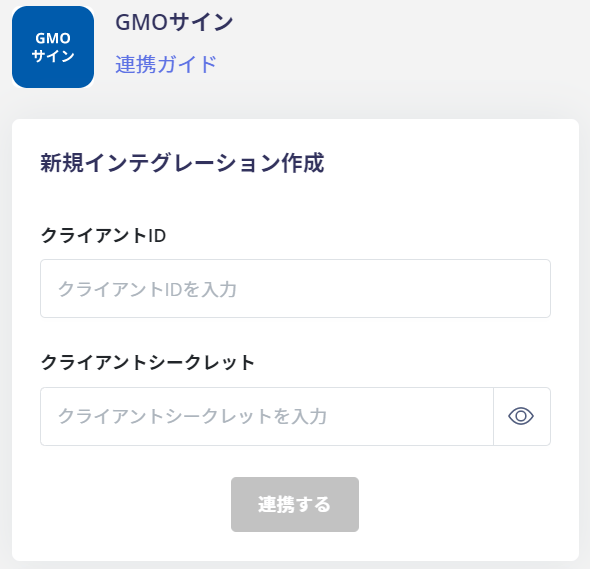
 下記の通りに入力し、連携するをクリックします。
* クライアントID: カスタマーID
* クライアントシークレット: Secret Key
下記の通りに入力し、連携するをクリックします。
* クライアントID: カスタマーID
* クライアントシークレット: Secret Key
 GMOサインとの連携に成功すると、アカウント一覧に登録済みのユーザー情報が表示されます。
正常に完了しない場合は、インテグレーション画面のステータスタブから**編集**し、再度連携をお試しください。
解決しない場合はチャットにてお問い合わせください。
GMOサインの連携概要については[連携ページ](http://admina.moneyforward.com/jp/integrations/gmo-sign)をご覧ください。
GMOサインとの連携に成功すると、アカウント一覧に登録済みのユーザー情報が表示されます。
正常に完了しない場合は、インテグレーション画面のステータスタブから**編集**し、再度連携をお試しください。
解決しない場合はチャットにてお問い合わせください。
GMOサインの連携概要については[連携ページ](http://admina.moneyforward.com/jp/integrations/gmo-sign)をご覧ください。