> ## Documentation Index
> Fetch the complete documentation index at: https://hc.saas-manager.biz.nuro.jp/llms.txt
> Use this file to discover all available pages before exploring further.

# Apollo

> Apollo APIキー取得し、Adminaと連携。管理者権限で設定、ワークスペース登録で簡単インテグレーション。

<Info>
  連携には管理者権限のアカウントが必要です。
</Info>

## 事前準備

### ログイン方法

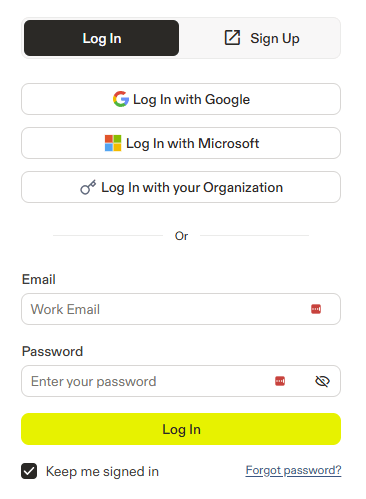
[Apolloログインページ](https://app.apollo.io/#/login?locale=en)にて、メールアドレス・パスワードを入力し、ログインします。
<img src="https://mintcdn.com/admina-sbn/qJjJh1wxF6j7EyS6/images/integrations/7qfa2jo3vg/2025-12-19-112735.png?fit=max&auto=format&n=qJjJh1wxF6j7EyS6&q=85&s=7ec3b23623578a1ac344c1d416e493ef" alt="Apolloログイン画面" width="366" height="499" data-path="images/integrations/7qfa2jo3vg/2025-12-19-112735.png" />

### APIキーの取得方法

Apolloログイン後、**Admin Settings** > **Integrations** をクリックします。

<img src="https://mintcdn.com/admina-sbn/qJjJh1wxF6j7EyS6/images/integrations/7qfa2jo3vg/screenshot-2025-12-10-at-12-10-22.png?fit=max&auto=format&n=qJjJh1wxF6j7EyS6&q=85&s=fab39c151fb62b94b493daf7b49e34ca" alt="Admin Settings > Integrations" data-og-width="796" width="796" data-og-height="646" height="646" data-path="images/integrations/7qfa2jo3vg/screenshot-2025-12-10-at-12-10-22.png" data-optimize="true" data-opv="3" srcset="https://mintcdn.com/admina-sbn/qJjJh1wxF6j7EyS6/images/integrations/7qfa2jo3vg/screenshot-2025-12-10-at-12-10-22.png?w=280&fit=max&auto=format&n=qJjJh1wxF6j7EyS6&q=85&s=2fecfb318d2957ea6e8ca2a06a80971c 280w, https://mintcdn.com/admina-sbn/qJjJh1wxF6j7EyS6/images/integrations/7qfa2jo3vg/screenshot-2025-12-10-at-12-10-22.png?w=560&fit=max&auto=format&n=qJjJh1wxF6j7EyS6&q=85&s=d6c67b1104e9aa436c26cfe24d3f6b1f 560w, https://mintcdn.com/admina-sbn/qJjJh1wxF6j7EyS6/images/integrations/7qfa2jo3vg/screenshot-2025-12-10-at-12-10-22.png?w=840&fit=max&auto=format&n=qJjJh1wxF6j7EyS6&q=85&s=e7e79d1b6f2f1b1e0bcd9d4af0c31a2d 840w, https://mintcdn.com/admina-sbn/qJjJh1wxF6j7EyS6/images/integrations/7qfa2jo3vg/screenshot-2025-12-10-at-12-10-22.png?w=1100&fit=max&auto=format&n=qJjJh1wxF6j7EyS6&q=85&s=8b366e3f0b9df83f9d89038fa67a7e10 1100w, https://mintcdn.com/admina-sbn/qJjJh1wxF6j7EyS6/images/integrations/7qfa2jo3vg/screenshot-2025-12-10-at-12-10-22.png?w=1650&fit=max&auto=format&n=qJjJh1wxF6j7EyS6&q=85&s=f4ba3e00efa1967cbbfaa3a448fabdc2 1650w, https://mintcdn.com/admina-sbn/qJjJh1wxF6j7EyS6/images/integrations/7qfa2jo3vg/screenshot-2025-12-10-at-12-10-22.png?w=2500&fit=max&auto=format&n=qJjJh1wxF6j7EyS6&q=85&s=5e2d3b01c4009d203fe81083836761bf 2500w" />

**API** の **Connect**をクリックします。

<img src="https://mintcdn.com/admina-sbn/qJjJh1wxF6j7EyS6/images/integrations/7qfa2jo3vg/screenshot-2025-12-10-at-12-11-22.png?fit=max&auto=format&n=qJjJh1wxF6j7EyS6&q=85&s=3b18a17fa46092735c8c6e904efb6352" alt="API Connect" width="2432" height="270" data-path="images/integrations/7qfa2jo3vg/screenshot-2025-12-10-at-12-11-22.png" />

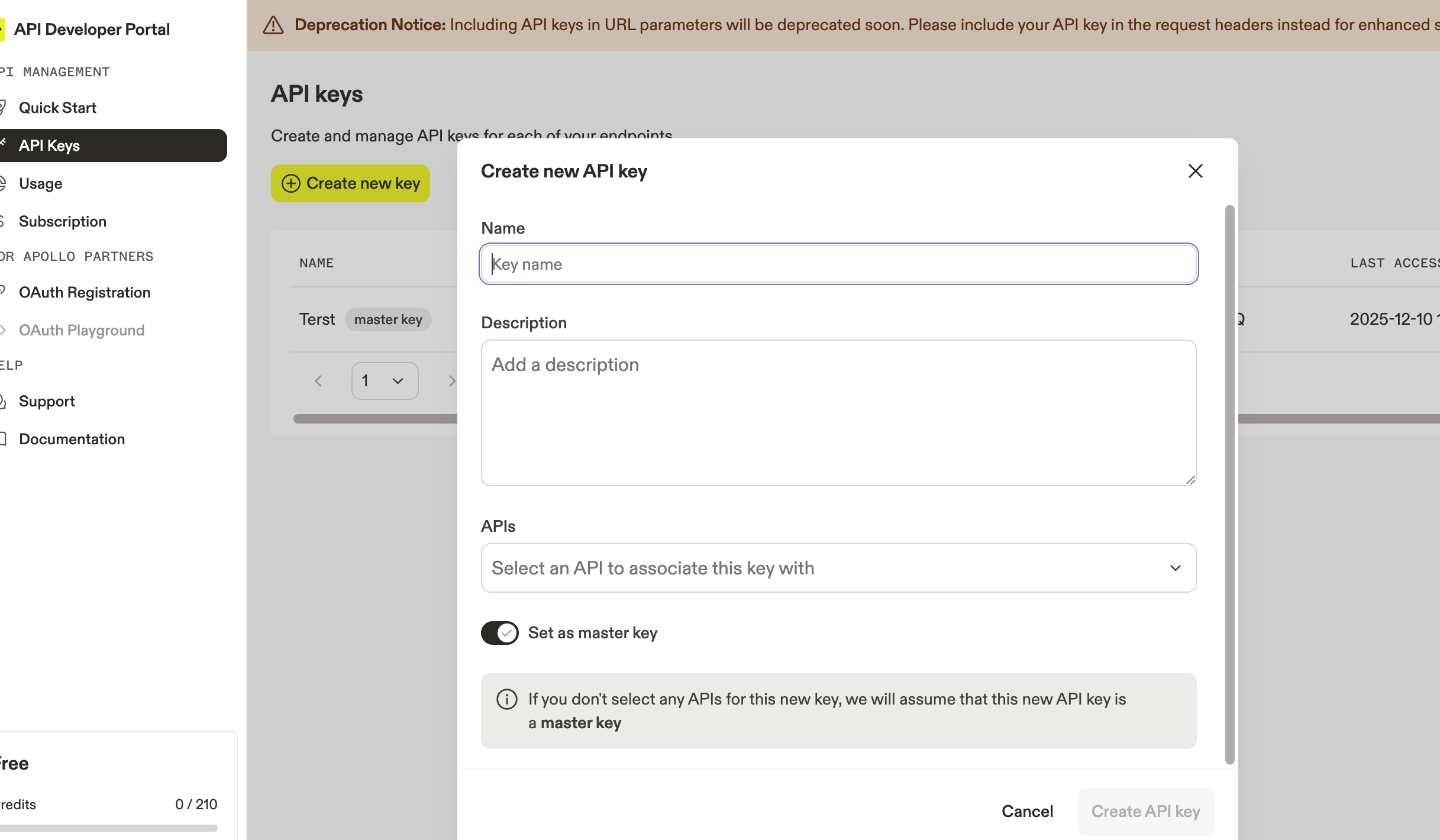
**API Keys** > **Create new key** をクリックします。

必要な情報を入力し、**Set as master key** にチェックを入れ、**Create API key** をクリックします。
<img src="https://mintcdn.com/admina-sbn/qJjJh1wxF6j7EyS6/images/integrations/7qfa2jo3vg/screenshot-2025-12-10-at-12-11-40.png?fit=max&auto=format&n=qJjJh1wxF6j7EyS6&q=85&s=af90adcda1da9b9e333be141914e3df7" alt="API Key作成" width="2434" height="1420" data-path="images/integrations/7qfa2jo3vg/screenshot-2025-12-10-at-12-11-40.png" />

作成された**APIキー**をコピーします。

## インテグレーションのセットアップ

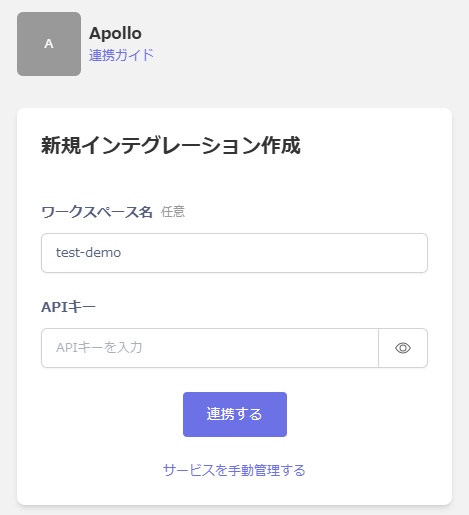
インテグレーション画面にて、**Apollo**で検索します。

任意のワークスペース名、前の手順で取得した**APIキー**を入力し、**連携する**をクリックします。
<img src="https://mintcdn.com/admina-sbn/qJjJh1wxF6j7EyS6/images/integrations/7qfa2jo3vg/2025-12-19-121123.png?fit=max&auto=format&n=qJjJh1wxF6j7EyS6&q=85&s=40887afc1ec78328b8a35eff804e272b" alt="Admina連携画面" width="469" height="515" data-path="images/integrations/7qfa2jo3vg/2025-12-19-121123.png" />

連携に成功すると、アカウント一覧に登録済みのユーザー情報が表示されます。

正常に完了しない場合は、インテグレーション画面のステータスタブから**編集**し、再度連携をお試しください。

解決しない場合はチャットにてお問い合わせください。
