> ## Documentation Index
> Fetch the complete documentation index at: https://hc.saas-manager.biz.nuro.jp/llms.txt
> Use this file to discover all available pages before exploring further.
# Lumin
> Luminとの連携手順です。
## サポートする機能
アカウント削除 アカウント作成
## 事前準備
### Luminへのログイン方法
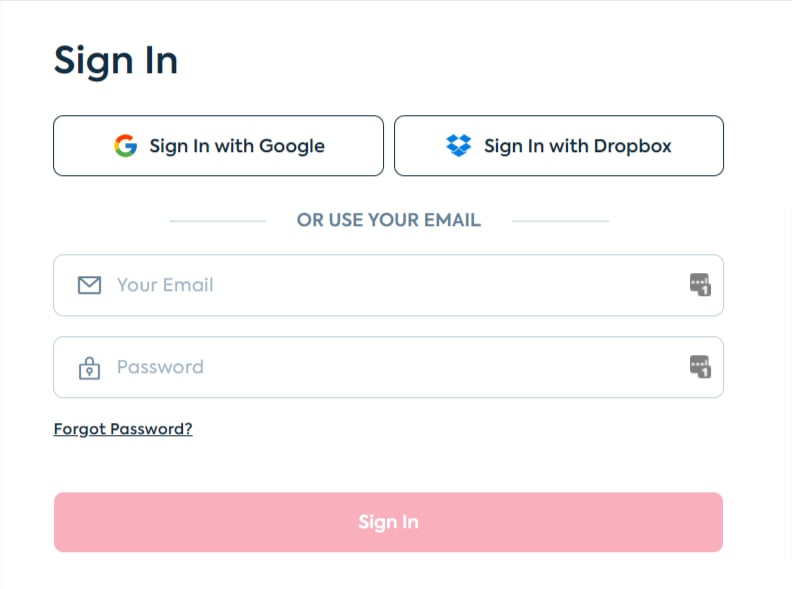
[Luminログインページ](https://app.luminpdf.com/authentication/signin)より、メールアドレス・パスワードまたは、ご利用のログイン方法を選択し、ログインします。
連携にはGoogleやSSOなど外部認証アカウントはご利用いただけません。詳細は\[制限事項]Google 認証やSSOなど外部認証アカウントによる連携失敗 をご覧ください。

 ### ワークスペースキーの確認方法
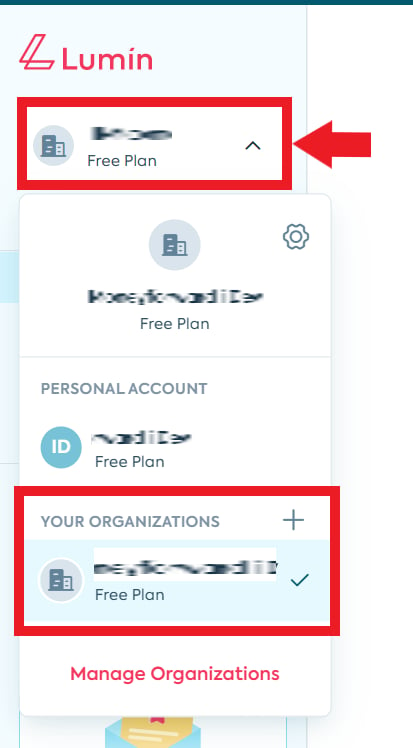
Luminにログイン後、**右メニューのOrganization名**の表示をクリックし、メニューを開きます。
**YOUR ORGANIZATIONSから、連携したいOrganization**を選択します。
### ワークスペースキーの確認方法
Luminにログイン後、**右メニューのOrganization名**の表示をクリックし、メニューを開きます。
**YOUR ORGANIZATIONSから、連携したいOrganization**を選択します。
 連携したいOrganizationに移動後、**URLの一部がワークスペースキー**となるので、保存します。
`https://app.luminpdf.com/org/**ワークスペースキー**/documents/personal`
連携したいOrganizationに移動後、**URLの一部がワークスペースキー**となるので、保存します。
`https://app.luminpdf.com/org/**ワークスペースキー**/documents/personal`
 ## インテグレーションのセットアップ
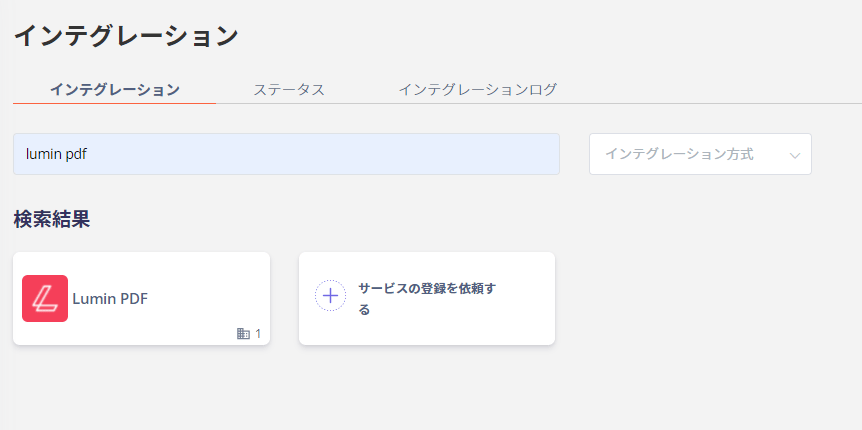
インテグレーション画面にて、**Lumin**で検索します。
## インテグレーションのセットアップ
インテグレーション画面にて、**Lumin**で検索します。
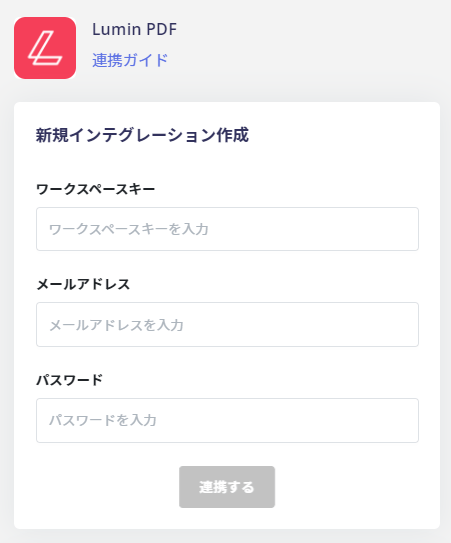
 **前の手順で取得したワークスペースキー**、Lumin**ログイン用メールアドレスとパスワード**を入力します。
 Luminとの連携に成功すると、アカウント一覧に登録済みのユーザー情報が表示されます。
正常に完了していない場合は、インテグレーション画面のステータスタブから編集し、再度連携をお試しください。
解決しない場合はチャットにてお問い合わせください。
Luminの連携概要については[連携ページ](http://admina.moneyforward.com/jp/integrations/lumin)をご覧ください。
Luminとの連携に成功すると、アカウント一覧に登録済みのユーザー情報が表示されます。
正常に完了していない場合は、インテグレーション画面のステータスタブから編集し、再度連携をお試しください。
解決しない場合はチャットにてお問い合わせください。
Luminの連携概要については[連携ページ](http://admina.moneyforward.com/jp/integrations/lumin)をご覧ください。