> ## Documentation Index
> Fetch the complete documentation index at: https://hc.saas-manager.biz.nuro.jp/llms.txt
> Use this file to discover all available pages before exploring further.

# Fastly

> Fastlyとの連携の手順です。マネーフォワードAdminaからFastlyへの、管理者のログインから、連携方法まで一連の手順を解説します。

## サポートする機能

<Badge color="blue">アカウント削除</Badge> <Badge color="blue">アカウント作成</Badge>

## 事前準備

### Fastlyへのログイン方法

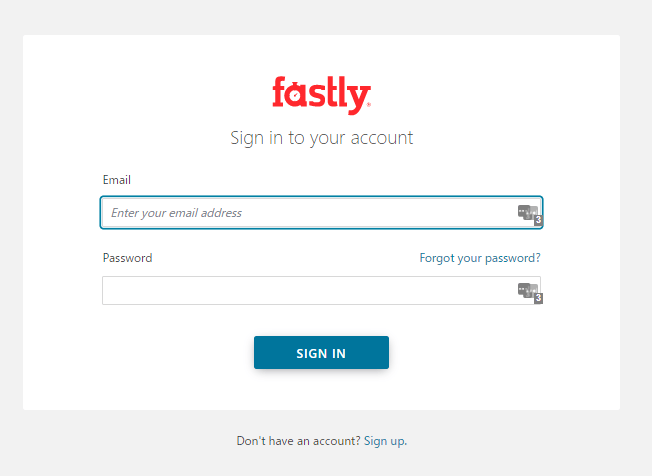
[Fastlyログインページ](https://manage.fastly.com/auth/sign-in)にて、メールアドレス・パスワードを入力しログインします。
<img src="https://mintcdn.com/admina-sbn/K05DRH7ibUuTnrRM/images/integrations/fvv8h0s6m2/1656495875856-image.png?fit=max&auto=format&n=K05DRH7ibUuTnrRM&q=85&s=92c1376ba655159b8368da15a3140af2" alt="Fastlyログイン画面" width="652" height="476" data-path="images/integrations/fvv8h0s6m2/1656495875856-image.png" />

### アクセスキーの取得方法

Fastlyにログイン後、右上のアカウント名からメニューを開き**Account**をクリックします。

<img src="https://mintcdn.com/admina-sbn/K05DRH7ibUuTnrRM/images/integrations/fvv8h0s6m2/2022-03-09-111145.png?fit=max&auto=format&n=K05DRH7ibUuTnrRM&q=85&s=241d019b009b25e8fe33e3ed50e18073" alt="Accountメニュー" width="1406" height="681" data-path="images/integrations/fvv8h0s6m2/2022-03-09-111145.png" />

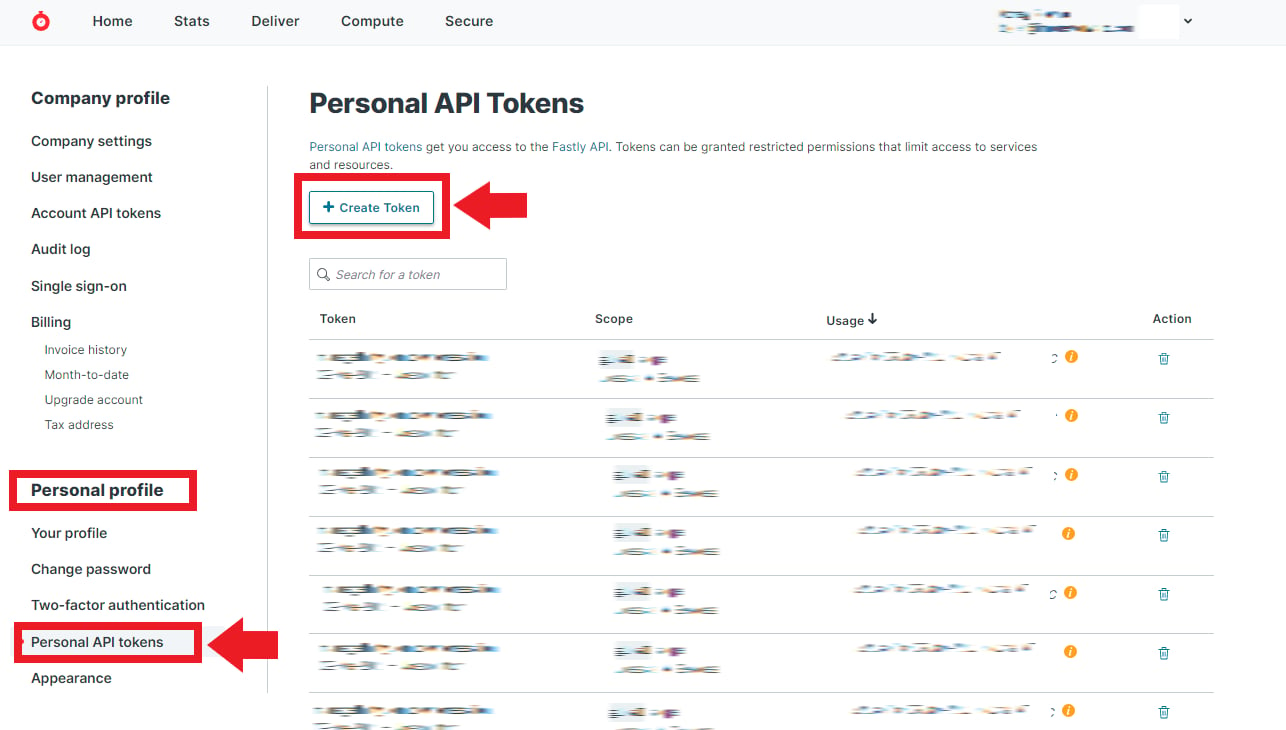
右側のメニューPersonal profileから**Personal API Tokens ＞Create Token**をクリックします。

<img src="https://mintcdn.com/admina-sbn/K05DRH7ibUuTnrRM/images/integrations/fvv8h0s6m2/2022-03-09-111903.png?fit=max&auto=format&n=K05DRH7ibUuTnrRM&q=85&s=80c296bdd7c525049873a9ec10c4ee5b" alt="Personal API Tokens" width="1286" height="730" data-path="images/integrations/fvv8h0s6m2/2022-03-09-111903.png" />

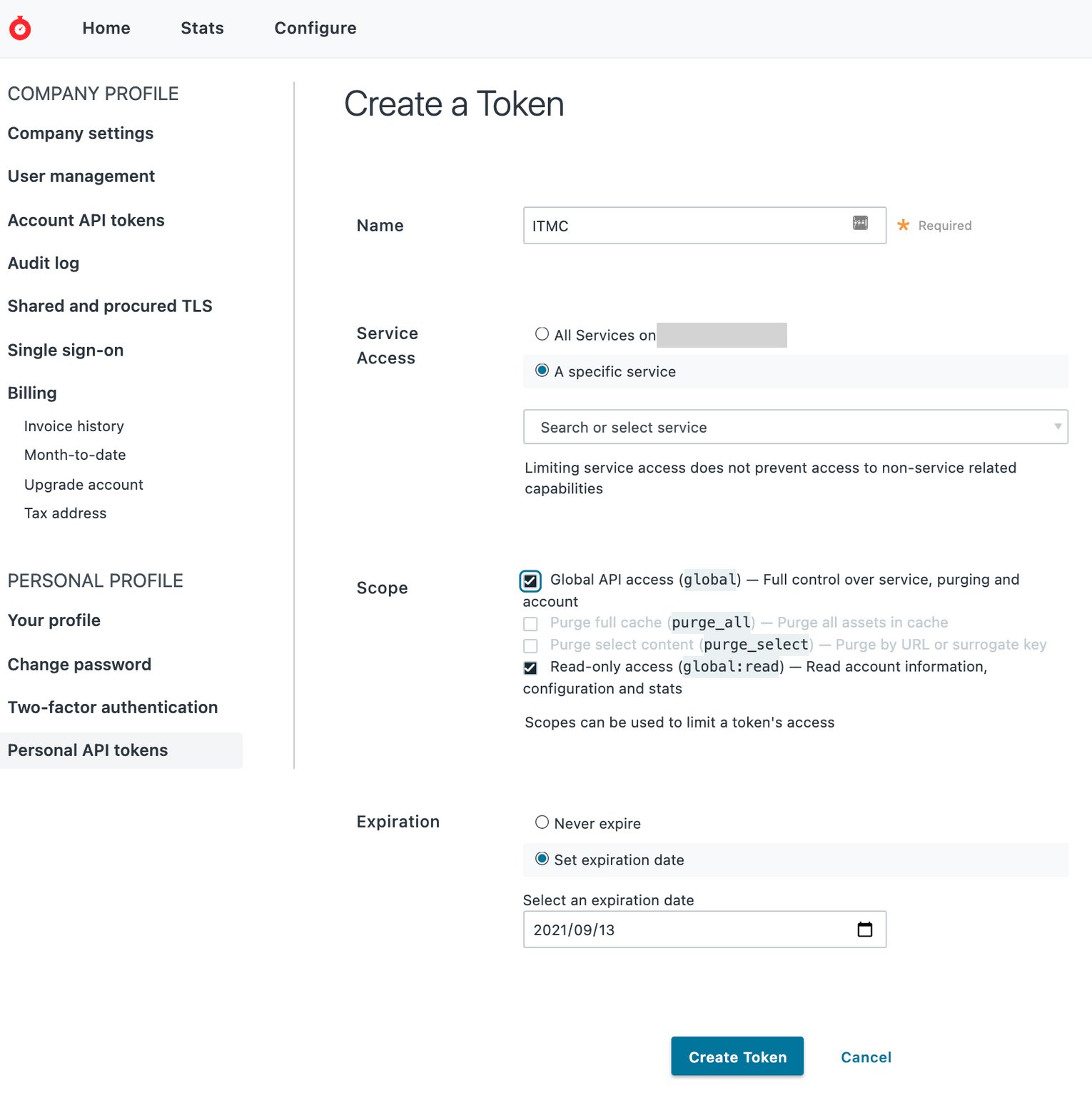
必要な設定項目を追加して、**Create Token**をクリックします。**ServiceはAll Services**を、**ScopeはRead-only**を選び、**Create Token**をクリックします。
<img src="https://mintcdn.com/admina-sbn/K05DRH7ibUuTnrRM/images/integrations/fvv8h0s6m2/clean-shot-2021-06-15-at-10-00-552-x.png?fit=max&auto=format&n=K05DRH7ibUuTnrRM&q=85&s=11c91ef72ce98d2babda1d1c2811a4f4" alt="Create Token設定" width="1530" height="1552" data-path="images/integrations/fvv8h0s6m2/clean-shot-2021-06-15-at-10-00-552-x.png" />

Tokenが作成されます。**Tokenがアクセスキー**となるので、コピー・保存します。

<Info>
  Tokenは、再表示されないので必ず保存してください。
</Info>

<img src="https://mintcdn.com/admina-sbn/K05DRH7ibUuTnrRM/images/integrations/fvv8h0s6m2/1656495674592-image.png?fit=max&auto=format&n=K05DRH7ibUuTnrRM&q=85&s=5a1a135a7833b667d91c68637bba70a5" alt="Token作成完了" width="593" height="405" data-path="images/integrations/fvv8h0s6m2/1656495674592-image.png" />

## インテグレーションのセットアップ

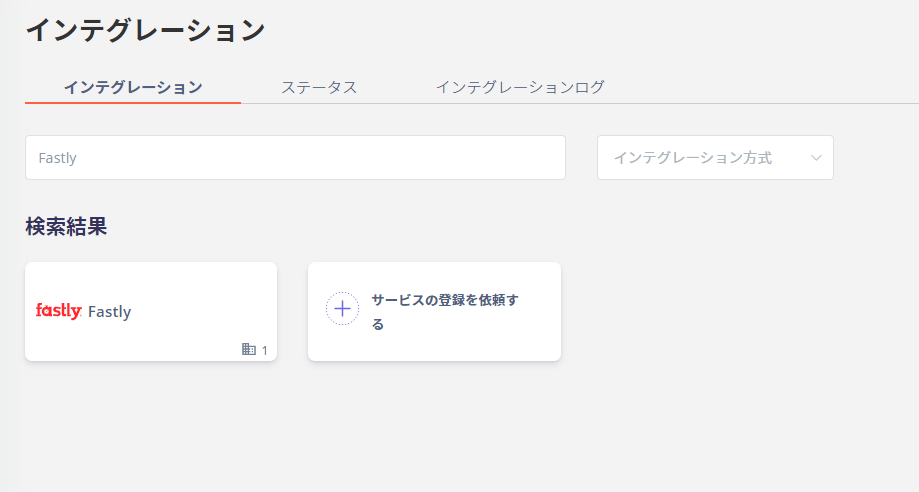
インテグレーション画面にて、**fastly**で検索しクリックします。
<img src="https://mintcdn.com/admina-sbn/K05DRH7ibUuTnrRM/images/integrations/fvv8h0s6m2/1646791756351-image.png?fit=max&auto=format&n=K05DRH7ibUuTnrRM&q=85&s=95a46a0dc1360336f97ce997a3cf3010" alt="fastly検索" width="919" height="492" data-path="images/integrations/fvv8h0s6m2/1646791756351-image.png" />

**ワークスペースキーには任意の名前（会社名など）**、前の手順で取得した**アクセスキー**を入力し、**連携する**をクリックします。

<img src="https://mintcdn.com/admina-sbn/K05DRH7ibUuTnrRM/images/integrations/fvv8h0s6m2/screen-shot-2022-01-29-at-19-14-28.png?fit=max&auto=format&n=K05DRH7ibUuTnrRM&q=85&s=6cd42cb211c79c155411210e347776d3" alt="連携設定画面" width="964" height="970" data-path="images/integrations/fvv8h0s6m2/screen-shot-2022-01-29-at-19-14-28.png" />

Fastlyとの連携に成功すると、アカウント一覧に登録済みのユーザー情報が表示されます。

正常に完了しない場合は、インテグレーション画面のステータスタブから**編集**し、再度連携をお試しください。

解決しない場合はチャットにてお問い合わせください。