> ## Documentation Index
> Fetch the complete documentation index at: https://hc.saas-manager.biz.nuro.jp/llms.txt
> Use this file to discover all available pages before exploring further.
# Lastpass
> Lastpass との連携の手順です。
## サポートする機能
アカウント削除 アカウント作成
連携には、Business Plans (Business) が必要です。
## 事前準備
### Lastpass へのログイン方法
[Lastpass admin ログインページ](https://lastpass.com/?ac=1\&from_ur)にて、メールアドレス・パスワードを入力しログインします。
 ### ワークスペースキーの取得方法
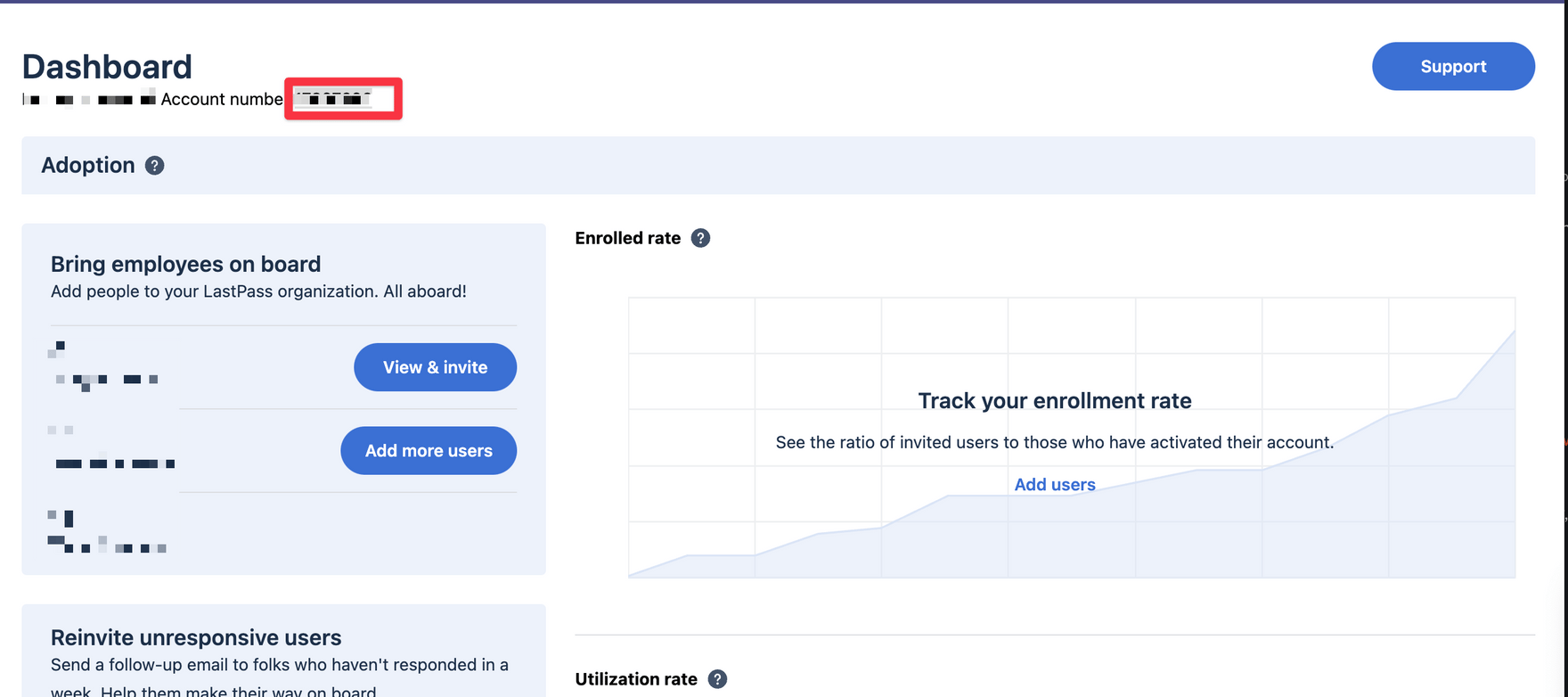
Lastpass admin にログイン後、**Account 名称の隣に Account number** が表示されています。
**Account number がワークスペースキー**となるので保存します。
### ワークスペースキーの取得方法
Lastpass admin にログイン後、**Account 名称の隣に Account number** が表示されています。
**Account number がワークスペースキー**となるので保存します。
 ### アクセスキーの取得方法
Advanced メニューをクリック、**Enterprise API で Provisioning Hash を発行**します。
**Provisioning Hash がアクセスキー**となるので保存します。
既に発行済みの場合は、リセットされますのでご注意ください。
### アクセスキーの取得方法
Advanced メニューをクリック、**Enterprise API で Provisioning Hash を発行**します。
**Provisioning Hash がアクセスキー**となるので保存します。
既に発行済みの場合は、リセットされますのでご注意ください。
 ## インテグレーションのセットアップ
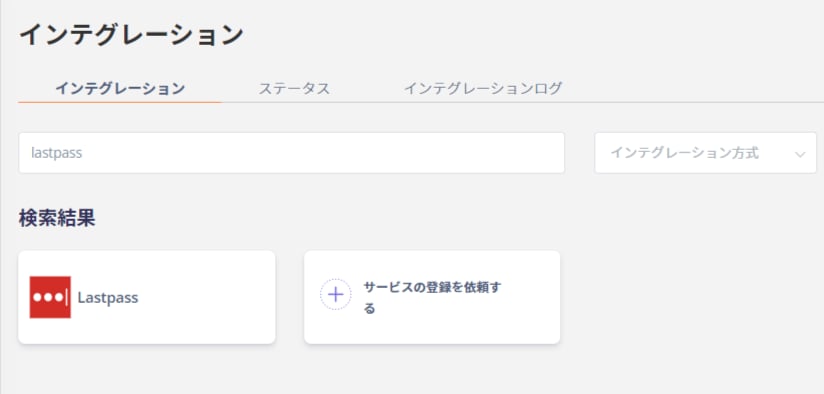
マネーフォワード Admina のインテグレーション画面にて、**Lastpass** で検索します。
## インテグレーションのセットアップ
マネーフォワード Admina のインテグレーション画面にて、**Lastpass** で検索します。
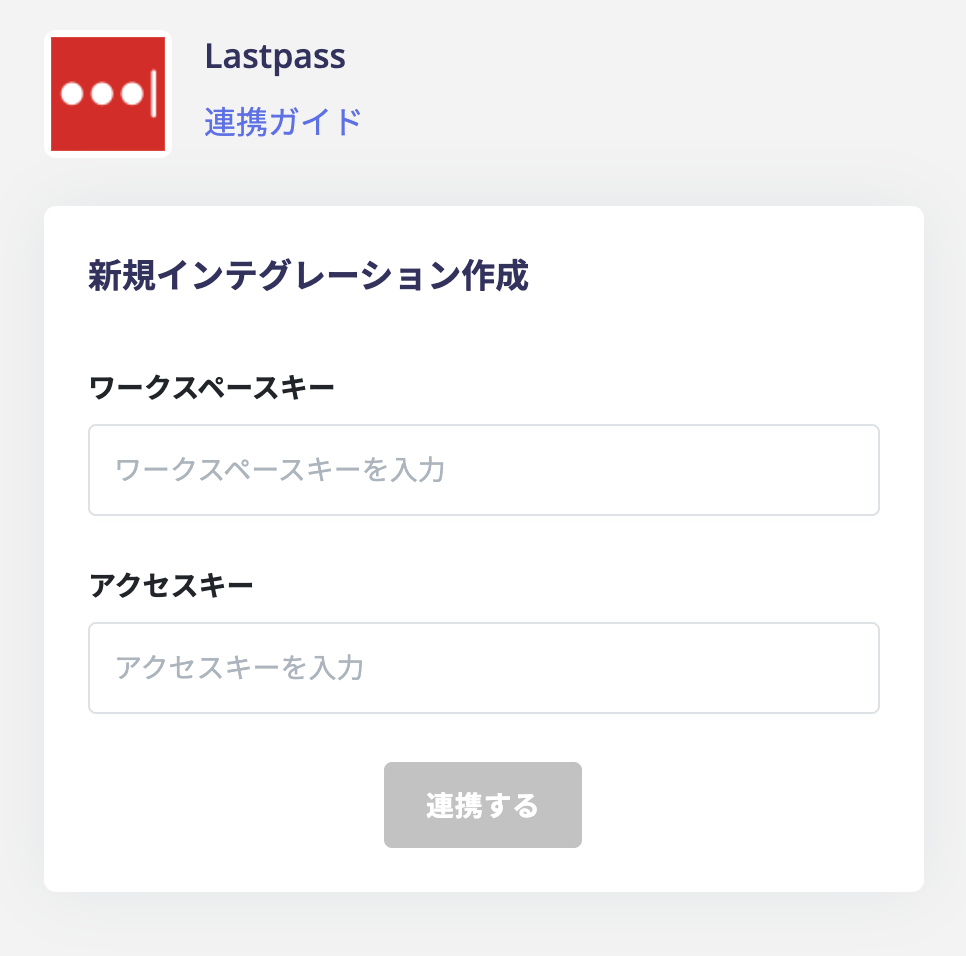
 **前の手順で取得したワークスペースキー、アクセスキー**を入力し、**連携する**をクリックします。
 Lastpass との連携に成功すると、アカウント一覧に登録済みのユーザー情報が表示されます。
正常に完了しない場合は、インテグレーション画面のステータスタブから**編集**し、再度連携をお試しください。
解決しない場合はチャットにてお問い合わせください。
Lastpass の連携概要については[連携ページ](https://admina.moneyforward.com/jp/integrations/lastpass)をご覧ください。
Lastpass との連携に成功すると、アカウント一覧に登録済みのユーザー情報が表示されます。
正常に完了しない場合は、インテグレーション画面のステータスタブから**編集**し、再度連携をお試しください。
解決しない場合はチャットにてお問い合わせください。
Lastpass の連携概要については[連携ページ](https://admina.moneyforward.com/jp/integrations/lastpass)をご覧ください。