> ## Documentation Index
> Fetch the complete documentation index at: https://hc.saas-manager.biz.nuro.jp/llms.txt
> Use this file to discover all available pages before exploring further.

# SmartDB

> SmartDBとの連携の手順です。

<Info>
  連携には、SmartDBのシステム管理者ユーザーのアカウントが必要です。
</Info>

## 事前準備

### SmartDBへのログイン方法

SmartDBログイン用URLにアクセスし、SmartDBのシステム管理者ユーザーのメールアドレス・パスワードを入力し、ログインします。

<img src="https://mintcdn.com/admina-sbn/_A306-CTiHRz04_7/images/integrations/jloes0st8a/1655963893735-image.png?fit=max&auto=format&n=_A306-CTiHRz04_7&q=85&s=e5d285b7b6750b21c2e88b8b93873197" alt="SmartDBログイン画面" width="620" height="661" data-path="images/integrations/jloes0st8a/1655963893735-image.png" />

### ワークスペースキーの取得方法

SmartDBログイン用**URLの一部がワークスペースキー**となっています。

https\://**`{ワークスペースキー}`**.smartdb.jp

### アクセスキーの取得方法

SmartDBにログイン後、画面右上のユーザーアイコンよりメニューを開き、**システム管理**をクリックします。
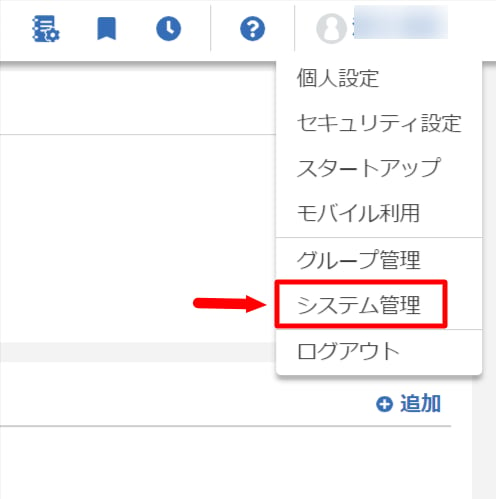
<img src="https://mintcdn.com/admina-sbn/_A306-CTiHRz04_7/images/integrations/jloes0st8a/1655963959741-image.png?fit=max&auto=format&n=_A306-CTiHRz04_7&q=85&s=0225542c6111e068d3c6af82f42610c1" alt="システム管理メニュー" width="496" height="499" data-path="images/integrations/jloes0st8a/1655963959741-image.png" />

管理画面のサイドメニューから **認証とセキュリティ＞システムトークン**に進みます。

**システムトークンがアクセスキー**となります。
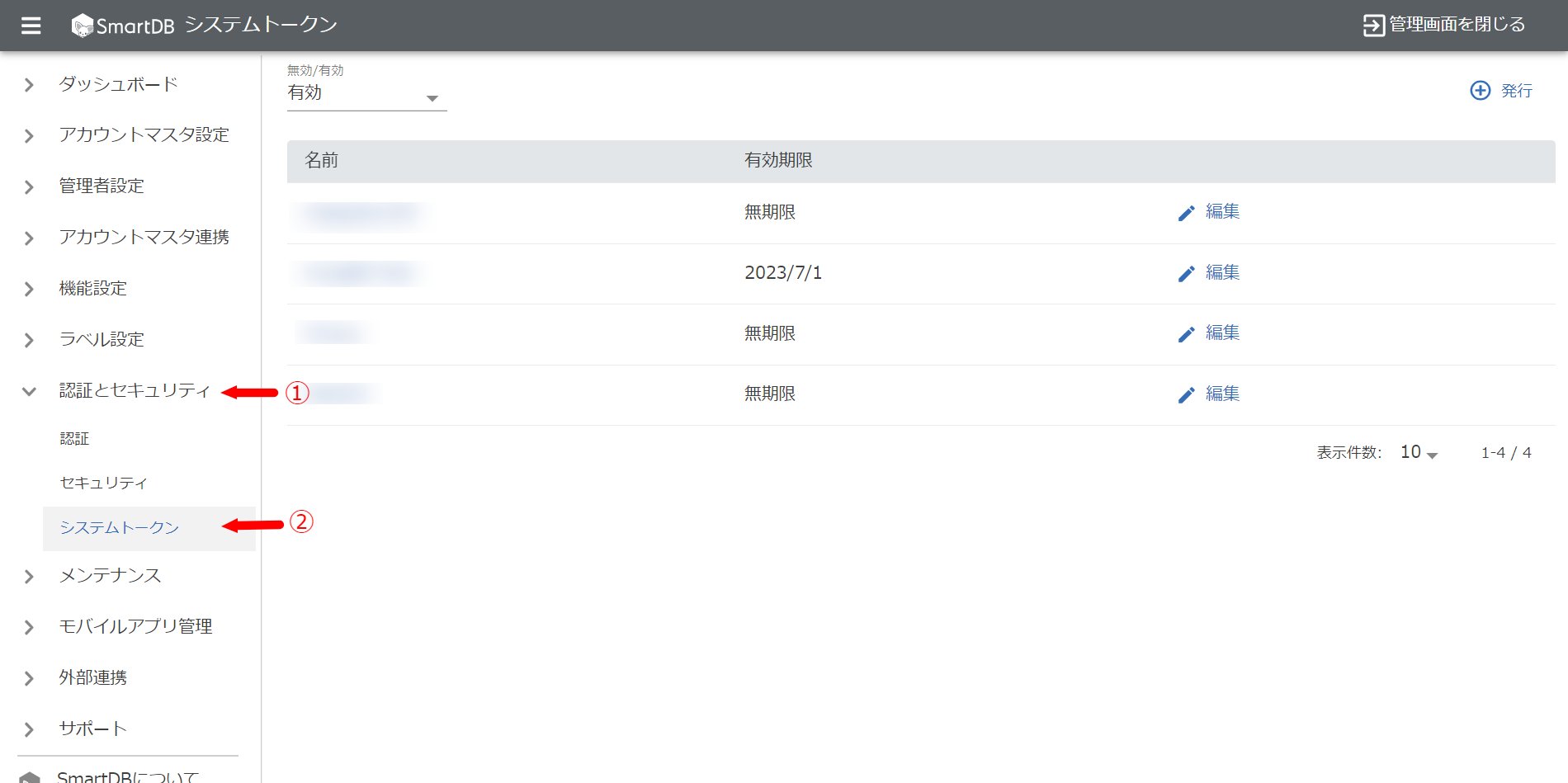
<img src="https://mintcdn.com/admina-sbn/_A306-CTiHRz04_7/images/integrations/jloes0st8a/1655968077206-image.png?fit=max&auto=format&n=_A306-CTiHRz04_7&q=85&s=4f7afc42e35d1b06a428be9389ba2bd2" alt="システムトークン画面" width="1900" height="949" data-path="images/integrations/jloes0st8a/1655968077206-image.png" />

#### 【新規作成の場合】

画面右上の\*\*＋発行\*\*をクリックします。

<img src="https://mintcdn.com/admina-sbn/_A306-CTiHRz04_7/images/integrations/jloes0st8a/1655967970760-image.png?fit=max&auto=format&n=_A306-CTiHRz04_7&q=85&s=4f15ef8c38d71ff92ad482796511e40c" alt="＋発行ボタン" width="436" height="304" data-path="images/integrations/jloes0st8a/1655967970760-image.png" />

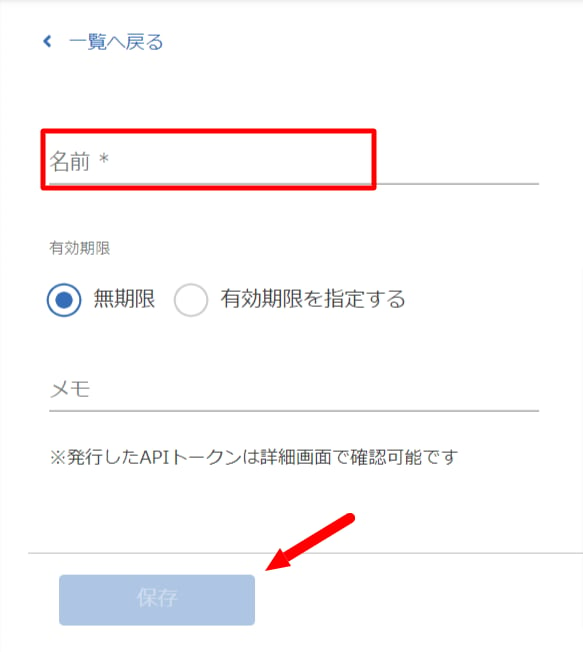
**任意の名前**（会社名など）入力し、**保存**をクリックします。

<img src="https://mintcdn.com/admina-sbn/_A306-CTiHRz04_7/images/integrations/jloes0st8a/1655965552303-image.png?fit=max&auto=format&n=_A306-CTiHRz04_7&q=85&s=e40fecd93ea01ef75ba9a2ea10c4ebf3" alt="トークン名入力" width="583" height="652" data-path="images/integrations/jloes0st8a/1655965552303-image.png" />

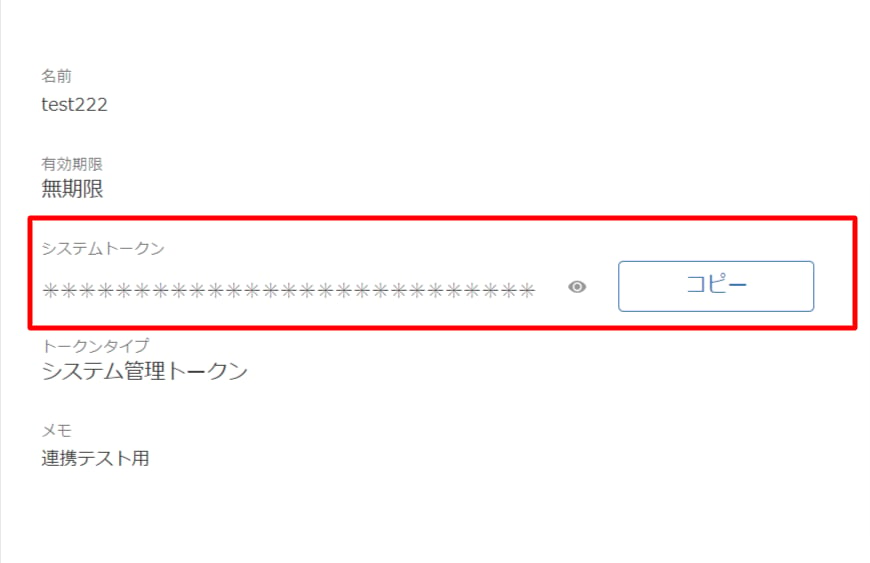
すると、**システムトークン**が発行されるので、コピー・保存します。

<img src="https://mintcdn.com/admina-sbn/_A306-CTiHRz04_7/images/integrations/jloes0st8a/1655964513399-image.png?fit=max&auto=format&n=_A306-CTiHRz04_7&q=85&s=6d8cec0ecbe4fa3969063b96d620cfd5" alt="トークン発行" width="870" height="563" data-path="images/integrations/jloes0st8a/1655964513399-image.png" />

#### 【作成済システムトークンを利用する場合】

一覧より利用したいシステムトークンの**名前**をクリックします。

<img src="https://mintcdn.com/admina-sbn/_A306-CTiHRz04_7/images/integrations/jloes0st8a/1655968232783-image.png?fit=max&auto=format&n=_A306-CTiHRz04_7&q=85&s=23305fd093088536d7d1fb84c5823929" alt="トークン一覧" width="1900" height="949" data-path="images/integrations/jloes0st8a/1655968232783-image.png" />

すると以下の画面に移動するので、システムトークンをコピー・保存します。

<img src="https://mintcdn.com/admina-sbn/_A306-CTiHRz04_7/images/integrations/jloes0st8a/1655968310113-image.png?fit=max&auto=format&n=_A306-CTiHRz04_7&q=85&s=800c998ee9fdf938a1188df7eb38704a" alt="トークン詳細" width="1168" height="668" data-path="images/integrations/jloes0st8a/1655968310113-image.png" />

## インテグレーションのセットアップ

インテグレーション画面にて、**SmartDB**で検索します。

<img src="https://mintcdn.com/admina-sbn/_A306-CTiHRz04_7/images/integrations/jloes0st8a/1656296092476-image.png?fit=max&auto=format&n=_A306-CTiHRz04_7&q=85&s=2942ea542ea0066ab367ebb19c3c5f0b" alt="Adminaインテグレーション検索" width="785" height="438" data-path="images/integrations/jloes0st8a/1656296092476-image.png" />

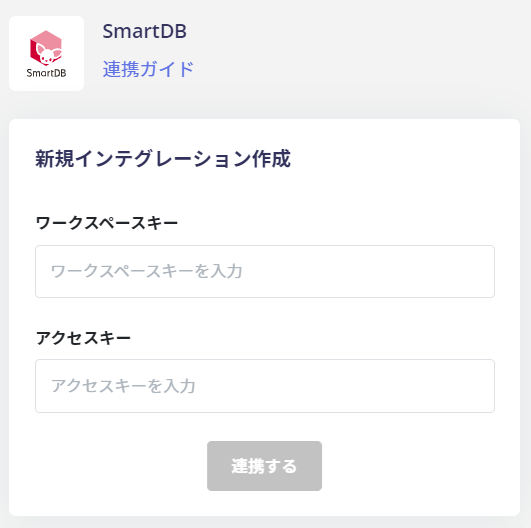
前の手順で取得した**ワークスペースキー、アクセスキー**を入力し、**連携する**をクリックします。
<img src="https://mintcdn.com/admina-sbn/_A306-CTiHRz04_7/images/integrations/jloes0st8a/1656296103856-image.png?fit=max&auto=format&n=_A306-CTiHRz04_7&q=85&s=6dd611fcc113636d57cde9d77e458b01" alt="連携情報入力" width="531" height="528" data-path="images/integrations/jloes0st8a/1656296103856-image.png" />

SmartDBとの連携に成功すると以下のように表示され、アカウント一覧に登録済みのユーザー情報が表示されます。

正常に完了しない場合は、インテグレーション画面のステータスタブから**編集**し、再度連携をお試しください。

解決しない場合はチャットにてお問い合わせください。

SmartDBの連携概要については[連携ページ](http://admina.moneyforward.com/jp/integrations/smartdb)をご覧ください。