> ## Documentation Index
> Fetch the complete documentation index at: https://hc.saas-manager.biz.nuro.jp/llms.txt
> Use this file to discover all available pages before exploring further.
# Bitdefender
> Bitdefenderとの連携方法です。マネーフォワード AdminaからBitdefenderへの、管理者のログインから、連携方法まで一連の手順を解説します。
## サポートする機能
アカウント削除 アカウント作成
## 事前準備
### Bitdefenderのログイン方法
[Bitdefenderのログインページ](https://cloud.gravityzone.bitdefender.com/)にて、メールアドレス・パスワードを入力しログインします。
 ### Base URIの取得方法
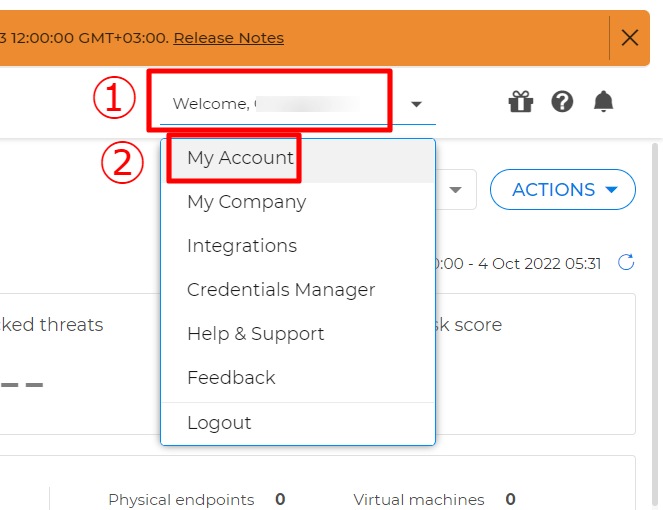
Bitdefenderにログイン後、画面右上の**ようこそ~ > マイアカウント**と進みます。
### Base URIの取得方法
Bitdefenderにログイン後、画面右上の**ようこそ~ > マイアカウント**と進みます。
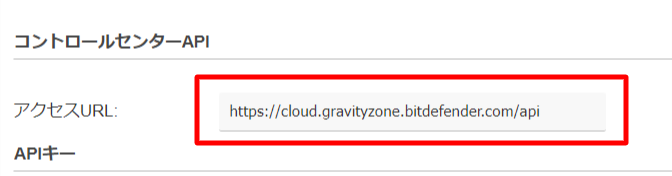
 マイアカウントのページを下へスクロールすると、**コントロールセンター APIの項目にアクセスURL**が表示されています。
**アクセスURLがBase URI**となるので、保存します。
マイアカウントのページを下へスクロールすると、**コントロールセンター APIの項目にアクセスURL**が表示されています。
**アクセスURLがBase URI**となるので、保存します。
 ## APIキーの取得方法
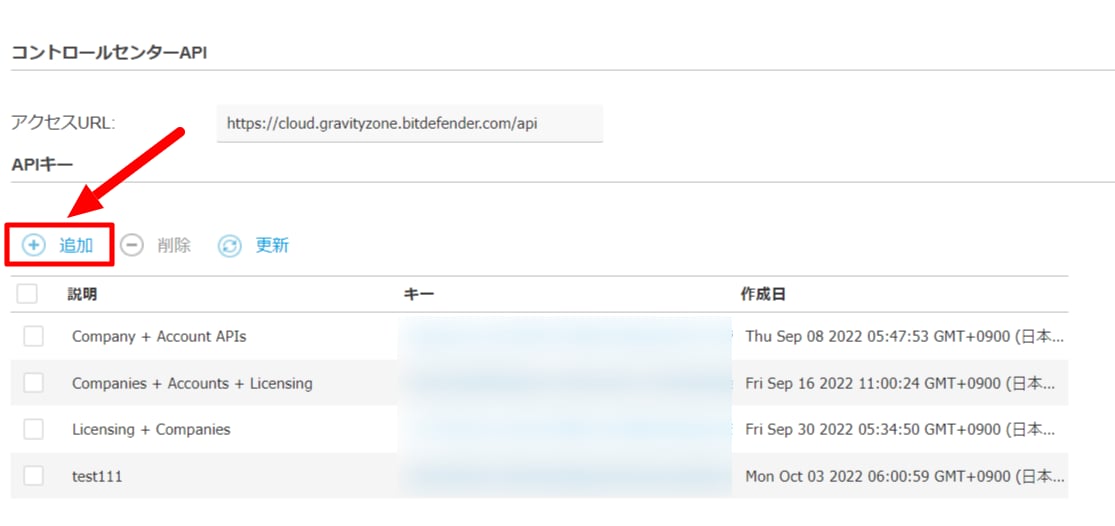
1. 次に、コントロールセンターAPIの下にある**APIキー**の項目に移ります。**+追加をクリックし、API keyを作成**します。
## APIキーの取得方法
1. 次に、コントロールセンターAPIの下にある**APIキー**の項目に移ります。**+追加をクリックし、API keyを作成**します。
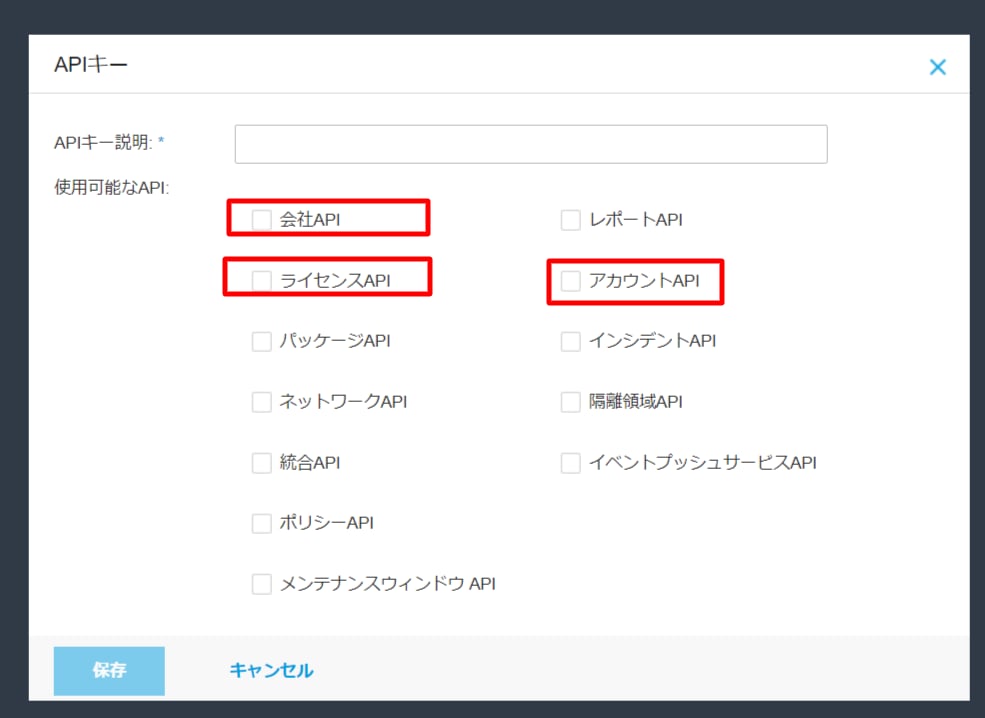
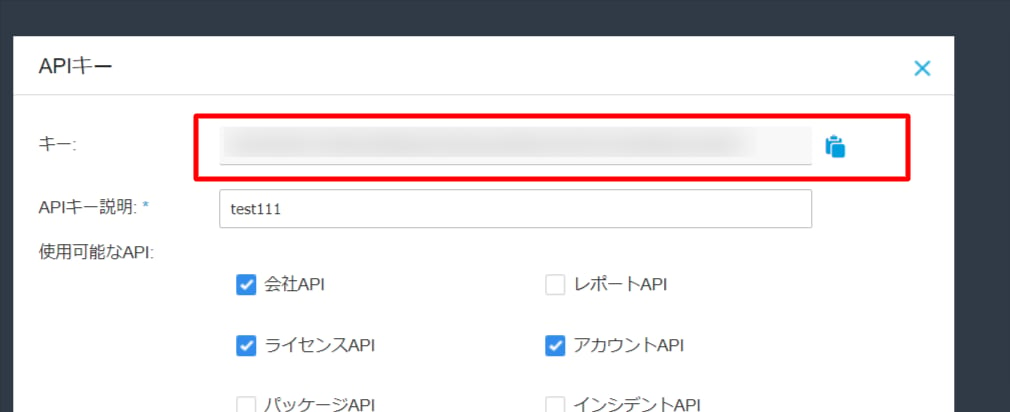
 2. **APIキー説明**を入力し、使用可能なAPIは、**会社API、ライセンスAPI、アカウントAPI**を選択し、保存をクリックします。
 3. すると、APIキーが一覧に追加されます。生成したAPIキーのKeyの個所をクリックし、APIキーの詳細を表示します。
 4. **キーが連携に必要なAPIキー**となるので、保存します。
 5. 一度ログアウトし、APIキーを作成したアカウントと異なるアカウントで再度ログインします。
6. 1.〜4.と同様の手順で再度APIキーを発行し、保存します(マネーフォワード Admina上の**他のAPIキー**になります。)
アカウント一覧を取得するには、別アカウントで生成したAPIキーが必要になります。
APIキーを生成したアカウントは、アカウント一覧の取得に含まれないためです。
## インテグレーションのセットアップ
マネーフォワード Adminaのインテグレーション画面にて、**Bitdefender**で検索します。
5. 一度ログアウトし、APIキーを作成したアカウントと異なるアカウントで再度ログインします。
6. 1.〜4.と同様の手順で再度APIキーを発行し、保存します(マネーフォワード Admina上の**他のAPIキー**になります。)
アカウント一覧を取得するには、別アカウントで生成したAPIキーが必要になります。
APIキーを生成したアカウントは、アカウント一覧の取得に含まれないためです。
## インテグレーションのセットアップ
マネーフォワード Adminaのインテグレーション画面にて、**Bitdefender**で検索します。
 前の手順で取得した**APIキーとBase URI、他のAPIキー**を入力し、**連携する**をクリックします。
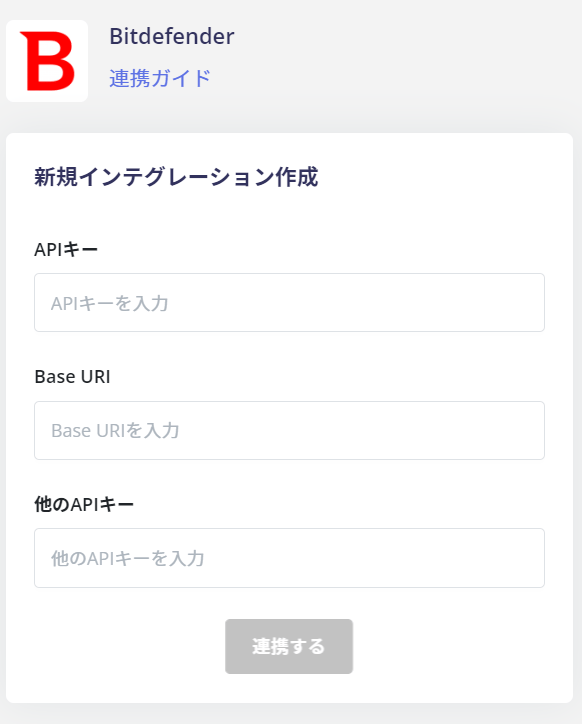 Bitdefenderとの連携に成功すると、アカウント一覧に登録済みのユーザー情報が表示されます。
正常に完了しない場合は、インテグレーション画面のステータスタブから**編集**し、再度連携をお試しください。
解決しない場合はチャットにてお問い合わせください。
Bitdefenderの連携概要については[連携ページ](http://admina.moneyforward.com/jp/integrations/bitdefender)をご覧ください。
Bitdefenderとの連携に成功すると、アカウント一覧に登録済みのユーザー情報が表示されます。
正常に完了しない場合は、インテグレーション画面のステータスタブから**編集**し、再度連携をお試しください。
解決しない場合はチャットにてお問い合わせください。
Bitdefenderの連携概要については[連携ページ](http://admina.moneyforward.com/jp/integrations/bitdefender)をご覧ください。