> ## Documentation Index
> Fetch the complete documentation index at: https://hc.saas-manager.biz.nuro.jp/llms.txt
> Use this file to discover all available pages before exploring further.
# dbt Cloud
> dbt Cloudとの連携方法です。
マネーフォワードAdminaからdbt Cloudへの、管理者のログインから、連携方法まで一連の手順を解説します。
## 事前準備
### dbt Cloudへのログイン方法
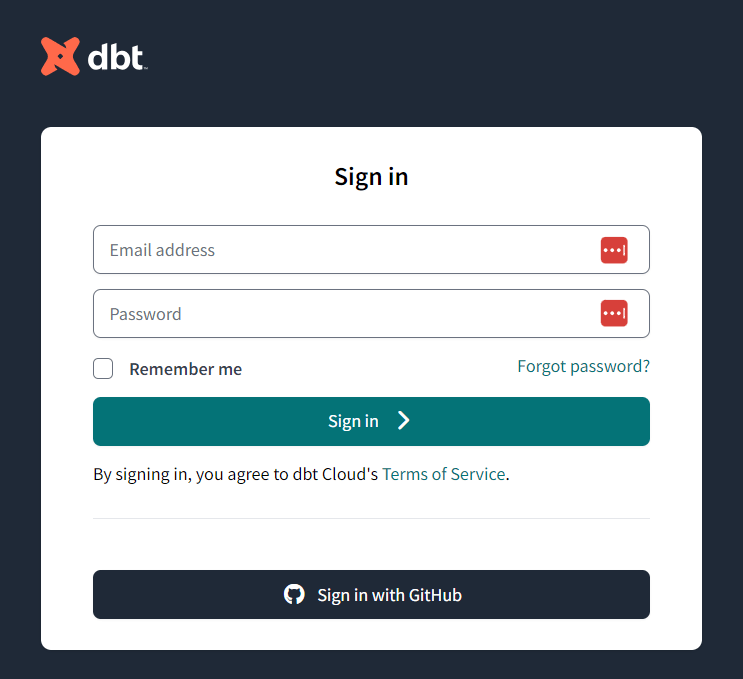
[dbt Cloudログインページ](https://auth.cloud.getdbt.com/login?state=hKFo2SBDa3JobTVPT3ZQbmRUN0dnc1ZieFVoWHZIbDY4Ql9jY6FupWxvZ2luo3RpZNkgd0dSWXRSem5FUk83WDM5ZGxYTXFyOUFpb1pJcEZhNmGjY2lk2SBSbGJ3eTBaa0FRUEJBaEhVNEpnZjZ2bW44SGFBNzNvWQ\&client=Rlbwy0ZkAQPBAhHU4Jgf6vmn8HaA73oY\&protocol=oauth2\&response_type=code\&redirect_uri=https%3A%2F%2Fcloud.getdbt.com%2Fapi%2Fauth%2Fauth-login%2F\&scope=openid%20profile)にて、メールアドレス・パスワードを入力しログインします。
 ### ワークスペースキーの取得方法
dbt Cloudにログイン後、**設定⚙> Account settings** > **Account** と進みます。
### ワークスペースキーの取得方法
dbt Cloudにログイン後、**設定⚙> Account settings** > **Account** と進みます。
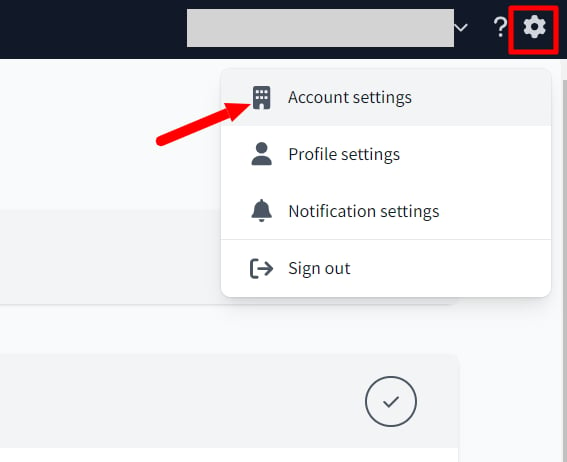 **Account ID がワークスペースキー**となるのでコピー・保存します。
 ### アクセスキーの取得方法
**Settings> API tokens > Personal tokens** と進み、**+Create personal access token** をクリックします。
### アクセスキーの取得方法
**Settings> API tokens > Personal tokens** と進み、**+Create personal access token** をクリックします。
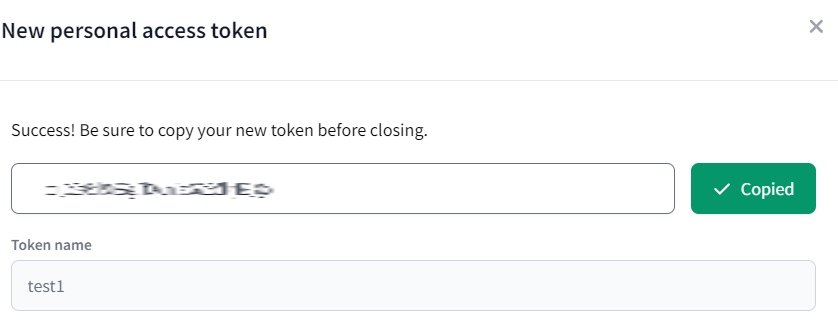
 **任意の名称(用途や部署名など)を入力**し**SAVE**をクリックすると、**API token** が表示されます。
**API tokenがアクセスキー**となるのでコピー・保存します。
**任意の名称(用途や部署名など)を入力**し**SAVE**をクリックすると、**API token** が表示されます。
**API tokenがアクセスキー**となるのでコピー・保存します。
 ## インテグレーションのセットアップ
インテグレーション画面にて、**dbt Cloud**で検索します。
## インテグレーションのセットアップ
インテグレーション画面にて、**dbt Cloud**で検索します。
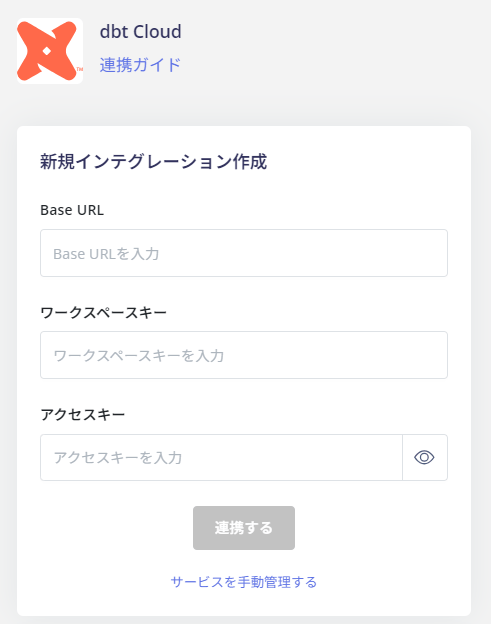
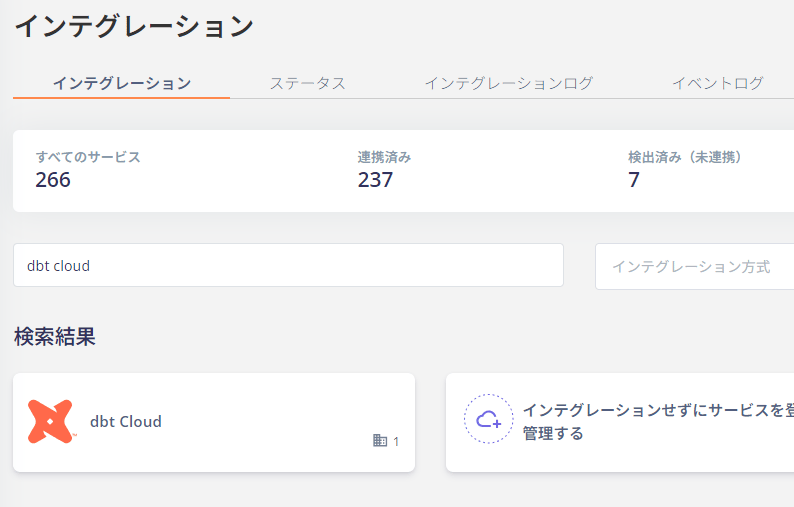 **Base URL**、前の手順で取得した**ワークスペースキーとアクセスキー**を入力し、**連携する**をクリックします。
Base URLは以下から選択してください。どのBase URLを使用するかは、現在のウェブサイトのURLをご確認ください。
* `https://cloud.getdbt.com`
* `https://emea.dbt.com`
* `https://au.dbt.com`
* `https://{account_prefix}.us1.dbt.com`
**Base URL**、前の手順で取得した**ワークスペースキーとアクセスキー**を入力し、**連携する**をクリックします。
Base URLは以下から選択してください。どのBase URLを使用するかは、現在のウェブサイトのURLをご確認ください。
* `https://cloud.getdbt.com`
* `https://emea.dbt.com`
* `https://au.dbt.com`
* `https://{account_prefix}.us1.dbt.com`
 dbt Cloudとの連携に成功すると、アカウント一覧に登録済みのユーザー情報が表示されます。
正常に完了しない場合は、インテグレーション画面のステータスタブから**編集**し、再度連携をお試しください。
解決しない場合はチャットにてお問い合わせください🙏
dbt Cloudとの連携に成功すると、アカウント一覧に登録済みのユーザー情報が表示されます。
正常に完了しない場合は、インテグレーション画面のステータスタブから**編集**し、再度連携をお試しください。
解決しない場合はチャットにてお問い合わせください🙏