> ## Documentation Index
> Fetch the complete documentation index at: https://hc.saas-manager.biz.nuro.jp/llms.txt
> Use this file to discover all available pages before exploring further.

# Kincone

> kinconeとの連携手順です。

## サポートする機能

<Info>
  このサービスは基本的なアカウント情報の取得・集計のみに対応しています。
</Info>

<Info>
  連携には管理者権限のアカウントが必要です。
</Info>

## 事前準備

### kinconeへのログイン方法

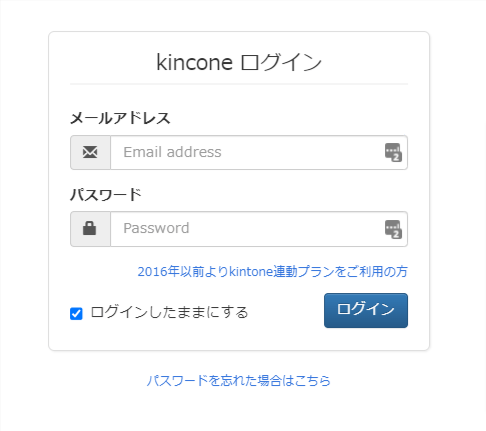
[kinconeログインページ](https://kincone.com/auth/login)にて、メールアドレス・パスワードを入力し、ログインします。
<img src="https://mintcdn.com/admina-sbn/ZShCZj3AVDsgaly8/images/integrations/mw6cwiku3m/image-3.png?fit=max&auto=format&n=ZShCZj3AVDsgaly8&q=85&s=8f793cacfc2aaff5141a026d5926162f" alt="kinconeログイン画面" width="486" height="431" data-path="images/integrations/mw6cwiku3m/image-3.png" />

### アクセスキーの取得方法

kinconeにログイン後、管理画面から**設定**＞**外部連携**＞**APIトークン**をクリックします。

<img src="https://mintcdn.com/admina-sbn/ZShCZj3AVDsgaly8/images/integrations/mw6cwiku3m/2022-02-17-115330.png?fit=max&auto=format&n=ZShCZj3AVDsgaly8&q=85&s=8d18d54bdc70e02b66f55e40051c9fa4" alt="APIトークン設定画面" width="1400" height="721" data-path="images/integrations/mw6cwiku3m/2022-02-17-115330.png" />

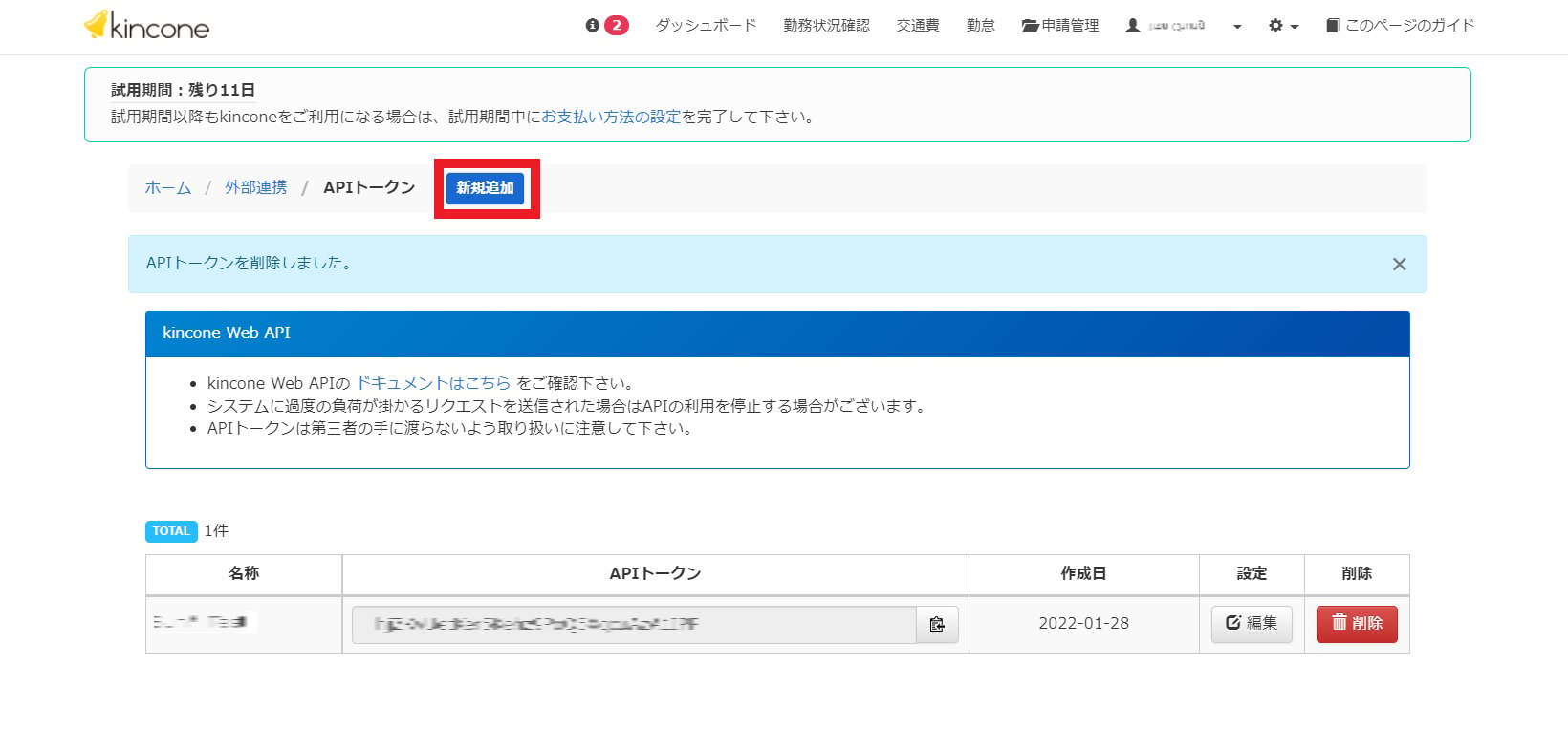
**新規追加**をクリックします。

<img src="https://mintcdn.com/admina-sbn/ZShCZj3AVDsgaly8/images/integrations/mw6cwiku3m/2022-02-17-113401.png?fit=max&auto=format&n=ZShCZj3AVDsgaly8&q=85&s=1c7359af9a3d78243ab6e6643f2b9c51" alt="APIトークン新規追加" width="1640" height="764" data-path="images/integrations/mw6cwiku3m/2022-02-17-113401.png" />

任意の**名称** と **権限設定** を入力し、**送信** をクリックします。

<img src="https://mintcdn.com/admina-sbn/ZShCZj3AVDsgaly8/images/integrations/mw6cwiku3m/2022-02-17-113519.png?fit=max&auto=format&n=ZShCZj3AVDsgaly8&q=85&s=12019acfbeaa49ae7723c234c8a5d68e" alt="APIトークン作成" width="1526" height="922" data-path="images/integrations/mw6cwiku3m/2022-02-17-113519.png" />

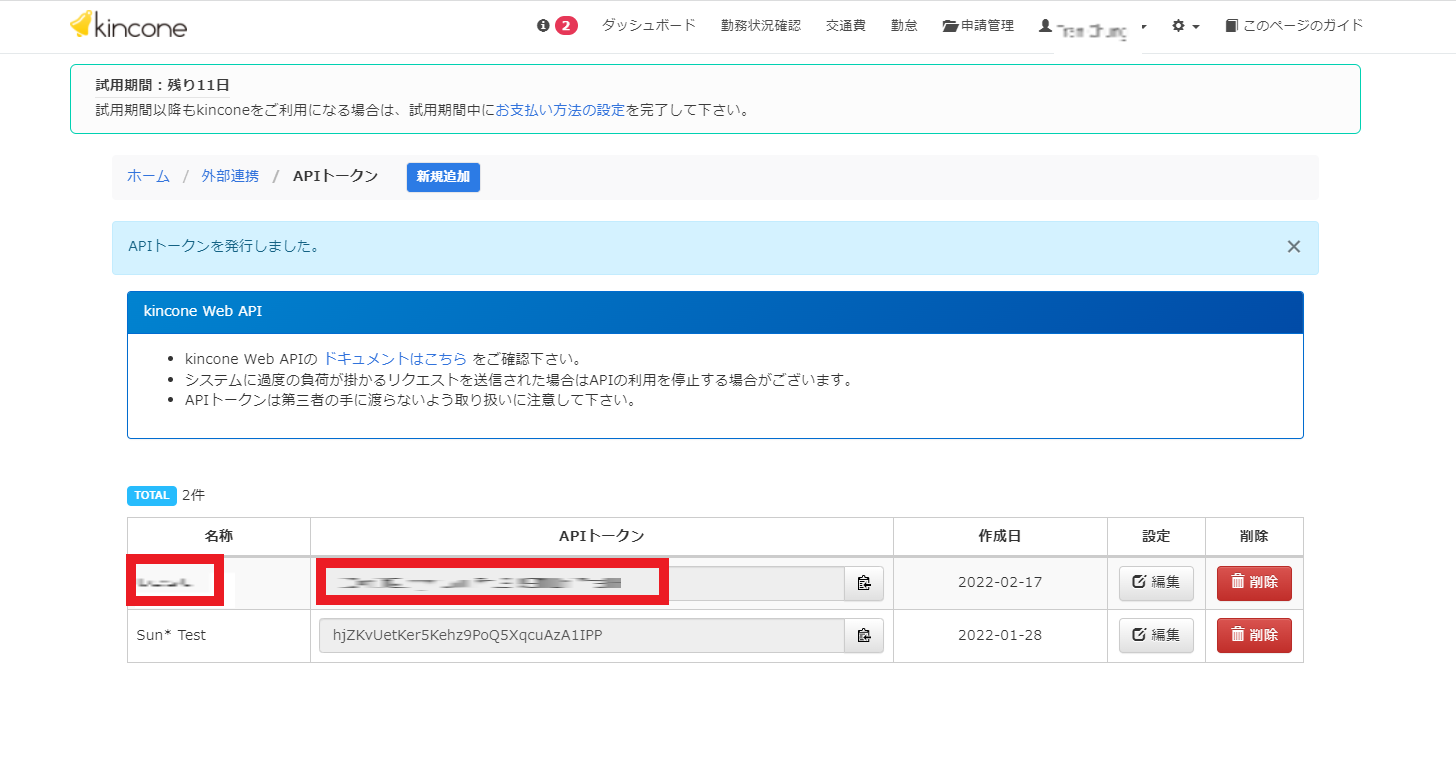
kinconeのAPIトークンが発行されます。**APIトークンがアクセスキー**となるので、保存します。
<img src="https://mintcdn.com/admina-sbn/ZShCZj3AVDsgaly8/images/integrations/mw6cwiku3m/2022-02-17-113540.png?fit=max&auto=format&n=ZShCZj3AVDsgaly8&q=85&s=6785b92830f8a7f4e1c00033cfe462cd" alt="APIトークン発行" width="1456" height="773" data-path="images/integrations/mw6cwiku3m/2022-02-17-113540.png" />

## インテグレーションのセットアップ

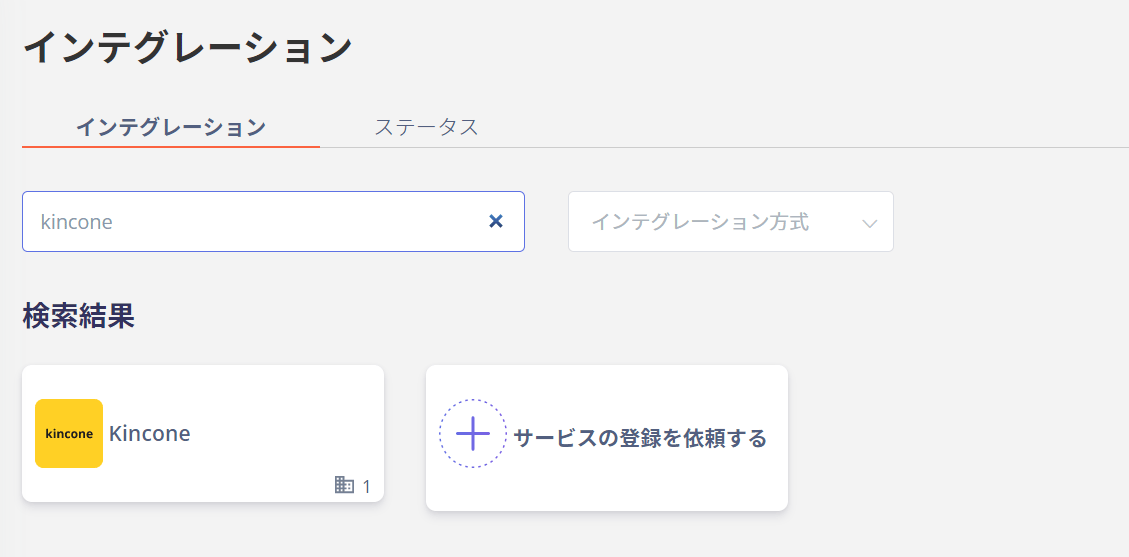
インテグレーション画面にて、**kincone**で検索します。
<img src="https://mintcdn.com/admina-sbn/ZShCZj3AVDsgaly8/images/integrations/mw6cwiku3m/2022-02-17-112606.png?fit=max&auto=format&n=ZShCZj3AVDsgaly8&q=85&s=a44e7fd60322d3f764439075619f36b5" alt="インテグレーション検索" width="1129" height="557" data-path="images/integrations/mw6cwiku3m/2022-02-17-112606.png" />

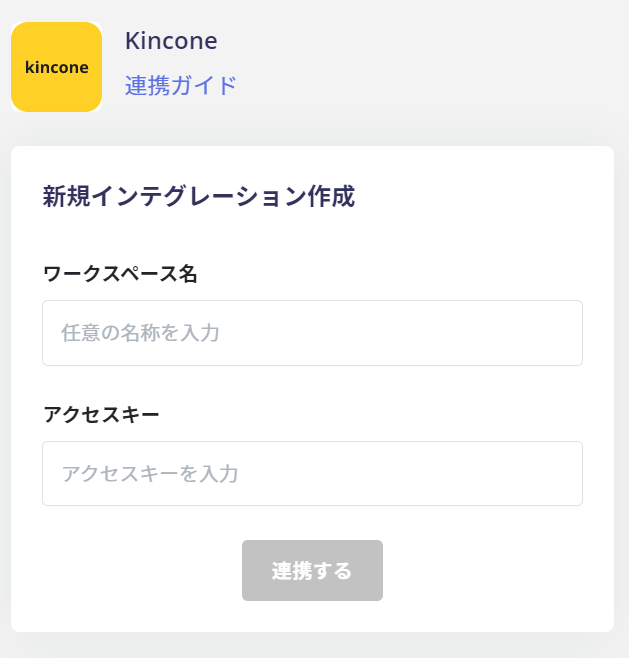
**ワークスペース名には任意の名称**（会社名など）、**前の手順で取得したアクセスキー**を入力し、**連携する**をクリックします。
<img src="https://mintcdn.com/admina-sbn/ZShCZj3AVDsgaly8/images/integrations/mw6cwiku3m/2022-02-17-113100.png?fit=max&auto=format&n=ZShCZj3AVDsgaly8&q=85&s=97a8e4eba54d91c72b3e260206d308d9" alt="連携情報入力" width="629" height="658" data-path="images/integrations/mw6cwiku3m/2022-02-17-113100.png" />

kinconeとの連携に成功すると、アカウント一覧に登録済みのユーザー情報が表示されます。

正常に完了しない場合は、インテグレーション画面のステータスタブから**編集**し、再度連携をお試しください。

解決しない場合はチャットにてお問い合わせください🙏

kinconeの連携概要については[連携ページ](http://admina.moneyforward.com/jp/integrations/kincone)をご覧ください。