> ## Documentation Index
> Fetch the complete documentation index at: https://hc.saas-manager.biz.nuro.jp/llms.txt
> Use this file to discover all available pages before exploring further.

# Clockify

> Clockify連携の管理者手順：ワークスペースキーとAPIキーを取得し、マネーフォワードAdminaで設定

## サポートする機能

<Badge color="blue">アカウント作成</Badge> <Badge color="blue">アカウント無効化</Badge>

<Info>
  連携には管理者権限のアカウントが必要です。
</Info>

## 事前準備

### ログイン方法

[Clockifyログインページ](https://app.clockify.me/login)にて、メールアドレス・パスワードを入力し、ログインします。

<img src="https://mintcdn.com/admina-sbn/ZShCZj3AVDsgaly8/images/integrations/o33kkqzkhh/2025-12-26-114640.png?fit=max&auto=format&n=ZShCZj3AVDsgaly8&q=85&s=f8fe0e156b6900ef47cb58c1f0eb26a6" alt="Clockify login" width="458" height="610" data-path="images/integrations/o33kkqzkhh/2025-12-26-114640.png" />

### ワークスペースキーの確認方法

Clockifyログイン後、ワークスペース名の横にある「**...**」 > **Workspace settings**をクリックします。

<img src="https://mintcdn.com/admina-sbn/ZShCZj3AVDsgaly8/images/integrations/o33kkqzkhh/screenshot-2025-12-16-at-14-31-18.png?fit=max&auto=format&n=ZShCZj3AVDsgaly8&q=85&s=3b95add1c3b5d4fb417f6b3fe58ee114" alt="Workspace settings menu" width="2812" height="1344" data-path="images/integrations/o33kkqzkhh/screenshot-2025-12-16-at-14-31-18.png" />

画面遷移後、URLを確認してください。画像の**赤丸部分**が**ワークスペースキー**です。

<img src="https://mintcdn.com/admina-sbn/ZShCZj3AVDsgaly8/images/integrations/o33kkqzkhh/screenshot-2025-12-16-at-14-32-48.png?fit=max&auto=format&n=ZShCZj3AVDsgaly8&q=85&s=ab810fea862ae942ae6f9a1ed96be897" alt="Workspace key in URL" width="1383" height="588" data-path="images/integrations/o33kkqzkhh/screenshot-2025-12-16-at-14-32-48.png" />

### APIキーの取得方法

次にAPIキーを取得するために、右上のアイコン > **Preferences** をクリックします。
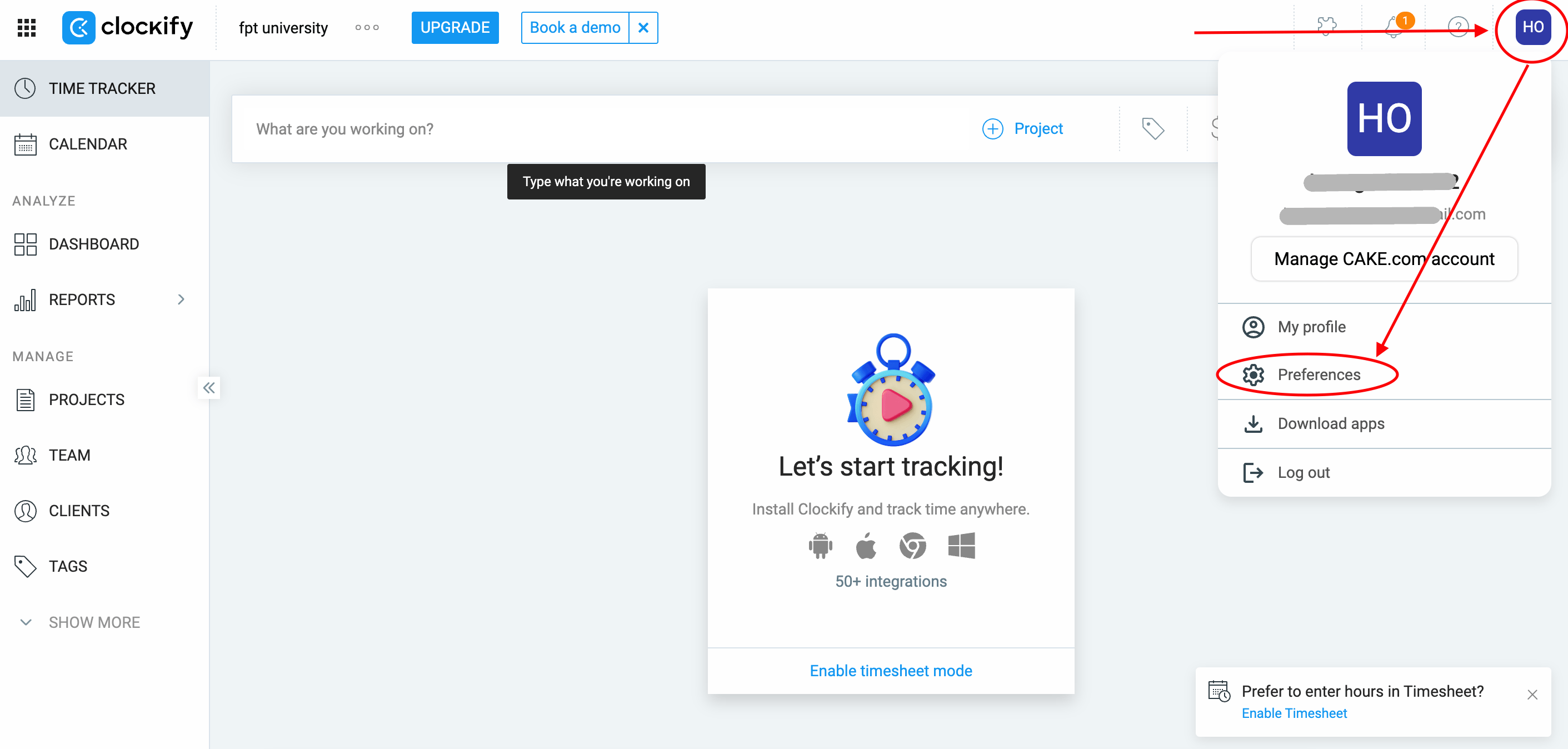
<img src="https://mintcdn.com/admina-sbn/ZShCZj3AVDsgaly8/images/integrations/o33kkqzkhh/screenshot-2025-12-16-at-14-20-29.png?fit=max&auto=format&n=ZShCZj3AVDsgaly8&q=85&s=f1b2915a4c7fda1e426d4a878e66e64d" alt="Preferences menu" width="2822" height="1348" data-path="images/integrations/o33kkqzkhh/screenshot-2025-12-16-at-14-20-29.png" />

**Advance** > **Manage API keys** をクリックします。
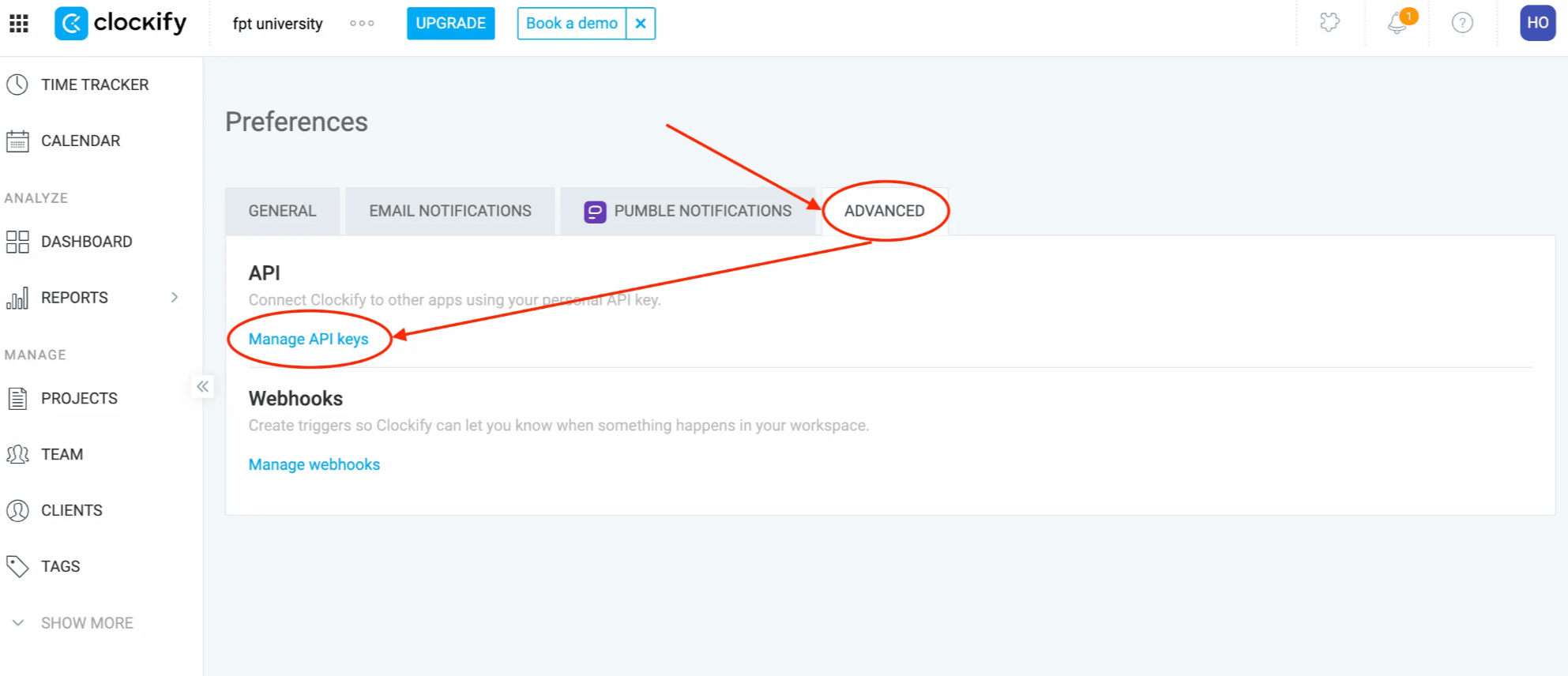
<img src="https://mintcdn.com/admina-sbn/ZShCZj3AVDsgaly8/images/integrations/o33kkqzkhh/screenshot-2025-12-16-at-14-23-07.png?fit=max&auto=format&n=ZShCZj3AVDsgaly8&q=85&s=e33d19e29c6e5c850616b36afcbd725f" alt="Manage API keys" width="1985" height="856" data-path="images/integrations/o33kkqzkhh/screenshot-2025-12-16-at-14-23-07.png" />

**Generate new**をクリックし、名前を入力して**Generate**をクリックします。

<img src="https://mintcdn.com/admina-sbn/ZShCZj3AVDsgaly8/images/integrations/o33kkqzkhh/screenshot-2025-12-16-at-14-25-57.png?fit=max&auto=format&n=ZShCZj3AVDsgaly8&q=85&s=f067fad5375ad29cf414d9108ea2bfcf" alt="Generate API key" width="2846" height="1336" data-path="images/integrations/o33kkqzkhh/screenshot-2025-12-16-at-14-25-57.png" />

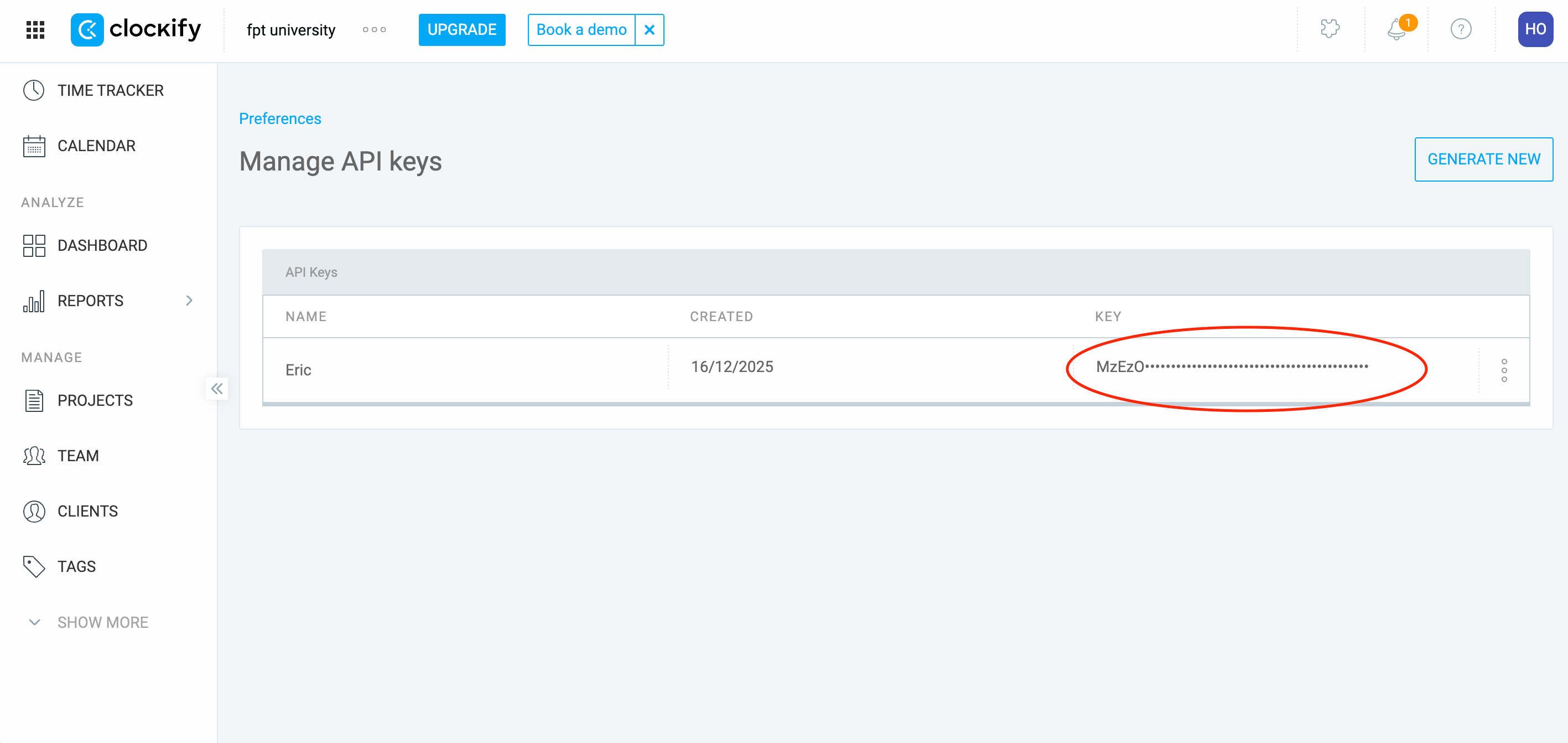
表示されたAPIキーをコピーします。

<img src="https://mintcdn.com/admina-sbn/ZShCZj3AVDsgaly8/images/integrations/o33kkqzkhh/screenshot-2025-12-16-at-14-29-08.png?fit=max&auto=format&n=ZShCZj3AVDsgaly8&q=85&s=538c6cc85012f51527b49e329d11015d" alt="Copy API key" width="2834" height="1342" data-path="images/integrations/o33kkqzkhh/screenshot-2025-12-16-at-14-29-08.png" />

## インテグレーションのセットアップ

インテグレーション画面にて、**Clockify**で検索します。

任意のワークスペース名、前の手順で取得した**ワークスペースキー**、**APIキー**を入力し、**連携する**をクリックします。
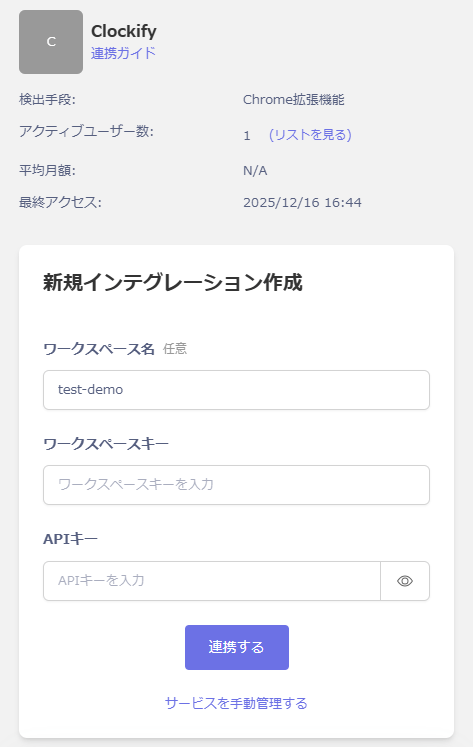
<img src="https://mintcdn.com/admina-sbn/ZShCZj3AVDsgaly8/images/integrations/o33kkqzkhh/2025-12-26-131530.png?fit=max&auto=format&n=ZShCZj3AVDsgaly8&q=85&s=9445ad3f36d16ea878af259c4dc9de0e" alt="Admina integration setup" width="473" height="747" data-path="images/integrations/o33kkqzkhh/2025-12-26-131530.png" />

連携に成功すると、アカウント一覧に登録済みのユーザー情報が表示されます。

正常に完了しない場合は、インテグレーション画面のステータスタブから**編集**し、再度連携をお試しください。

解決しない場合はチャットにてお問い合わせください。