> ## Documentation Index
> Fetch the complete documentation index at: https://hc.saas-manager.biz.nuro.jp/llms.txt
> Use this file to discover all available pages before exploring further.
# Amazon Business(連携停止中)
> Amazon Businessとの連携手順です。マネーフォワード AdminaからAmazon Businessへの、管理者のログインから、連携方法まで一連の手順を解説します。
[連携を停止しているサービスについて](/integrations/3o136jtgw2-stop-services)
現在連携の提供を停止しています。連携を停止しているサービスについて
## 事前準備
### Amazon Businessのログイン方法
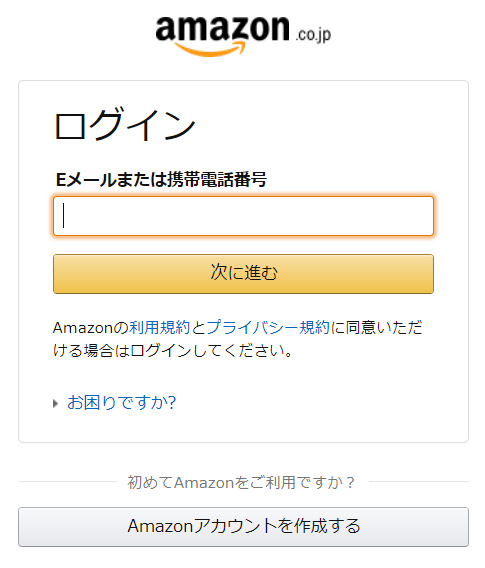
[Amazon Businesログインページ](https://www.amazon.co.jp/ap/signin?openid.pape.max_auth_age=0\&openid.identity=http%3A%2F%2Fspecs.openid.net%2Fauth%2F2.0%2Fidentifier_select\&openid.assoc_handle=jpflex\&openid.mode=checkid_setup\&openid.claimed_id=http%3A%2F%2Fspecs.openid.net%2Fauth%2F2.0%2Fidentifier_select\&openid.ns=http%3A%2F%2Fspecs.openid.net%2Fauth%2F2.0\&ref_=b2b_mcs_L1_navsi\&openid.return_to=https%3A%2F%2Fbusiness.amazon.co.jp%2Fja%2Fhome%3Fref_%3Db2b_mcs_L1_navsi)にて、メールアドレス・パスワード入力し、ログインします。
 ### ワークスペースキーの取得方法
Amazon Businessにログイン後、**アカウント設定 > ビジネスアカウント設定**に進みます。
このページの**URLの一部がワークスペースキー**となるので保存します。
[https://www.amazon.co.jp/bb/account/\*\*\`\{ワークスペースキー}\`\*\*/settings#/](https://www.amazon.co.jp/bb/account/**`\{ワークスペースキー}`**/settings#/)
### ワークスペースキーの取得方法
Amazon Businessにログイン後、**アカウント設定 > ビジネスアカウント設定**に進みます。
このページの**URLの一部がワークスペースキー**となるので保存します。
[https://www.amazon.co.jp/bb/account/\*\*\`\{ワークスペースキー}\`\*\*/settings#/](https://www.amazon.co.jp/bb/account/**`\{ワークスペースキー}`**/settings#/)
 ## インテグレーションのセットアップ
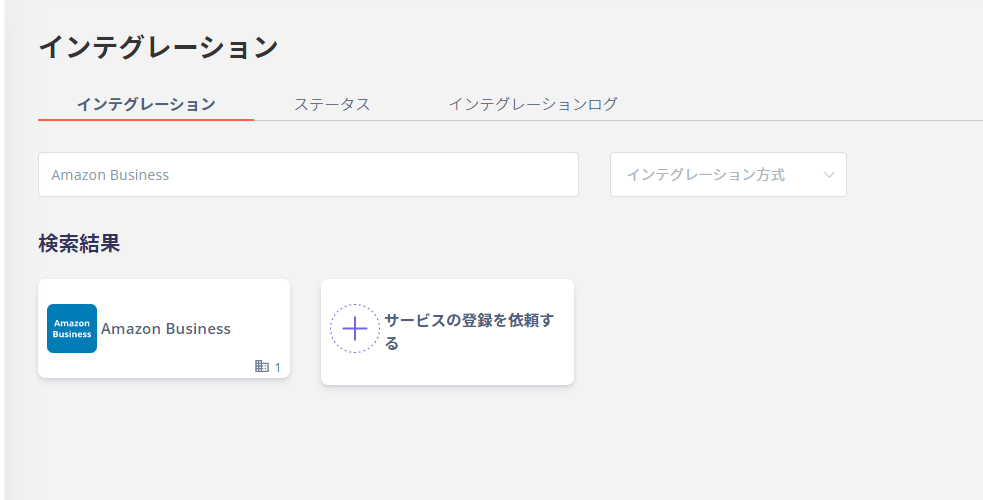
マネーフォワード Adminaのインテグレーション画面にて、**Amazon Business**で検索します。
## インテグレーションのセットアップ
マネーフォワード Adminaのインテグレーション画面にて、**Amazon Business**で検索します。
 Base URIには、**Amazon BusinessのURL** を入力します。
**[https://business.amazon.co.jp/](https://business.amazon.co.jp/)**
前の手順で取得した**ワークスペースキー**、**Amazon Business\*\*\*\*ログイン用メールアドレスとパスワード**を入力し、**連携する**をクリックします。
Base URIには、**Amazon BusinessのURL** を入力します。
**[https://business.amazon.co.jp/](https://business.amazon.co.jp/)**
前の手順で取得した**ワークスペースキー**、**Amazon Business\*\*\*\*ログイン用メールアドレスとパスワード**を入力し、**連携する**をクリックします。
 連携するをクリックしたあと、Amazonからアクセスについての承認依頼メールが届く場合がございます。
その場合、**5分以内**に承認を行ってください。承認できなかった場合、再度連携を実施後に、改めて5分以内に承認を行ってください。
Amazon Businessへの連携に成功すると、アカウント一覧に登録済みのユーザー情報が表示されます。
正常に完了していない場合は、インテグレーション画面のステータスタブより**編集**し、 再度連携をお試しください。
解決しない場合はチャットでお問い合わせください。
Amazon Businessの連携概要については[連携ページ](https://admina.moneyforward.com/jp/integrations/amazon-business)をご覧ください。
連携するをクリックしたあと、Amazonからアクセスについての承認依頼メールが届く場合がございます。
その場合、**5分以内**に承認を行ってください。承認できなかった場合、再度連携を実施後に、改めて5分以内に承認を行ってください。
Amazon Businessへの連携に成功すると、アカウント一覧に登録済みのユーザー情報が表示されます。
正常に完了していない場合は、インテグレーション画面のステータスタブより**編集**し、 再度連携をお試しください。
解決しない場合はチャットでお問い合わせください。
Amazon Businessの連携概要については[連携ページ](https://admina.moneyforward.com/jp/integrations/amazon-business)をご覧ください。