> ## Documentation Index
> Fetch the complete documentation index at: https://hc.saas-manager.biz.nuro.jp/llms.txt
> Use this file to discover all available pages before exploring further.

# Businessmap

> Businessmapとの連携方法です。マネーフォワードAdminaからBusinessmapへの、管理者のログインから、連携方法まで一連の手順を解説します。

## サポートする機能

<Badge color="blue">アカウント作成</Badge> <Badge color="blue">アカウント削除</Badge>

## 事前準備

### ログイン方法

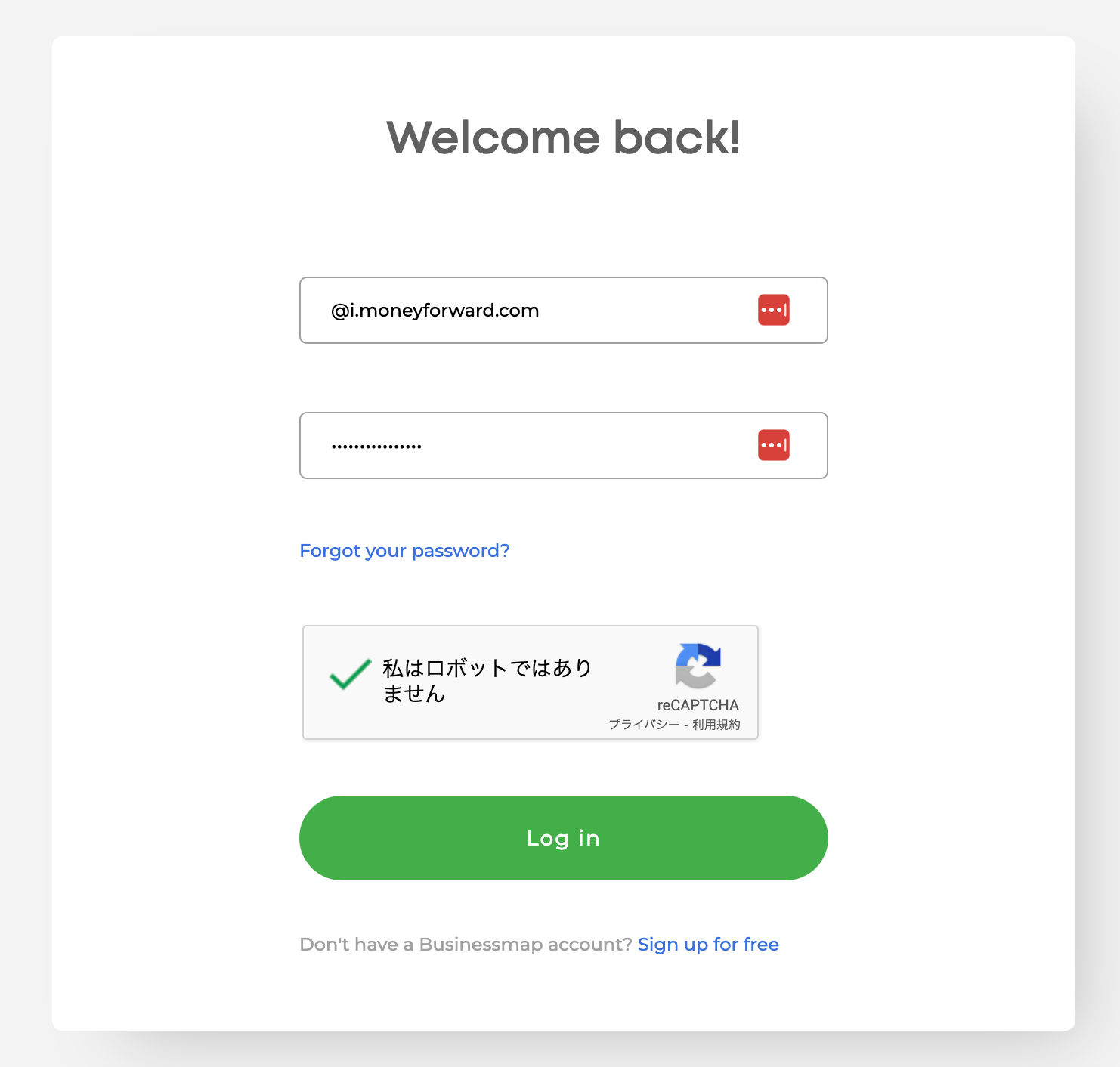
[ログインページ](https://businessmap.io/user-login)にて、メールアドレス・パスワードを入力しログインします。
<img src="https://mintcdn.com/admina-sbn/VzLTNnSt_r8AmIW2/images/integrations/t5mbn7892s/1726895381554-image.png?fit=max&auto=format&n=VzLTNnSt_r8AmIW2&q=85&s=e585577f49f741e3265bf400097e95ec" alt="Businessmapログイン画面" width="1482" height="1412" data-path="images/integrations/t5mbn7892s/1726895381554-image.png" />

### ワークスペースキーの取得方法

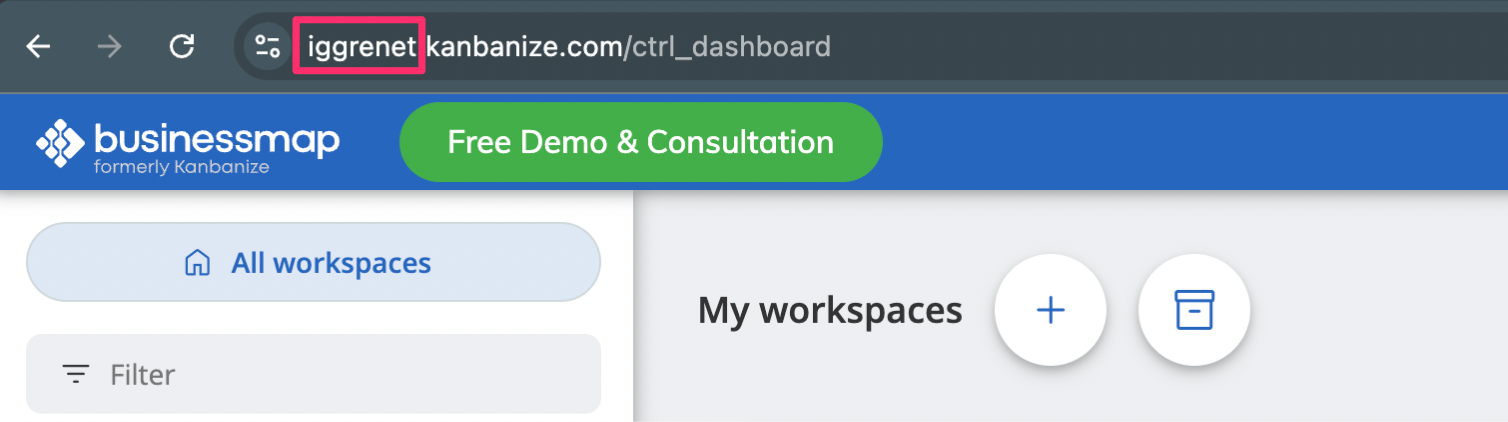
URL **の先頭部分がワークスペースキー**です。**コピー**しておきます。

https\://`ワークスペースキー`.kanbanize.com/ctrl\_dashboard
<img src="https://mintcdn.com/admina-sbn/VzLTNnSt_r8AmIW2/images/integrations/t5mbn7892s/1727169379044-image.png?fit=max&auto=format&n=VzLTNnSt_r8AmIW2&q=85&s=4da1b572ad8f3e53cde5ac5c2661854c" alt="ワークスペースキーの取得" width="1508" height="422" data-path="images/integrations/t5mbn7892s/1727169379044-image.png" />

### APIキーの取得方法

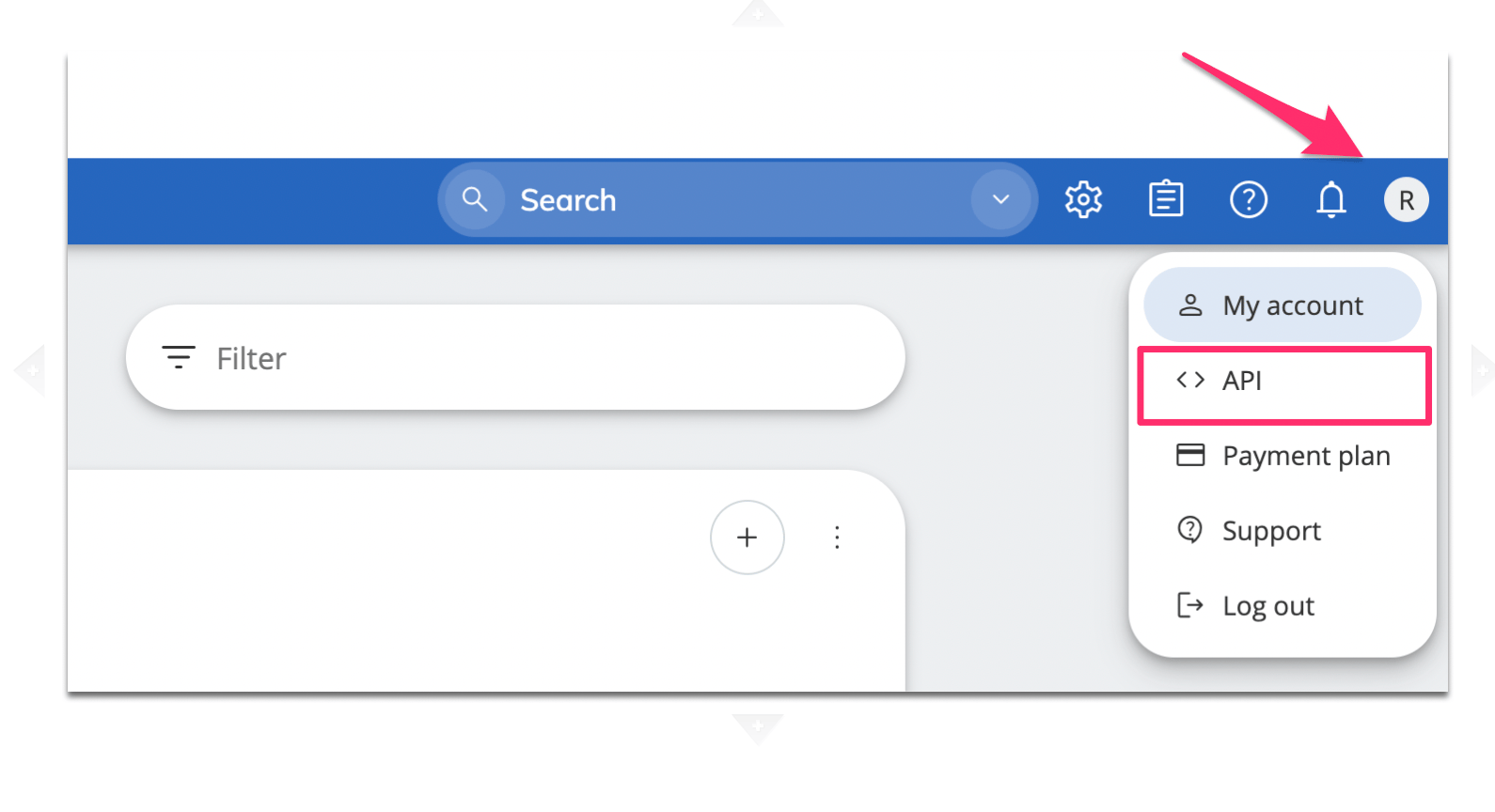
ログイン後、右上のアイコン > APIをクリックします。
<img src="https://mintcdn.com/admina-sbn/VzLTNnSt_r8AmIW2/images/integrations/t5mbn7892s/1727169504557-image.png?fit=max&auto=format&n=VzLTNnSt_r8AmIW2&q=85&s=a67ed6ec3d05d212b687465b22bfebc9" alt="APIメニューの選択" width="1590" height="864" data-path="images/integrations/t5mbn7892s/1727169504557-image.png" />

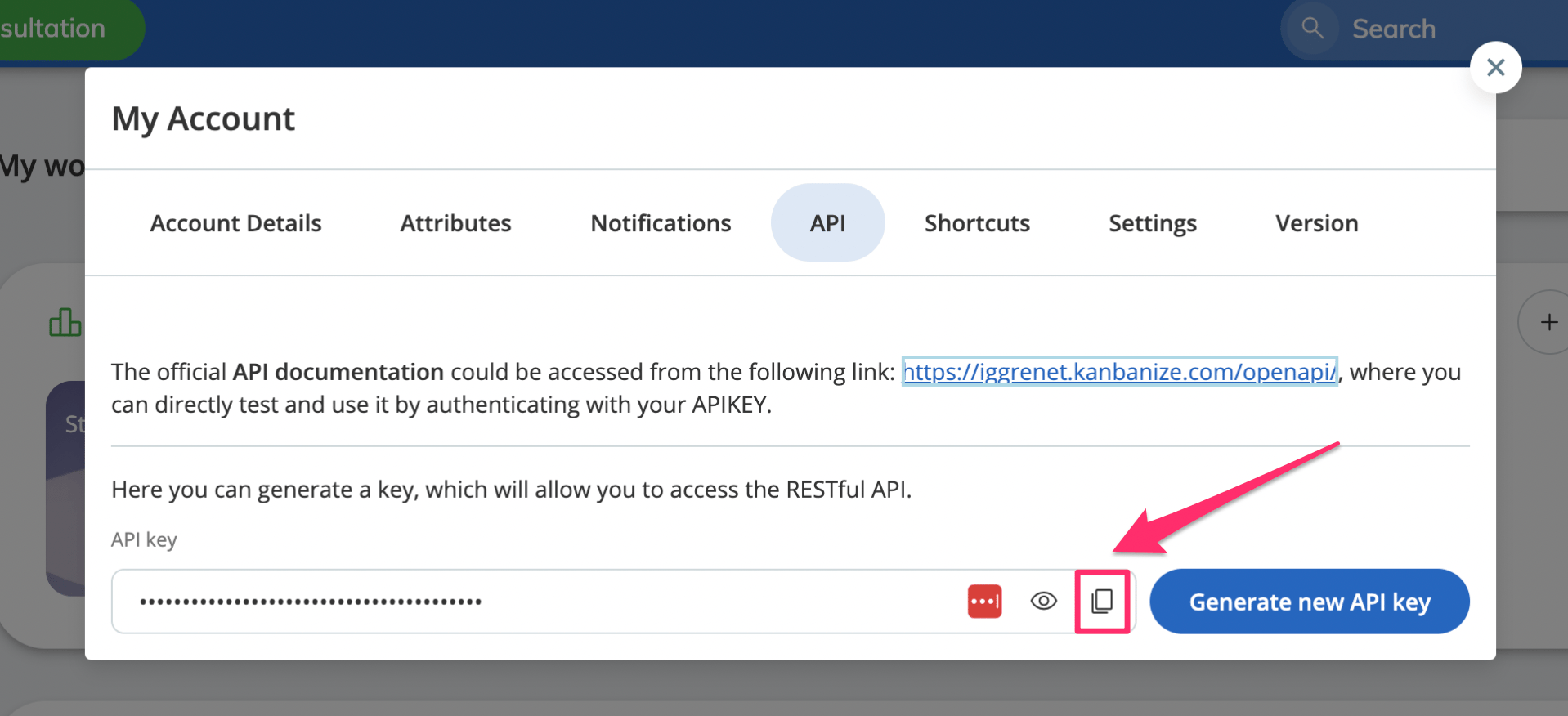
APIキーをコピーして保存しておきます。

<img src="https://mintcdn.com/admina-sbn/VzLTNnSt_r8AmIW2/images/integrations/t5mbn7892s/1727169567715-image.png?fit=max&auto=format&n=VzLTNnSt_r8AmIW2&q=85&s=4e9e0d296159adcce022f31e5f1a4c8e" alt="APIキーのコピー" width="1918" height="876" data-path="images/integrations/t5mbn7892s/1727169567715-image.png" />

## インテグレーションのセットアップ

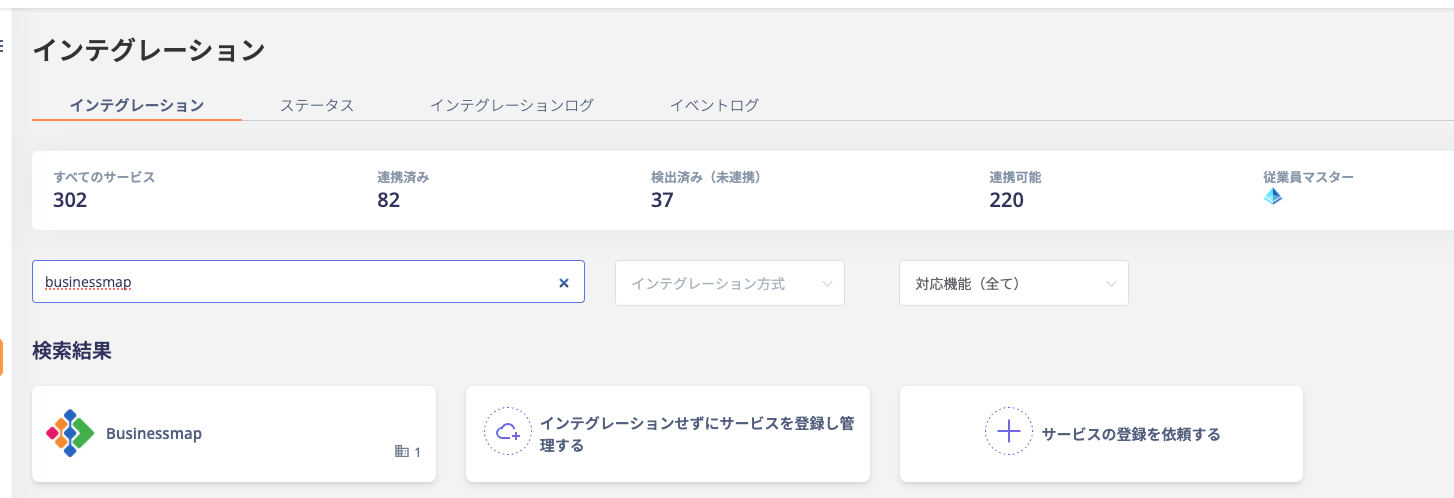
インテグレーション画面にて、**Businessmap**で検索します。
<img src="https://mintcdn.com/admina-sbn/VzLTNnSt_r8AmIW2/images/integrations/t5mbn7892s/1727170131035-image.png?fit=max&auto=format&n=VzLTNnSt_r8AmIW2&q=85&s=96d6a738b175df8a2c6c85e85aaf1ca0" alt="Businessmapの検索" width="1454" height="498" data-path="images/integrations/t5mbn7892s/1727170131035-image.png" />

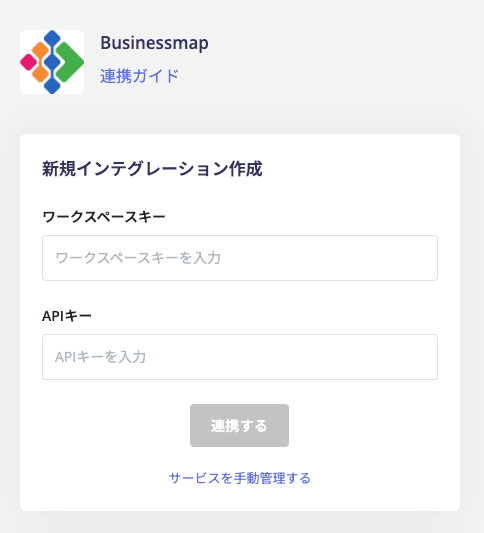
前の手順で取得した**ワークスペースキー**、APIキーを入力し、**連携する**をクリックします。
<img src="https://mintcdn.com/admina-sbn/VzLTNnSt_r8AmIW2/images/integrations/t5mbn7892s/1727170165794-image.png?fit=max&auto=format&n=VzLTNnSt_r8AmIW2&q=85&s=bb6902d388536b0bffc8710bd373a420" alt="連携情報の入力" width="484" height="533" data-path="images/integrations/t5mbn7892s/1727170165794-image.png" />

連携に成功すると、アカウント一覧に登録済みのユーザー情報が表示されます。

正常に完了しない場合は、インテグレーション画面のステータスタブから**編集**し、再度連携をお試しください。

解決しない場合はチャットにてお問い合わせください。