> ## Documentation Index
> Fetch the complete documentation index at: https://hc.saas-manager.biz.nuro.jp/llms.txt
> Use this file to discover all available pages before exploring further.
# Trello
> Trelloとの連携の手順です。
## サポートする機能
アカウント削除 アカウント無効化 アカウント作成
アカウントの取得は、[Atlassianサービスのアカウント取得について](/it-management/faq/w2k92cqw8b-jira-confluence-trello#atlassian)をご参照ください。
## 事前準備
### Trelloへのログイン方法
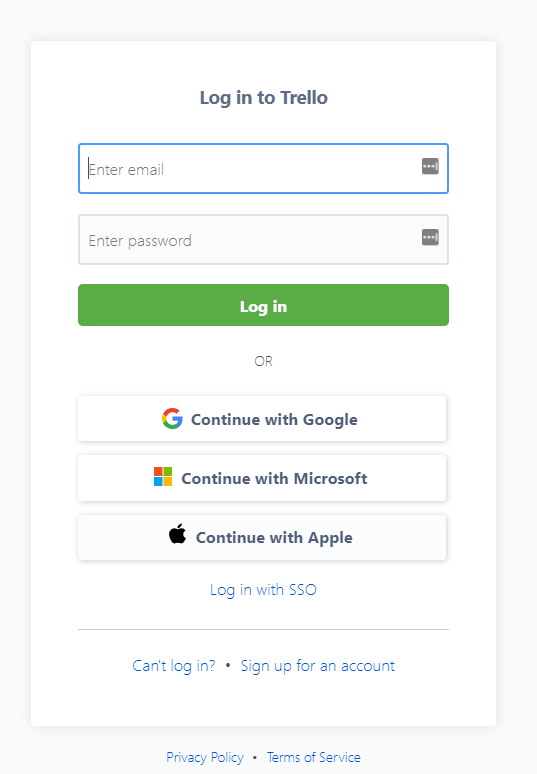
[Trelloログインページ](https://trello.com/login)にて、ご利用のログイン方法またはメールアドレス・パスワードを入力し、ログインします。
 ### ワークスペースキーの取得方法
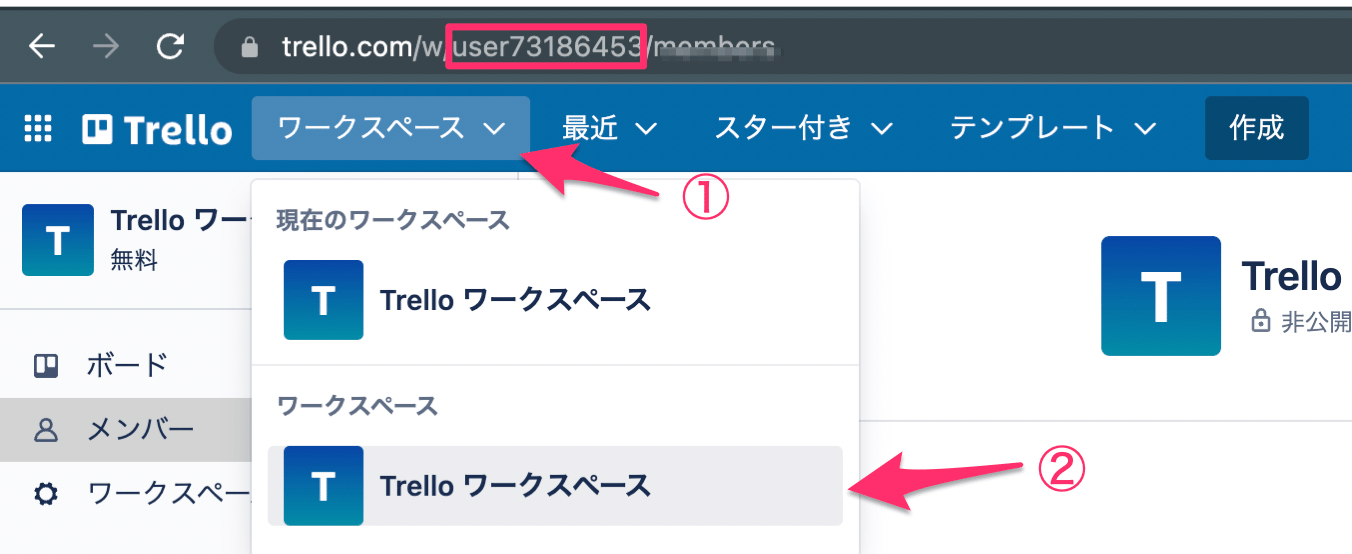
Trelloにログイン後、画面右上の**Workspaces**から連携したいワークスペースをクリックします。
Workspacesのページ**URLの一部がワークスペースキー**となるので、保存します。
```
https://trello.com/x/{ワークスペースキー}/xxxxx
```
### ワークスペースキーの取得方法
Trelloにログイン後、画面右上の**Workspaces**から連携したいワークスペースをクリックします。
Workspacesのページ**URLの一部がワークスペースキー**となるので、保存します。
```
https://trello.com/x/{ワークスペースキー}/xxxxx
```
 ## インテグレーションのセットアップ
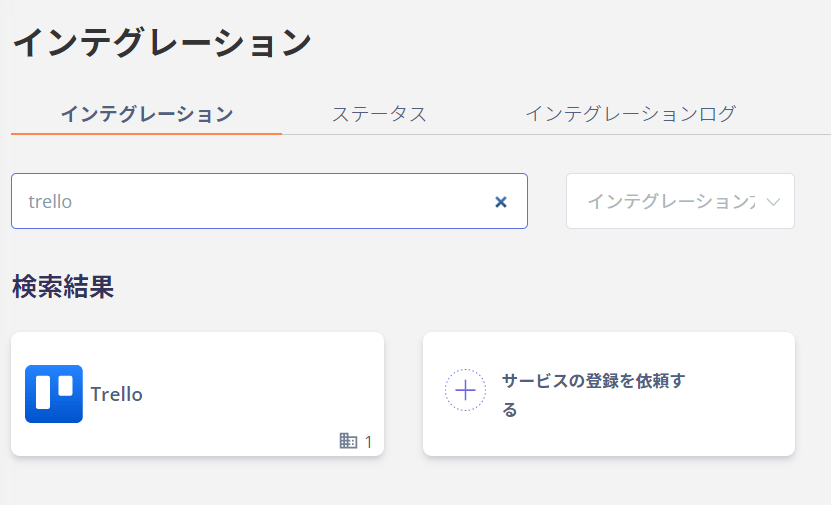
1. インテグレーション画面にて、**Trello**で検索します。
## インテグレーションのセットアップ
1. インテグレーション画面にて、**Trello**で検索します。
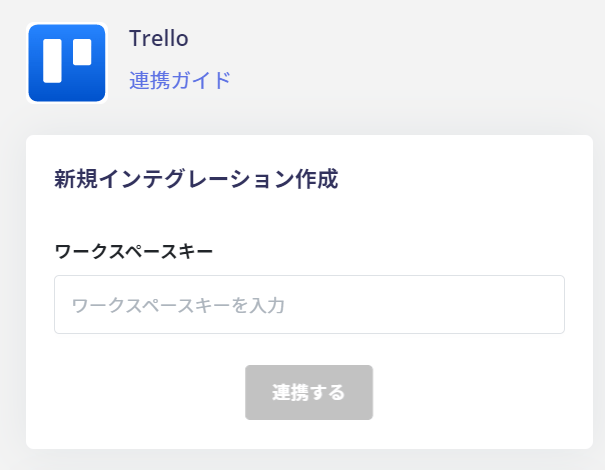
 2. 前の手順で取得した**ワークスペースキー**を入力し、**連携する**をクリックします。
 3. Trelloに管理者アカウントでログインします。連携を許可する画面が表示されるので、\*\*\[Allow]\*\*をクリックします。
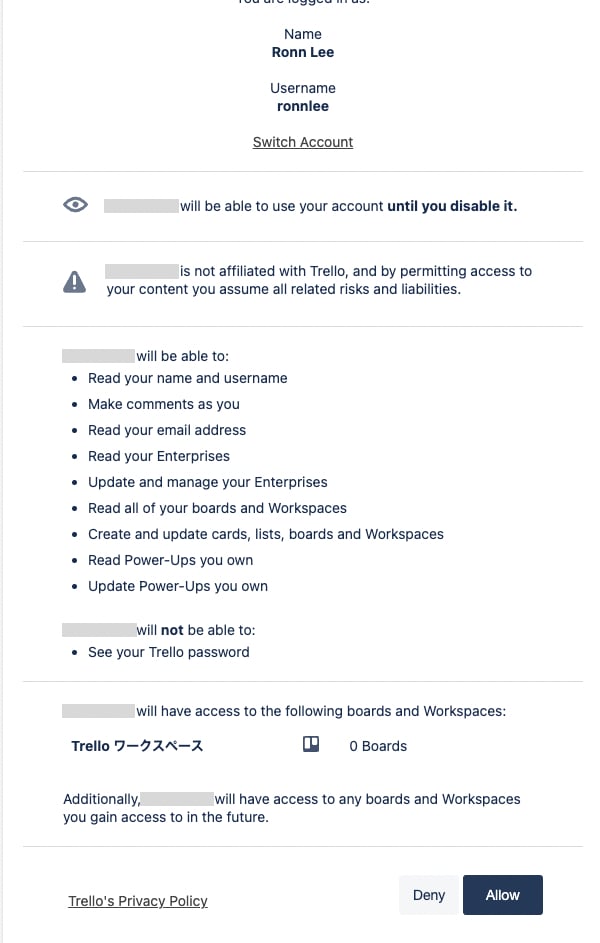 4. Trelloとの連携に成功すると、アカウント一覧に登録済みのユーザー情報が表示されます。
正常に完了しない場合は、インテグレーション画面のステータスタブから**編集**し、再度連携をお試しください。
解決しない場合はチャットにてお問い合わせください。
Trelloの連携概要については[連携ページ](http://admina.moneyforward.com/jp/integrations/trello)をご覧ください。
## メールアドレスが取得出来ない場合のSaaSの手動紐づけ
本サービスはメールアドレスが取得できないSaaSのため、ユーザータイプが「不明」と判定されます。
他のアカウントと手動で紐づけ(名寄・マージ)を行ってください。
設定詳細は、[SaaSのアカウントを他のアカウントに手動で紐付け(名寄せ/マージ)する](/it-management/saas-management/d97dy5z2l7-merge)SaaSアカウントを他のアカウントに手動で紐付け(名寄せ/マージ)するをご参照ください。
4. Trelloとの連携に成功すると、アカウント一覧に登録済みのユーザー情報が表示されます。
正常に完了しない場合は、インテグレーション画面のステータスタブから**編集**し、再度連携をお試しください。
解決しない場合はチャットにてお問い合わせください。
Trelloの連携概要については[連携ページ](http://admina.moneyforward.com/jp/integrations/trello)をご覧ください。
## メールアドレスが取得出来ない場合のSaaSの手動紐づけ
本サービスはメールアドレスが取得できないSaaSのため、ユーザータイプが「不明」と判定されます。
他のアカウントと手動で紐づけ(名寄・マージ)を行ってください。
設定詳細は、[SaaSのアカウントを他のアカウントに手動で紐付け(名寄せ/マージ)する](/it-management/saas-management/d97dy5z2l7-merge)SaaSアカウントを他のアカウントに手動で紐付け(名寄せ/マージ)するをご参照ください。