> ## Documentation Index
> Fetch the complete documentation index at: https://hc.saas-manager.biz.nuro.jp/llms.txt
> Use this file to discover all available pages before exploring further.
# 2.自主管理のIDを特定する
> ディレクトリで自主管理のIDを特定する方法を確認できます。
ディレクトリの検索機能は、各種フィルターを使ってIDを特定したり、検索条件を保存できます。
## 画面の説明(ディレクトリ)
 | No. | 項目 | 説明 |
| --- | ------------- | --------------------------------------------- |
| 1 | ID種別での絞り込み | ID種別(全ID/社内ID/外部ID/システムID/不明ID/未管理ID)で絞り込めます。 |
| 2 | 名前、メールアドレスで検索 | ディレクトリ一覧を名前とメールアドレスで検索できます。 |
| 3 | ステータス | ディレクトリ一覧をステータスで絞り込めます。 |
| 4 | 期間 | ディレクトリ一覧を指定期間で絞り込めます。 |
| 5 | その他絞り込み | ディレクトリ一覧を各項目で絞り込めます。 |
| 6 | 検索を保存 | 検索条件を保存して、保存した検索条件で絞り込めます。 |
## ID種別での絞り込み
ID種別「全ID/社内ID/外部ID/システムID/不明ID/未管理ID」を選択すると、選択したID種別で絞り込めます。絞り込みを解除する場合は、「全ID」を選択します。
| No. | 項目 | 説明 |
| --- | ------------- | --------------------------------------------- |
| 1 | ID種別での絞り込み | ID種別(全ID/社内ID/外部ID/システムID/不明ID/未管理ID)で絞り込めます。 |
| 2 | 名前、メールアドレスで検索 | ディレクトリ一覧を名前とメールアドレスで検索できます。 |
| 3 | ステータス | ディレクトリ一覧をステータスで絞り込めます。 |
| 4 | 期間 | ディレクトリ一覧を指定期間で絞り込めます。 |
| 5 | その他絞り込み | ディレクトリ一覧を各項目で絞り込めます。 |
| 6 | 検索を保存 | 検索条件を保存して、保存した検索条件で絞り込めます。 |
## ID種別での絞り込み
ID種別「全ID/社内ID/外部ID/システムID/不明ID/未管理ID」を選択すると、選択したID種別で絞り込めます。絞り込みを解除する場合は、「全ID」を選択します。
 ## 名前、メールアドレスで検索
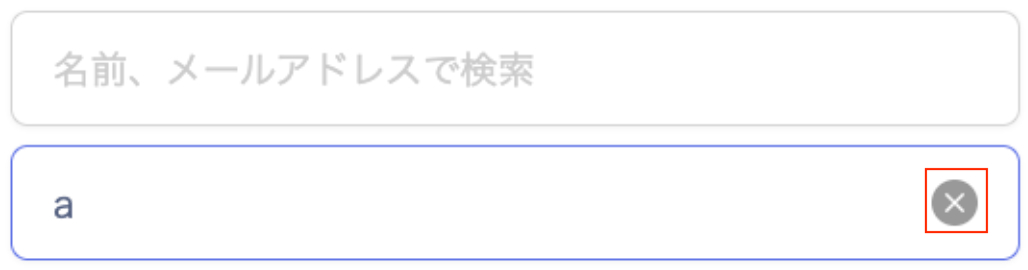
ディレクトリ一覧を名前とメールアドレスで検索します。検索を解除する場合は、右側の(×)で解除します。
## 名前、メールアドレスで検索
ディレクトリ一覧を名前とメールアドレスで検索します。検索を解除する場合は、右側の(×)で解除します。
 ## ステータス
ディレクトリ一覧をステータスで絞り込めます。絞り込みを解除する場合は、チェックボックスをOFFにします。
## 期間
ディレクトリ一覧を指定期間で絞り込めます。絞り込みを解除する場合は、右側の(×)で解除します。
## ステータス
ディレクトリ一覧をステータスで絞り込めます。絞り込みを解除する場合は、チェックボックスをOFFにします。
## 期間
ディレクトリ一覧を指定期間で絞り込めます。絞り込みを解除する場合は、右側の(×)で解除します。
 ### カスタム
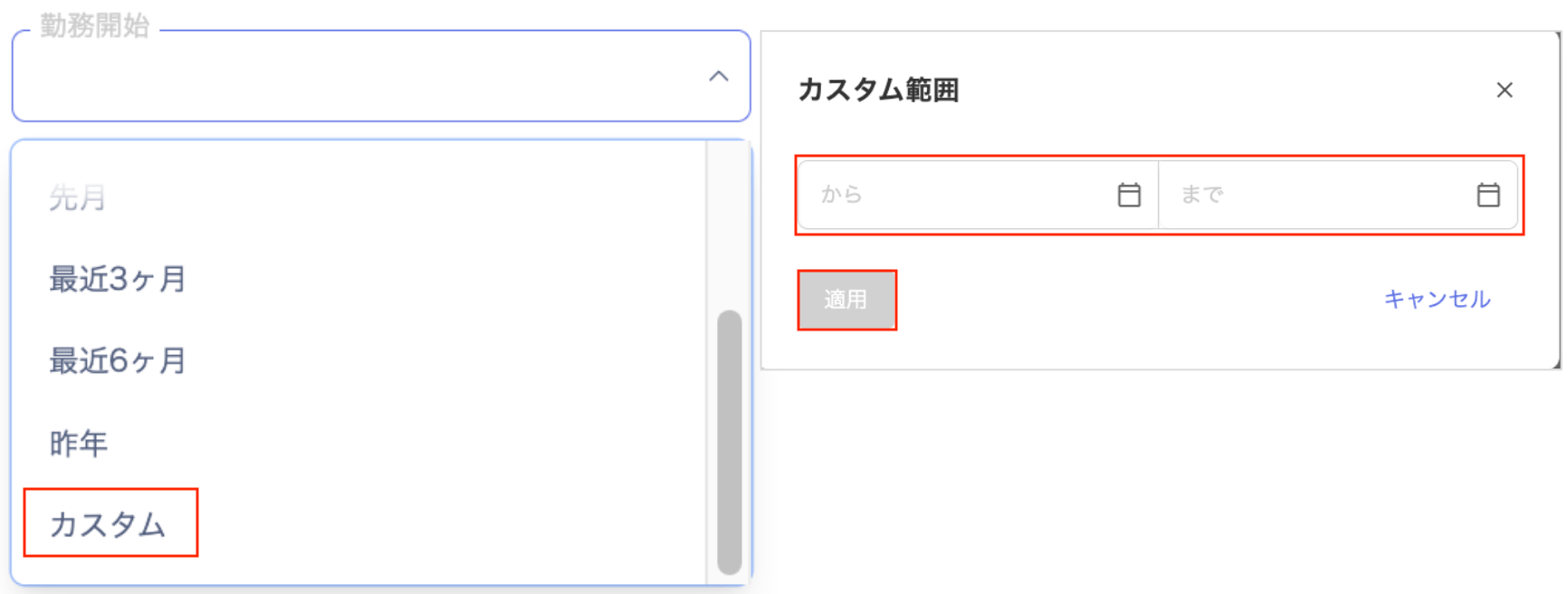
カスタムを選択すると、「カスタム範囲」画面が表示されます。指定期間を設定して、[適用]をクリックします。
### カスタム
カスタムを選択すると、「カスタム範囲」画面が表示されます。指定期間を設定して、[適用]をクリックします。
その他絞り込み
ディレクトリ一覧を各項目(カスタム属性も含みます)で絞り込めます。絞り込みを解除する場合は、右側の(×)で解除します。
 ### 従業員マスタにデータあり
「従業員マスタにデータあり」で絞り込めます。設定 > 組織 > 従業員マスター設定で従業員マスターを設定している場合は絞り込めます。
### 従業員マスタにデータあり
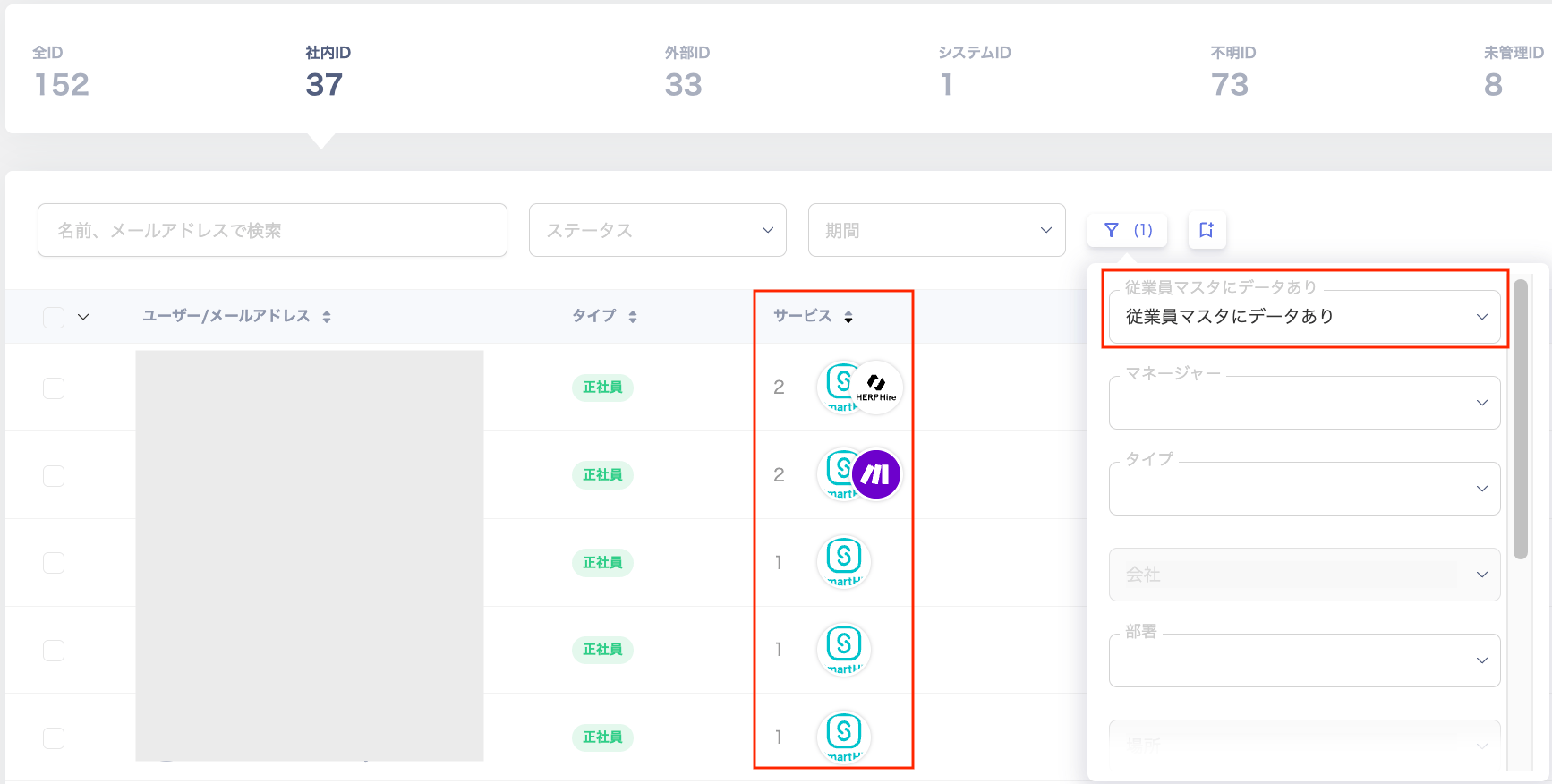
「従業員マスタにデータあり」で絞り込めます。設定 > 組織 > 従業員マスター設定で従業員マスターを設定している場合は絞り込めます。
 「従業員マスタにデータあり」で絞り込むと、「サービス」欄へ従業員マスターで設定したサービスが表示されます。
 ### 検索を保存
検索条件を保存して、保存した検索条件で絞り込めます。
検索条件は[検索を保存] > [現在の検索を保存]から「検索名」を入力して、[検索を保存]します。
### 検索を保存
検索条件を保存して、保存した検索条件で絞り込めます。
検索条件は[検索を保存] > [現在の検索を保存]から「検索名」を入力して、[検索を保存]します。
 ### 保存された検索
保存された検索条件は一覧で表示されます。保存された検索の実行、並び替え、検索条件の確認、削除が行えます。
### 保存された検索
保存された検索条件は一覧で表示されます。保存された検索の実行、並び替え、検索条件の確認、削除が行えます。
 | No. | 項目 | 説明 |
| --- | ----- | -------------------------------------- |
| 1 | 並び替え | 保存された検索条件の並び替えが行えます。カーソルを合わせて上下に移動します。 |
| 2 | 検索条件 | 保存された検索条件を確認できます。 |
| 3 | 削除 | 保存された検索条件を削除できます。 |
| 4 | 検索を実行 | 保存された検索から検索を実行します。 |
| No. | 項目 | 説明 |
| --- | ----- | -------------------------------------- |
| 1 | 並び替え | 保存された検索条件の並び替えが行えます。カーソルを合わせて上下に移動します。 |
| 2 | 検索条件 | 保存された検索条件を確認できます。 |
| 3 | 削除 | 保存された検索条件を削除できます。 |
| 4 | 検索を実行 | 保存された検索から検索を実行します。 |